

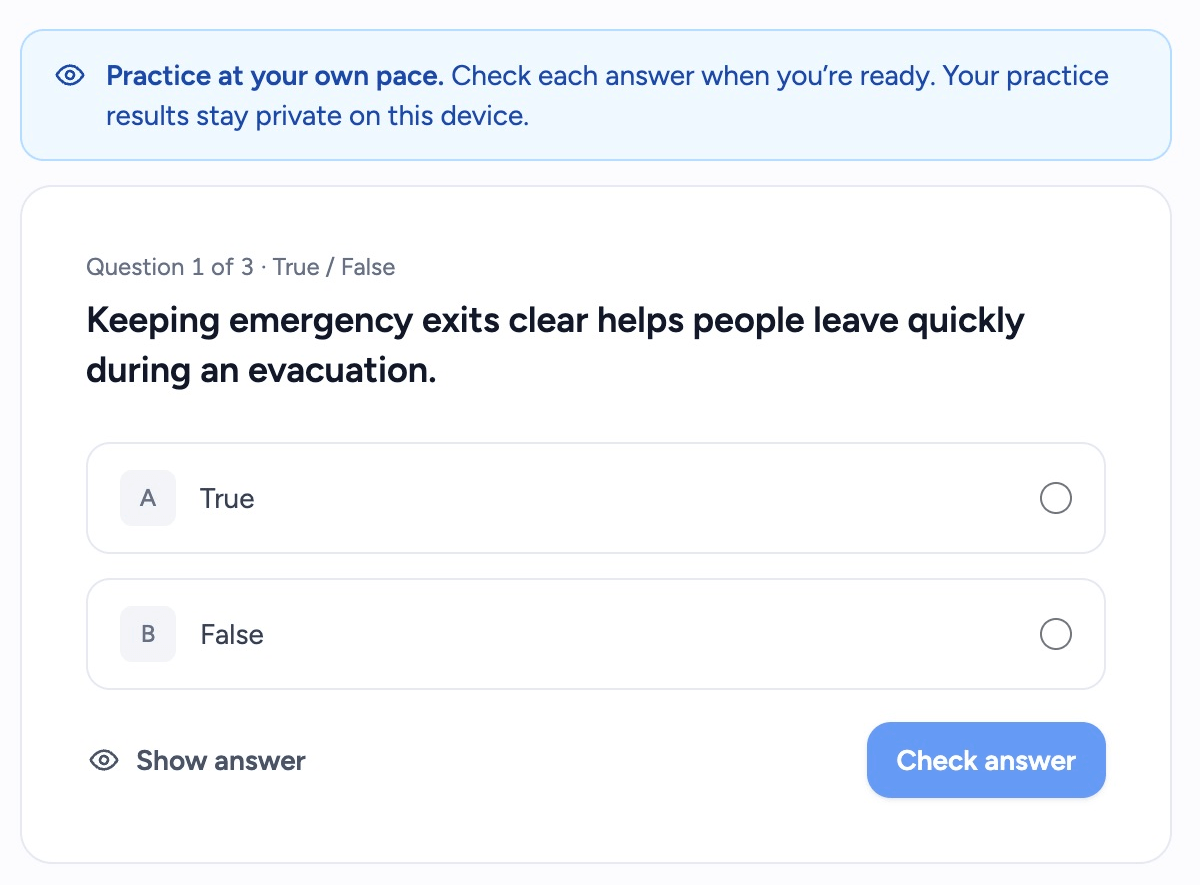
Open a quiz in Practice mode to answer the questions before looking at the answer key. You can check an answer, reveal it if you’re stuck and repeat the questions you missed.
Practice progress stays in the browser you use. It does not create participant responses in your quiz reports.
Step 1: Open your quiz in Practice
Open the quiz tool from your dashboard and select a quiz. Choose Practice at the top of the quiz page. Choose Edit whenever you want to change the questions or answers.
Only complete questions appear in Practice. If you see Nothing to practice yet, click Switch to Edit and finish a question’s text and at least two answer options.
Step 2: Answer a question
- Choose an answer. You can change your choice before checking it.
- Click Check answer.
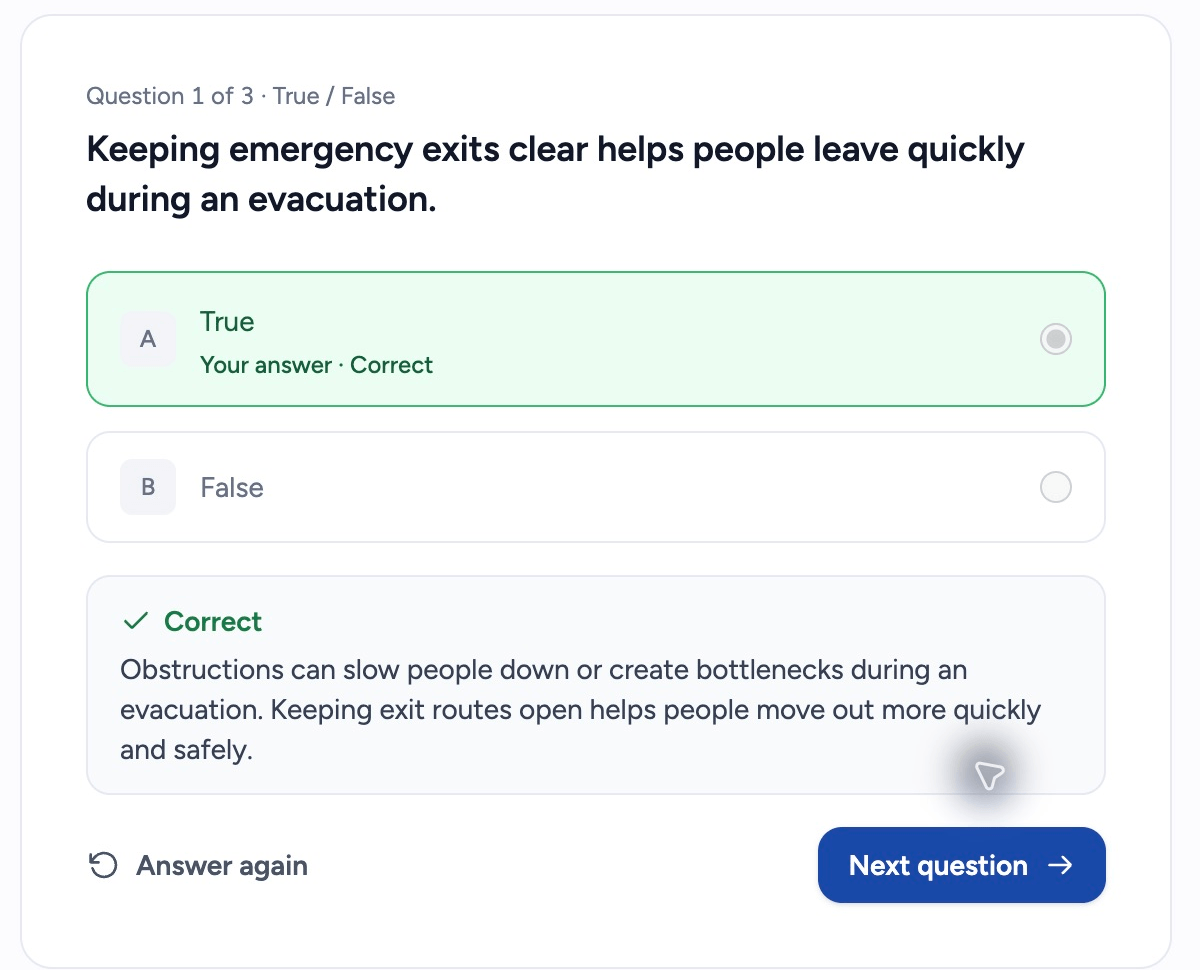
- Read the feedback and the explanation, if the question has one.
- Move to the next question, or select one from the question list.
After checking an answer, click Answer again to clear your response to that question and try it again.
If you want to see the answer without guessing, click Show answer. SlideSpeak marks the question Answer shown. Revealing an answer does not add a correct answer to your score.
Step 3: Review your practice results
Click See results after the last question. You can also click See results below the question list on a computer, or Results beside the question numbers on a phone.
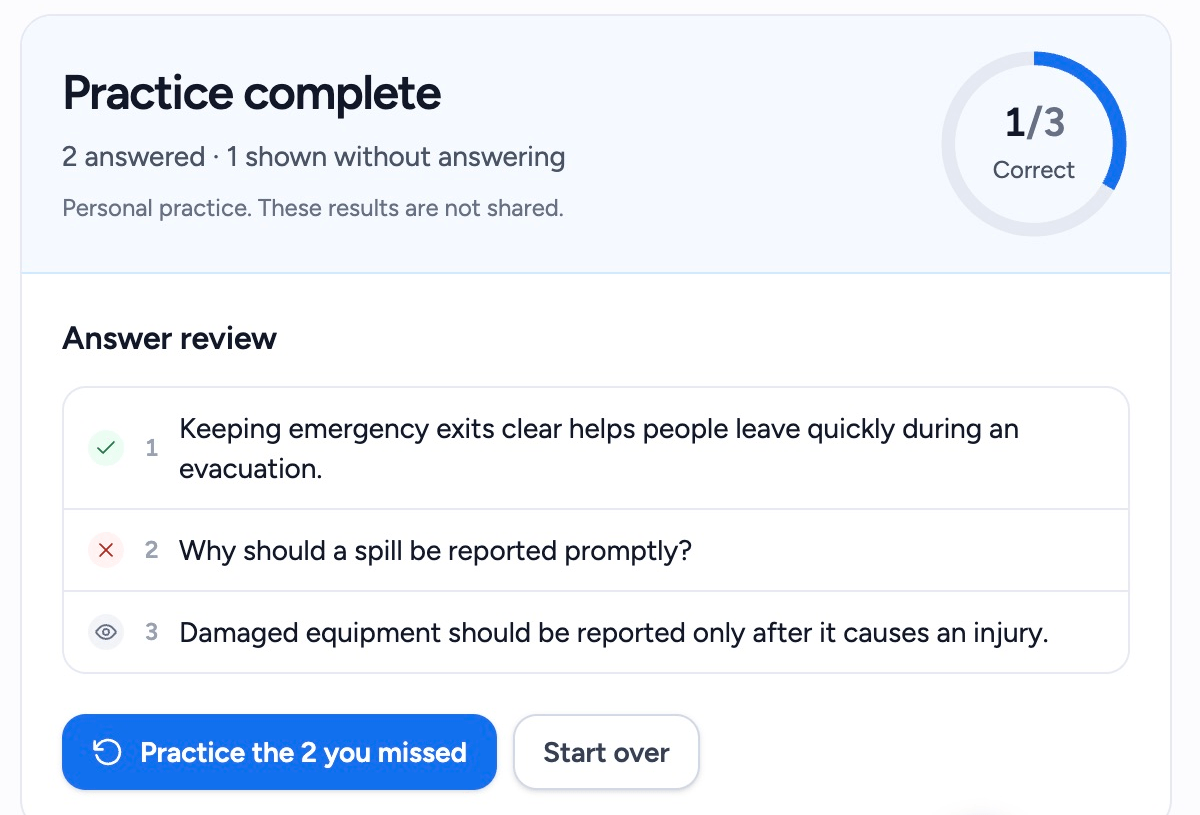
You’ll see your score and a review of the questions. From there you can:
- Click Continue practice if you still have questions to finish.
- Click Practice the [number] you missed after finishing to repeat incorrect answers and questions whose answers you revealed.
- Click Start over to clear your practice responses for this quiz and begin again.
The practice score and review are separate from the creator’s Results report, opened from the quiz page’s toolbar or the three-dot menu next to its title. That report contains live sessions and self-paced submissions.
Return to practice
Use the same browser to continue your practice. Switching to a different browser or device starts a separate practice run. Clearing browser storage can remove the saved progress.
If you edit a question’s text, answer options or correct answer after practicing it, SlideSpeak marks it unanswered. Answer it again to check the revised version.
Troubleshooting
I see the answer key as soon as I open the quiz. Switch from Edit to Practice at the top of the quiz page. If you’re already in Practice, you may be seeing answers from a previous run. Open the practice results and click Start over for a fresh run.
I can’t change the answer I selected. You’ve checked or revealed the answer. Click Answer again to try that question again.
Some questions are missing. Switch to Edit and finish their text and answer options. Incomplete questions do not appear in Practice.
My practice results aren’t in the participant report. Practice is personal. To collect other people’s responses, share a self-paced quiz or host a live quiz.
Need more help?
If you have any questions or need assistance, feel free to contact our support team at support@slidespeak.co