

Add a self-paced quiz to a presentation so people can answer the questions when they open your share link. SlideSpeak saves their submissions for you to review. You choose whether participants can see their scores and answers after they submit.
Before you start
- Open a presentation in your own workspace or your active team workspace. You need owner access to add the interactive quiz and manage sharing.
- Have a quiz ready, with complete questions and answer options. For help creating one, see how to create a quiz from a presentation.
- Review the questions before adding them. SlideSpeak saves a separate copy in the presentation. Later edits to the original quiz won’t change that copy.
Step 1: Choose the quiz and its position
- Open your presentation and click Quiz in the right-hand toolbar.
- Find the quiz you want to use and click Add quiz.
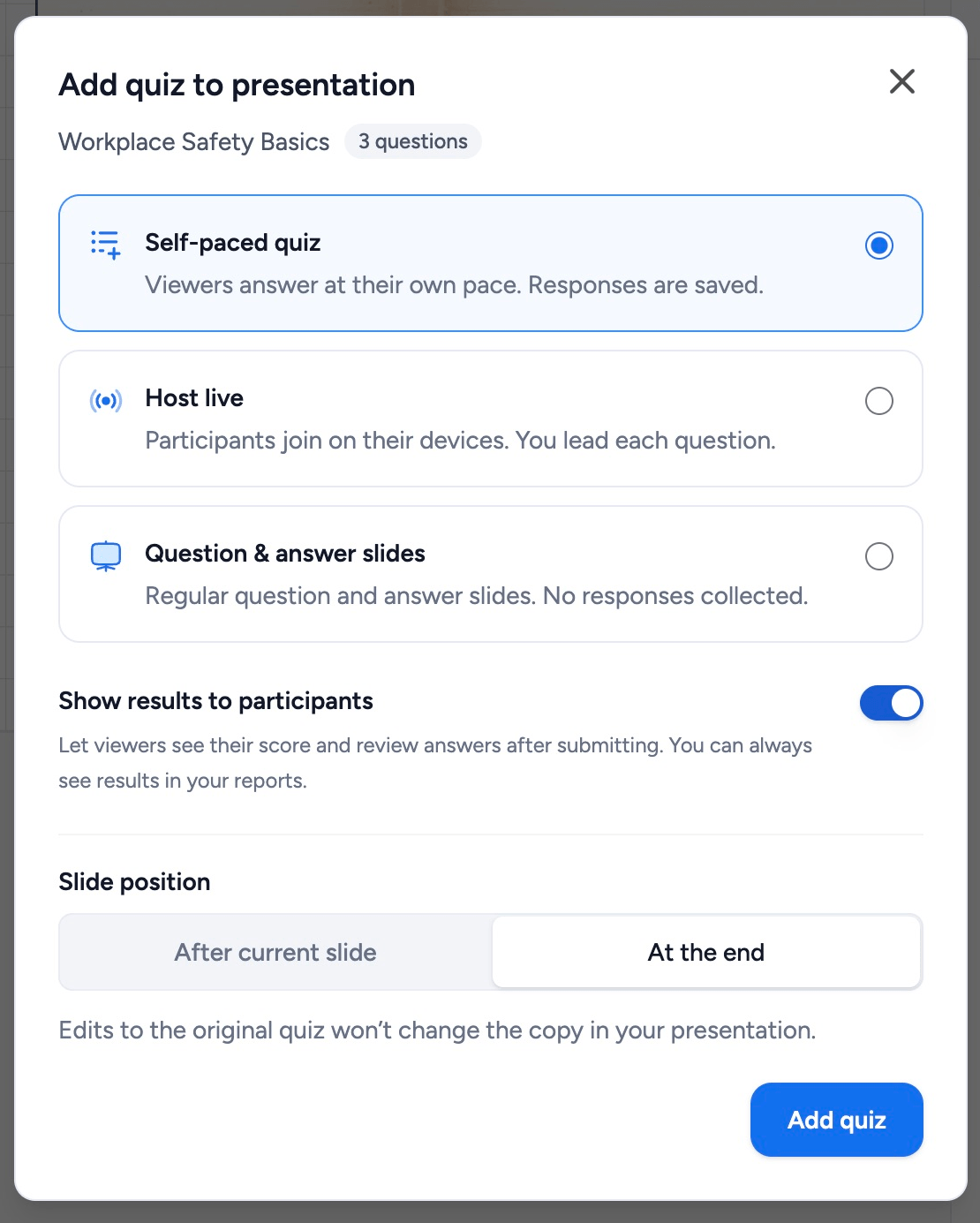
- Choose Self-paced quiz.
- Choose After current slide or At the end under Slide position.
If you open the quiz from the dashboard’s quiz tool, click Use quiz and choose Self-paced quiz. Set the visibility option in the next step before choosing a presentation.
Step 2: Choose what participants see after submitting
In the same dialog, set Show results to participants:
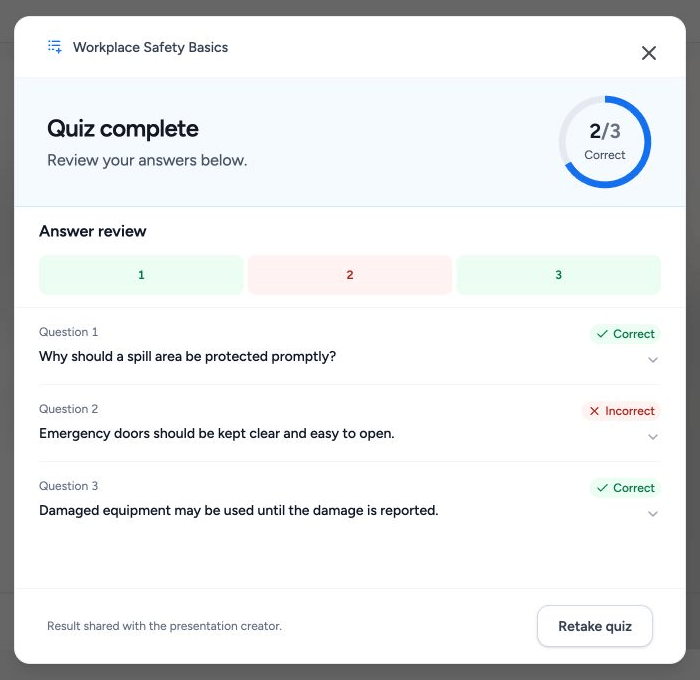
- Turn it on to let participants see their score and review the answers after submitting.
- Turn it off to show a submission confirmation without scores or answers. You can still read the results in your reports.
From the presentation editor, click Add quiz to insert it. From the dashboard’s quiz tool, click Choose presentation, select the destination, then click Add quiz. This path adds the quiz at the end of the chosen presentation.
You can change this setting later. Open the presentation’s Quiz panel and click View quiz results. Choose Self-paced, then click View results beside the quiz. Turn the switch under Results for participants on or off.
Step 3: Share the presentation
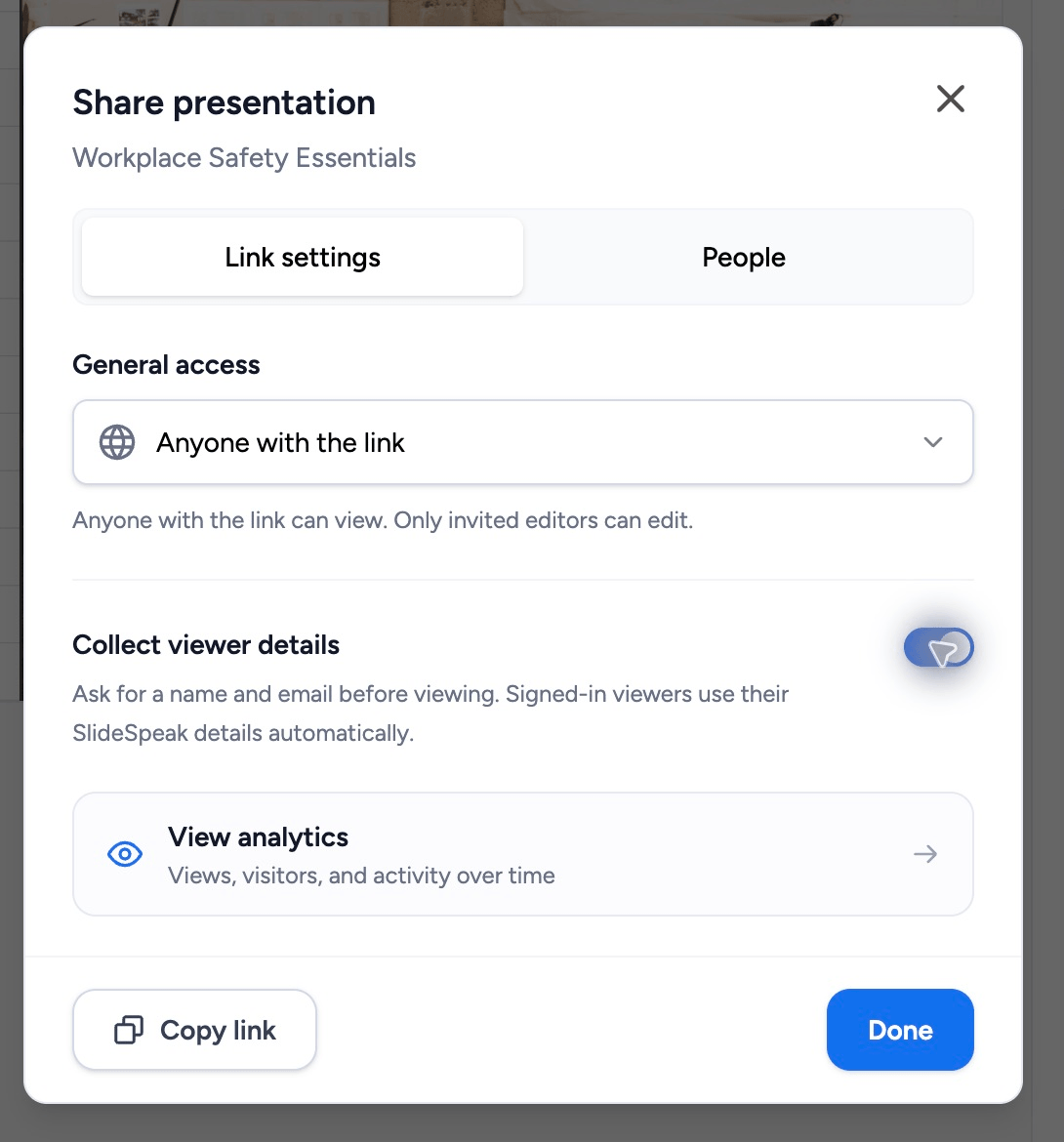
- The Share dialog opens after you add the self-paced quiz. If you’ve closed it, click Share in the presentation editor.
- Under General access, choose Anyone with the link. In a team workspace, choose Anyone can access under Share link.
- If you need to identify participants, turn on Collect viewer details. Guests enter a name and email before viewing. They don’t need a SlideSpeak account, and the details they enter are self-reported. Signed-in viewers use their account details and may need to add a missing name.
- Click Copy link and send the presentation link to your participants.
You share the presentation containing the quiz. For the full sharing walkthrough, see how to share a presentation with a link.
Step 4: Participants answer and submit
Participants follow these steps:
- Open the presentation link and go to the quiz slide.
- Click Take quiz on the cover. In fullscreen mode, the questions appear on the slide.
- Choose an answer for each question. Use the question numbers to revisit an answer before submitting.
- Click Submit quiz after answering all the questions.
After submission, they see either their score and answer review or a confirmation, depending on your visibility setting. They can click Retake quiz to try again. Each retake they submit creates a separate response in your report.
SlideSpeak keeps unfinished choices in the same browser when browser storage is available. Participants should use the same browser to continue. If they see a warning that browser storage is unavailable, they should keep the page open until they submit.
Step 5: Review the responses
Open the presentation’s Quiz panel and click View quiz results. Choose Self-paced, then click View results beside the quiz. Click View answers beside a response to see what that participant selected.
The response count includes retakes. It may be higher than the number of people who took the quiz. If you left viewer collection off, responses may appear as Anonymous participant. For help reading scores and attempts, see how to view quiz results.
Troubleshooting
Add quiz is unavailable. Finish each question and its answer options, and check that you own the destination presentation in the active workspace. An invitation to edit someone else’s presentation does not give you these owner controls.
My changes aren’t in the shared quiz. Editing the original quiz does not update a copy you already added to a presentation. Review the source quiz and add a new copy. Remove the older quiz slide if you want viewers to use the new one.
A participant can’t submit. They need to answer every question. The answered count at the bottom helps them find a missing answer.
The participant finished, but I don’t see a response. Check the report for the presentation and quiz copy they used. Responses appear after submission; personal practice and creator previews do not add a response.
The quiz says it’s unavailable. Check that the presentation link is still shared and that the quiz slide is still in the presentation.
Need more help?
If you have any questions or need assistance, feel free to contact our support team at support@slidespeak.co