

A live quiz turns your questions into something your audience plays in the room. You put a QR code on screen, everyone joins from their phone, and the answers appear as they arrive. SlideSpeak writes the questions from your slides first, so you do not have to prepare them yourself.
Step 1: Open or create a quiz
Every live quiz starts from a quiz. First, open your presentation in the SlideSpeak editor. Then click Quiz in the icon rail on the right. Any quizzes you have already made for this presentation appear here on their own cards.
No quiz yet? Click New quiz, choose how many questions you want with the slider, and click Generate quiz. Generating costs 1 credit per question. For the full walkthrough, see our guide on how to create a quiz from a presentation.
Step 2: Click Live quiz
Check your questions first, because everyone in the room is about to read them. When the quiz looks right, click Live quiz on the quiz card, next to Download and Add slides.
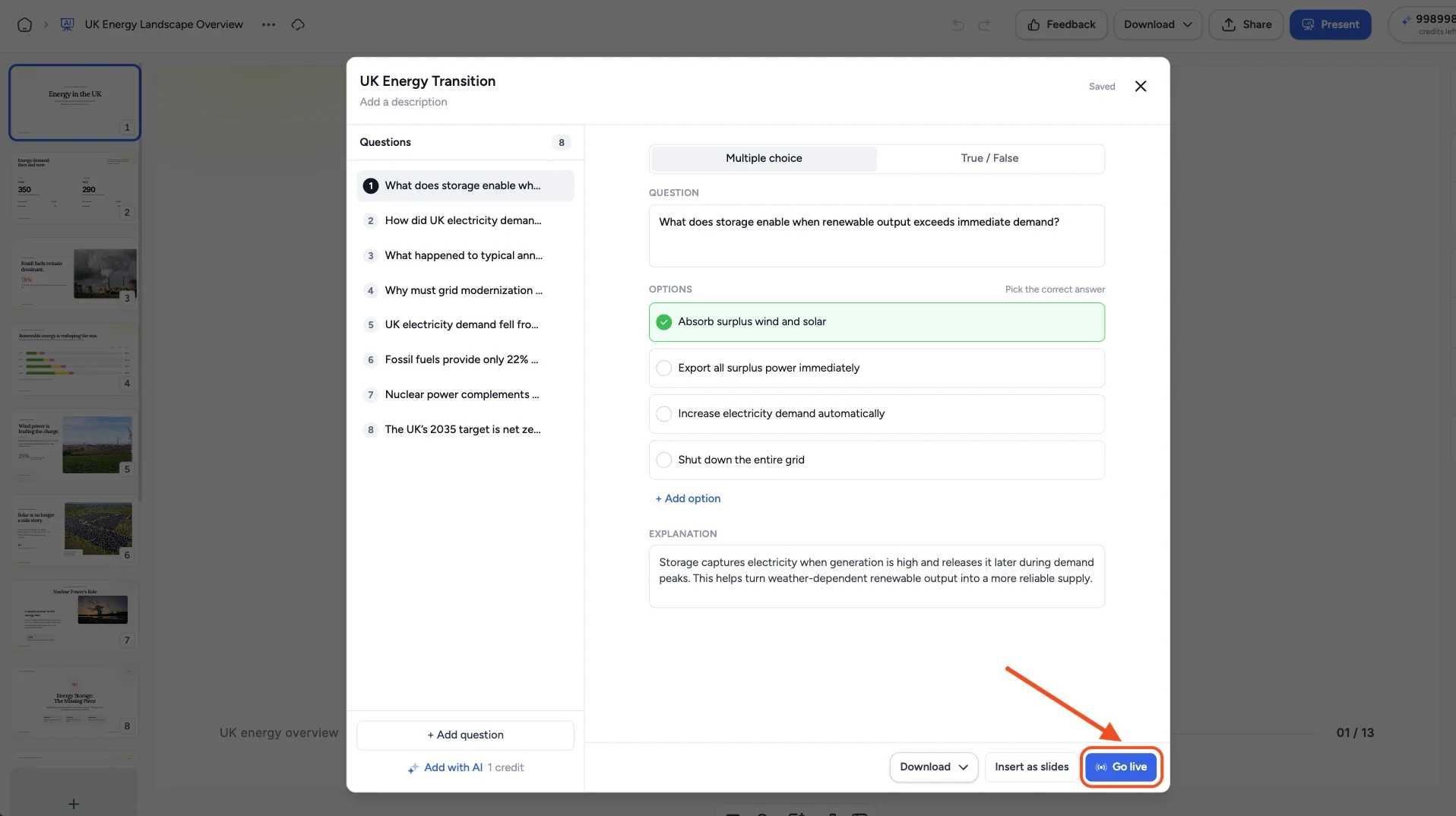
Clicking it does not start the session immediately. Instead, SlideSpeak adds a QR code slide to the end of your deck and tells you so: participation opens when you present it. Click it twice and you get two QR slides, so add it once and delete the spare if you slip.
Step 3: Check the QR code slide
Scroll to the bottom of the slide list to see the new slide. It carries everything your audience needs:
- The heading Scan to join the quiz, above a large QR code.
- A fallback for anyone whose camera will not cooperate: go to app.slidespeak.co/join and type the code.
- The join code itself, in large type. The same code sits on the quiz card in the Quiz panel, so you can read it without opening the slide.
Because the slide uses your deck’s template, it matches the rest of your presentation rather than looking bolted on. Move it wherever you want people to join, which is usually just before the first question.

Step 4: Present to open the room
Now present your deck as usual. When you reach the QR slide, participation opens and people can join by scanning it. Nobody needs an account, and nobody has to install an app. As a result, a room of thirty can be playing in under a minute. Give everyone a moment to join before you move on.
From there the quiz fills the screen, one question at a time. A counter in the top left shows where you are, for example Question 3 / 6. Each option carries a letter, and the tally beside it climbs as votes arrive. Once the answers are in, SlideSpeak highlights the correct option in green and prints the explanation underneath, so you can talk through the reasoning while the question is still fresh. To see who is ahead, click Show leaderboard.

Step 5: Finish the session
When you reach the last question, click End quiz in the top right corner to close the session.
Prefer questions inside your deck?
A live quiz is best when you want people answering. However, sometimes you only want the questions on screen as part of the presentation. In that case click Add slides instead, and each question becomes a pair of ordinary slides you can edit and present. See how to add a quiz slide to your presentation. You can also download the same quiz as a PDF, or send it to your LMS with QTI or a Brightspace CSV.
That’s it!
Your slides are now a quiz your audience plays together. Meanwhile the quiz itself stays in the Quiz panel, so you can run it again with the next group, hand it out as a PDF, or send it to your LMS whenever you need it.
Need more help?
If you have any questions or need assistance, feel free to contact our support team at support@slidespeak.co