

A quiz slide turns a question from your quiz into a real slide inside your deck. Instead of handing out a PDF after the session, you can put the question on screen while you present. SlideSpeak builds these slides for you from a quiz you have already generated, and you can then edit them like any other slide.
This guide covers the Add slides button. If you would rather have your audience answer on their phones, see how to run a live quiz instead.
Step 1: Open or create a quiz
Every quiz slide starts from a quiz. First, open your presentation in the SlideSpeak editor. Then click Quiz in the icon rail on the right. Any quizzes you have already made for this presentation appear here, each on its own card.
No quiz yet? Click New quiz, choose how many questions you want with the slider, and click Generate quiz. Generating costs 1 credit per question. For the full walkthrough, see our guide on how to create a quiz from a presentation.
Step 2: Click Add slides
On the quiz card you will see three controls: Download, Add slides, and Live quiz. Click Add slides. SlideSpeak turns the questions into slides and adds them to the presentation straight away.
Check the quiz before you add it. Fixing a question in the quiz editor takes one edit, whereas fixing it afterwards means correcting both the question slide and its answer slide.
Step 3: Find your new quiz slides
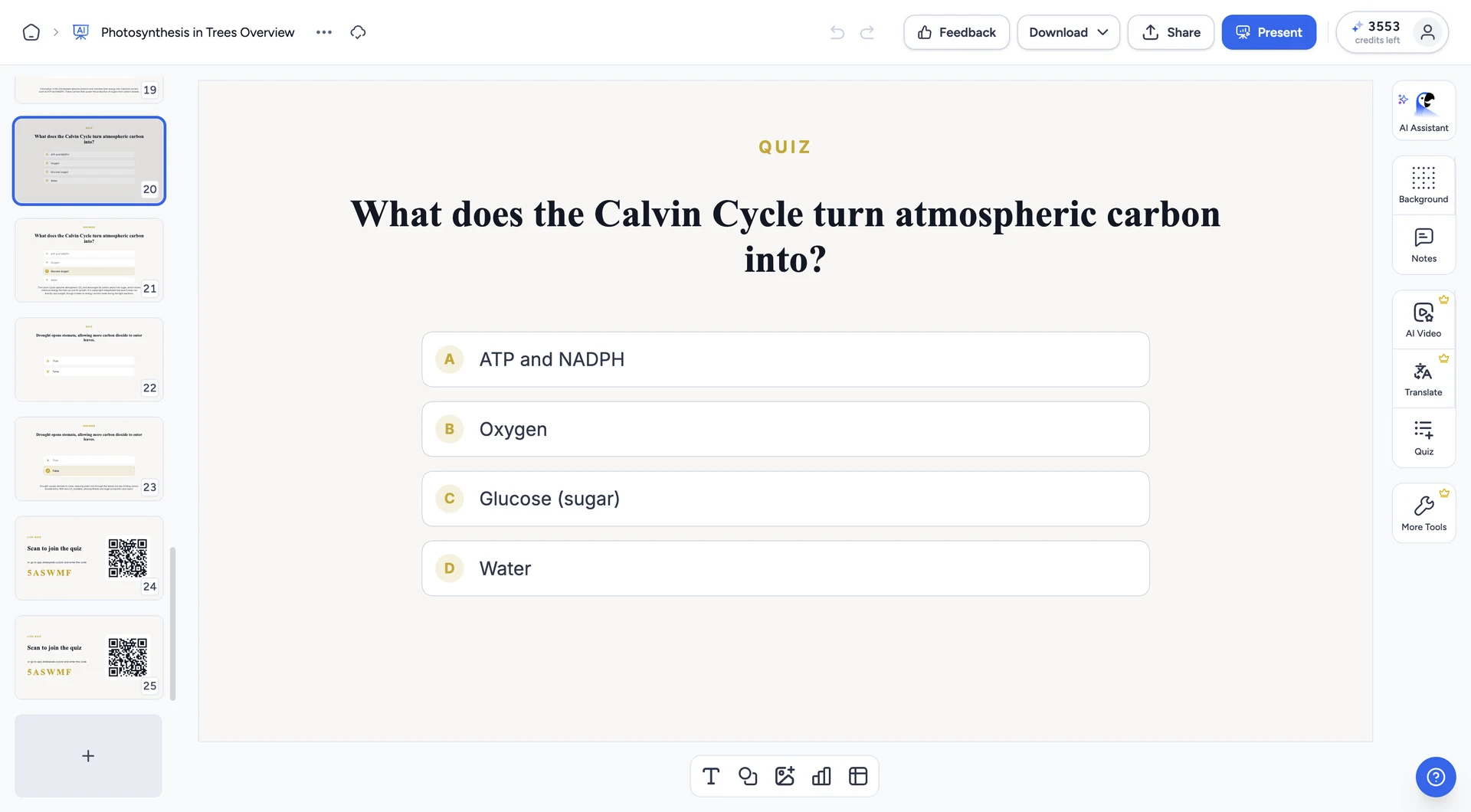
The new slides go to the end of your deck, after your last content slide. Scroll to the bottom of the slide list on the left and you will find them there.
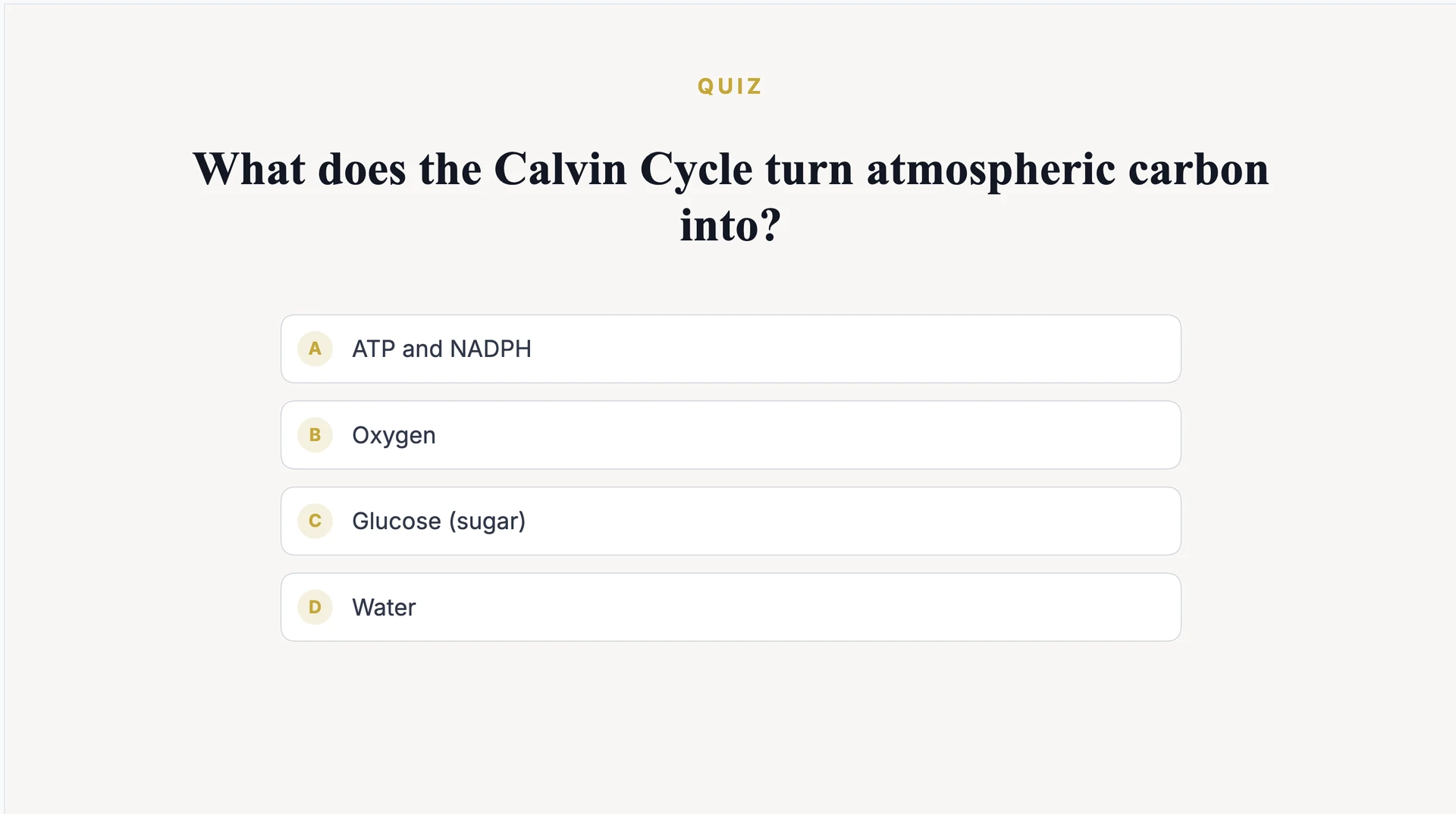
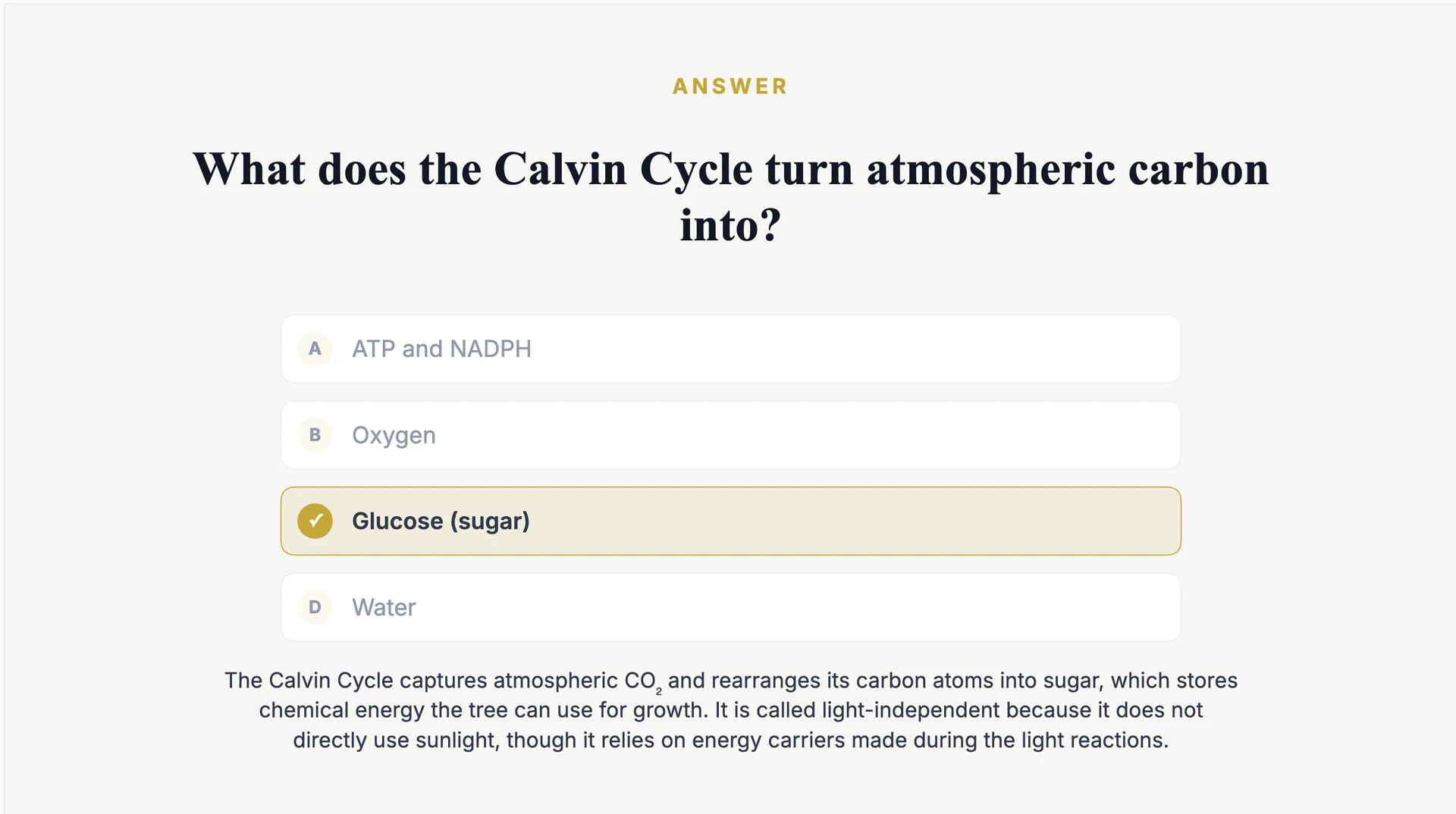
Each question becomes two slides rather than one:
- A question slide, labelled QUIZ, with the question and the answer options lettered A to D. Nothing is revealed yet, so you can pause and let people think.
- An answer slide, labelled ANSWER, which repeats the question with the correct option highlighted and the explanation printed underneath.
True or false questions work the same way, with two options instead of four. Because the slides use your deck’s template, they pick up the same background, headings, and accent colour as everything else. In other words, they do not look bolted on.
Step 4: Edit your quiz slides
Quiz slides are ordinary slides. Therefore you can rewrite the text, move things around, change the colours, or delete a question you decided against. You can also drag them out of the block at the end and place each question next to the topic it tests. Our guide on how to edit the text on your slide covers the basics.
Remember that each question spans two slides. If you reword a question, reword its answer slide too, otherwise the pair stops matching.
Step 5: Present, download, or export
Because the questions are part of your deck now, they travel with it. Present the file as usual and the quiz slides appear in order, so you can show a question, discuss it, then advance to the answer. Similarly, when you download the presentation, the questions come along.
Your quiz also stays on its card in the Quiz panel, so the other export options remain open to you:
- Quiz PDF: the questions on their own, ready to hand out.
- Answer Sheet: the answer key with explanations, for grading.
- Quiz + Answer Sheet: both combined in one PDF.
- LMS (QTI): a package for Canvas or Schoology. See how to export a quiz as QTI.
- Brightspace (CSV): a CSV for the D2L Question Library. See how to import a quiz into D2L Brightspace.
Want your audience to answer instead?
Quiz slides put the questions on screen, but nobody answers them on a device. If you want the room joining in from their phones, click Live quiz on the same card instead. That adds a QR code slide to your deck, and participation opens when you present it. See how to run a live quiz for the full walkthrough.
That’s it!
Your questions are now slides in your presentation. You can edit them, reorder them, and present them alongside the rest of your deck. Meanwhile the original quiz stays in the Quiz panel, ready to download as a PDF or send to your LMS whenever you need it.
Need more help?
If you have any questions or need assistance, feel free to contact our support team at support@slidespeak.co