

A design kit teaches SlideSpeak your slide design. You start from a presentation you already like. SlideSpeak reads it and captures its layouts and style. You can then add written guidance and your logos, colors and fonts. Every new presentation you create with the kit follows it.
Before you start
- You need Premium Plus or Lifetime. Design kits are not part of the Free or Premium plans.
- You need SlideSpeak AI 5.0. Design kits only work with SlideSpeak AI 5.0, and only presentations made with SlideSpeak AI 5.0 can become a design kit. See below how to choose it.
- Where it lives: your design kits appear on the Templates page in the left sidebar, next to any PowerPoint templates you uploaded.
Choose SlideSpeak AI 5.0
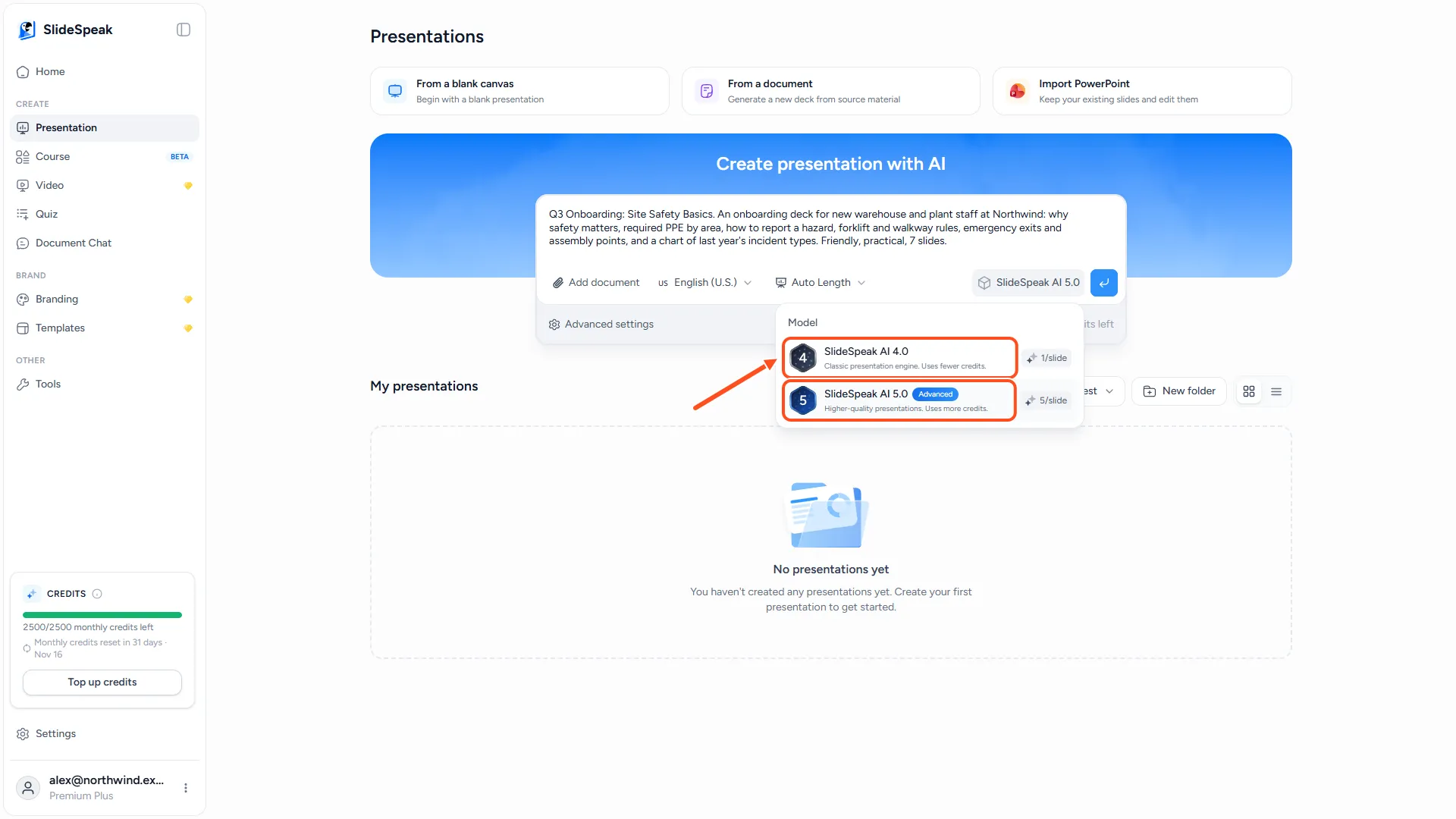
- Click Presentation in the left sidebar.
- In the prompt box, click the model button next to the presentation length. It shows SlideSpeak AI 4.0 or SlideSpeak AI 5.0 (on small screens just 4.0 or 5.0).
- Choose SlideSpeak AI 5.0.
SlideSpeak remembers your choice for your next presentations. SlideSpeak AI 5.0 uses 5 credits per slide, SlideSpeak AI 4.0 uses 1. If you don't see the model button, SlideSpeak AI 5.0 isn't available on your account yet. Read more about the differences between SlideSpeak 4.0 and 5.0.
Step 1: Create the design kit from a presentation
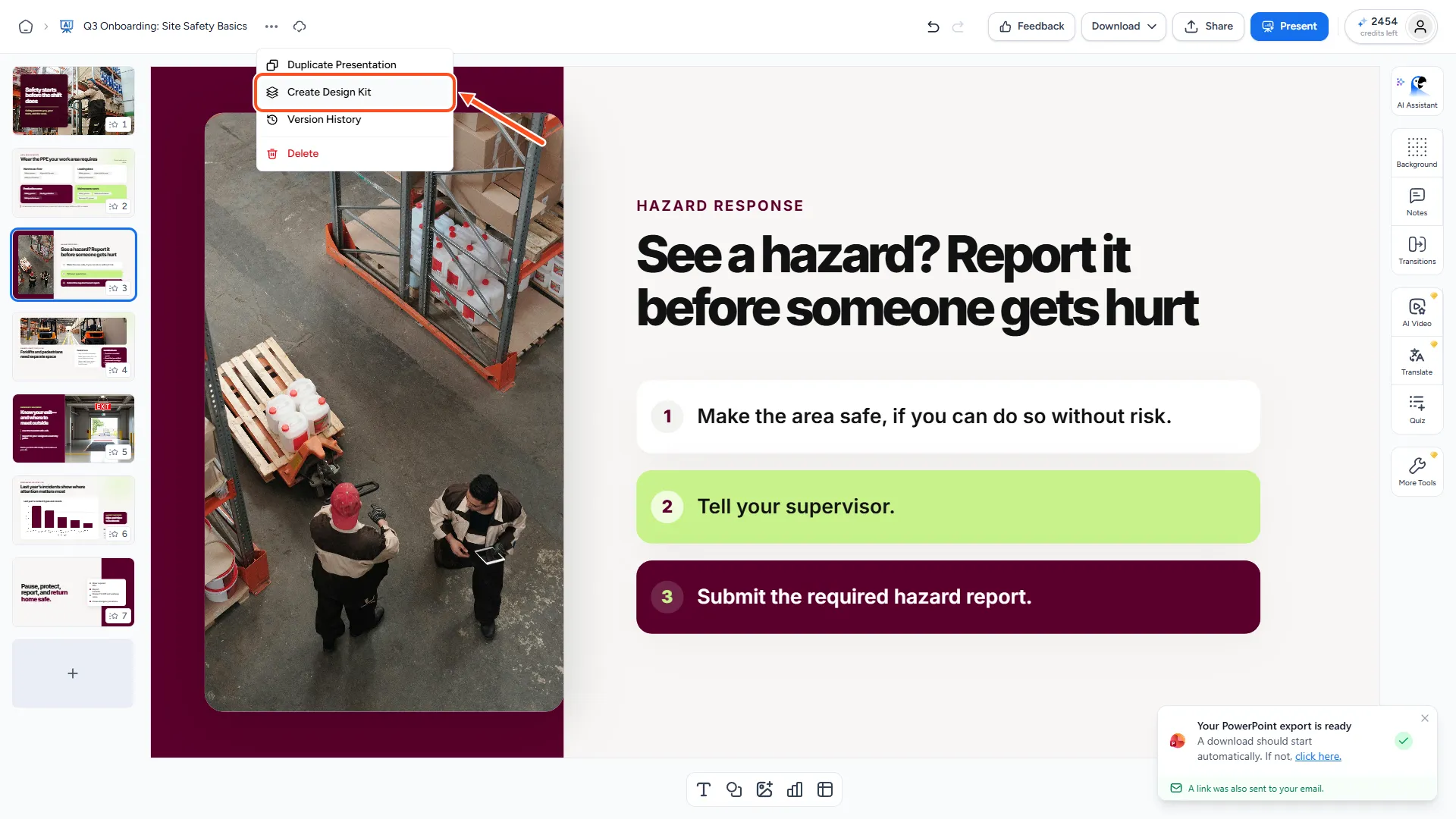
- Open a presentation you made with SlideSpeak AI 5.0 whose look you want to reuse.
- Click the three-dot menu beside the presentation name in the top-left corner.
- Click Create Design Kit.
SlideSpeak shows "Design kit creation started." and takes you to the Templates page.
You can also start from the Templates page: click Add template, choose Generate from a presentation, select the presentation and click Generate design kit.
Step 2: Wait for the kit to be ready
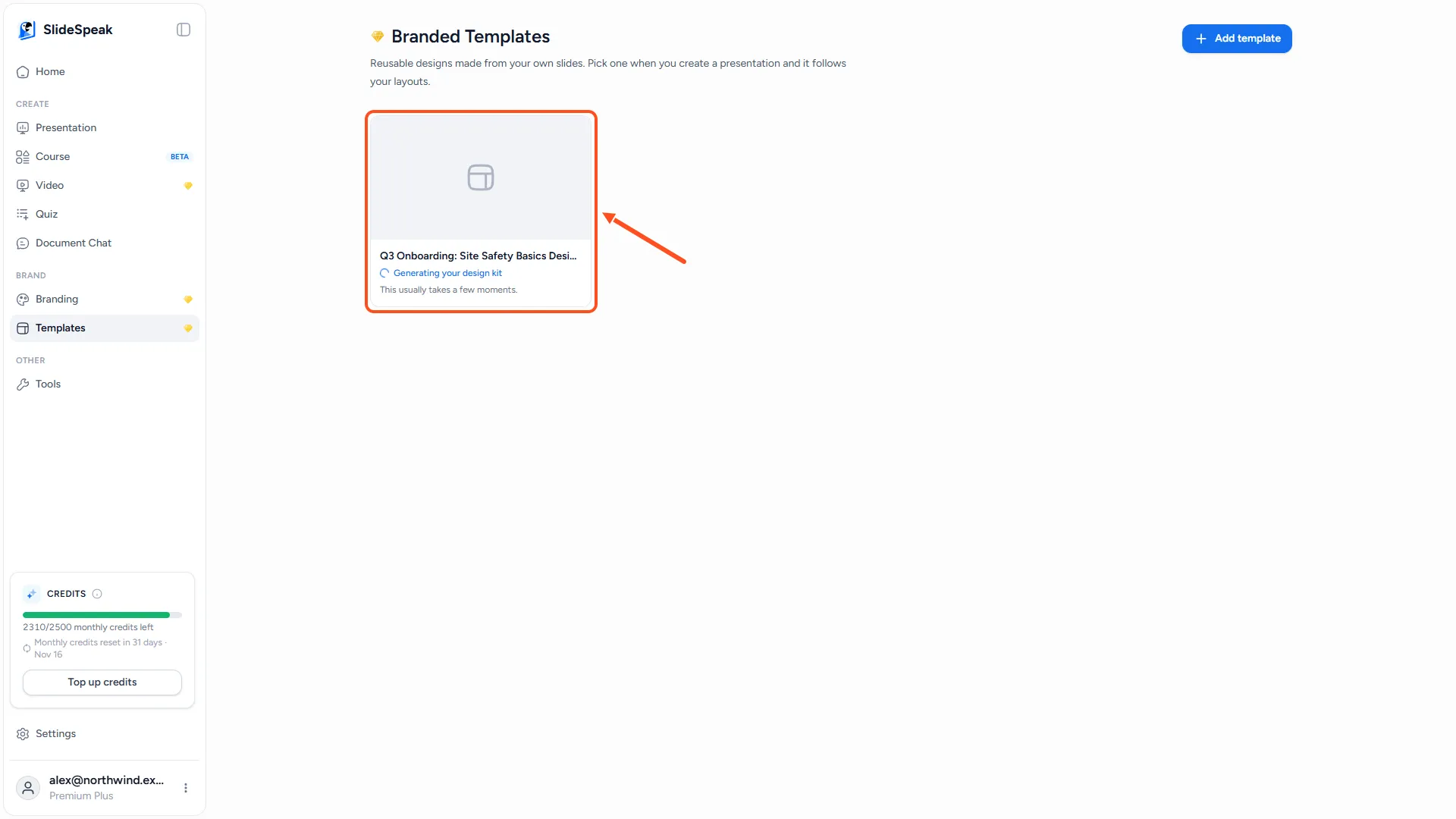
On the Templates page, the new kit appears with the label Generating your design kit. Its name is the presentation name followed by "Design Kit". You can leave the page while SlideSpeak works. When the label disappears, the kit is ready to open.
Step 3: Add your guidance and brand elements
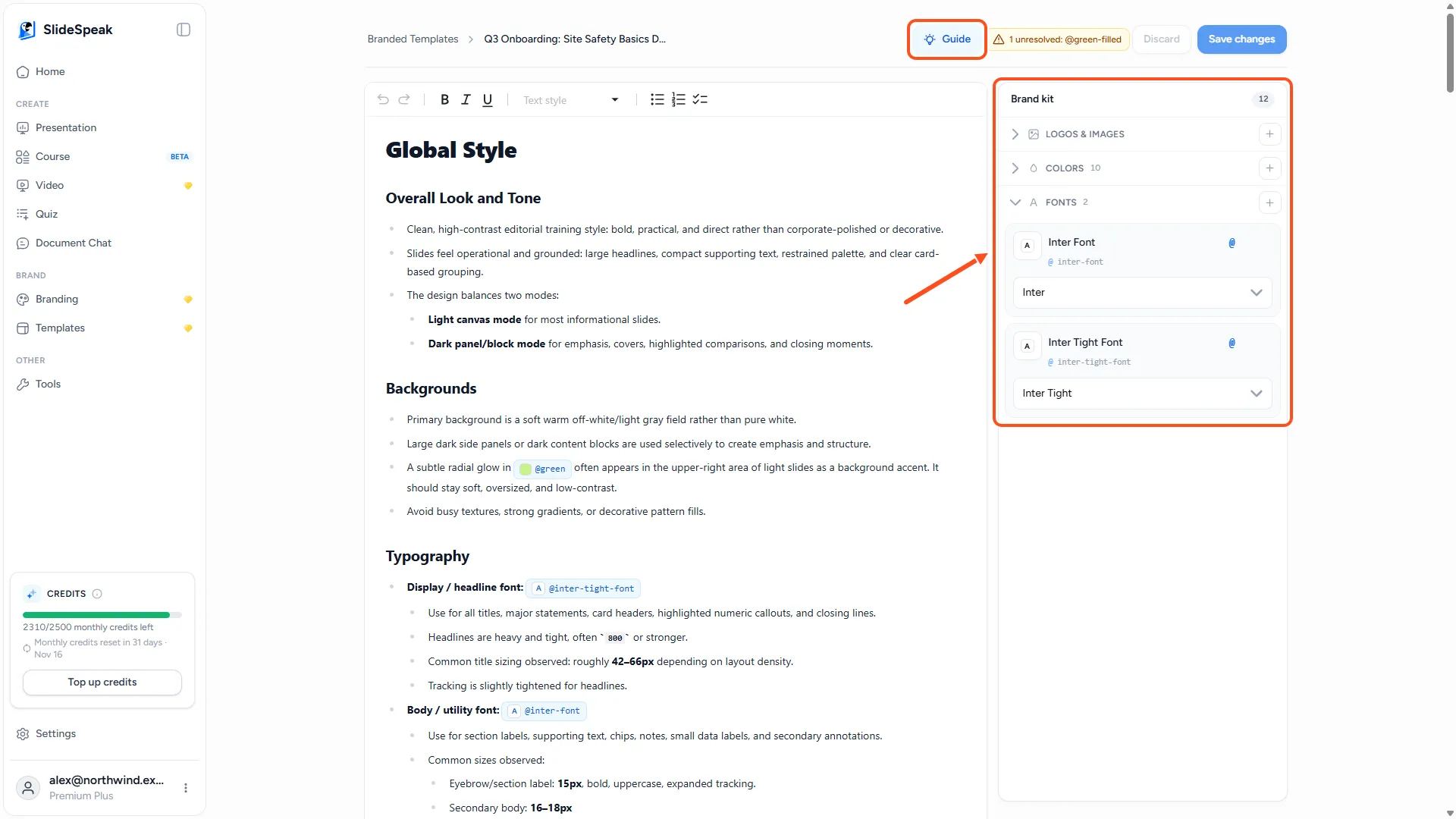
Click the kit's card to open it. The page has two parts:
- Your guidance, on the left: write the rules for how slides should look. For example: "Place the logo on title and closing slides only."
- Brand kit, on the right: the logos, colors and fonts this design kit can use.
- Logos & images: click Upload image to add SVG, PNG, JPG or WEBP files.
- Colors: click Add color and pick a color.
- Fonts: click Add font and type or pick a font family.
In your guidance, type @ to insert one of these brand elements, for example @logo or @primary-blue. If you rename the element later, every mention updates.
Click Guide at the top for tips and examples. When you are done, click Save changes. If your guidance mentions an element that doesn't exist yet, SlideSpeak asks Save with unresolved brand elements? Click Save anyway to save now and add the element later, or Keep editing.
The Brand kit panel belongs to this design kit only. It is separate from the brands under Branding. See how to set up your brand kit for those.
Step 4: Create a presentation with your design kit
- Make sure SlideSpeak AI 5.0 is selected in the prompt box on the Presentation page.
- Type your topic and start the presentation.
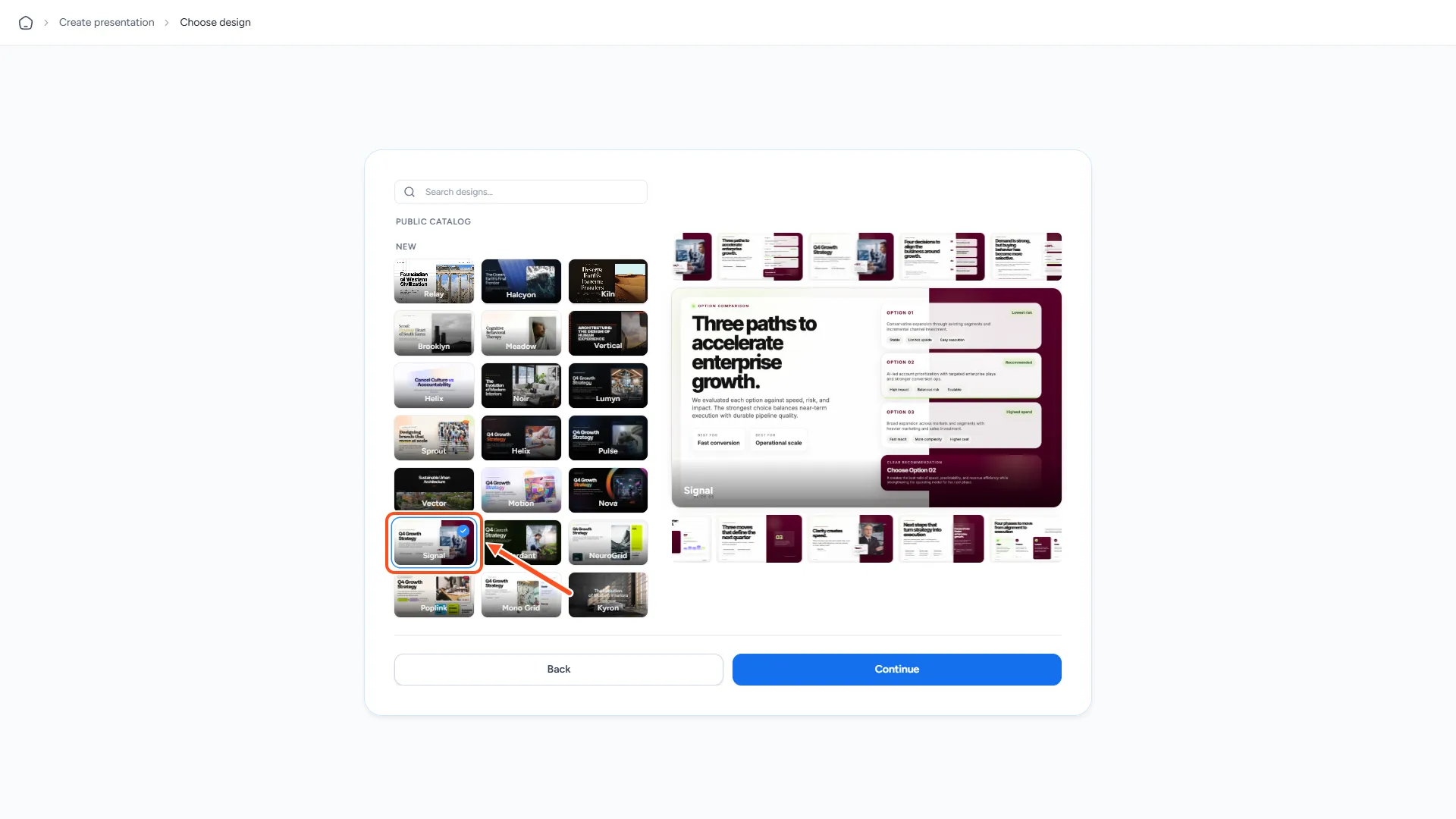
- When SlideSpeak asks you to choose a design, pick your kit under Your design kits.
SlideSpeak builds the outline and the slides with your kit's layouts, guidance and brand elements. For more on this step, see how to choose a design in SlideSpeak AI 5.0.
Rename or delete a design kit
On the Templates page, click the three-dot menu on the kit's card and choose Rename or Delete.
Troubleshooting
- I don't see Create Design Kit in the menu. The option only shows when SlideSpeak AI 5.0 is on for your account, you own the presentation, and the presentation was made with SlideSpeak AI 5.0.
- "Design Kits are available on Premium Plus." Upgrade to Premium Plus or Lifetime to create and use design kits.
- "No presentations yet" when I click Generate from a presentation. The list only shows presentations made with SlideSpeak AI 5.0. Create one first.
- I don't see Generate from a presentation. Add template only offers it when SlideSpeak AI 5.0 is on for your account. Otherwise it goes straight to uploading a PowerPoint template.
- "This design kit changed since you opened it. Reload to continue." The kit was saved somewhere else, for example in another tab. Reload the page, then make your changes again.
Need more help?
If you have any questions or need assistance, feel free to contact our support team at support@slidespeak.co