

SlideSpeak AI 5.0 builds each slide from scratch around the design you choose. That is why you pick the design first, before the outline: the design shapes how SlideSpeak plans your slides. Then you watch the slides appear one by one while they are generated.
Before you start
- Plan: choosing a design works on every plan. Creating your own design kit needs Premium Plus or Lifetime. See how to create a design kit.
- Credits: SlideSpeak AI 5.0 uses 5 credits per slide, on every plan including Lifetime. SlideSpeak AI 4.0 uses 1 credit per slide. You only pay once the whole presentation is finished. See how credits work in SlideSpeak.
- Not sure which model to use? See the difference between SlideSpeak 4.0 and 5.0.
Step 1: Switch to SlideSpeak AI 5.0
Sign in at app.slidespeak.co and click Presentation in the left sidebar.
Look at the controls under the prompt box. Next to the slide length, a model selector shows SlideSpeak AI 4.0 or SlideSpeak AI 5.0 (on smaller screens, just 4.0 or 5.0). Click it and choose SlideSpeak AI 5.0, marked Advanced.
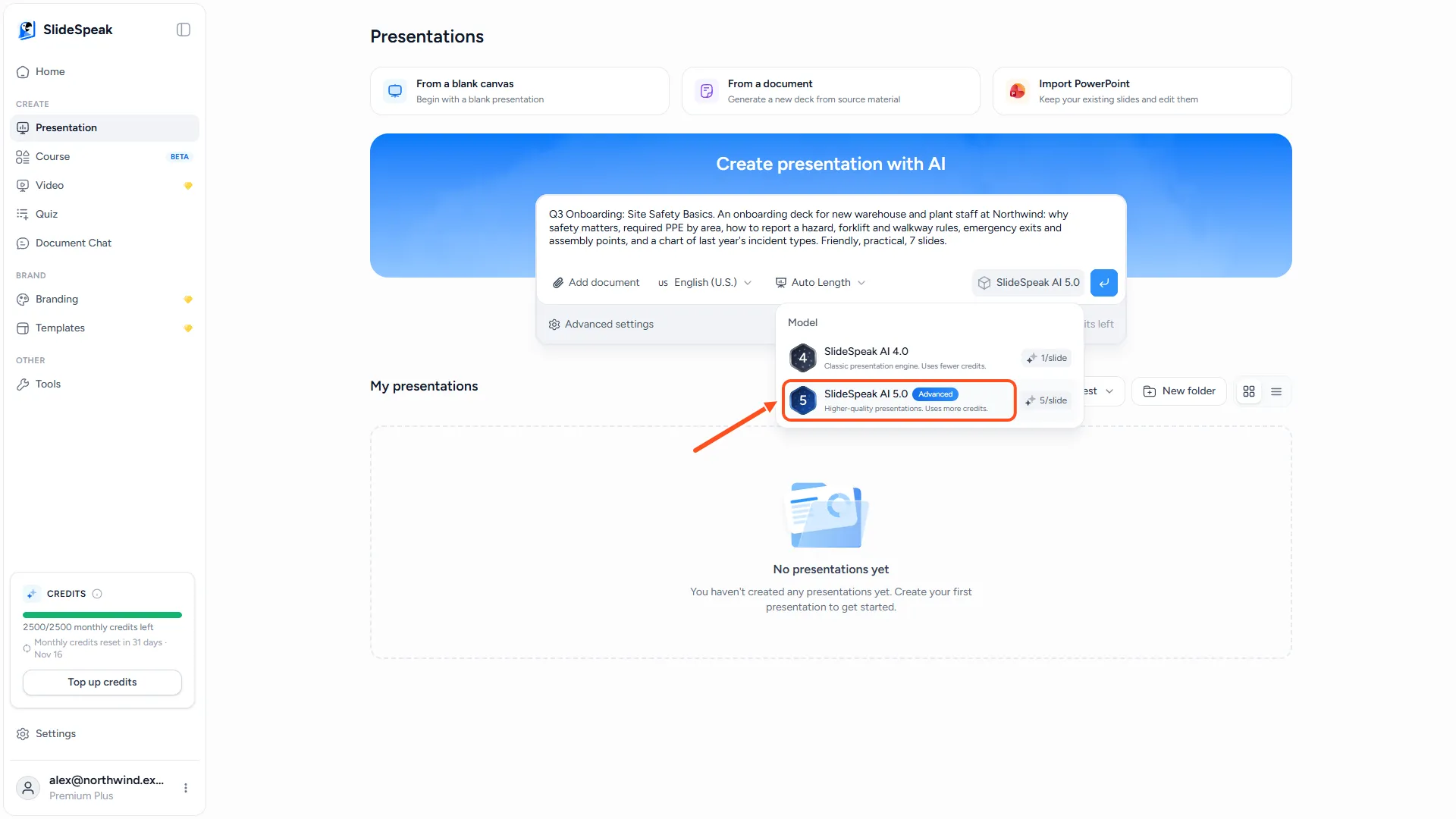
Your choice is saved to your account, so new presentations keep using AI 5.0 until you switch back. To go back, choose SlideSpeak AI 4.0 in the same menu.
Don't see the model selector? SlideSpeak AI 5.0 is rolling out gradually, and it is not available on your account yet. Your presentations use SlideSpeak AI 4.0 in the meantime.
Step 2: Describe your presentation
Type your topic or instructions in the prompt box, and attach a document if you want SlideSpeak to use one. Choose the length and the Presentation language. Under Advanced settings you can also set the Tone, the Amount of text, and the Branding to use. Then click the send button.
Step 3: Pick your design
SlideSpeak opens the design picker. You browse designs in a list, with a large preview of the selected design next to it (above it on your phone).
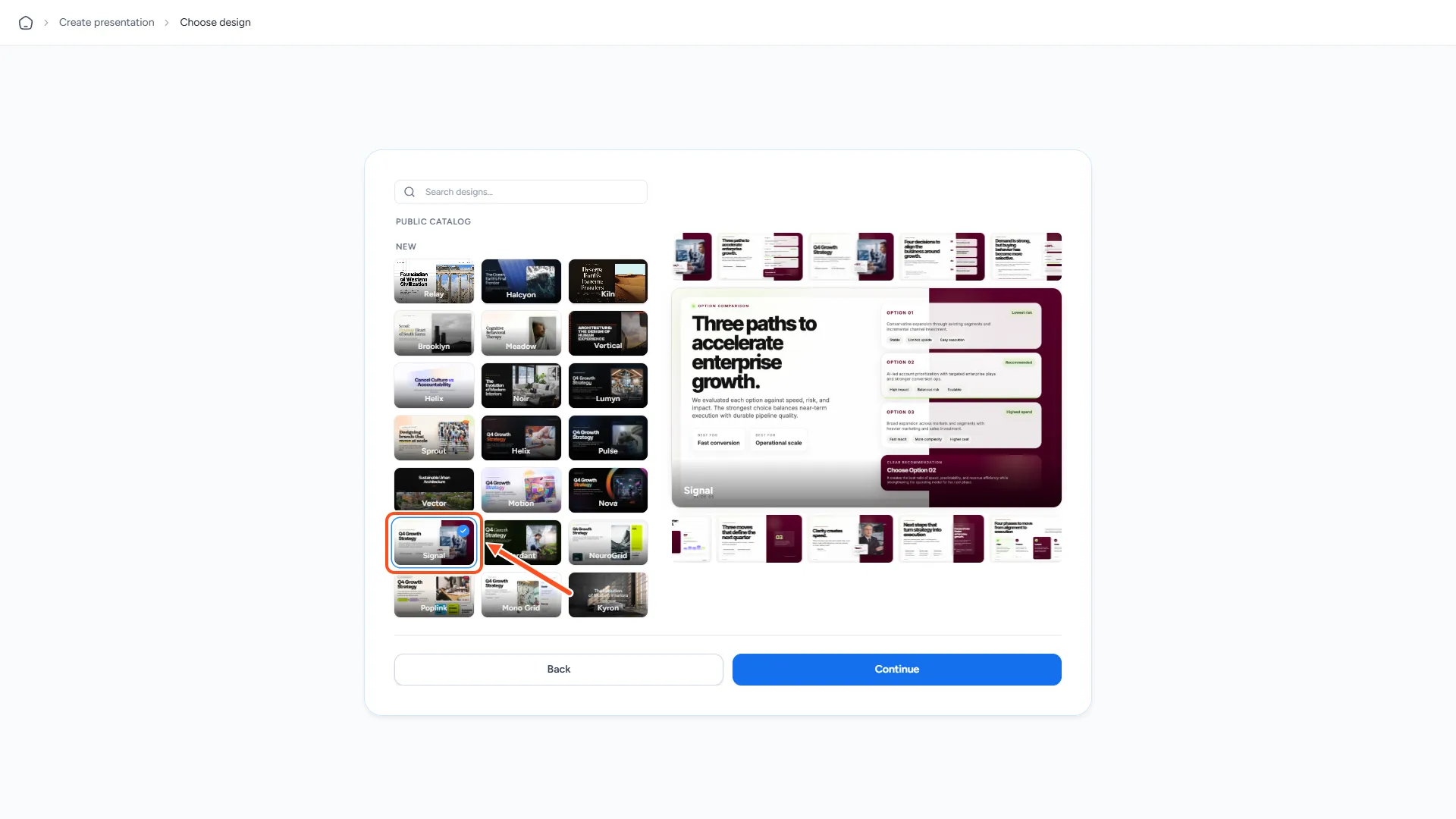
The designs are grouped into sections:
- Your design kits: design kits you or your team created. If you have one, it is selected first.
- Public catalog: ready-made designs from SlideSpeak, grouped by category.
- Generate with AI: the AI Design card. SlideSpeak creates a new design to fit your topic.
To find a design by name, type in Search designs… at the top of the list.
Click a card to select it. A blue ring and a check mark show your choice. The large preview then cycles through sample slides in that design, so you can see more than the cover. On a computer, hover over the sample slides above and below the preview to look at one more closely.
When you are happy with the design, click Continue. To change your prompt instead, click Back.
Step 4: Review the outline
SlideSpeak now writes the outline for your chosen design. You see Building your outline, and you can start reading before it is done.
When it is ready, the heading changes to Your outline. Drag slides to reorder them and click a slide to edit it. Every slide needs a title. To pick a different design, click Back.
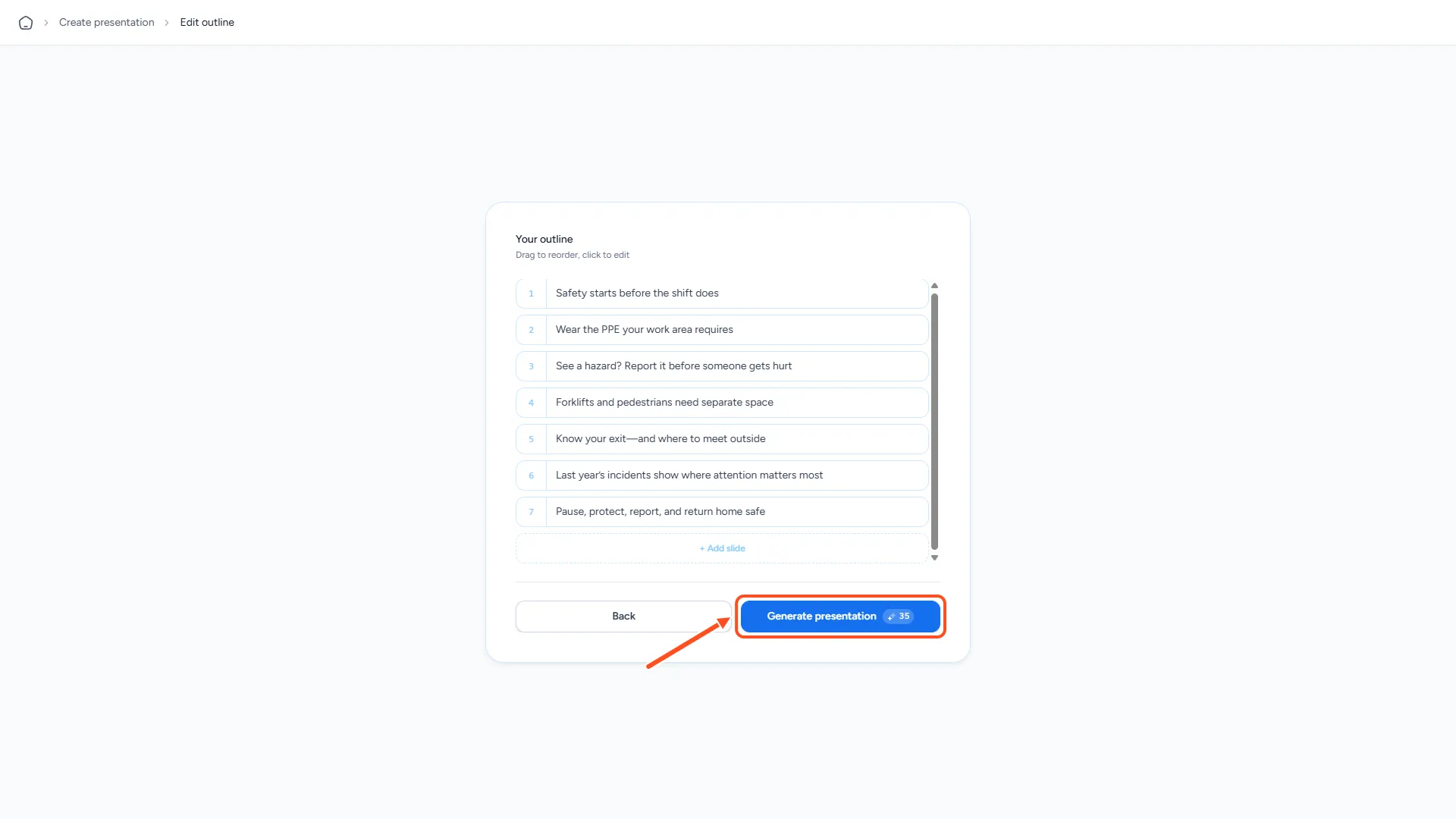
When the outline looks right, click Generate presentation. The button shows how many credits the presentation will use. If you do not have enough credits for every slide, SlideSpeak tells you and only generates the slides you can afford.
Step 5: Watch your slides being generated
After a short Let's generate! intro, you see a grid with one tile per slide, a progress bar and a counter of finished slides. A status line above the grid tells you what SlideSpeak is doing, for example Establishing visual style, Generating slides or Finalizing presentation.
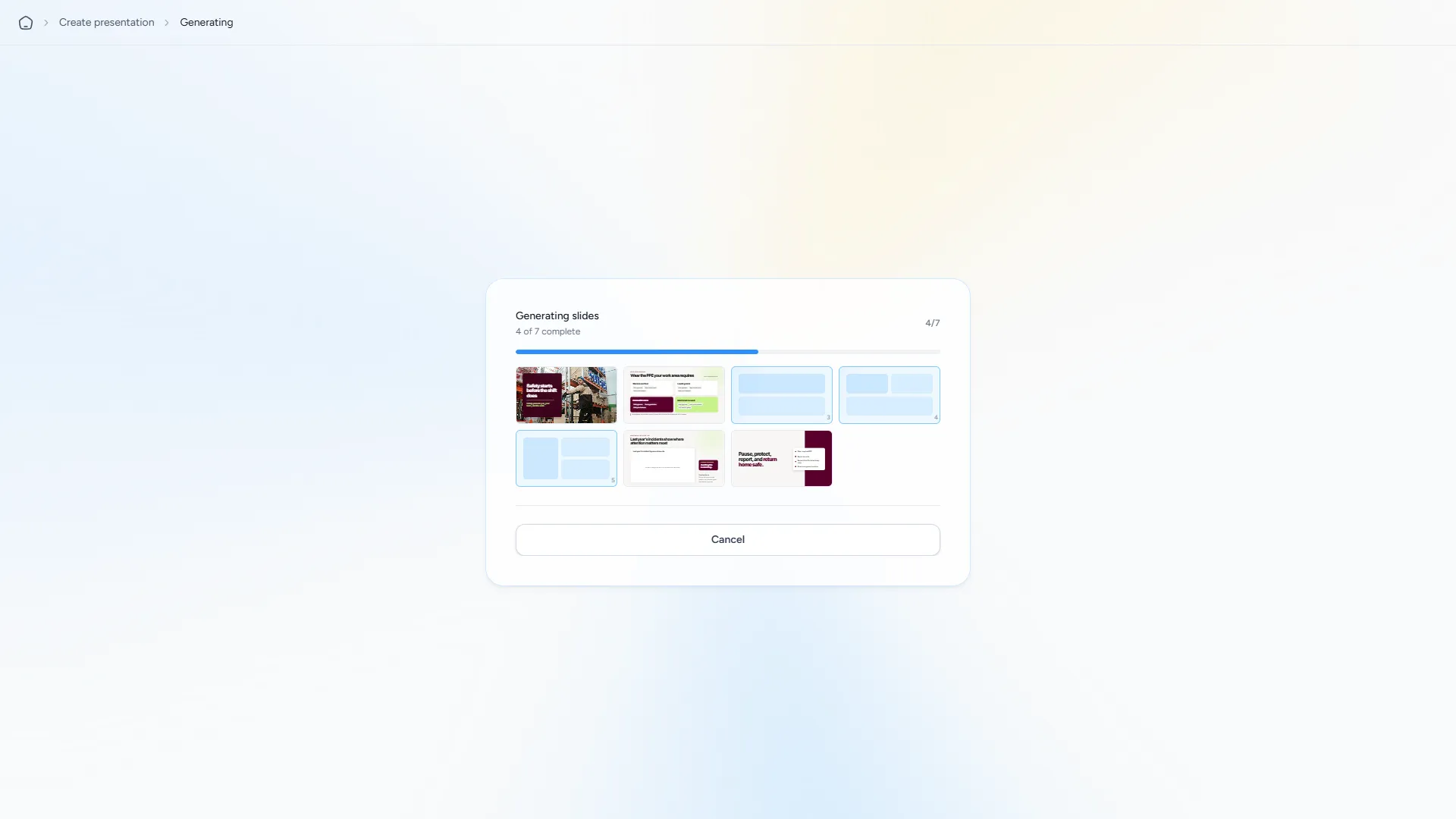
Each tile fills in as its slide is ready. Click a finished slide to see it larger. SlideSpeak also reviews the slides and improves any that need it before it finishes. When all slides are done, your presentation opens in the editor.
Stay on this page while SlideSpeak works. If you go to another page in SlideSpeak, the generation stops and you need to start again.
Cancel a generation
Changed your mind? Click Cancel on the generation screen. SlideSpeak asks Cancel generation? Click Yes, cancel to stop, or Keep generating to carry on.
When you cancel, SlideSpeak stops building the slides and takes you back to your outline. You can then edit the outline, or click Back to choose another design. A cancelled presentation uses no credits, because SlideSpeak only charges once a presentation is finished.
You can also cancel while the outline is being written. That stops the outline instead.
Good to know
- With SlideSpeak AI 5.0, the design is part of the slides. To use a different design, create the presentation again and choose another one. The Template panel you may know from SlideSpeak AI 4.0 is not available for AI 5.0 presentations.
- To keep your own logo, colours and fonts across presentations, set up a brand kit and choose it under Branding, or create a design kit.
- To add the same intro or outro slides every time, see reusable sections.
Need more help?
If you have any questions or need assistance, feel free to contact our support team at support@slidespeak.co