

When your video is ready, you can take it anywhere. Export it as an MP4 to share on social media or upload to your intranet, download it as an editable PowerPoint with the narration built in, or grab the script as a PDF. This guide covers each option and how to export again after you make changes.
Before you start
- Plan: Exporting the MP4, PowerPoint with narration and LMS package need a paid plan (Premium, Premium Plus or Lifetime). Transcript (PDF) works on every plan.
- Where it lives: The Download button in the top right of the video editor.
- Credits: You already paid for the narration when the audio was generated, so exporting the MP4 is free. The only exception is an AI avatar, which adds 5 credits per slide every time you export. The menu shows the cost next to Export video when there is one.
- HD: Videos export in standard quality (720p) by default. For a sharper video, turn on HD quality in the Settings panel before you export. HD videos take longer to generate.
Step 1: Open the Download menu
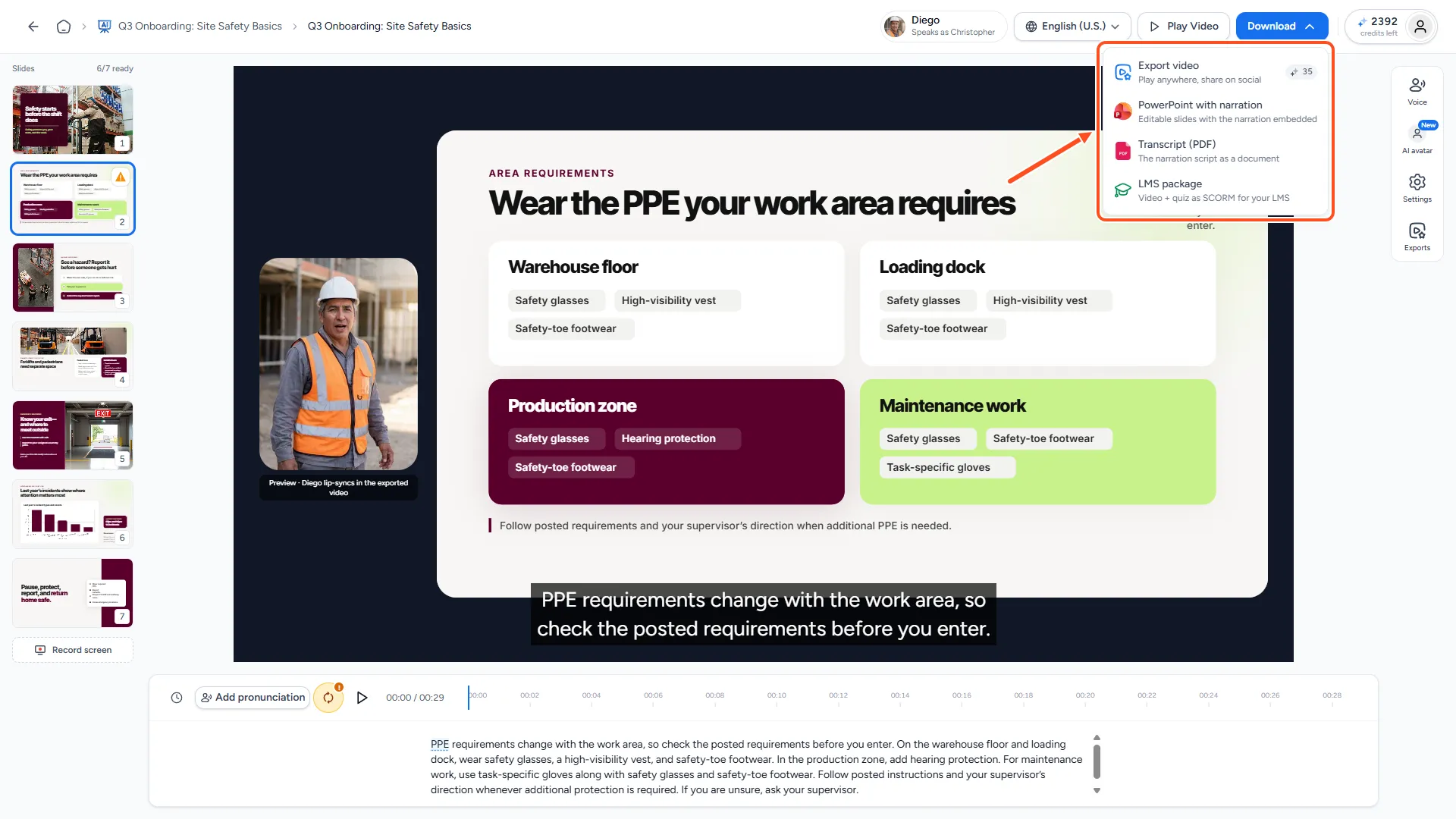
In the video editor, click Download in the top right. You'll see four options:
| Option | What you get |
|---|---|
| Export video | An MP4 file. "Play anywhere, share on social." |
| PowerPoint with narration | Editable slides with the narration embedded |
| Transcript (PDF) | The narration script as a document |
| LMS package | Video and quiz as SCORM for your LMS |
Step 2: Export the MP4
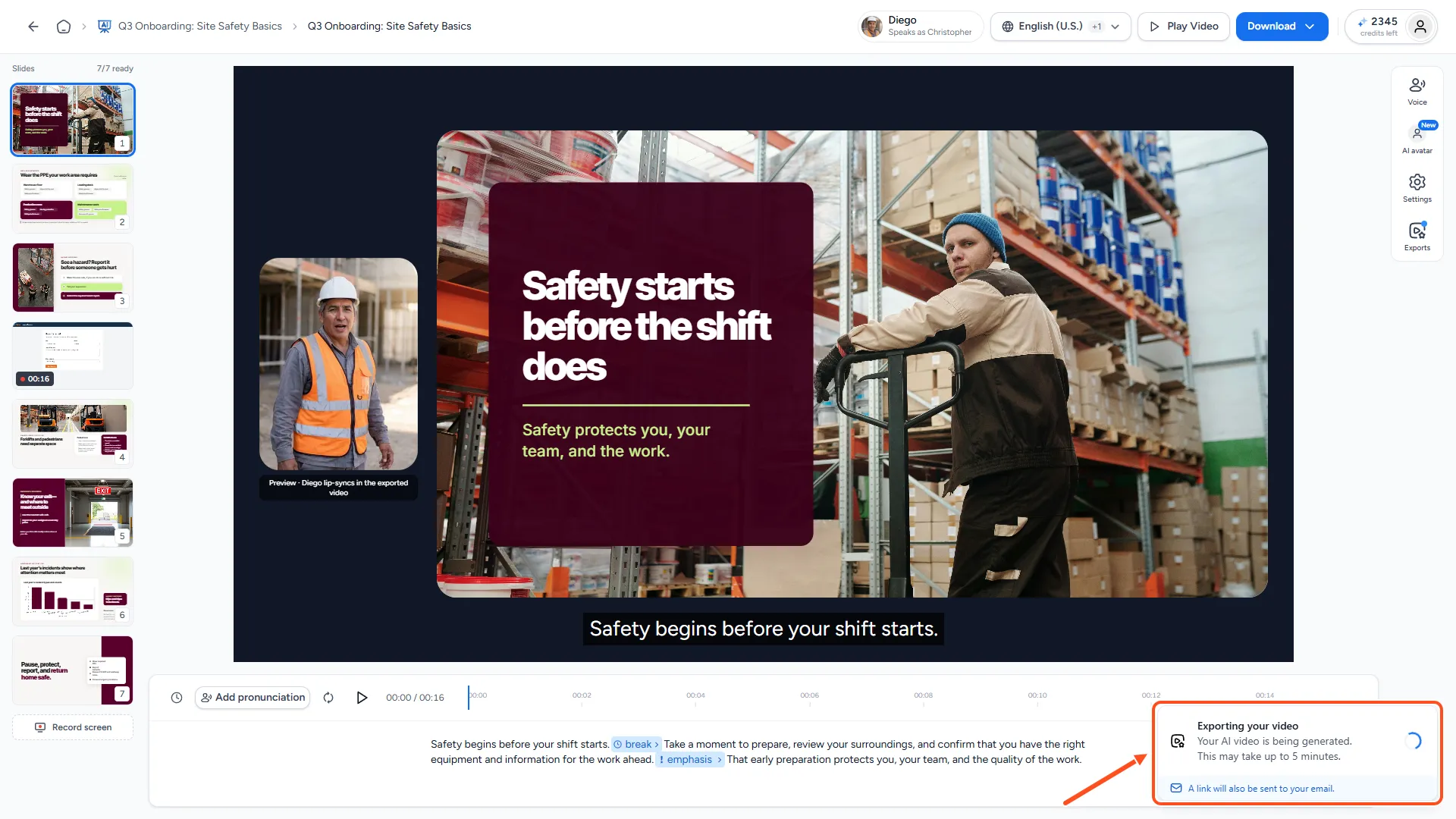
Click Export video. The export runs in the background and a progress message appears, so you can keep working. When it's done, the MP4 downloads automatically.
If some narration audio is still being generated, SlideSpeak shows "Preparing narration audio" with a progress bar for each slide. You can export as soon as every slide has audio. Click Export video when it appears.
If you changed the script of a slide after its audio was made, SlideSpeak asks you to regenerate that audio first. See How do I fix narration that failed or is out of sync?.
Step 3: Download it again later
The first item in the menu changes with the state of your video:
- "Exporting…": The export is running.
- Download video: The export is finished. Click to download the same MP4 again without exporting.
- Export updated video: You changed something since the last export. Click to export a new MP4.
- Retry export: The last export failed. Click to try again.
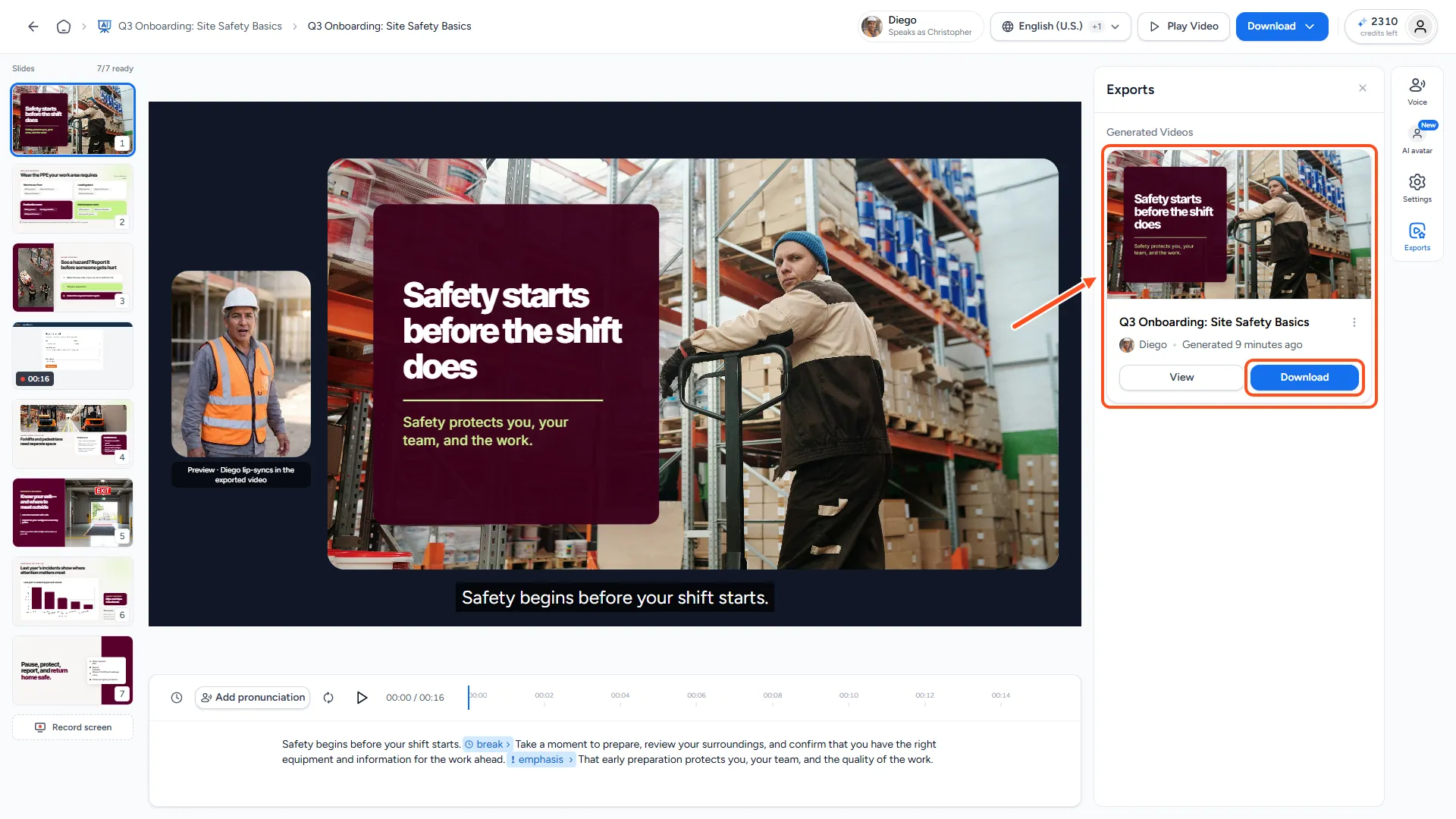
You'll also find all finished videos in the Exports panel in the side bar, each with a Download button.
To share a link instead of a file, see How do I share my AI video presentation?.
Other formats
PowerPoint with narration
Click PowerPoint with narration to download a .pptx file. Each slide stays editable and carries its own narration clip. In PowerPoint the slides advance automatically, timed to the audio. This is useful when you want to keep editing in PowerPoint or present the narrated deck yourself.
Transcript (PDF)
Click Transcript (PDF) to download the narration script of every slide as a PDF. Script markers such as [break] are left out. It works on every plan, even before you export the video.
LMS package
Click LMS package to build a SCORM package for your learning platform, with the video and an optional quiz. See How do I export a SCORM package for my LMS?.
When do I need to export again?
A downloaded MP4 doesn't change by itself. Export again after you change:
- the narration script or voice,
- captions or caption style,
- playback speed or HD quality,
- the AI avatar,
- screen recordings.
Remember that a video with an AI avatar costs 5 credits per slide for every export, so make your changes first and export once.
Troubleshooting
- "Upgrade to Premium to export and download your AI videos." Exporting needs a paid plan. You can still download Transcript (PDF).
- The cost next to Export video is shown in red. You don't have enough credits for the AI avatar surcharge. Top up, or remove the avatar.
- "Audio unavailable". The narration for some slides is missing. Regenerate it, then export.
- "Could not start the video download. Please try again." Wait a moment and click Export video again. If it keeps failing, email us.
- The export takes a long time. Long videos and HD videos take longer. You can close the menu and keep working while it runs.
- "There is no narration script to export yet." You chose Transcript (PDF) before any slide had a script. Add narration first.
Need more help?
If you have any questions or need assistance, feel free to contact our support team at support@slidespeak.co