

An LMS package turns your presentation into a course your learning management system can track. You get one SCORM file with your video or slides, and an optional quiz. Your LMS then records whether each learner finished the course and what they scored.
Before you start
- Plan: LMS packages need a paid plan (Premium, Premium Plus or Lifetime). On the Free plan, the export button asks you to upgrade.
- Credits: one package costs 10 credits. If your video has not been exported yet, SlideSpeak exports it first. That is free, unless the video has an AI presenter, which adds 5 credits per slide. The dialog shows the full price on the export button.
- What you need: a presentation. For a video course, also an AI video made from it. For a graded course, also a quiz made from the same presentation (create one in the Quiz panel of the editor). Only quizzes with at least one question can go in.
Step 1: Open the LMS package dialog
You can open the same dialog from four places:
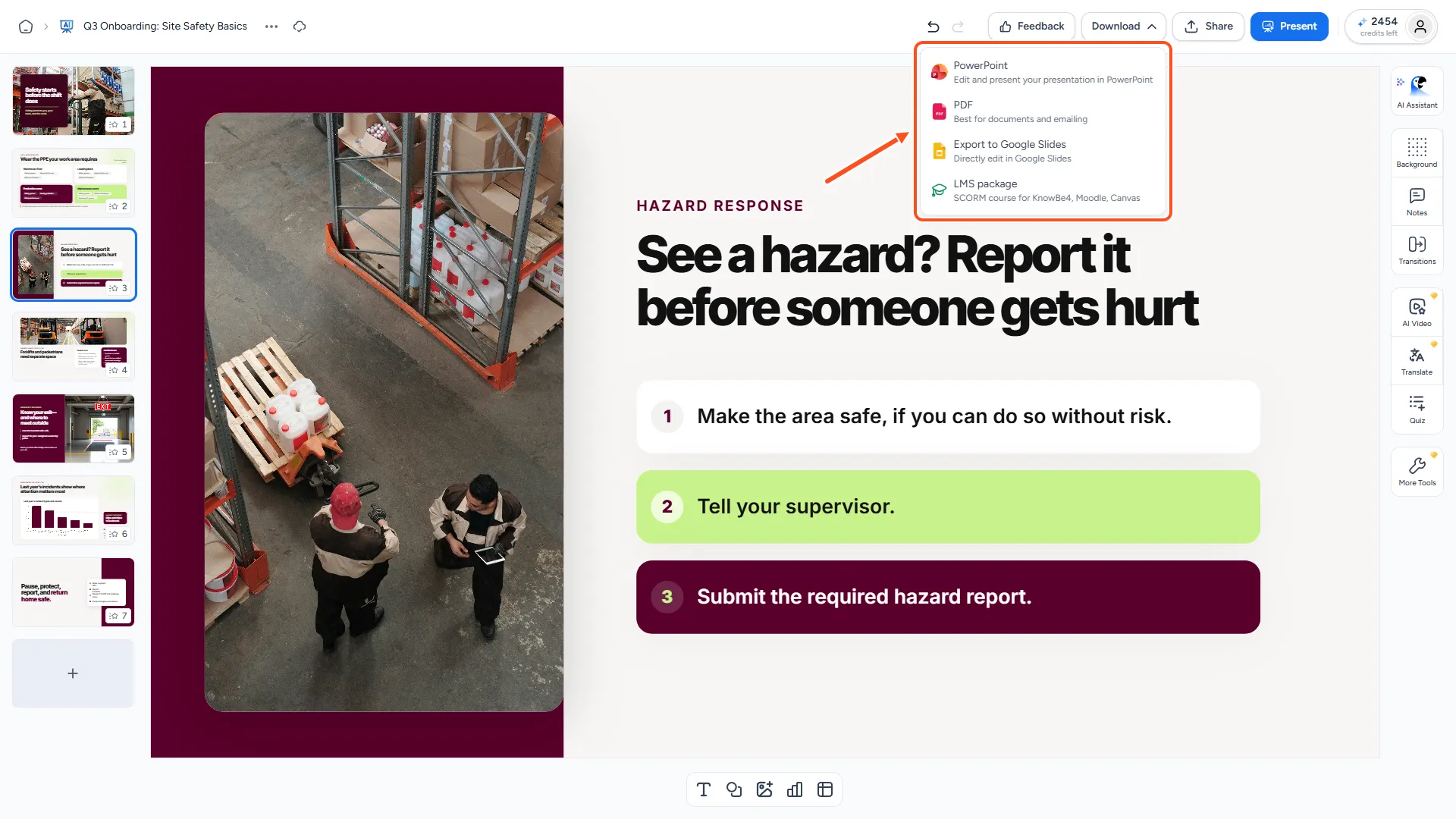
- In the presentation editor, click Download in the top bar, then LMS package.
- In the icon rail on the right of the editor, click More Tools, then LMS package.
- In the Quiz panel, open the download menu on a quiz card and choose LMS package. The quiz is then already selected.
- In the AI video editor, open the download menu and choose LMS package. That video is then already selected.
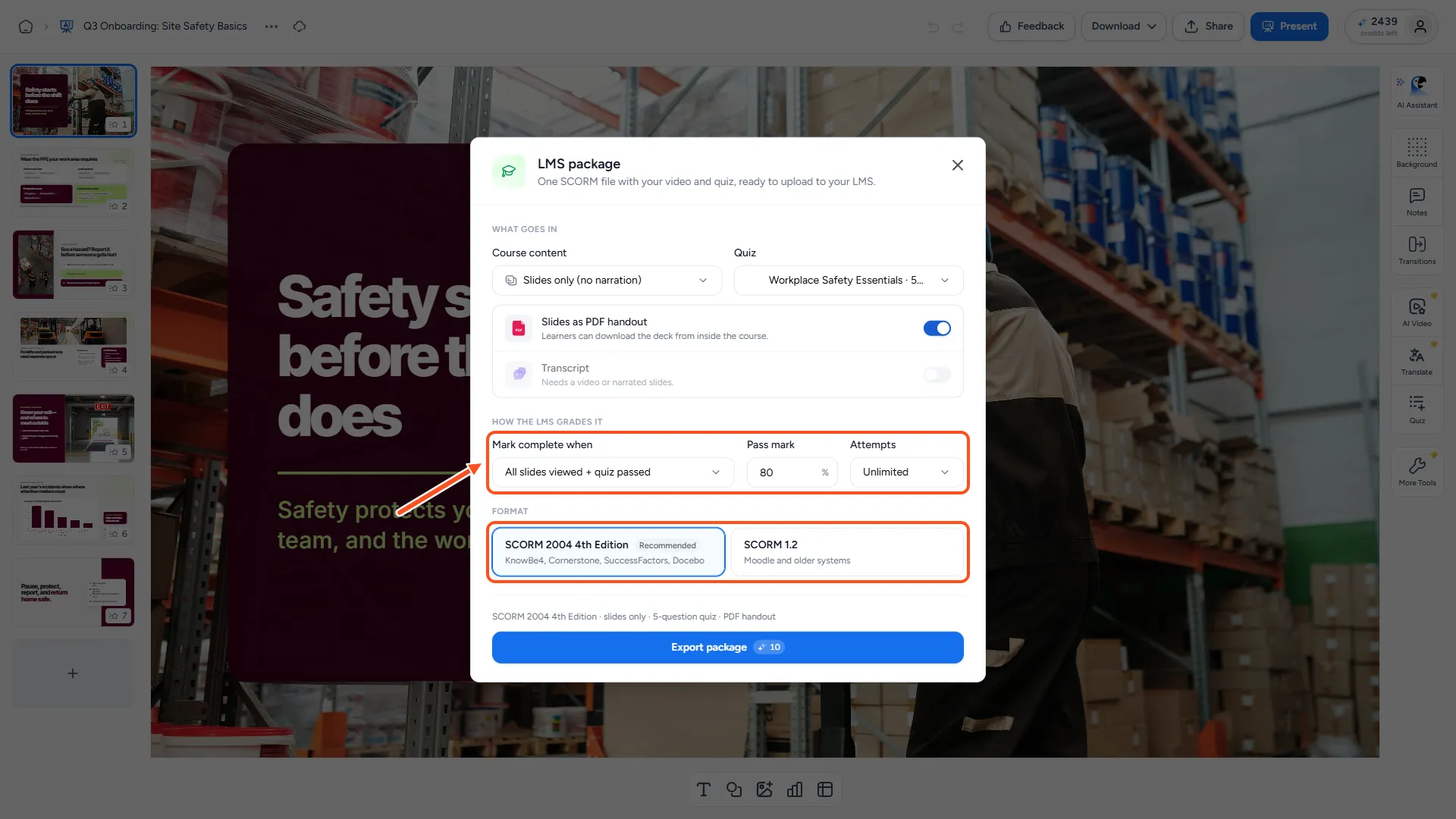
The dialog has three parts: What goes in, How the LMS grades it and Format.
Step 2: Choose what goes in
Under Course content, pick what learners watch:
- Your video. A finished AI video plays as one MP4 with the normal player controls. If you have changed the video since its last export, the package uses the last exported version.
- "… · video (not exported yet)". SlideSpeak exports the MP4 first, then builds the package. This takes longer.
- "… · slides with narration". Your slides play one at a time with their narration audio, without an MP4. The package is usually much smaller.
- Slides only (no narration). A click-through course of your slides.
- Quiz only. Just the quiz, with no slides or video. This option appears once the presentation has a quiz.
Under Quiz, pick one of the presentation's quizzes, or No quiz. If you opened the dialog from the editor or the video, the package starts without a quiz. Adding one changes what learners must pass, so you choose it on purpose.
Then switch on any extras:
- Slides as PDF handout: learners can download the deck as a PDF from inside the course.
- Transcript: the narration as text, shown under the player so learners can read along or search. This needs a video or narrated slides.
If your video has captions switched on, the course shows them too.
Step 3: Decide how the LMS grades it
Mark complete when sets the moment your LMS marks the course as complete. The options depend on what you put in:
| Option | The course is complete when the learner… |
|---|---|
| Opened | opens the course. |
| Video watched | watches at least 90% of the video. Skipping ahead with the scrubber does not count. |
| All slides viewed | views every slide. With narrated slides, each slide's audio must finish. |
| Video watched + quiz passed or All slides viewed + quiz passed | watches the content, then finishes the quiz. |
| Quiz passed | finishes the quiz (quiz-only packages). |
When a package has a quiz, two more fields appear:
- Pass mark: the score needed to pass, from 0 to 100%. The default is 80%.
- Attempts: Unlimited, 1 attempt or 3 attempts.
How the quiz works for learners:
- The quiz stays locked until they have watched the video or viewed every slide.
- Their score is the percentage of correct answers. The LMS keeps their best attempt.
- If they score below the pass mark and have attempts left, they see Try again.
- With a "+ quiz passed" rule, the course counts as complete once they pass, or once they run out of attempts. In the second case, your LMS records the result as failed, so you can still see who did not pass.
- Learners can close the course and come back later. SlideSpeak saves their place in the video, the slides they have seen and their quiz progress.
Step 4: Pick the SCORM format
Under Format, choose the SCORM version your LMS expects:
- SCORM 2004 4th Edition (Recommended): for KnowBe4, Cornerstone, SuccessFactors and Docebo.
- SCORM 1.2: for Moodle and older systems.
If you are not sure, check your LMS's documentation or ask your LMS administrator.
If the package will be larger than 200 MB, the dialog warns you. Many LMSs cap uploads at 100 to 250 MB. A shorter video, a 720p export or narrated slides instead of a video keep the package smaller.
Step 5: Export the package
Check the summary line above the button, for example SCORM 2004 4th Edition · video · 5-question quiz · PDF handout. Then click Export package. If SlideSpeak needs to export your video first, the button says Export video & package instead.
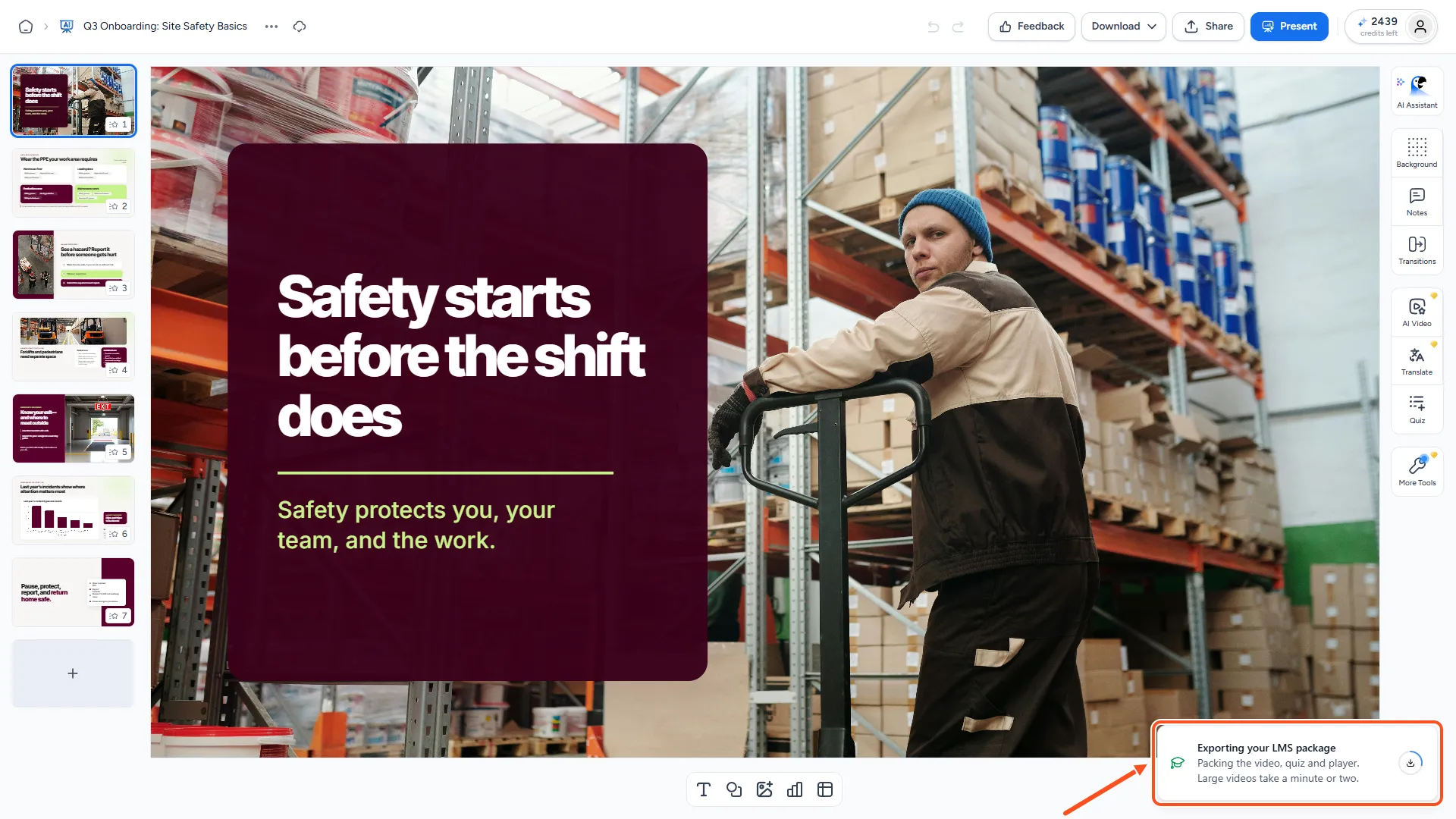
The dialog closes and a progress card appears in the bottom right corner. You can keep working while SlideSpeak builds the package. When it is done, a .zip file downloads automatically. Its name is your presentation's title without spaces or special characters, because some LMSs reject those.
The package contains everything learners need: the course player, your video or slide images and audio, the quiz, and the handout and transcript if you chose them. The player's buttons appear in your presentation's language.
Step 6: Upload the zip to your LMS
Upload the .zip file exactly as it downloaded. Do not unzip it. The steps differ by LMS, but they usually look like this:
- Open the course where the training should live.
- Add a new activity, module or learning object, and choose SCORM (sometimes called "SCORM package", "eLearning" or "online content") as its type.
- Upload the zip file and save.
- Open the course as a learner, or use your LMS's preview, to check that the video plays and completion is recorded.
Your LMS uses its own settings for due dates and enrolment. The completion rule, pass mark and attempts come from the package, so change them in SlideSpeak and export again if you need different ones.
Troubleshooting
- My LMS rejects the file. Check that you uploaded the zip without unzipping it, and that you picked the SCORM version your LMS supports. If the file is too large, try narrated slides instead of a video.
- My quiz is not in the list. Only quizzes made from this presentation, with at least one question, appear. Create one in the Quiz panel.
- My video is not in the list. A video that is still exporting appears once its MP4 is ready. The dialog tells you when this is the case.
- I only need the questions. To add questions to your LMS's own question bank instead of a full course, export the quiz as QTI or as a Brightspace CSV.
- I want a whole course with several lessons. See how to build a course with AI.
Need more help?
If you have any questions or need assistance, feel free to contact our support team at support@slidespeak.co