

Use Send email to send a public viewing link from SlideSpeak. Anyone who gets the link can open it without an account, even if someone forwards it. If a course is for named learners only, invite them to the course. If someone needs to edit your slides, add them as a presentation collaborator.
Before you start
- For a presentation, open a deck you own. For a video or course, use an item you own or can manage in your active team workspace.
- Your own SlideSpeak email address must be verified to send. Until it is, check that the link is public, then use Copy link to share it from your own email.
Open the right Share dialog
| To send | Where to start |
|---|---|
| A presentation | Open the presentation you own and click Share in the editor. |
| An AI video | In the video project, open Exports and click Share on the finished video. If you already have its preview open, click Share below the player. The email links to that export. |
| A public course | Open the course, click Share and check General access under Share link. Choose Anyone with the link only if the course and its lessons can be shared publicly. |
Address and send the email
- In the share dialog, select Send email. If a presentation or video is restricted, you’ll see Enable link sharing. Clicking it opens the link to anyone who has it, even before you choose recipients.
- Enter the addresses under Send to. You can paste a list separated by commas or new lines. Enter only the address, such as alex@example.com, without the person’s name in front of it. A draft holds up to 50 addresses. Check the number below the field for your current sending limit.
- If your list is longer than your sending limit, select the addresses you want to email now. The remaining addresses stay in your draft.
- To include a note, select Add a message. Keep it to plain text. SlideSpeak removes links and email addresses from the note. When you’re ready, click Send email. If you selected part of the list, the button says Send to followed by the number selected.
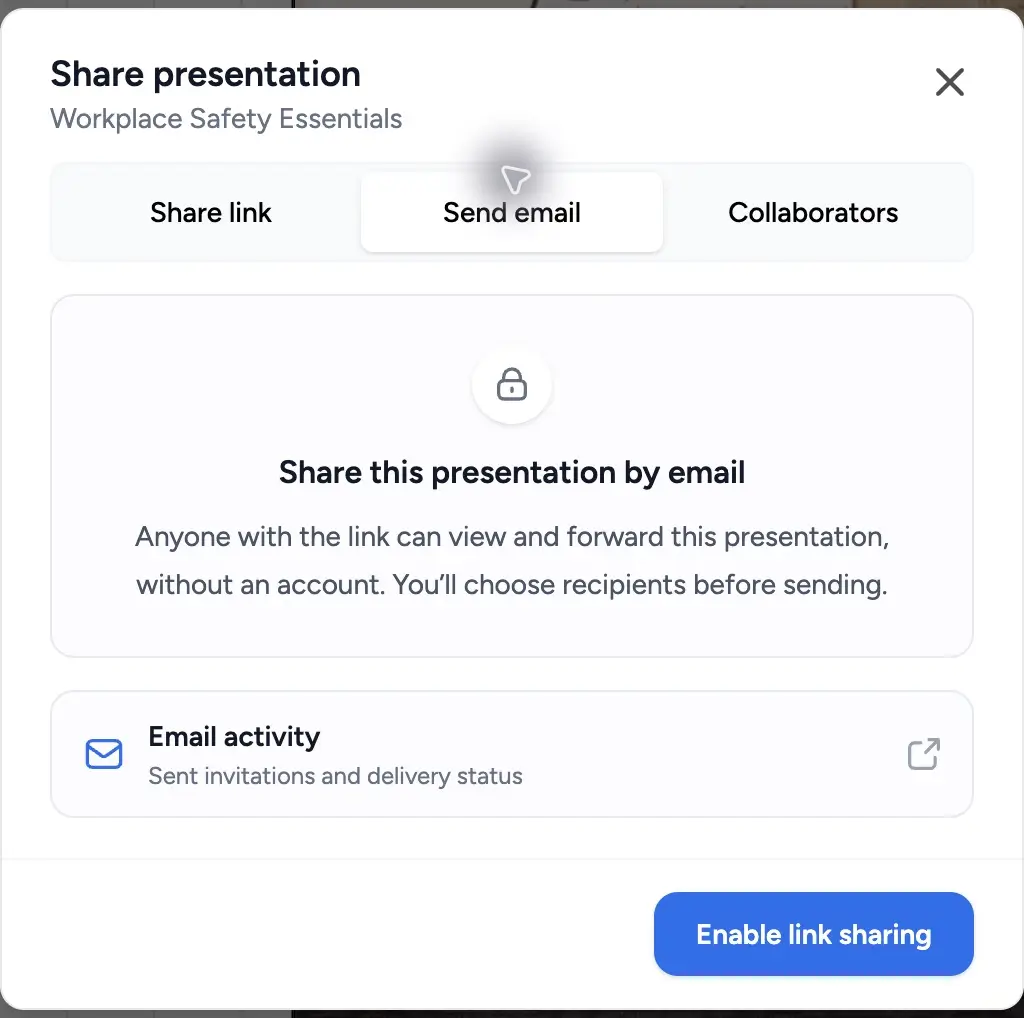
Each recipient gets a separate email with a View presentation, Watch video or View course button. Recipients see only their own address. They can stop SlideSpeak invitations from a link in the email.
If the email doesn’t go through
- The send result is unclear. Click Check status before you try again. To see what happened to an individual address, open email activity.
- SlideSpeak asks you to confirm your email address. Sign in again with the account you’re sending from, then reopen Share.
- You can’t see Send email. If your presentation’s Share dialog only offers link settings, use Copy link after checking its access. You can paste that link into your own email.
After you send a public link, you can close it by changing the presentation or video to Restricted, or the course to Private. Someone with separate workspace or collaborator access may still be able to open the material.
Need more help?
If you have any questions or need assistance, feel free to contact our support team at support@slidespeak.co