

Setting up a brand by hand takes a few minutes. If your company has a website, SlideSpeak can start the brand for you. You paste your website address, and SlideSpeak finds your logo and your primary color. You then add your fonts and check that everything looks right.
Before you start
- You need Premium Plus or Lifetime. Brands are not part of the Free or Premium plans.
- Where it lives: click Branding in the left sidebar.
- What the import picks up: your logo and your primary color. Nothing else. Fonts, extra colors, photos and icons are not imported. You add those yourself after the import.
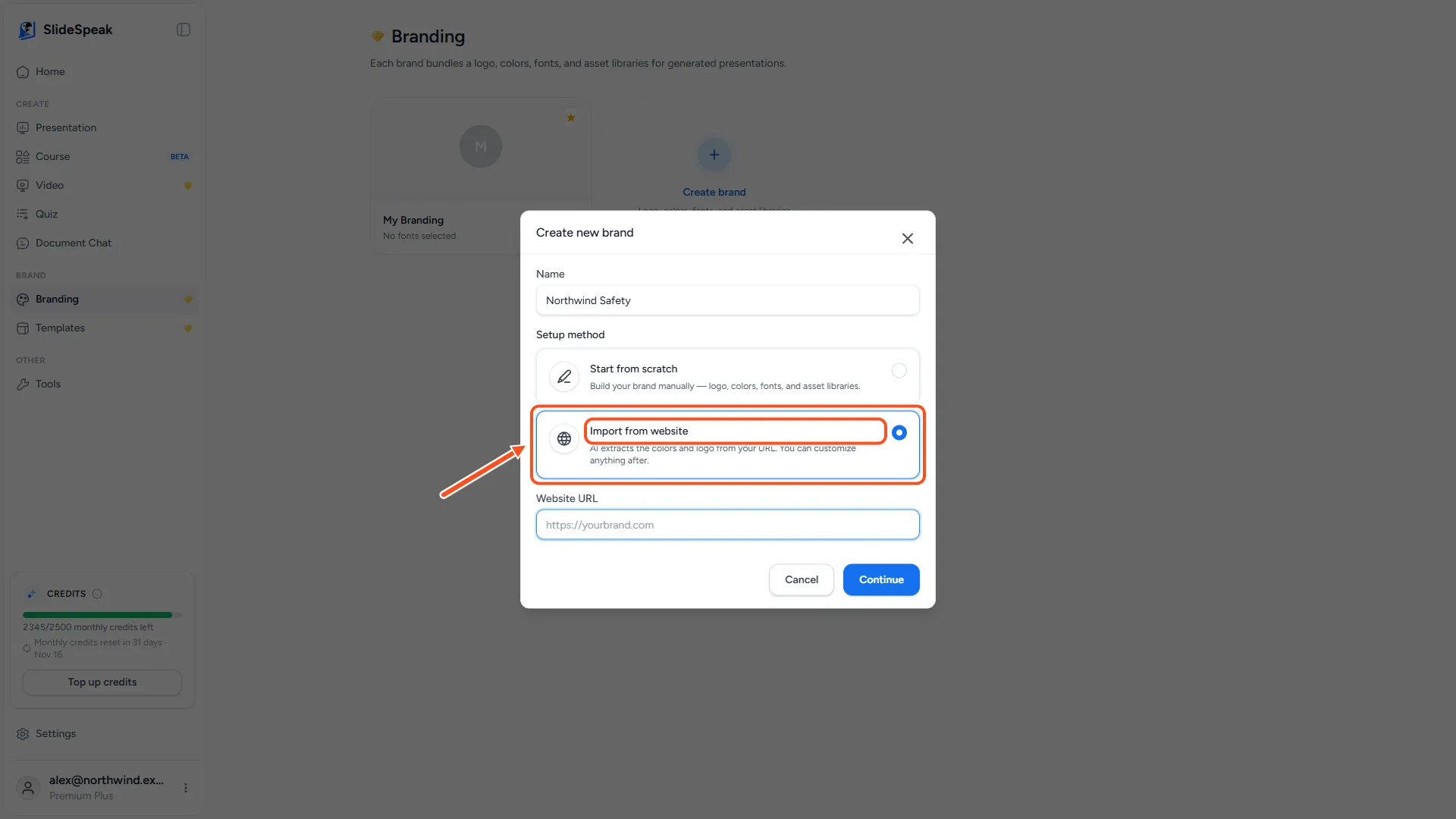
Step 1: Choose Import from website
- Click Branding in the left sidebar.
- Click the Create brand tile.
- Type a name for the brand, for example your company name.
- Under Setup method, choose Import from website.
Step 2: Enter your website address
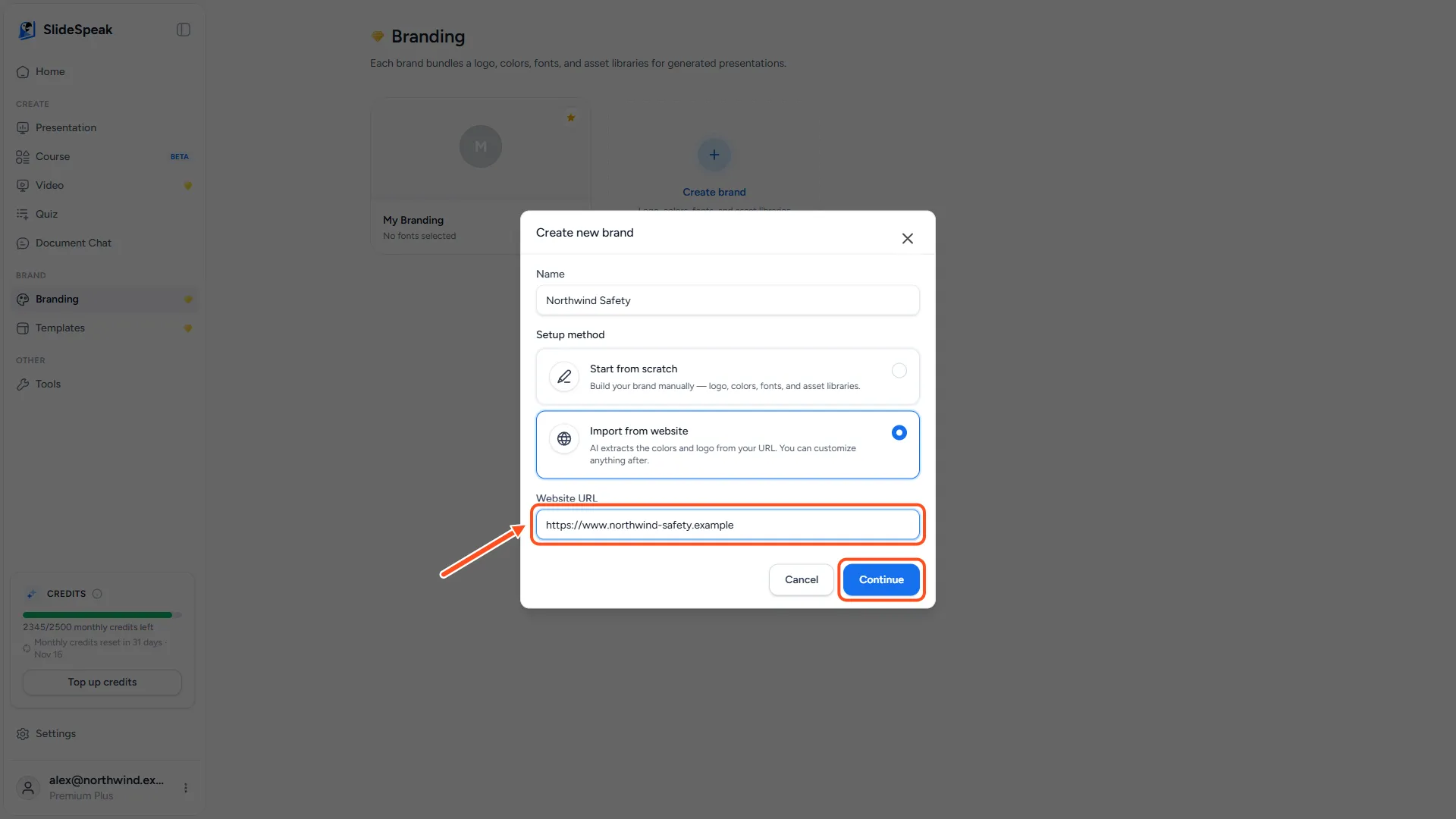
- In Website URL, type or paste your website address, for example
https://yourbrand.com. - Click Continue.
SlideSpeak uses only the domain name. For example, https://www.yourbrand.com/about is read as yourbrand.com. The button shows Importing while SlideSpeak looks up your brand.
Step 3: Check the logo and color
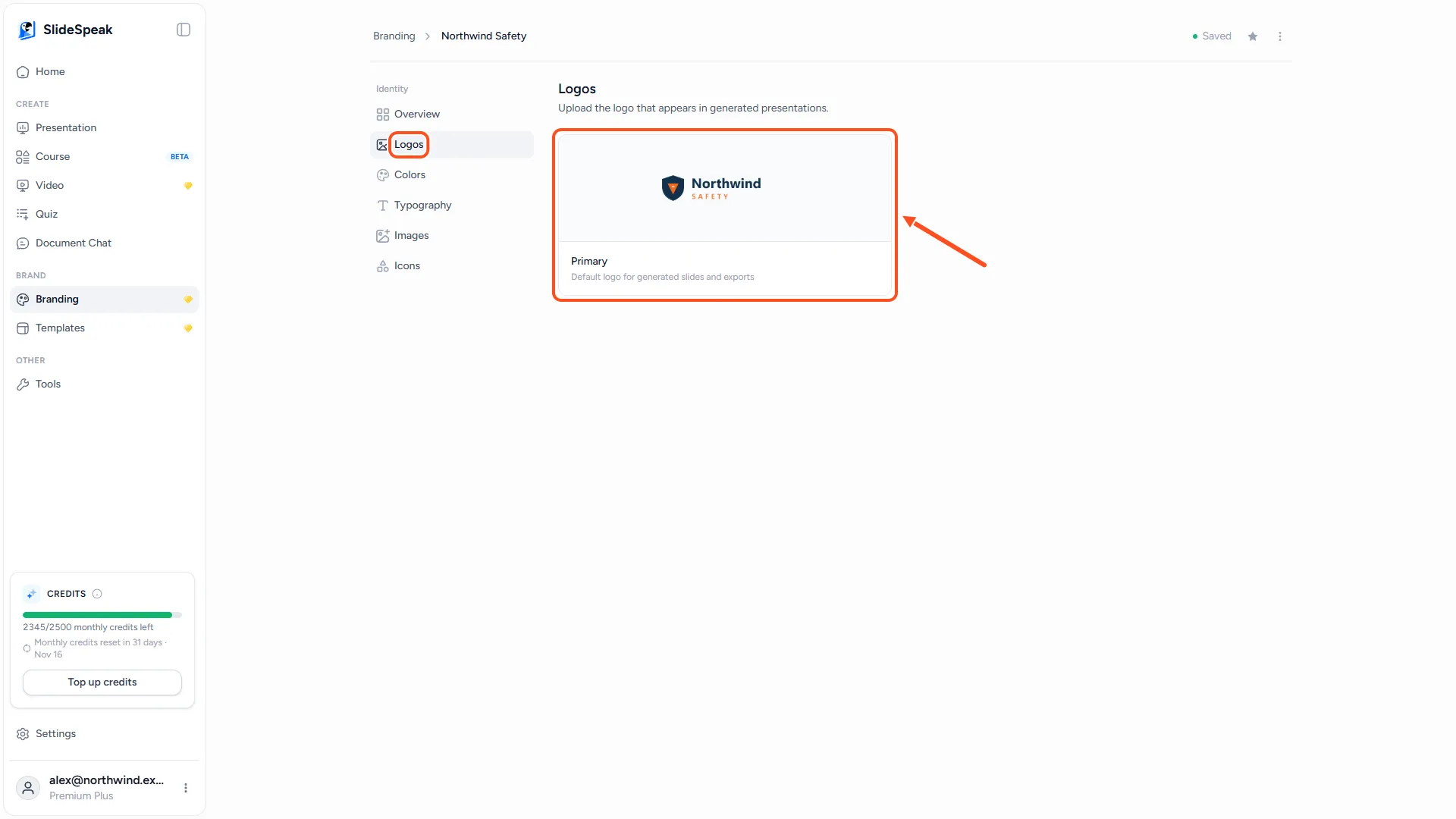
When the import is done, your new brand opens in the brand editor.
- Click Logos and check the logo. If SlideSpeak picked the wrong version, for example a small icon or a logo for dark backgrounds, hover over it and click Replace to upload the right file.
- Click Colors and check the primary color. Click the swatch to change it, or enter the exact hex code from your brand guidelines.
If you don't have a default brand yet, the imported brand becomes your default.
Step 4: Add what the import doesn't cover
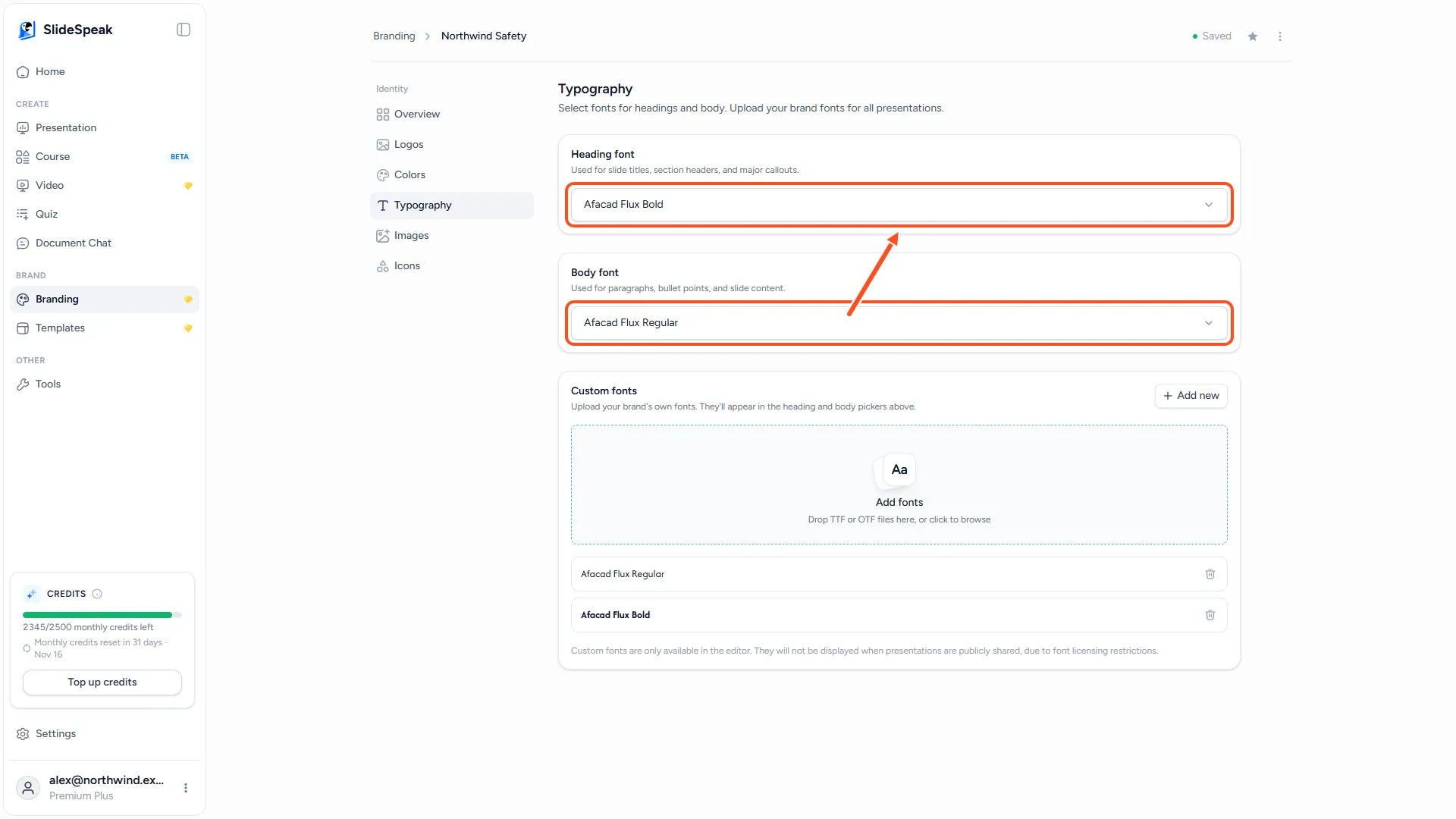
- Click Typography and choose your Heading font and Body font. If your brand uses its own font files, upload them under Custom fonts. See how to use custom fonts.
- Optional: click Images and Icons to upload your own photos and icons. See how to add your own brand images and icons.
SlideSpeak saves your changes automatically. For everything else, such as setting a default brand and using it in a new presentation, see how to set up your brand kit.
Troubleshooting
- "Please enter a valid website URL." Check the address for typos. You can leave out
https://, but the address must include a domain, such asyourbrand.com. - "We couldn't find brand settings for this website. Please check the URL and try again." SlideSpeak couldn't find a logo or a color for that domain. Try your main company domain instead of a subdomain or a campaign site. If it still doesn't work, choose Start from scratch and add your logo and color by hand.
- Only the logo or only the color came through. Some websites don't publish both. Add the missing one in Logos or Colors.
- My fonts are missing. That is expected. The import never picks up fonts. Choose them in Typography.
Need more help?
If you have any questions or need assistance, feel free to contact our support team at support@slidespeak.co