

Have a PowerPoint that says the right things but looks dated? SlideSpeak can read its content and build a brand-new presentation around it, with a fresh design, layout and images. If you would rather keep your slides exactly as they are, you can import the file to edit it instead. Both options start from the same upload.
Before you start
- Plan: both options work on every plan.
- File type: PowerPoint files in .pptx format, up to 100 MB. Free accounts can redesign files up to 50 MB. If you have an older .ppt file, open it in PowerPoint and save it as .pptx first.
- Credits: importing a file to edit costs no credits. Redesigning creates a new presentation, so it costs the same as any new presentation: 1 credit per slide with SlideSpeak AI 4.0, or 5 credits per slide with SlideSpeak AI 5.0. See how credits work in SlideSpeak.
- Your original file is safe. Neither option changes the file on your computer.
Redesign or import: which one do I need?
| Redesign with AI | Import presentation | |
|---|---|---|
| What you get | A brand-new presentation built from your file's content | Your own slides, now editable in SlideSpeak |
| Design | New design, layouts and images | Your original design |
| Best for | Refreshing an old deck, changing its length or language | Editing, translating or presenting a deck you are happy with |
| Credits | Like any new presentation | None |
Step 1: Upload your PowerPoint
Sign in at app.slidespeak.co. On your home screen, click Import PowerPoint. You can also click Presentation in the left sidebar and choose Import PowerPoint there.
The Import a PowerPoint dialog opens. Drag your file onto Drag and drop your PowerPoint, or click Choose file.
Step 2: Choose Redesign with AI
Once your file is selected, SlideSpeak asks What would you like to do with this file?
- Import presentation: Open your slides in the editor to edit, translate or present.
- Redesign with AI: Use its content to generate a brand-new presentation.
Choose Redesign with AI. SlideSpeak reads your slides, which can take a minute. Keep the dialog open until it finishes.
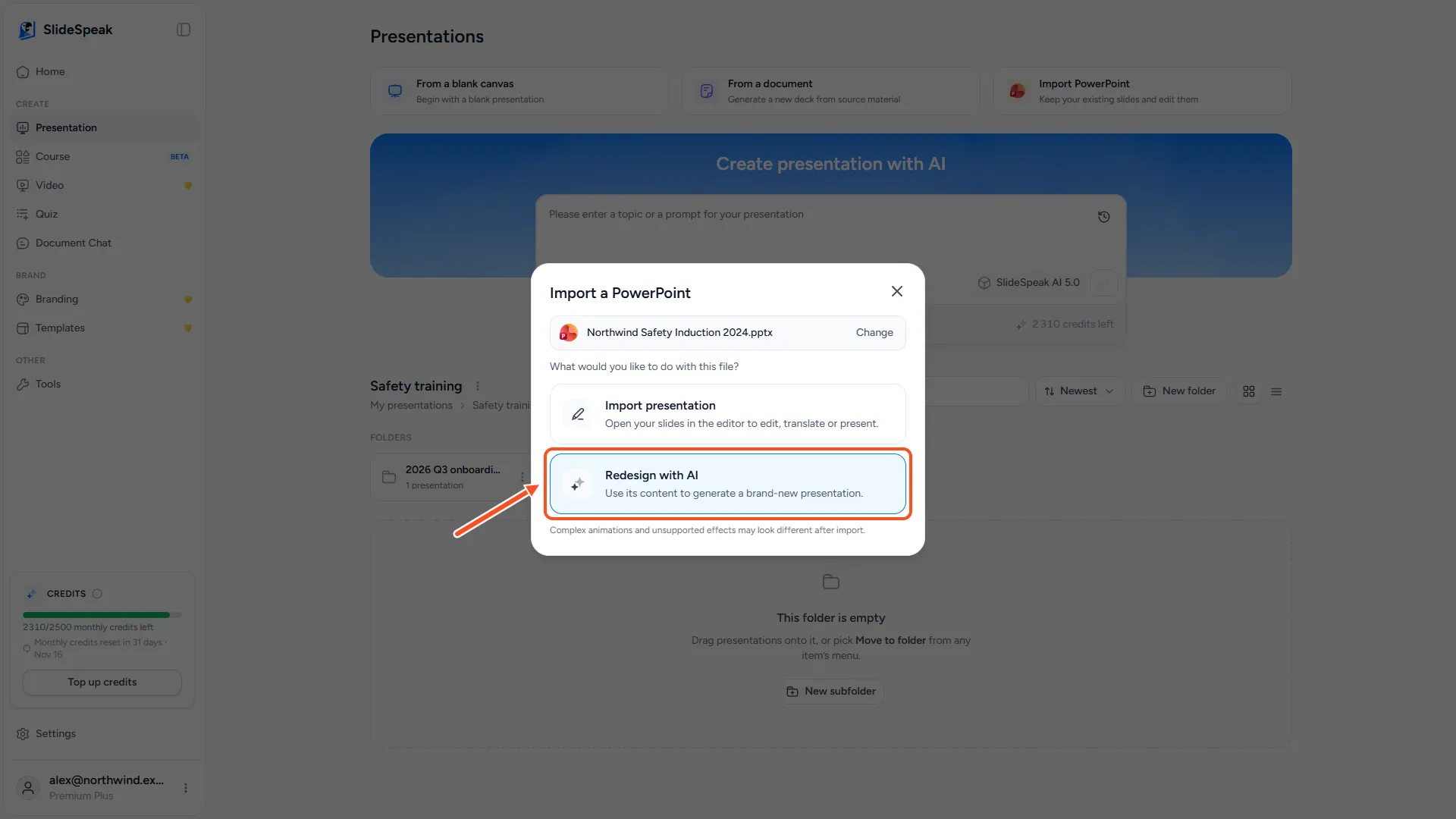
If you chose Import presentation instead, SlideSpeak converts your file and opens it in the editor, with your original design. You can stop here.
Step 3: Tell SlideSpeak what you want
Your PowerPoint now sits as an attachment in the presentation prompt box. You can generate straight away, or type instructions first, for example "Make this a 10-minute pitch for investors" or "Rewrite it for new employees."
Before you send, adjust the settings under the prompt box:
- Length: Automatic, Short (3 to 8 slides), Informative (8 to 12), Detailed (12 or more), or an exact number of slides.
- Presentation language: choose another language to redesign and translate in one go.
- Model: if you have SlideSpeak AI 5.0, choose between SlideSpeak AI 4.0 and SlideSpeak AI 5.0. See what is the difference between SlideSpeak 4.0 and 5.0.
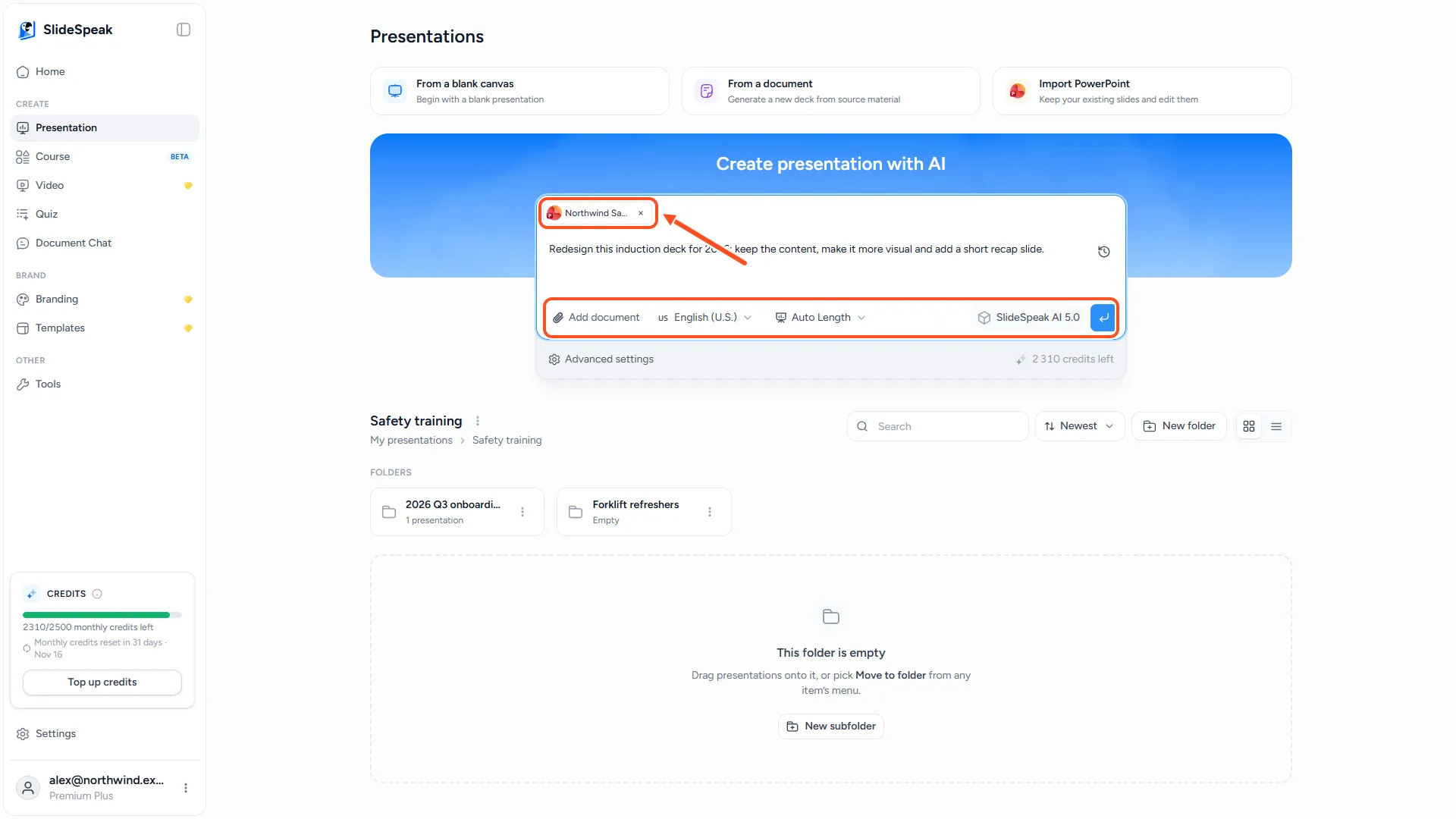
Open Advanced settings to control how closely the new deck follows your file:
- Use wording from document: keeps wording very close to your original slides. Switch it off to let SlideSpeak rewrite the text.
- Use document images: reuses the images from your PowerPoint.
- Use general knowledge: adds related information that is not in your file.
- Branding: applies one of your brands, so the new deck uses your logo, colours and fonts.
- Tone and Amount of text.
Then click the send button.
Step 4: Pick a design and review the outline
With SlideSpeak AI 5.0, you first pick a design for the new deck, then click Continue. See how to choose a design in SlideSpeak AI 5.0.
SlideSpeak then drafts an outline from your PowerPoint. Drag slides to reorder them, click a slide to edit it, and remove slides you do not need. Every slide needs a title.
When the outline looks right, click Generate presentation. The button shows how many credits the deck will use. Your new presentation opens in the editor when it is ready.
Troubleshooting
- "The file type you are trying to upload is not supported by SlideSpeak". Only .pptx files work here. Save .ppt or Keynote files as .pptx first. For a PDF or Word document, use From a document on the Presentation page instead.
- "The document you are trying to upload is too big". The limit is 100 MB. Compress large images in PowerPoint, or remove videos, then try again.
- "Failed to upload presentation. Please try again." on the Free plan. Free accounts can redesign files up to 50 MB. Make the file smaller, or upgrade for larger files.
- "You don't have enough credits to generate any slides". Redesigning uses credits like a new presentation. Choose fewer slides, switch to SlideSpeak AI 4.0, or get more credits.
- My animations look different. Complex animations and unsupported effects may look different after import. A redesign builds new slides, so your original animations are not kept.
Need more help?
If you have any questions or need assistance, feel free to contact our support team at support@slidespeak.co