

Use quiz results to review live sessions and self-paced submissions, then open a participant’s response to see their answers. You can view results for one presentation or for a quiz across the presentations where you’ve used it.
Before you start
Use a quiz or presentation you own, or one in your active team workspace. An invitation to edit someone else’s presentation does not grant access to these reports. Self-paced responses appear after participants click Submit quiz. Live participants and answers appear as the session runs, with final scores available after it ends.
Personal practice and creator previews don’t create participant responses. If you need responses from a shared presentation, add a self-paced quiz and send participants the presentation link.
Step 1: Open the right report
Choose the starting point that matches what you want to review:
- One presentation: open it in the editor, click Quiz in the right-hand toolbar, then click View quiz results. You’ll see live sessions and self-paced quizzes from that presentation.
- One quiz across presentations: open the quiz in the dashboard’s quiz tool and click Results. On a smaller screen, open the three-dot menu next to the quiz title and choose Results.
The quiz-wide report can include several sessions and several saved copies of a quiz. The presentation report keeps the list to that presentation.
Step 2: Choose a session or self-paced quiz
Use All results, Live or Self-paced to filter the list. Check the source presentation and date, then click View results beside the session or self-paced quiz.
For a live session, the status helps you read the results:
| Status | Meaning |
|---|---|
| Not started | The host hasn’t started the session. Participants appear as they join. |
| In progress | The session is running. Results are provisional. |
| Finished | The session finished. |
| Ended early | The host stopped the session before it finished. Results are incomplete. |
| Disconnected | The host disconnected. Results are incomplete. |
| Ended | SlideSpeak has recorded the end of the session, but its completion status is unknown. |
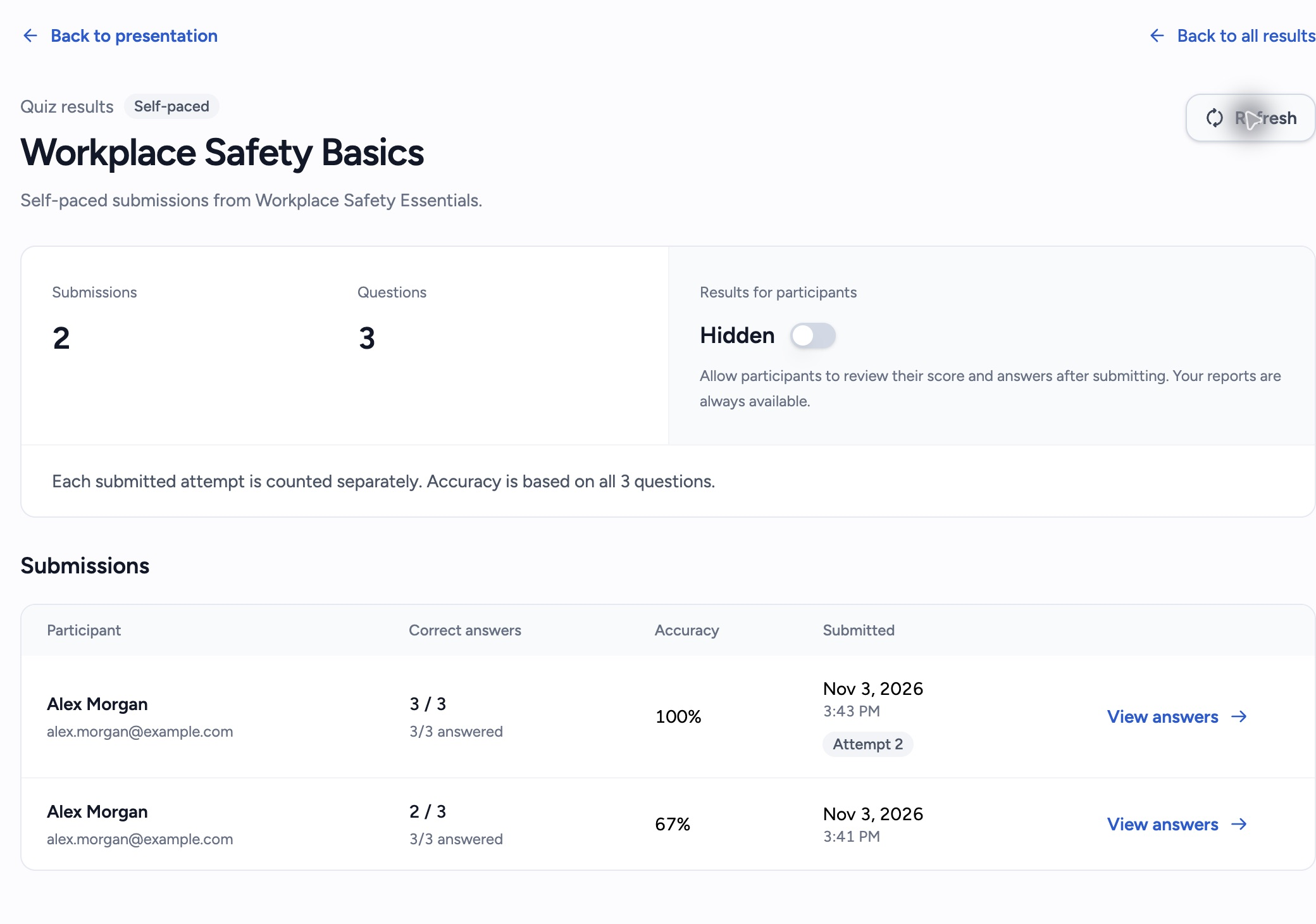
For a self-paced quiz, the report lists submitted responses. A participant who retakes and submits the quiz adds another response.
Step 3: Read the participant table
The table includes Correct answers and Accuracy, plus Points for a live session or Submitted for a self-paced response.
- Correct answers shows the number correct out of the full question count. The smaller answered count tells you how many questions the participant answered.
- Accuracy is correct answers divided by the full question count. Unanswered live questions stay in that total. For example, 6 correct answers in a 10-question quiz gives 60% accuracy.
- Points is the live score. Response speed affects points, so two participants with the same accuracy can earn different scores.
- Submitted shows when a self-paced participant submitted. Repeat responses may have an Attempt 2, Attempt 3 or later badge. Attempt numbers apply within each saved quiz copy. SlideSpeak groups attempts by email when available, or by its record of the viewer in that browser.
Live results identify participants by the nickname they joined with. Self-paced responses can include a name and email if you collected viewer details; otherwise you may see Anonymous participant.
Step 4: Open a participant’s answers
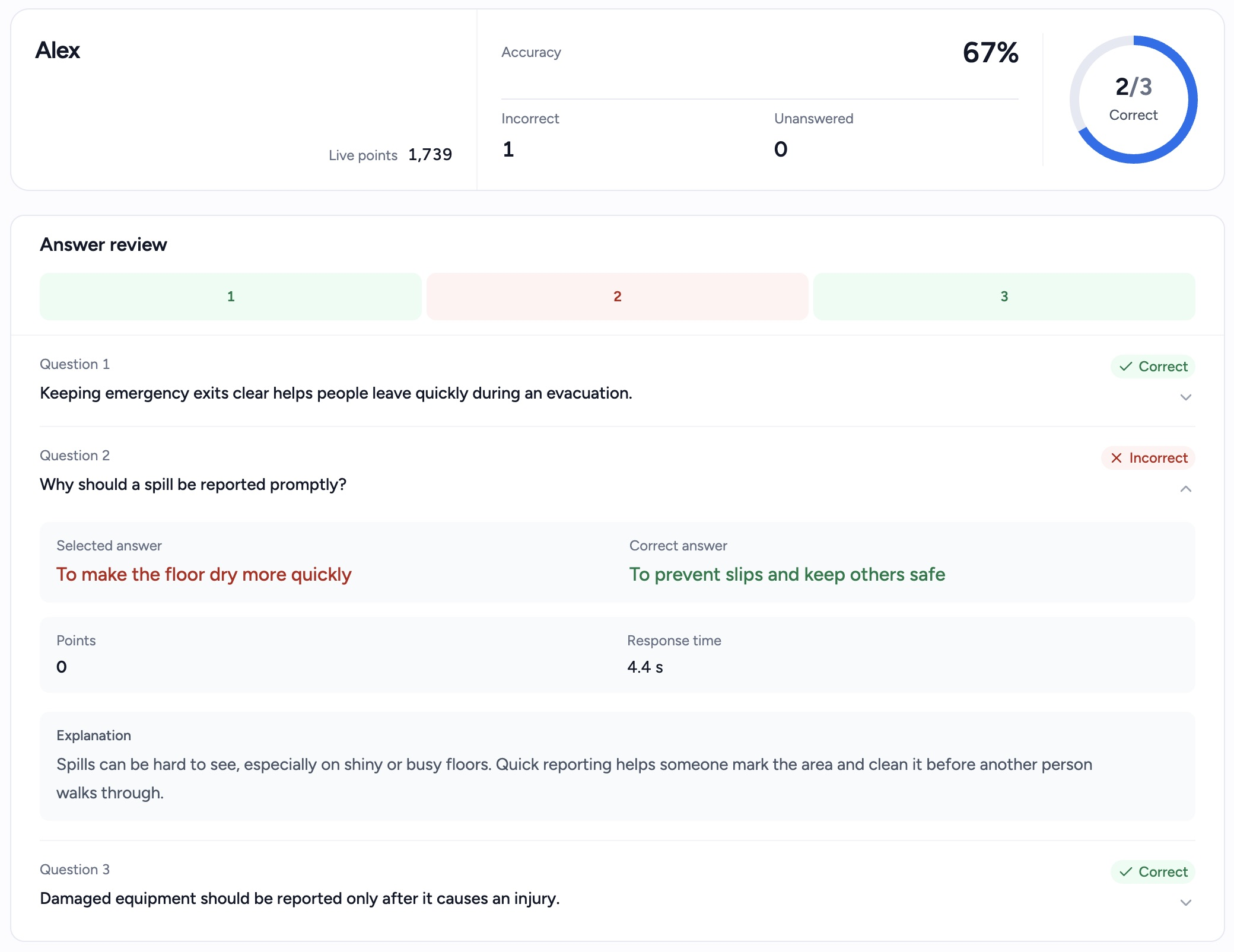
Click View answers beside the response. In Answer review, click a question number or expand the question to see the selected answer, whether it was correct and any explanation. For an incorrect or unanswered question, you can also see the correct answer.
Live answer review includes Points and Response time for recorded answers. A dash means that value isn’t available, such as for an unanswered question.
Click Back to participants to return to the response list. From that list, click Back to all results to choose another session or saved quiz.
Control whether self-paced participants see their results
In a self-paced quiz report, turn the switch under Results for participants on or off. The status changes to Visible or Hidden. Participants can review their score and answers after submitting when results are visible. With results hidden, they see a submission confirmation. You retain access to the report in either case.
This control applies to the selected saved copy. For live sessions, choose Show results to participants when you prepare the quiz for live hosting; it applies to new sessions.
Troubleshooting
I see more responses than participants. Self-paced retakes count as separate submitted responses. They are not a count of unique people.
A session is missing from a presentation’s report. In the presentation report, use Earlier live sessions if it appears. You can also open the quiz-wide report to look for sessions with no recorded source presentation. SlideSpeak can’t assign those earlier sessions to a particular deck.
The answers don’t match my latest edits. The report reflects the questions saved for that session or self-paced copy. Editing the source quiz does not rewrite those questions or responses.
The results haven’t changed. Click Refresh. The overview and running live reports update on their own; use Refresh to fetch new self-paced submissions while viewing a saved quiz report.
I can see results, but participants can’t. Check the participant visibility setting. Hiding their results does not hide your report.
Need more help?
If you have any questions or need assistance, feel free to contact our support team at support@slidespeak.co