

Turn on Collect viewer details to record a name and email when someone opens your shared presentation. Use the Visitors tab in Share analytics to see those viewers and their first and latest visits.
An attendance entry records a visit. It does not confirm that someone read every slide or completed the training. Guest names and emails are self-reported.
Before you start
- Use a presentation you own, or one in your active team workspace. An invitation to edit another person’s deck does not grant access to attendance or collection settings.
- To let people view without a SlideSpeak account, set General access to Anyone with the link. In a team workspace, the control is Share link and the option is Anyone can access.
- Enable collection before sending the link if you need names and emails. Turning it on does not identify earlier anonymous visits.
These instructions cover presentation attendance. AI video share analytics use a separate sharing screen.
Step 1: Turn on viewer collection
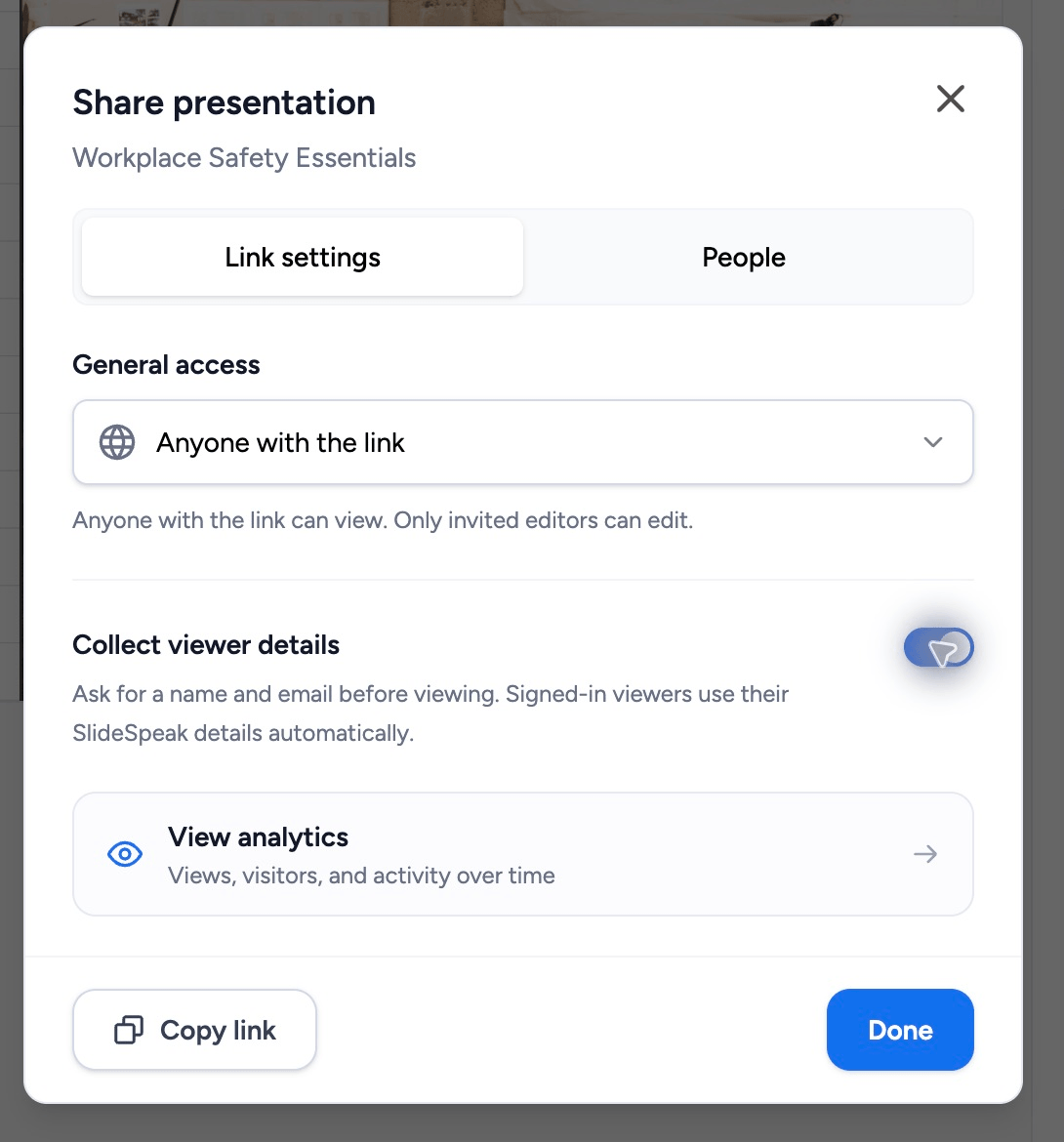
- Open your presentation and click Share.
- Open Link settings if the Share dialog shows tabs.
- Turn on Collect viewer details.
- Click Copy link and send it to your viewers.
Collection asks for viewer details; it does not change who has access to a restricted presentation. For the access settings, see how to share a presentation with a link.
Step 2: Viewers open the presentation
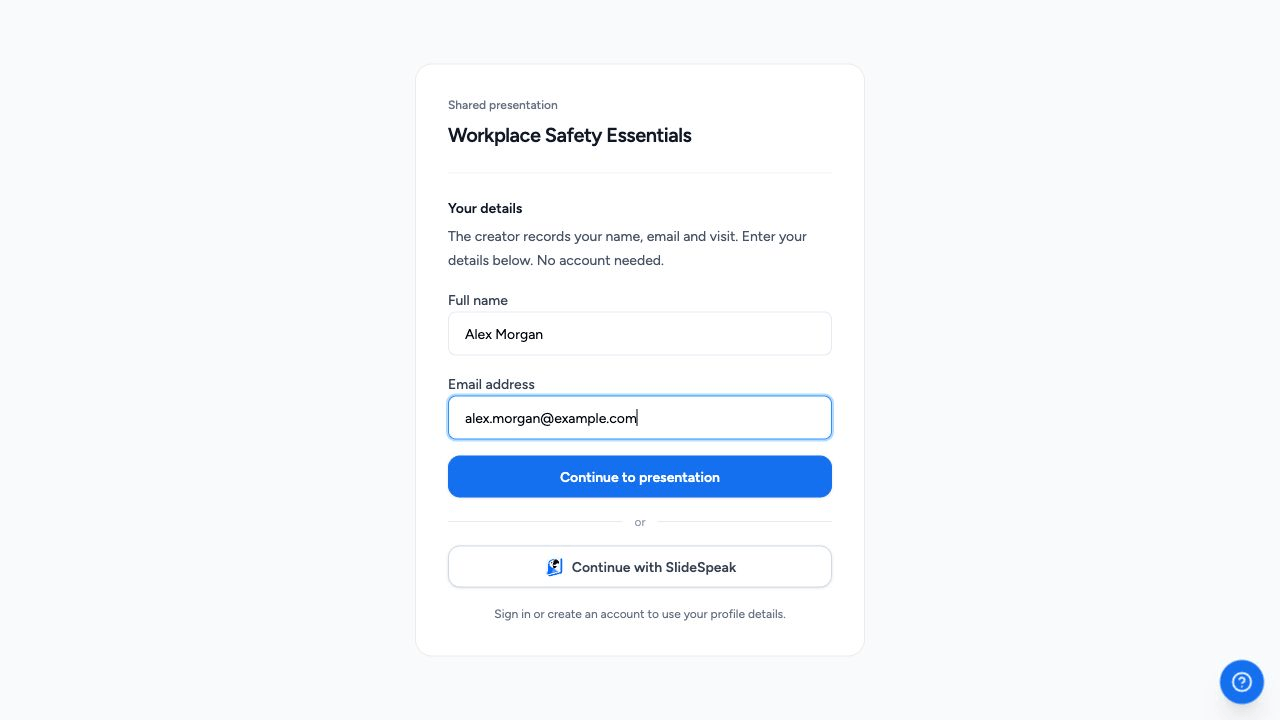
Guests enter Full name and Email address, then click Continue to presentation. They can do this without a SlideSpeak account. The form explains that you will receive their name, email and visit.
Viewers can also choose Continue with SlideSpeak to sign in or create an account. SlideSpeak uses their account details; if their profile has no name, it asks them to add one before continuing.
Step 3: Open the Visitors report
- Open the presentation’s Share dialog.
- Open Link settings if shown, then click View analytics.
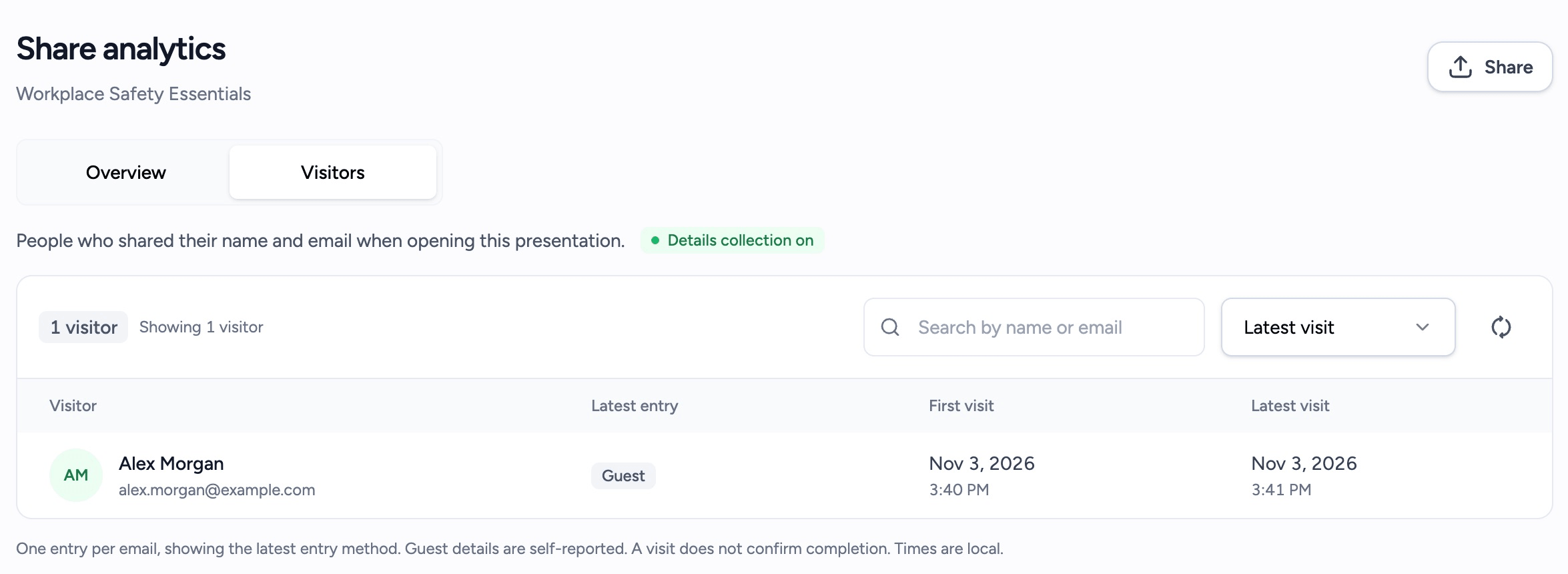
- On the Share analytics page, choose Visitors.
The Details collection on or Details collection off badge shows whether you’re collecting new details. The visitor table contains:
| Column | Meaning |
|---|---|
| Visitor | The recorded name and email. |
| Latest entry | How the viewer identified themselves on their most recent recorded visit: Guest, SlideSpeak account or Not recorded. |
| First visit | Their earliest recorded visit to this presentation. |
| Latest visit | Their most recent recorded visit. |
SlideSpeak groups attendance by email, so repeat visits with the same email appear in one entry. The row uses the latest recorded name and entry method. Visit times use your local timezone.
Step 4: Find a viewer or check recent visits
Type a name or email into Search by name or email. Choose Latest visit, First visit or Name: A to Z to sort the list.
Use the page controls to see more entries. Click the refresh button to fetch new attendance records. If no results appear, clear the search before checking the full list.
Compare attendance with link activity
Open Overview on the same page to see link views, unique visitors and activity over time. This includes visits from people who haven’t shared their details. See how to read share analytics for date ranges and metric definitions.
A viewer can open a link several times but appear once in the Visitors report for the same email. An anonymous link visit can count in link analytics without adding an attendance entry.
For assessment answers and scores, use quiz results.
Stop collecting details
Open Share and turn off Collect viewer details. SlideSpeak keeps existing attendance records and stops collecting new viewer details. The Visitors tab shows Details collection off.
To close public access too, change General access to Restricted. In a team workspace, change Share link to Only you can access. This closes the public link; team members and people with separate access may still be able to open the presentation.
Troubleshooting
No attendance yet. Check that collection is on and that viewers opened the presentation after you enabled it. Refresh the report and clear any search filter.
The view count is higher than attendance. Link analytics include repeat visits and anonymous visits. Attendance groups recorded details by email.
A guest’s details are wrong. Guests supply their own name and email. SlideSpeak records what they enter.
I need proof that someone completed the lesson. Attendance records visits. Use quiz results to review submitted answers, or export a SCORM package when you need your LMS to track completion under a chosen rule.
Need more help?
If you have any questions or need assistance, feel free to contact our support team at support@slidespeak.co