

You don’t need a presentation to share a quiz. Open the quiz from Quiz on your dashboard, click Share and turn on Public access to get a link anyone can use. Participants answer at their own pace, and you can review each submission.
| You want to | Use |
|---|---|
| Send the questions on their own, by link | This guide |
| Put the quiz inside your slides | Share a self-paced quiz in a presentation |
Before you start
If you don’t have a quiz yet, open Quiz on your dashboard. Under Start from a topic, choose Create quiz, or select Choose documents to use your files. You can also start with an existing presentation.
Choose what participants see
- On the dashboard, open Quiz in the sidebar. Under Your quizzes, select the quiz title. Check the questions and answer options, then choose Share. If you started in a presentation’s Quiz panel, open the quiz from Your quizzes to get its own link.
- Turn on Collect participant details if you need names and email addresses. Guests enter their details before starting. Leave collection off before sharing if new participants should submit without giving a name or email.
- Set Show results to participants before sharing. Turn it on for learners to review their score and answers after submitting. Turn it off if learners should see only the submission confirmation. You can still review their answers.
- Turn on Public access to publish the first version. Anyone with the link can take the quiz. Click Copy link and send it to your participants.
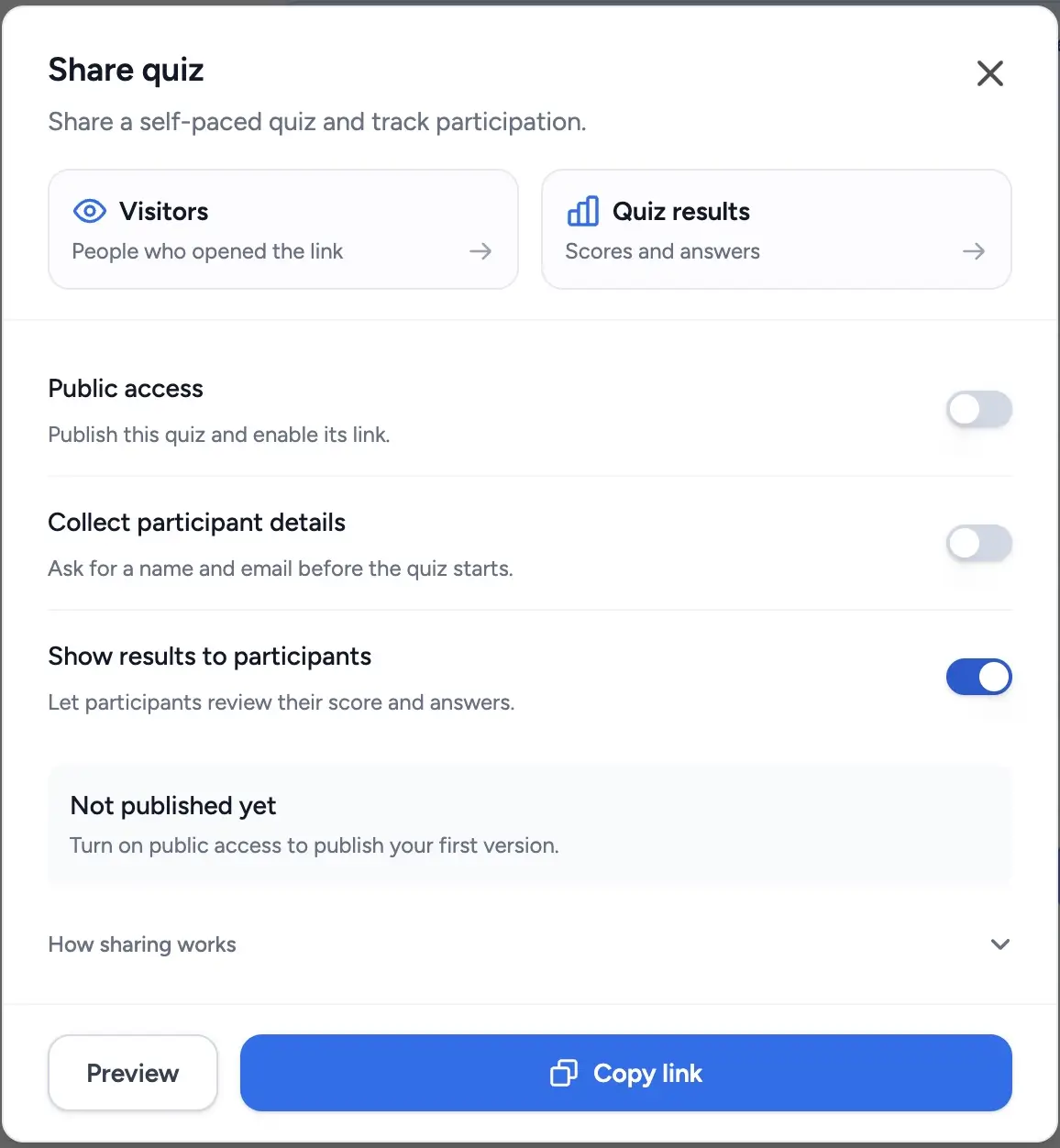
Use Preview to check the published participant experience. Your preview as the owner won’t add a submission to the report.
Update the questions after sharing
Editing a question in the editor leaves the published version in place. When you’re ready for new participants to see the changes, open Share and click Update shared quiz. Look for Shared version up to date. You can keep using the same link.
A learner who already started an attempt finishes the version they opened. Their answers stay with that version, even if you publish new questions before they submit.
See who visited and who submitted
In the quiz editor, open Share again.
- Visitors lists identified visitors across all published versions. Someone can appear here without submitting answers.
- Quiz results shows submitted attempts. Open the direct-link version you want to review. Each submitted retake counts separately. To see how someone answered each question, open their submission in the results report.
Turning off participant collection keeps the information and submissions already recorded. The Show results to participants setting applies to all versions of this direct link. A learner may already have read or saved answers before you hid them.
Why does the link say the quiz is unavailable?
Open Share and check Public access. Copy link also works when public access is off, so turn on public access before you send the address. If you see Not published yet outside the editor, choose Open quiz editor to publish the first version.
Need more help?
If you have any questions or need assistance, feel free to contact our support team at support@slidespeak.co