

How to Turn a PDF into a Google Forms Quiz (3 Free Methods)
Written by

Published on
On this page
You have a PDF (lecture notes, a chapter, a study guide) and you want a Google Forms quiz that grades itself. Google Forms has no import button for files, so until recently the workaround was a clunky two-step workflow: generate quiz questions with one tool, then get them into Forms with another. Now a single free tool does the whole conversion. In this guide we cover the fastest way to turn a PDF into a Google Form quiz, a manual fallback for locked-down school devices, and an option for Canvas and Brightspace users.
Why you cannot import a PDF into Google Forms directly
Google Forms can only import questions from other Google Forms. There is no upload option for PDF, Word, or CSV files. So every “PDF to Google Form” workflow has two parts: something that turns your PDF into well-formed quiz questions, and something that gets those questions into Forms with the answer key set. The methods below differ in how much of that work is done for you.
Method 1: Convert the PDF with a free AI tool (fastest)
SlideSpeak’s free Convert PDF to Google Form Quiz tool handles both halves of the workflow: it generates the questions from your PDF and creates the actual Google Form, answer key included. No account needed.
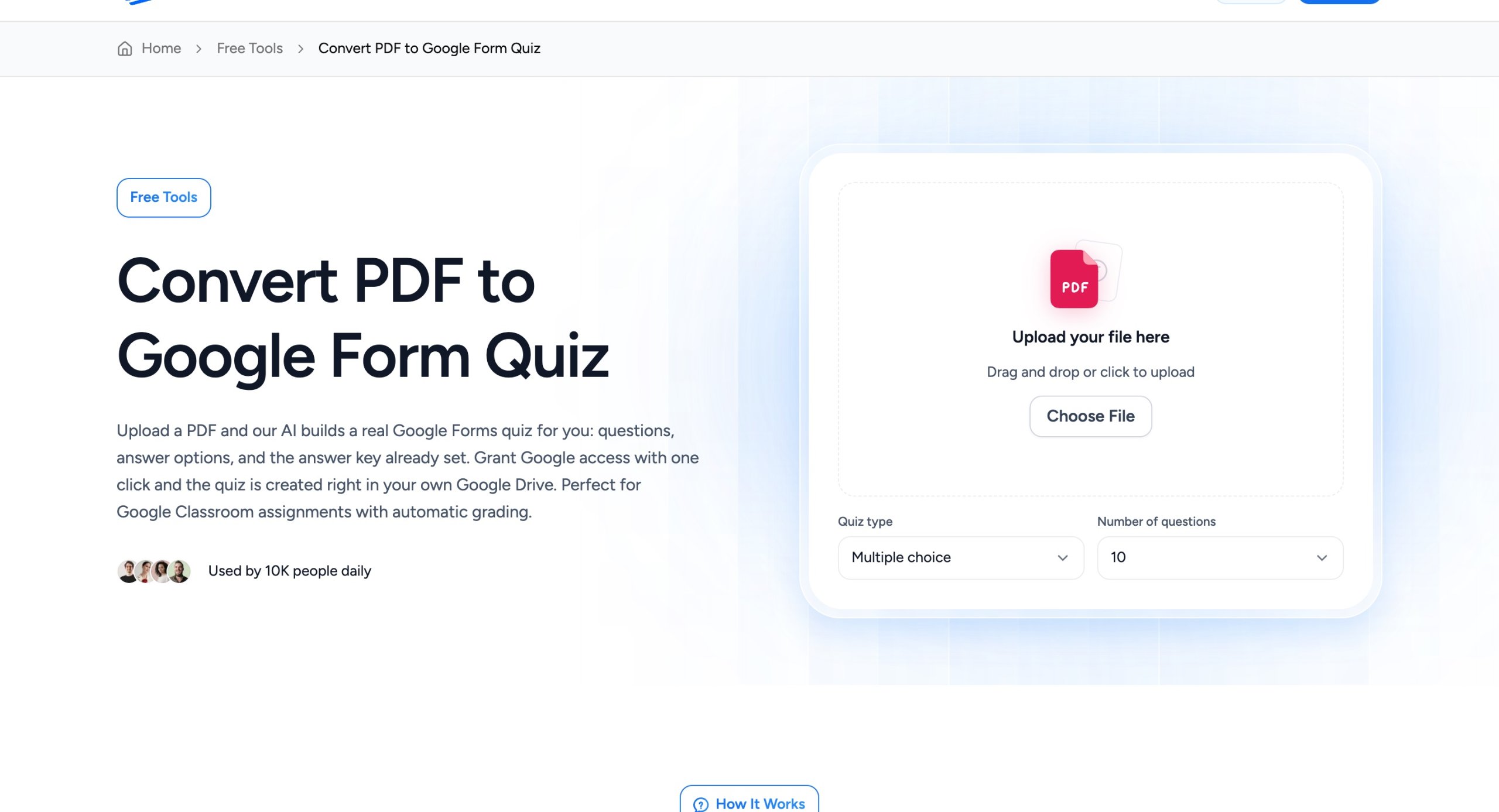
Here is the whole flow:
- Upload your PDF (textbook chapters, study guides, lecture notes, and articles all work), choose the quiz type and number of questions, and click Generate Quiz.
- The AI reads the document and generates the questions, multiple-choice answer options, and the answer key. Review them and regenerate if you want different ones.
- Click Create Google Form and approve Google’s access popup. The finished quiz appears in your own Google Drive with quiz mode on and the answer key already set, ready to assign in Google Classroom.
If you do not need a Google Form and just want a printable quiz with an answer sheet, the simpler quiz generator for PDFs does that, and there are PowerPoint and Word versions for other source files.
Method 2: The manual fallback (no Google permissions needed)
If your school’s Google Workspace admin blocks third-party access to Drive, you can still skip most of the typing. Generate the questions with the free PDF quiz generator, then open a new form at forms.google.com, switch on quiz mode (Settings, then “Make this a quiz”), and paste each question and its answer options from the generated quiz document. Google Forms automatically splits pasted answer lines into options, so a 10-question quiz takes a few minutes. Mark the correct answers from the answer sheet as you go.
Method 3: Using Canvas, Brightspace, or Schoology? Use QTI instead
If your quiz’s final destination is an LMS gradebook rather than Google Forms, skip the conversion entirely: SlideSpeak exports quizzes as QTI packages that import into Canvas, Brightspace, and Schoology as native, auto-graded quizzes.
Frequently asked questions
Is this really free?
Yes. The Convert PDF to Google Form Quiz tool is free and works without an account. The only permission it asks for is the one-click Google access popup, which is what lets it create the form in your own Drive.
Can ChatGPT convert a PDF to a Google Form?
ChatGPT can draft quiz questions from a PDF, but it cannot create the Google Form for you, so you still end up pasting everything in manually. The SlideSpeak tool automates both halves: it writes the questions and builds the form.
Does the Google Form grade itself?
Yes. With quiz mode on and the answer key set, Google Forms grades multiple-choice responses automatically, and scores flow into Google Classroom if you assign the form there.
Wrap-up
PDF in, auto-graded Google Form out, and nothing typed twice. Try the free Convert PDF to Google Form Quiz tool, and if your material lives in slides or Word documents instead, the PowerPoint and Word quiz generators cover those.


