

An AI avatar is an on-screen presenter who appears next to your slides and speaks your narration, with their mouth moving in time with the words. Instead of a deck with a voiceover, you get something closer to a person presenting to camera, which tends to hold attention better in training videos, course lessons, and anything people watch on their own.
AI avatars are part of the AI video editor and are available on Premium plans. Here is how to turn one on.
Step 1: Open your video in the AI video editor
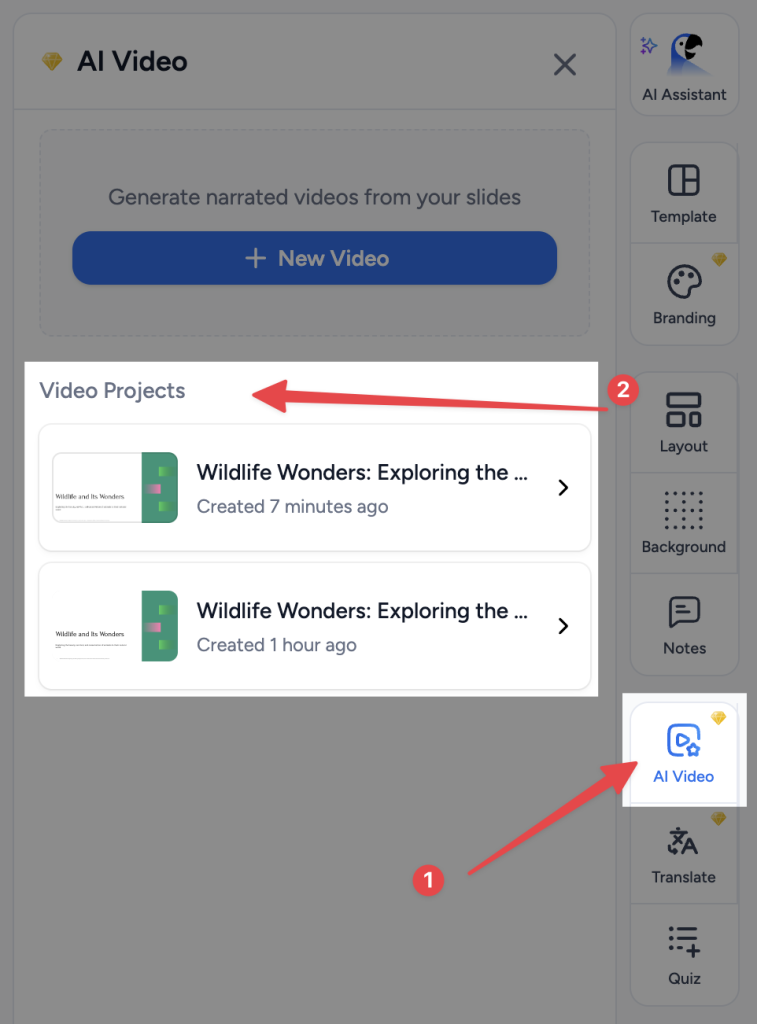
Open your presentation, click Video in the right-hand side panel, and open the video you want to add a presenter to. If you have not made a video from this deck yet, create one first. See how to create an AI video presentation.
Step 2: Turn on the AI avatar
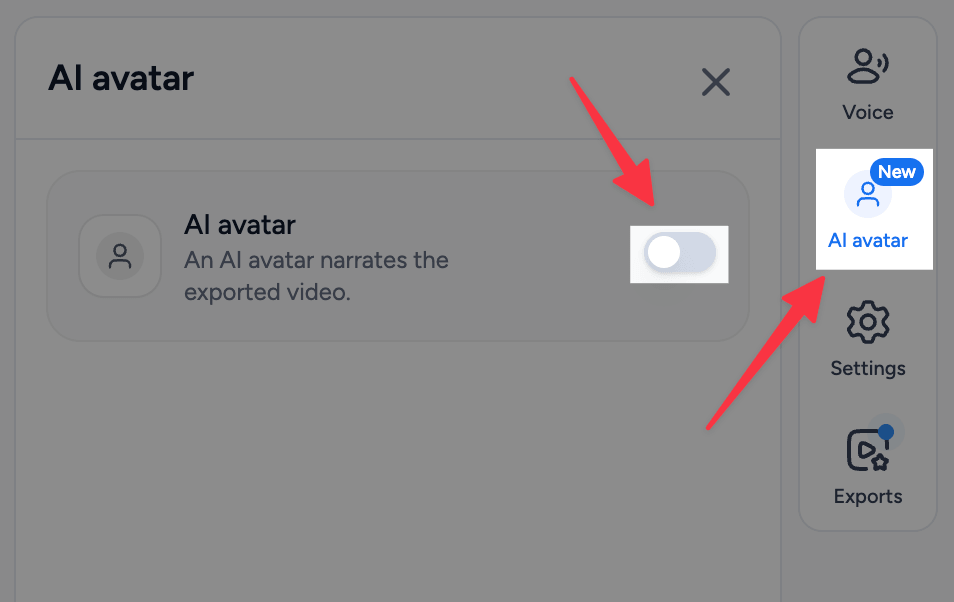
In the video editor, click AI avatar in the panel list on the right, then flip the switch on. This is a Premium feature.
As soon as it is on, the preview in the middle of the screen changes. Your slide shrinks slightly and moves across to make room for a tall presenter card beside it, both sitting on a plain coloured background.
Step 3: Pick your presenter

There are 16 presenters to choose from, each with a name and a role that hints at the sort of video they suit:
- Teaching: Emily (tutor), Daniel (professor), Arjun (course creator), Priya (lecturer), Mariel (teacher), Omar (trainer), Zoe (student).
- Work: Alex (consultant), Marcus (L&D lead), Elena (marketer), Amira (business), Lucas (content creator).
- Healthcare and safety: Anna (clinician), Grace (nurse educator), Diego (safety trainer), Frank (plant safety).
The roles are only a suggestion. Any presenter can read any script, so pick the one who looks right in front of your audience.
Step 4: Decide which voice they speak in
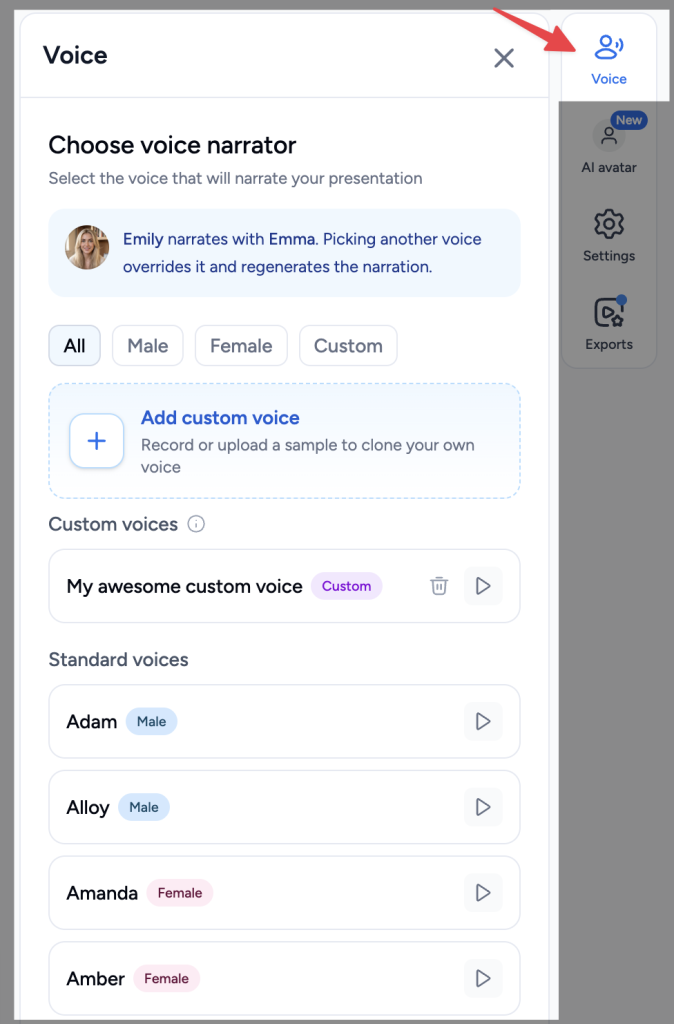
Every presenter comes with a paired voice, chosen to match how they look. When you pick a presenter whose paired voice is different from the one your video currently uses, SlideSpeak asks before switching.
You do not have to accept the paired voice. The panel shows who is currently narrating, and a Change voice button takes you to the Voice panel, where you can choose any stock voice or a clone of your own. A cloned voice works with an avatar exactly like a stock one does, so you can have a presenter on screen speaking in your voice. See how to create an AI video presentation with your own voice, and how to change the tone of your custom voice.
Whichever voice you use, the presenter’s mouth is matched to that audio, so the lip-sync follows the voice you actually chose.
Step 5: Check your captions
If you have captions turned on, they move when a presenter is on screen. Normally captions sit over the bottom of the slide; with a presenter, they move down underneath it, into the background area, so they never cover your content or the presenter. There is nothing to set up, it just happens, but it is worth glancing at the preview so the new layout is not a surprise in the finished video. See how to add captions to your AI video presentations.
Step 6: Export to see the lip-sync
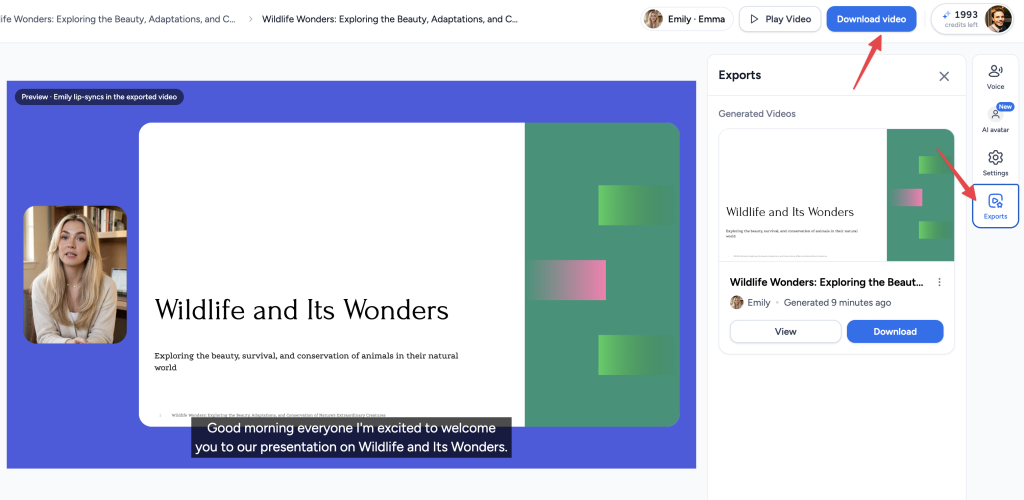
The preview in the editor shows a still photo of your presenter in position, not a moving one. It is there to show you the layout. A small note on the preview says as much: your presenter lip-syncs in the exported video, not in the preview.
Click Export video to see the real thing. Adding a presenter costs extra credits on top of the video you would have exported anyway, charged per slide each time you export. The export button shows the total before you click it, and the finished video lands in the Exports panel.
Videos with a presenter take longer to render than videos without one, since every frame of the presenter has to be generated. It is worth starting the export and getting on with something else.
Changing your mind later
You can switch presenters, change the background colour, or turn the avatar off entirely at any time. What you cannot do is add a presenter to a video file you have already exported: the video has to be rendered again from the start, and you get a new file rather than an updated version of the old one. The same is true of any change, even a single word of narration.
Because each export with a presenter costs credits, it is worth settling on your presenter, voice, and script before you export, rather than exporting after every small change.
Need more help?
If you have any questions or need assistance, feel free to contact our support team at support@slidespeak.co