

SlideSpeak can turn any presentation into a narrated video. It writes a voiceover script from your slides, reads it out in the voice you pick, and renders the whole thing as a video file you can download or share. Everything happens in the AI video editor, where you can listen back, rewrite the narration slide by slide, and export when it sounds right.
This guide walks through the whole process, from opening the video panel to downloading the finished file.
Step 1: Open the video panel and start a new video
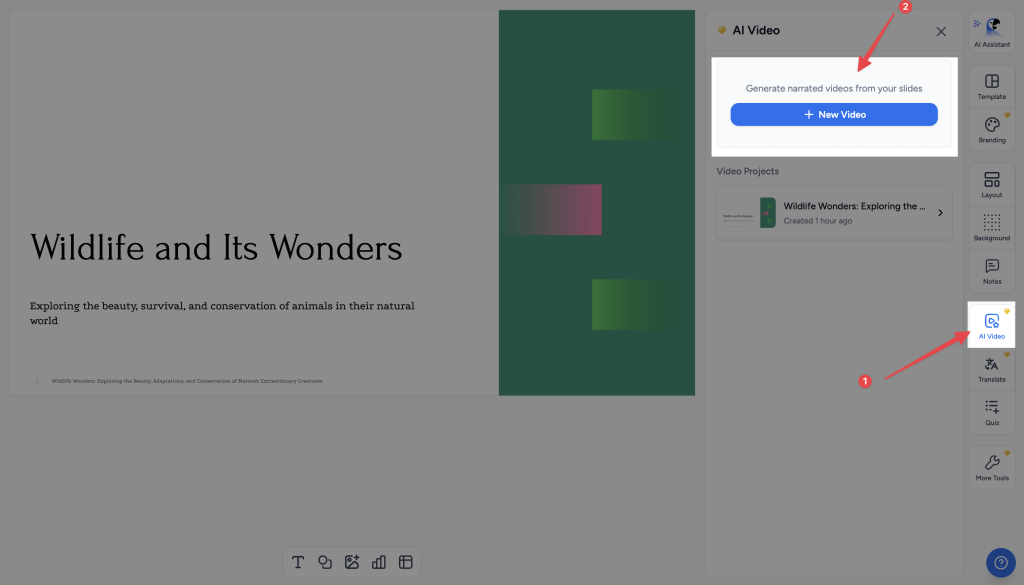
Open your presentation in the SlideSpeak editor and click Video in the right-hand side panel, then click Create new video. If you have made videos from this deck before, they are listed in the same panel, so you can reopen one instead of starting again.
Do not have a presentation yet? Create one first, either with AI from a prompt or by importing an existing PowerPoint file, then come back to this step.
Step 2: Set up the narration script
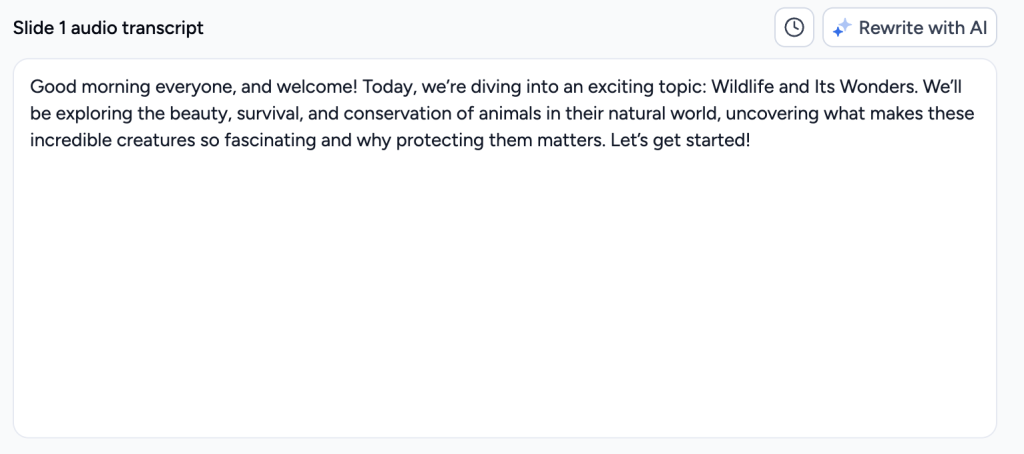
Choose the language you want the narration written in. If your slides already have speaker notes you are happy with, you can tick the option to use those as the narration instead of having SlideSpeak write something new. Then generate the script.
SlideSpeak writes one short piece of narration per slide. You can rewrite any of it, and you get another chance to edit it later in the editor.
Step 3: Choose a voice
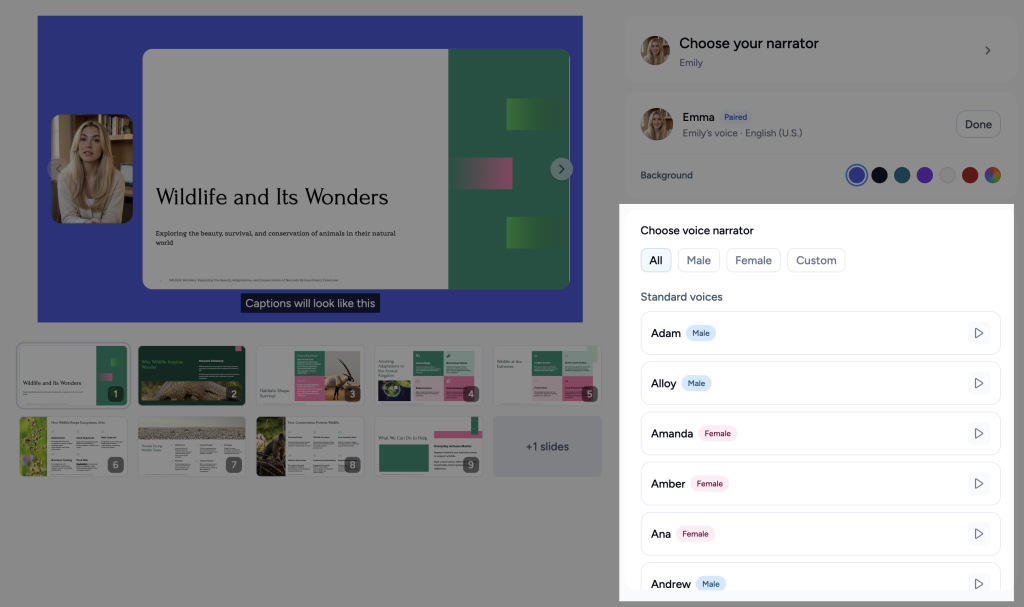
Pick the voice that reads your narration. There is a range of stock voices to choose from, and you can also use a clone of your own voice. See how to create an AI video presentation with your own voice to set that up, and how to change the tone of your custom voice if you want it warmer, calmer, or more energetic.
When you confirm, SlideSpeak generates the spoken audio for every slide and opens your new video in the AI video editor. Generating narration audio uses credits, and the app shows you the cost before you commit. See how credits work in SlideSpeak.
Step 4: Find your way around the video editor
The AI video editor is where your video takes shape. There are four areas:
- Your slides, down the left: click any slide to work on it. A small badge tells you when a slide’s audio is still generating or needs attention, and you can drag slides into a different order for the video.
- The slide preview, in the middle: this shows the selected slide exactly as it will look in the finished video, including captions.
- The timeline and script, underneath: a play button, a time counter, a scrubbable ruler for the selected slide, and the narration text for that slide.
- The panels, down the right: Voice, AI avatar, Settings, and Exports.
Step 5: Listen back and scrub through
There are two ways to listen.
To hear one slide, press play on the timeline under the slide preview. Drag the playhead along the ruler to jump to any moment in that slide’s narration.
To watch the whole thing, click Play Video at the top of the screen. This plays your presentation from slide 1 straight through to the end. A scrubber runs the full length of the video with a small marker at each slide boundary, so you can drag to any point and the preview jumps to the matching slide. The counter next to it shows where you are and how long the video runs in total.
Step 6: Understand how long each slide lasts
You do not set slide durations by hand. Each slide stays on screen for exactly as long as its narration takes to read. That length is measured once, when the audio is generated, and saved with the video.
This means the way to change pacing is to change the words. Shorten the narration on a slide and it goes by faster. If you want the whole video slower or faster without touching the script, use the playback speed setting instead. See how to change the playback speed of your AI video presentation.
Step 7: Rewrite the narration
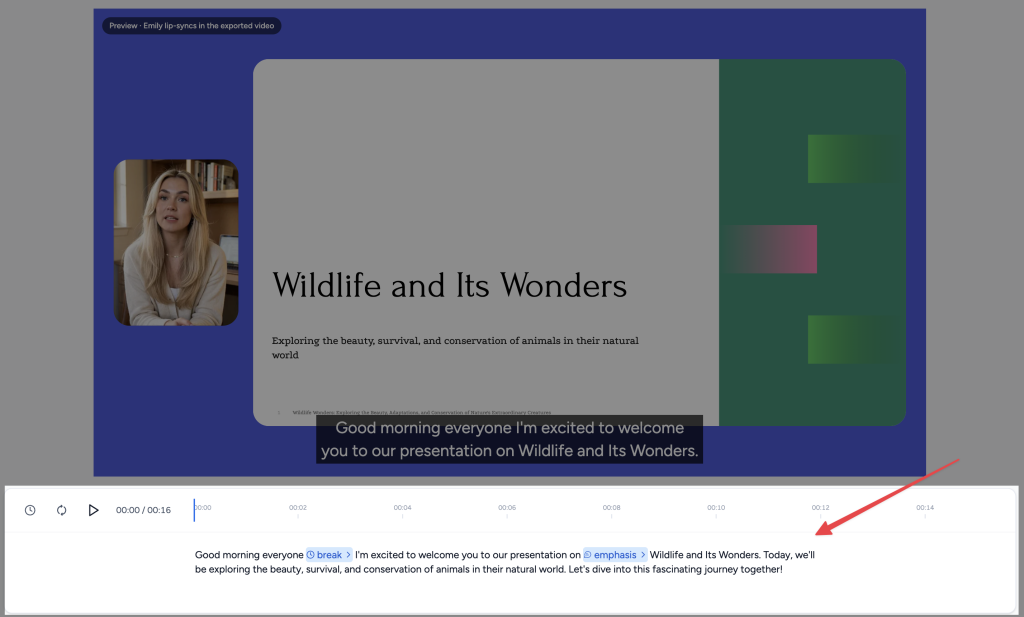
Select a slide and edit its narration in the box under the timeline. Fix a name the AI got wrong, cut a sentence that runs long, or rewrite the whole thing in your own words. Your changes save as you type.
Changing the words does not change the audio on its own. A warning marker appears on the regenerate button to tell you the recording no longer matches the script. Click it, confirm, and SlideSpeak re-records that slide with the new wording. Re-recording a slide costs credits, the same as generating it did, and the confirmation shows the cost first.
Step 8: Check your settings
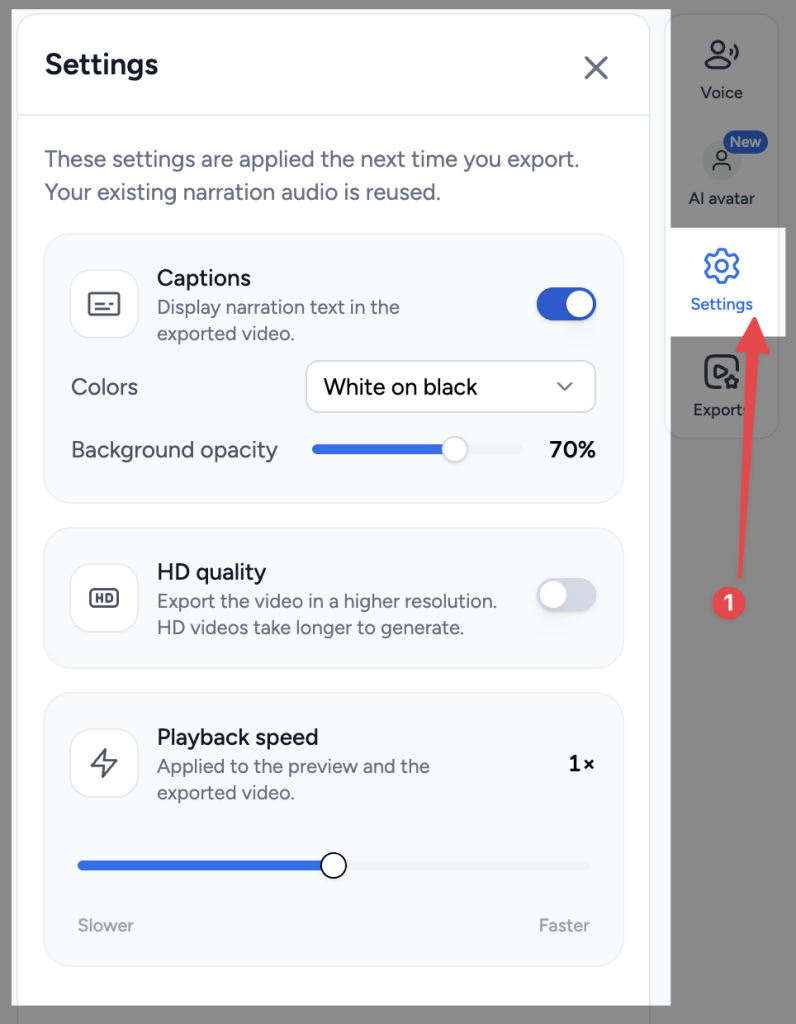
Open the Settings panel on the right. These options apply the next time you export, and they reuse the narration audio you have already generated, so changing them does not cost credits.
- Captions: subtitles burned into the video, with control over how they look. See how to add captions to your AI video presentations.
- HD quality: exports the video at a higher resolution. It is included on every paid plan at no extra credit cost, so if you are on a paid plan you can simply leave it on. HD videos take longer to render.
- Playback speed: slows down or speeds up the whole video, in the preview and in the export.
The Voice panel lets you change the narrator at any point, and the AI avatar panel adds an on-screen presenter who lip-syncs to the narration.
Step 9: Export your video
Click Export video at the top right. Rendering runs in the background, so you can keep working, close the panel, or even leave the page while it finishes. If a slide is still waiting on its audio, SlideSpeak tells you which ones and offers to sort them out first.
Finished videos collect in the Exports panel on the right, where you can watch them, download them as MP4 files, or delete ones you no longer need. To send the video to someone without making them download anything, see how to share your AI video presentation with a public link.
Editing after you have exported
You can come back and change anything: rewrite a line of narration, switch the voice, turn captions on, reorder the slides. Every change is allowed at any point.
What you cannot do is patch an existing video file. Even if you only changed one slide, exporting again renders the whole video from the beginning and produces a new file. The video you already shared does not update by itself. If you have sent a link out, you will need to share the new export.
So it is worth playing the video through once, start to finish, before you export. It is much quicker to catch an awkward sentence in the preview than to re-render the whole thing.
Need more help?
If you have any questions or need assistance, feel free to contact our support team at support@slidespeak.co