

Good narration has rhythm. A short pause after a key number gives it room to land, and a stressed sentence tells viewers what matters. Script markers let you add both to your AI video. You place a marker in the narration script, and the AI voice follows it the next time the audio is generated.
There are three markers:
| Marker | What it does |
|---|---|
[break] |
A short pause |
[long-break] |
A longer pause |
[emphasis] |
Stresses the sentence that follows |
Before you start
- Where it lives: The narration script of each slide, in the video editor. You can also add markers while you set up the script, before the video is created.
- Plan and credits: Adding markers is free. To hear them, you regenerate the slide's narration audio, which costs the voice's narration rate per slide: 5 credits for a standard voice, 8 for a custom voice, 12 for a premium voice. Regenerating needs a paid plan.
Step 1: Put your cursor where the marker should go
In the video editor, select the slide in the slide tray. Click in its narration script at the spot where you want the pause, or at the start of the sentence you want to stress.
Step 2: Insert the marker
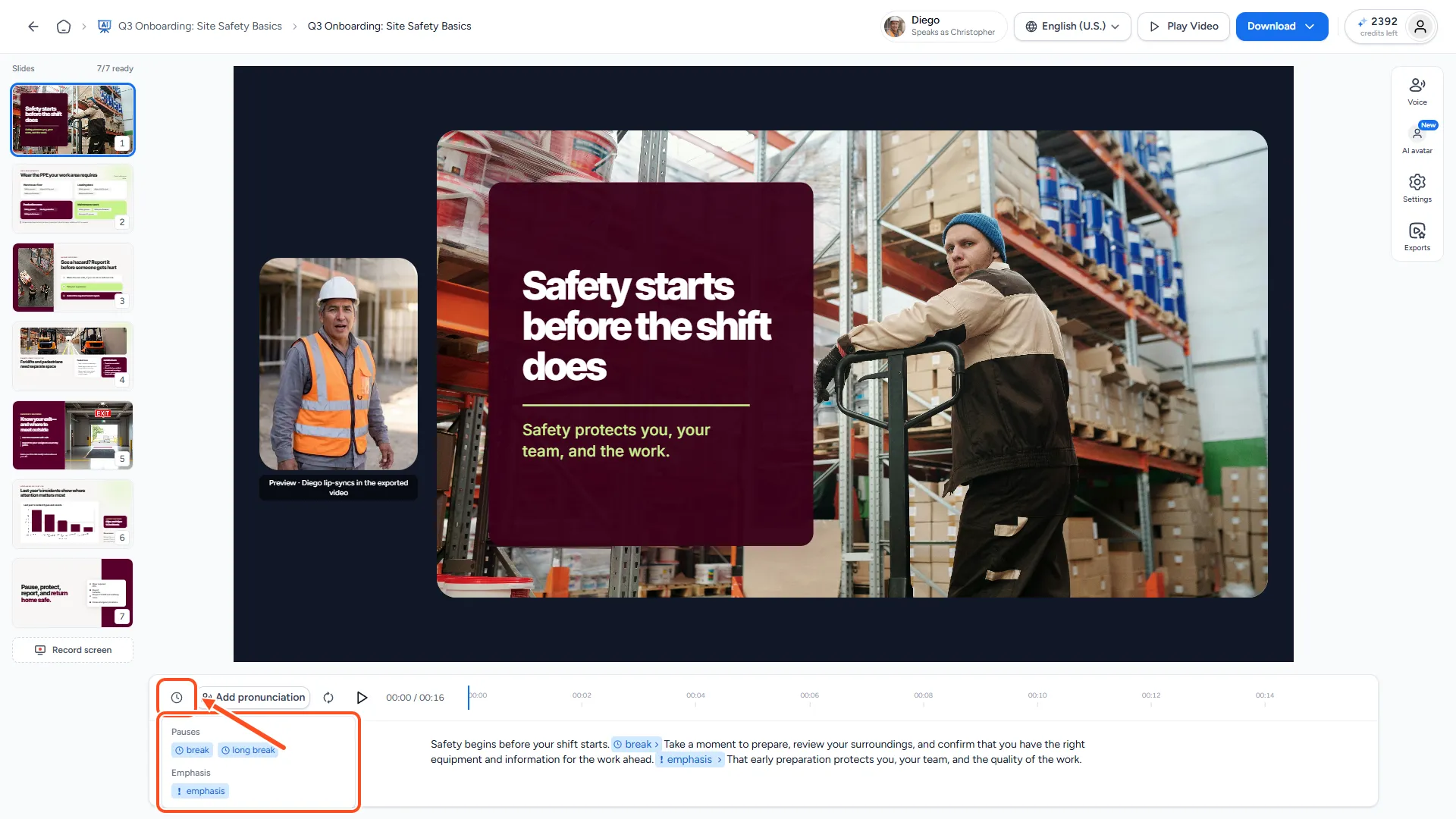
Click the clock icon above the script ("Insert a pause or emphasis into your narration"). A small menu opens:
- Under Pauses, click break for a short pause or long break for a longer one.
- Under Emphasis, click emphasis to stress the sentence that follows.
You can also type a marker straight into the script, with its square brackets: [break], [long-break] or [emphasis].
Step 3: Check your markers
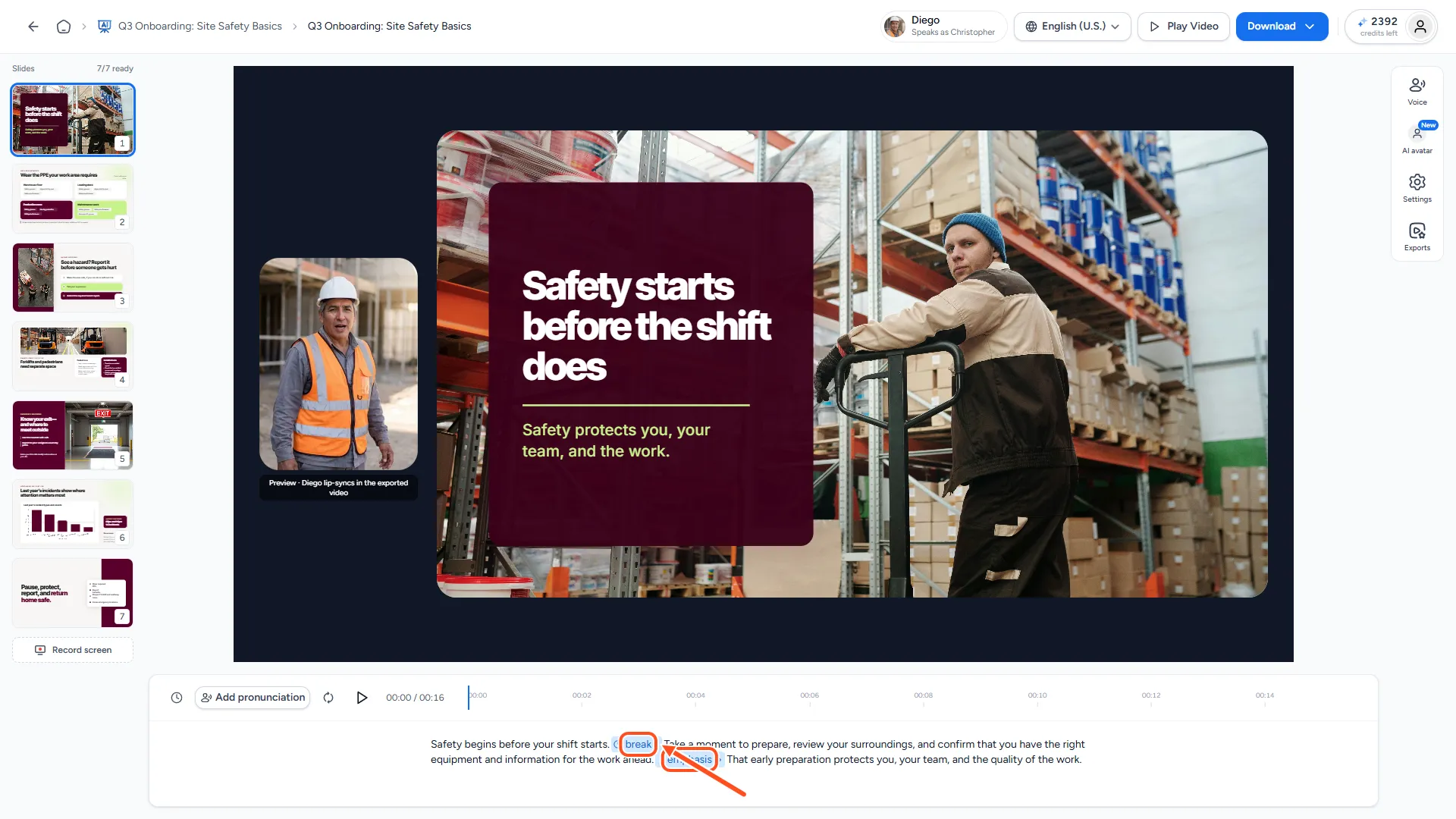
Each marker shows in the script as a small blue tag, so it's easy to spot. To remove one, click the x on the tag ("Remove tag"), or put your cursor next to it and press Backspace. The whole tag is removed at once.
A tip: use pauses where a speaker would naturally breathe, such as after a heading or before a key figure. Too many markers in a row can make the voice sound stiff.
Step 4: Regenerate the audio
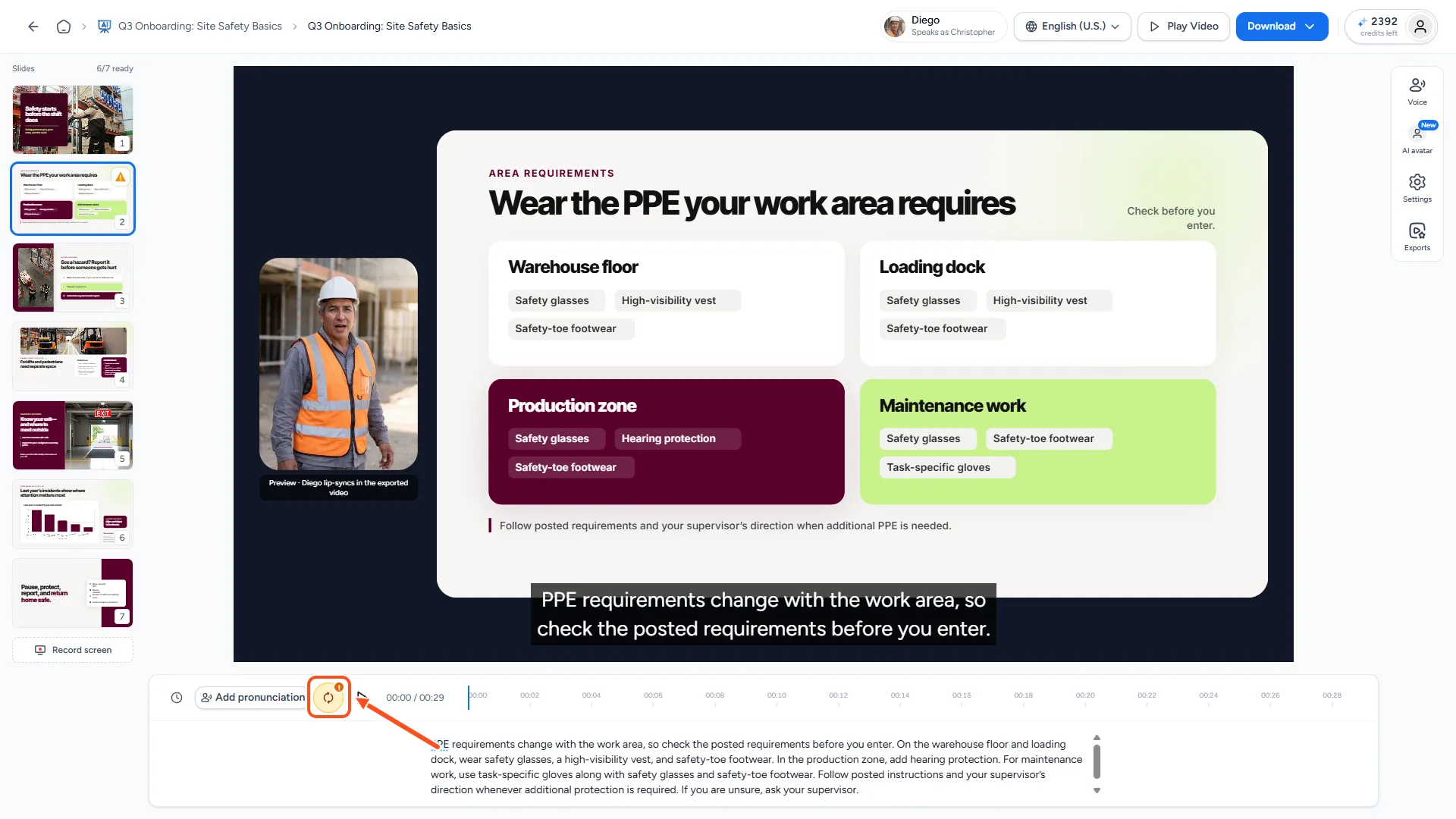
Changing the script, including adding a marker, means the slide's audio no longer matches its script. The regenerate button next to the slide's play button turns amber with a "!" to show this.
- Click the regenerate button.
- Check the credit cost in "Regenerate narration audio?".
- Click Regenerate audio.
Changed several slides? Click Play Video or try to export, and SlideSpeak offers to regenerate every changed slide at once. See How do I fix narration that failed or is out of sync?.
When the audio is ready, click the play button to listen.
What viewers see
Markers are instructions for the voice, not words:
- The voice doesn't read them out.
- They don't appear in captions.
- They're left out of the Transcript (PDF) download.
Troubleshooting
- I don't hear the pause. Make sure you regenerated the slide's audio after adding the marker. A
[break]is short, so try[long-break]if you want a clear stop. A few standard voices don't support markers. If a marker still has no effect, try another voice. See How do I choose a voice for my AI video?. - The voice says a word wrong. That's a pronunciation issue, not a marker issue. See How do I fix how the AI voice pronounces a word?.
- The whole video feels too fast or slow. Change the playback speed instead. See How do I change the playback speed of my AI video presentation?.
Need more help?
If you have any questions or need assistance, feel free to contact our support team at support@slidespeak.co