

The voice is what your viewers hear for the whole video, so it's worth a minute to pick the right one. SlideSpeak has a library of natural AI voices in many languages, and you can also narrate with a clone of your own voice. You pick the voice when you create a video and can change it at any time in the video editor.
Before you start
- Voices follow your script's language. The list only shows voices for the language of your narration script. Narration is available in more than 70 languages.
- Three kinds of voice, three rates. Narration is charged per slide when the audio is generated:
| Voice | What it is | Credits per slide |
|---|---|---|
| Standard voice | Built-in narrators in dozens of languages | 5 |
| Custom voice | A clone of your own voice | 8 |
| Premium voice | Your cloned voice on a better engine, with clearer tone and steadier pacing | 12 |
- Plan: Generating narration needs a paid plan (Premium, Premium Plus or Lifetime). See How do credits work in SlideSpeak?.
Step 1: Open the voice list
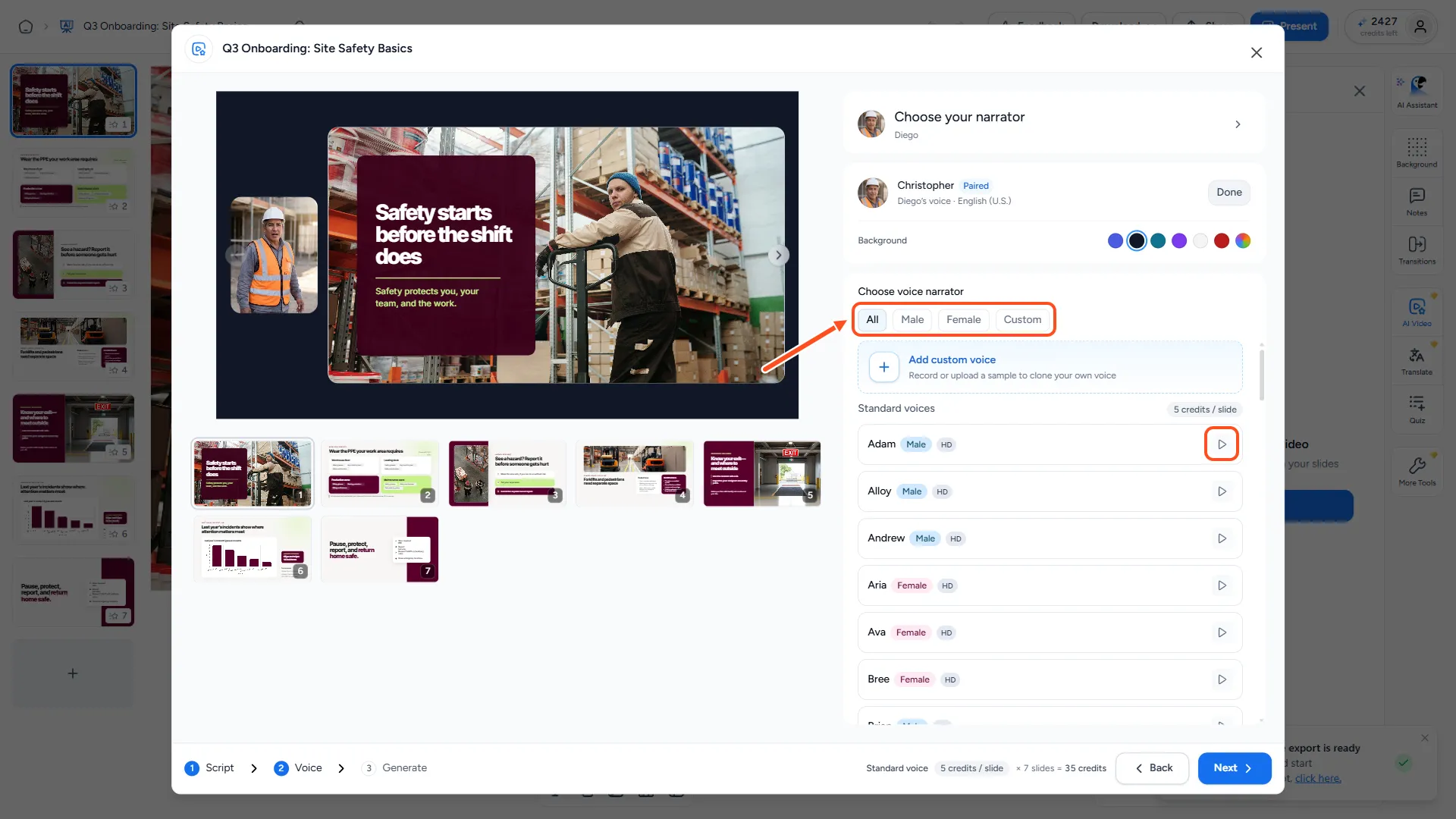
- New video: When you create an AI video, the second step of the setup is Voice. There you'll see "Choose voice narrator". For the full setup, see How do I create an AI video presentation?.
- Existing video: In the video editor, click the Voice icon in the side bar.
Step 2: Filter the list
Use the filters at the top: All, Male, Female or Custom. Custom shows only your own cloned voices.
The list is split into Custom voices and Standard voices, with the credits per slide shown next to each section. Some standard voices have an "HD" badge. Narrations with these voices sound more natural.
Step 3: Preview voices
Click the play button on a voice to hear a short sample. Click it again to stop. Listen to two or three before you choose. A voice that sounds great for a sales pitch may feel too upbeat for safety training.
Step 4: Pick a voice, and a tone for your own voice
Click a voice to select it. It's outlined in blue.
If you pick one of your custom voices, a Tone menu appears on it. Choose Default or one of: confident, calm, excited, friendly, empathetic, inspiring, serious or soft. Tones are only available for custom voices. For more, see How do I change the tone of my custom voice?.
Don't have a custom voice yet? Click Add custom voice (Record or upload a sample to clone your own voice). See How do I create an AI video presentation with my own voice?.
Step 5: Change the voice of an existing video
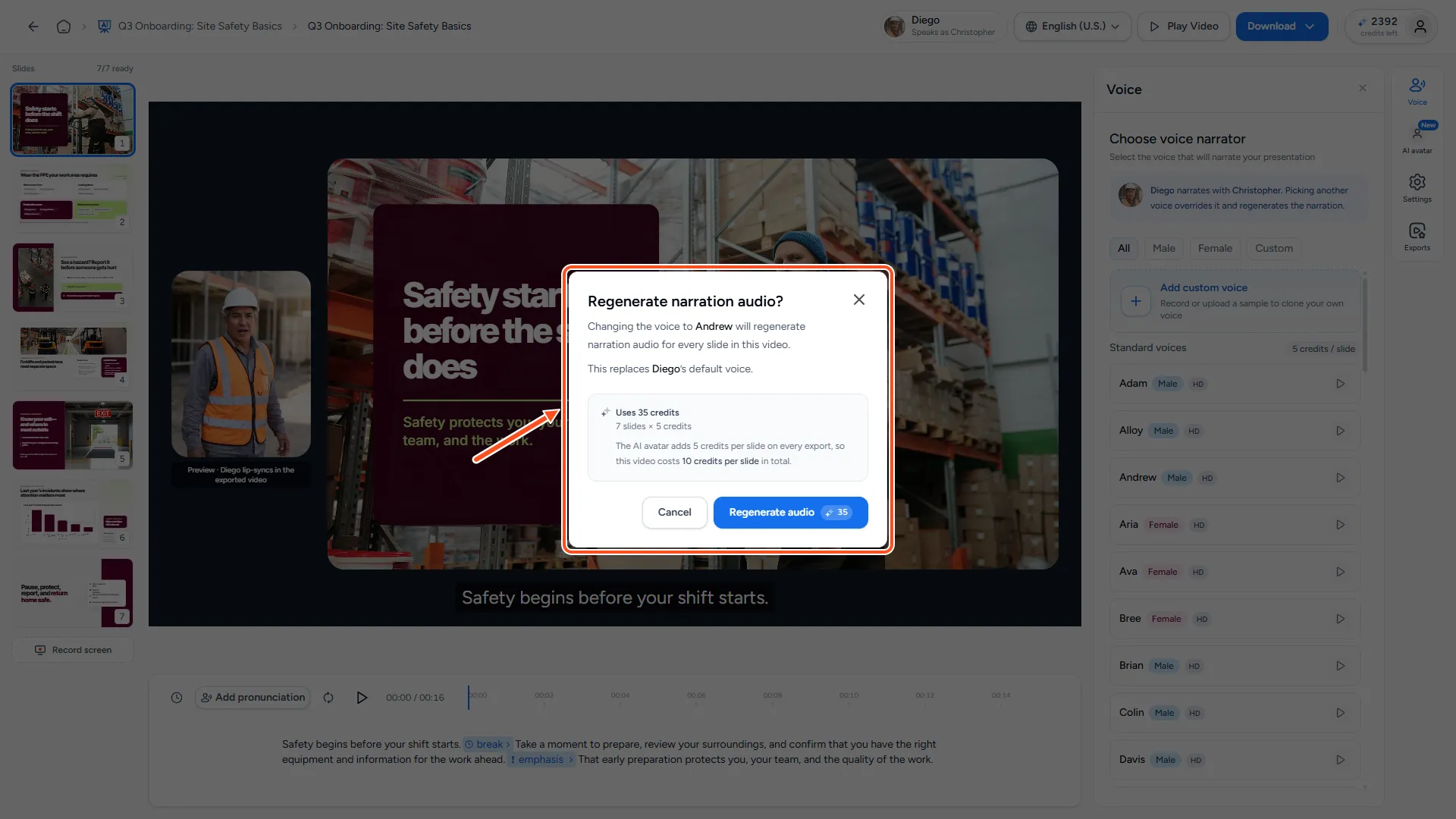
In the video editor, open the Voice panel and click a different voice. SlideSpeak asks "Regenerate narration audio?" because every slide has to be voiced again. The dialog shows:
- how many slides get new audio (slides you already voiced with that voice are reused, so they don't cost credits again),
- the credit cost,
- a Tone menu, if the new voice is a custom voice.
Click Regenerate audio to switch.
You can't switch voices while narration audio is still generating. Wait for it to finish and try again.
Voices and AI avatars
Each AI avatar comes with a matching default voice, marked with a badge such as "Emily’s voice" in the list. You can pick any other voice instead. That replaces the avatar's default voice and regenerates the narration.
Troubleshooting
- I can't find a voice I used before. The list only shows voices for the script's language. Check the language of your video.
- The voice says a name wrong. Add it to your pronunciation glossary. See How do I fix how the AI voice pronounces a word?.
- The preview doesn't play. Wait for the loading spinner to finish, and check your device's sound. Only one preview plays at a time.
- Deleting a custom voice. Click the trash icon on the voice and confirm. This can't be undone. If the video you're working on uses that voice, SlideSpeak switches it to the first standard voice.
Need more help?
If you have any questions or need assistance, feel free to contact our support team at support@slidespeak.co