

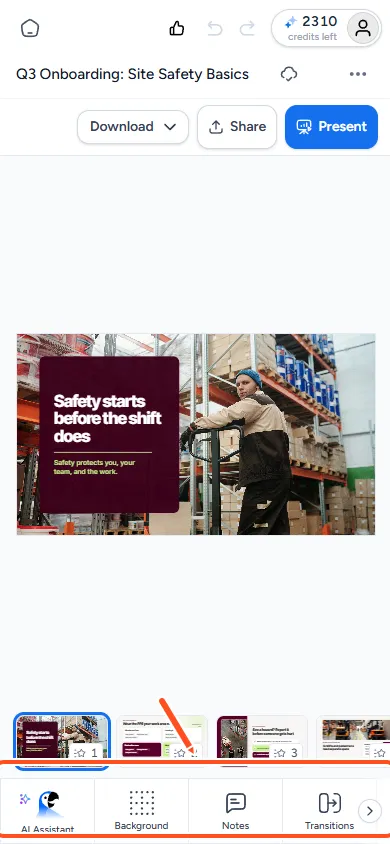
Yes. When you open a presentation on your phone, SlideSpeak switches to an editor made for small screens. You get the editor's panels, laid out for your thumb: the slide in the middle, your slides in a row below it, and a row of tools at the bottom. There is no app to install. It works in your phone's browser.
Before you start
- The phone editor works on every plan. Features that need a paid plan on a computer need the same plan on your phone.
- Sign in at app.slidespeak.co in your phone's browser.
- SlideSpeak shows the phone layout on any screen narrower than 768 pixels. That includes most phones and small browser windows.
- On most tablets, you get the full desktop editor.
Step 1: Open a presentation
Tap Decks in the bar at the bottom of the screen and tap a presentation.
The editor opens with three rows at the top: the home button, undo and redo, and your profile; then the presentation name and the ⋯ menu; then Download, Share and Present.
Step 2: Edit a slide
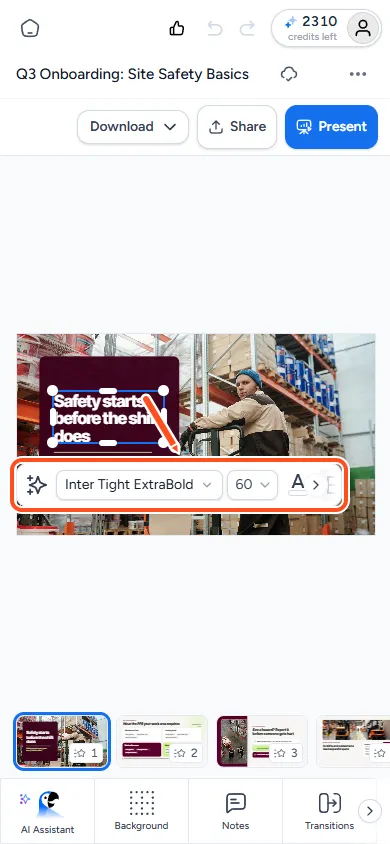
Tap a slide in the row of slides to select it. Then tap any text, image or shape on the slide to select it. A toolbar appears with the options for that element, such as font, size, colour and alignment for text.
Tap the selected text again to type. You can also drag elements to move them. Use the undo and redo buttons at the top if you make a mistake.
Step 3: Use the tools
The row at the bottom holds the same tools as the icon rail on a computer. Swipe it sideways to see them all, for example:
- AI Assistant: ask Charles to change something. See how to edit slides with the AI assistant.
- Layout, Background and Template: change how a slide looks.
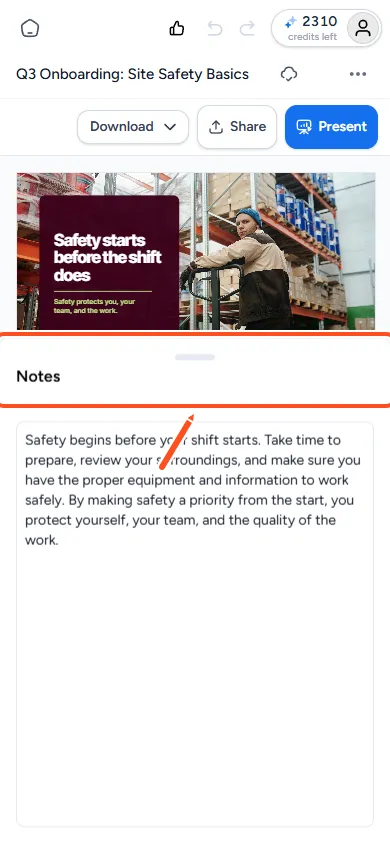
- Notes: read or write speaker notes. See how to generate speaker notes with AI.
- Transitions: set how slides change. See how to add slide transitions.
- AI Video, Translate and Quiz.
Which tools you see depends on the kind of presentation. For example, Template and Layout only appear for decks made with SlideSpeak AI 4.0.
Tapping a tool opens it in a panel that slides up from the bottom. Drag the panel up to make it full height, or swipe it down to close it.
Step 4: Present or download
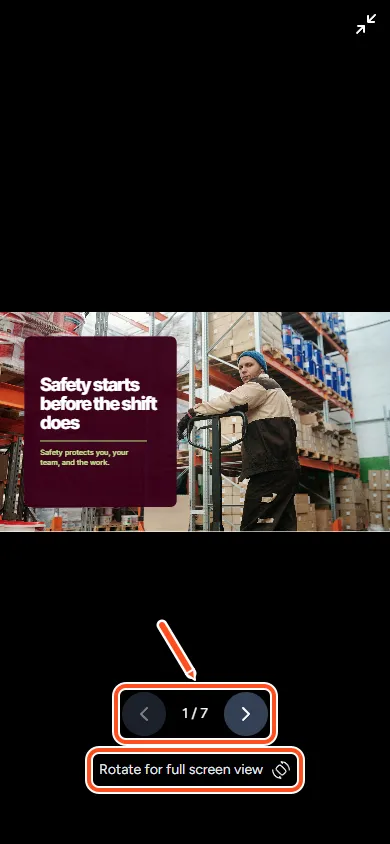
- Tap Present to show your deck. Use the arrow buttons on screen to move between slides. Turn your phone sideways for the full-screen view.
- Tap Download to get a PowerPoint or PDF file. See how to download your presentation.
- Tap Share to invite people or copy a link. See how to share a presentation with a link.
Phone sideways
Turn your phone sideways and the editor rearranges itself: the slides move into a column on the left, and the slide gets more room.
What works better on a computer
The phone editor covers everyday edits. A few things are only on a computer or easier there:
- Adding charts, tables or shapes. The insert bar below the slide is only on a computer.
- Reordering slides by dragging. Dragging slides is turned off on phones. Ask Charles instead, for example "Move slide 5 to the start".
- The "Advanced style" panel for detailed styling.
- Keyboard shortcuts, such as copy and paste of slides.
- Long decks and detailed layout work, simply because the screen is small.
Troubleshooting
- I only see the slides and a "Play fullscreen" button. You can view this presentation but not edit it. Ask the owner to invite you as an Editor.
- I don't see Download or Share. Only the owner of a presentation sees these buttons.
- The panel covers my slide. Swipe the panel down to close it, or turn your phone sideways.
Need more help?
If you have any questions or need assistance, feel free to contact our support team at support@slidespeak.co