

Nano Banana: How to Create Editable Slides
Since Google released Nano Banana, social media has been flooded with impressive examples of what this new AI image model can do.
Nano Banana can generate extremely realistic images, edit existing visuals, and—most surprisingly—create highly accurate presentation slides. These slides go far beyond simple layouts. They include infographics, charts, diagrams, and structured content that normally require careful data handling.
What really sets Nano Banana apart is its accuracy. The model rarely hallucinates, the text is clean and readable, and typos are uncommon. Even complex visual information is rendered correctly, making the results feel polished and professional right out of the box. Google has even recently integrated Nano Banana into Google Slides making it directly possible to create slides.
The overall quality is stunning, and it’s clear why Nano Banana has quickly become one of the most talked-about AI models for visual content creation.
BUT: If you’ve tried making slides with Nano Banana / Nano Banana Pro, you’ve probably hit the same wall as I have:
The slides look amazing… but you can’t click the text and edit it like normal.
That’s not you doing it wrong. Nano Banana is fundamentally an image generation + image editing model, so the output is often pixels (a picture of a slide) instead of real slide objects (text boxes, shapes, charts).
Here’s a few examples of slides generated with the latest Nano Banana model by Google:
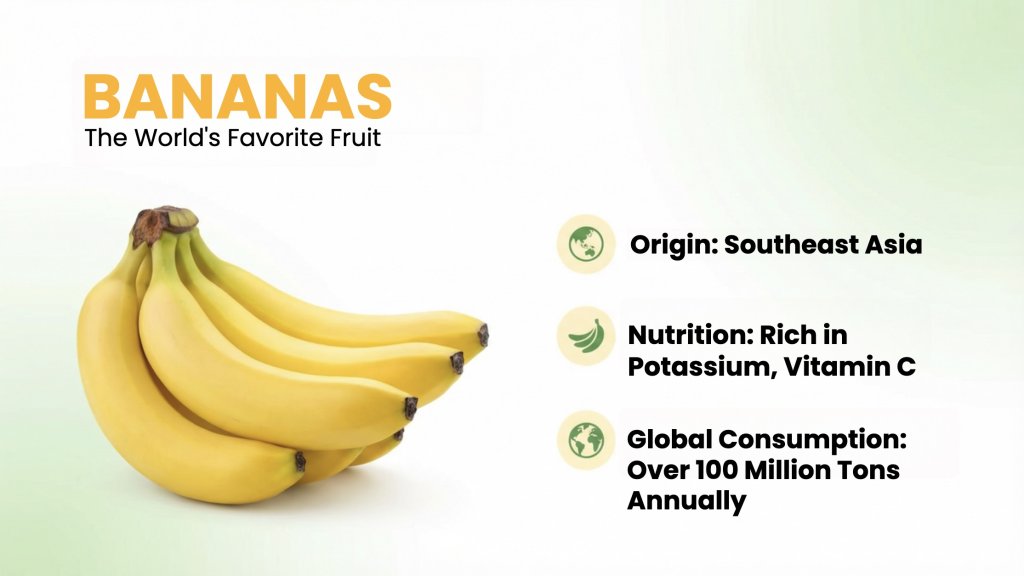

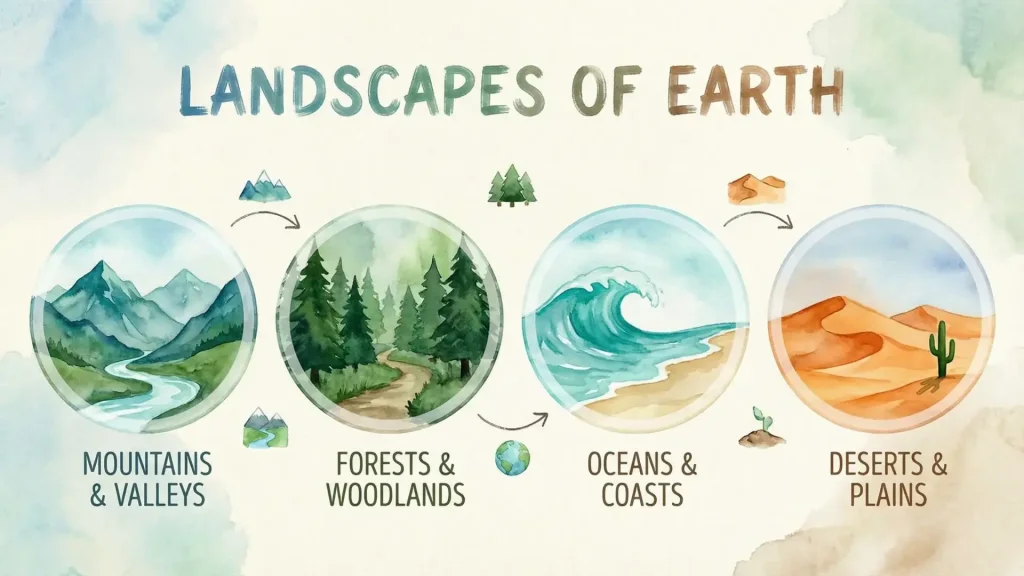

So, how do you get that Nano Banana style and keep your text editable?
Below are the three best workflows right now (including SlideSpeak, Manus, and Google Slides), plus other tools worth checking.
The quick truth: why “Nano banana edit text” is hard
A normal editable slide is made of objects:
- text boxes
- shapes
- icons
- charts
- images
But Nano Banana Pro usually produces a single rendered visual (like a flattened design). That’s why many tools can only “edit text” by regenerating the slide (or asking AI to re-generate it).
The “editable slides” tools below solve this in two ways:
- Generate real PowerPoint/Slides objects from scratch, or
- Let AI edit the rendered slide (not true native objects, but close enough for practical edits)
Option 1: SlideSpeak (best for fully editable text)
Website: https://slidespeak.co
Best if you want: normal PowerPoint editing (click text → type → done)
With SlideSpeak, the output is a real presentation file structure, where text is fully editable (real text boxes). Their own help docs show standard click-and-edit behavior on text boxes.
Note: You need a Premium ($29/m) or Premium Plus subscription to generate slides with Nano Banana in SlideSpeak.
How to use this workflow
1. Create your slides in SlideSpeak, select “Create presentation with AI” and then “With Nano Banana”

2. Create an AI presentation with Nano Banana
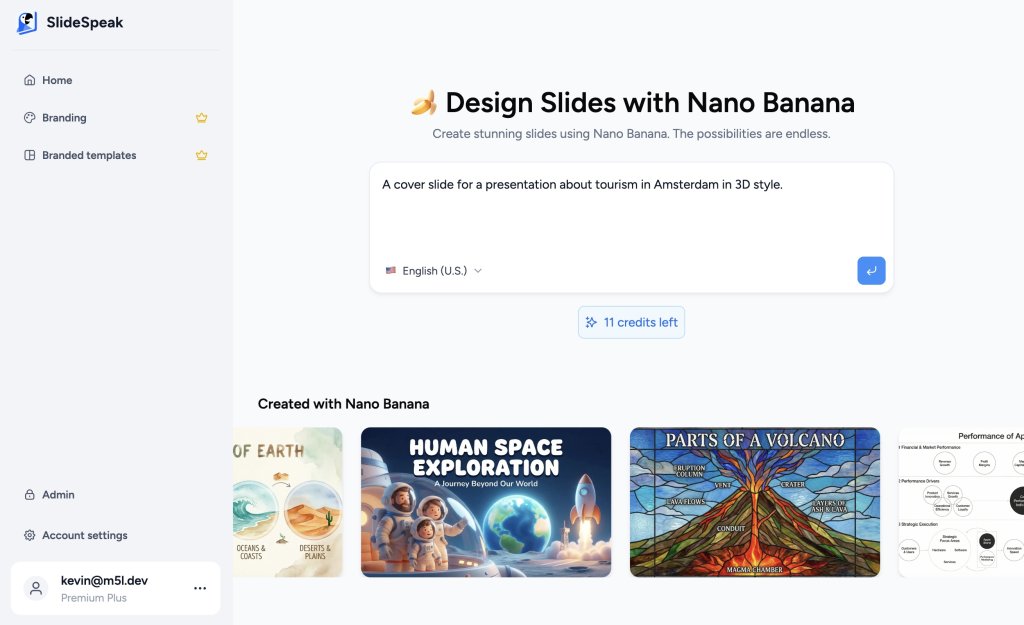
3. Edit text in the slide freely as you would expect. SlideSpeak is the only tool that directly allows you to edit text on the fly for Nano Banana generated slides.

4. If you want multiple slides from Nano Banana: generate those and copy them over into a SlideSpeak presentation (covers, section dividers, hero graphics).
Result: You get real editable text + you can still use Nano Banana for the “wow” visuals.
Option 2: Manus + Nano Banana (editable, but edits are AI-processed)
Website: https://manus.im
Best if you want: Nano Banana-style slides first, then targeted edits, or regenerate entirely.
Manus recently added the ability to edit text directly on slides generated with Nano Banana Pro, plus point-and-edit for visual elements.
Note: You need a $40/m subscription in order to generate slides in Manus with Nano Banana.
How it works
1. Generate slides in Manus using Nano Banana.
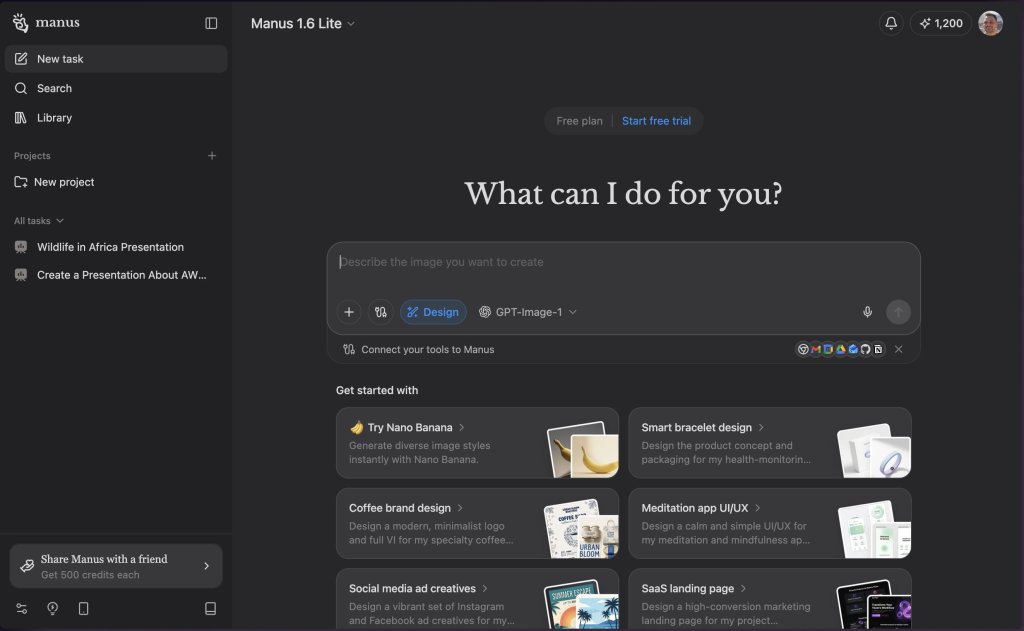
2. Select the topic for your Nano Banana Slide

3. Click the part you want to change (text or a region).
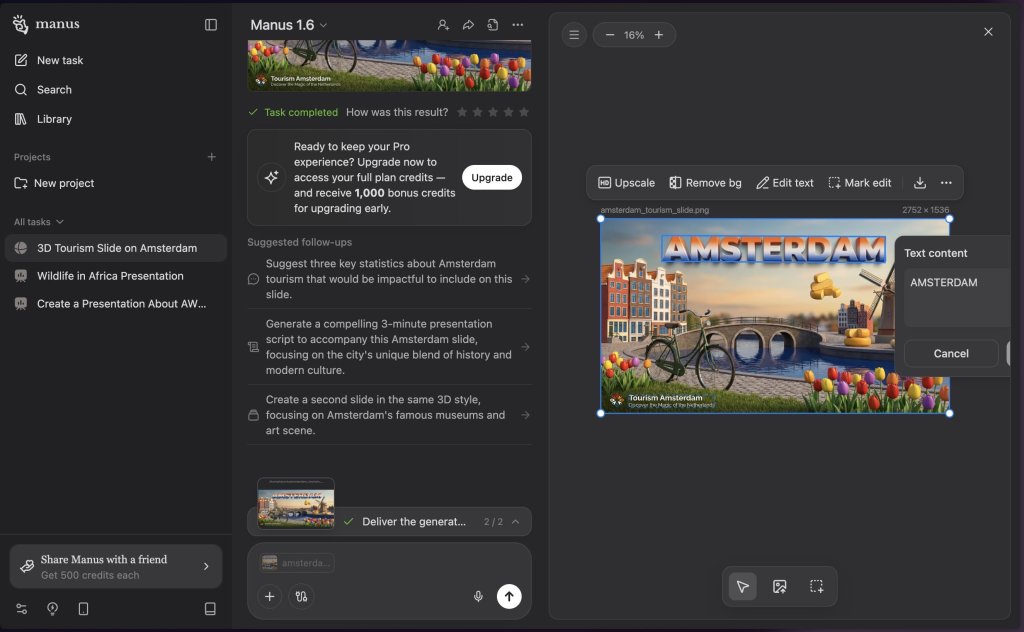
3. Apply the edit; Manus has to re-generate that part while keeping the design consistent. This takes some time every time.
Important note: These edits are typically processed (AI-assisted) rather than instantly “native” like PowerPoint text boxes—so it can feel different from traditional editing.
Option 3: Google Slides + Nano Banana (great visuals, but text isn’t truly editable yet)
Best if you want: quick visuals inside Slides, and you’re okay with re-generating.
Google has started rolling out Nano Banana Pro features in Google Slides (like “Help me visualize” and “Beautify this slide”).
https://www.youtube.com/watch?v=E3iVgu3_s80
But today, most Nano Banana Pro slide outputs still behave like visual slides (image-like). I’ve tried it and you can see the results in the step-by-step guide below.
Creating Slides with Nano Banana in Google Slides
The feature is currently in Beta, so you can expect Google to make a lot of progress on this in the coming weeks/months.
Note: In order to use Nano Banana in Google Slides you need a paid subscription with one of the following plans: Google Workspace Business Standard, Business Plus, Enterprise Standard, and Enterprise Plus users.
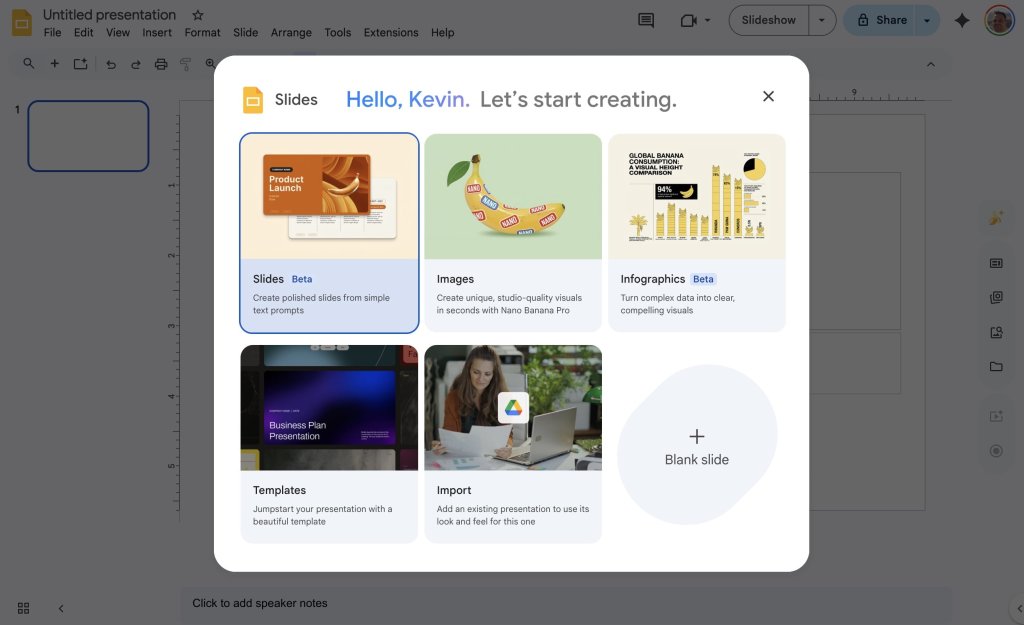
1. Head over to https://slides.google.com and create a new presentation
2. Now you’ll see a screen that shows you all the different options on how you can utilize Nano Banana in Google Slides, you can create entire slides, images or infographics. Since we want to create an entire slide with editable text we select “Slides”.
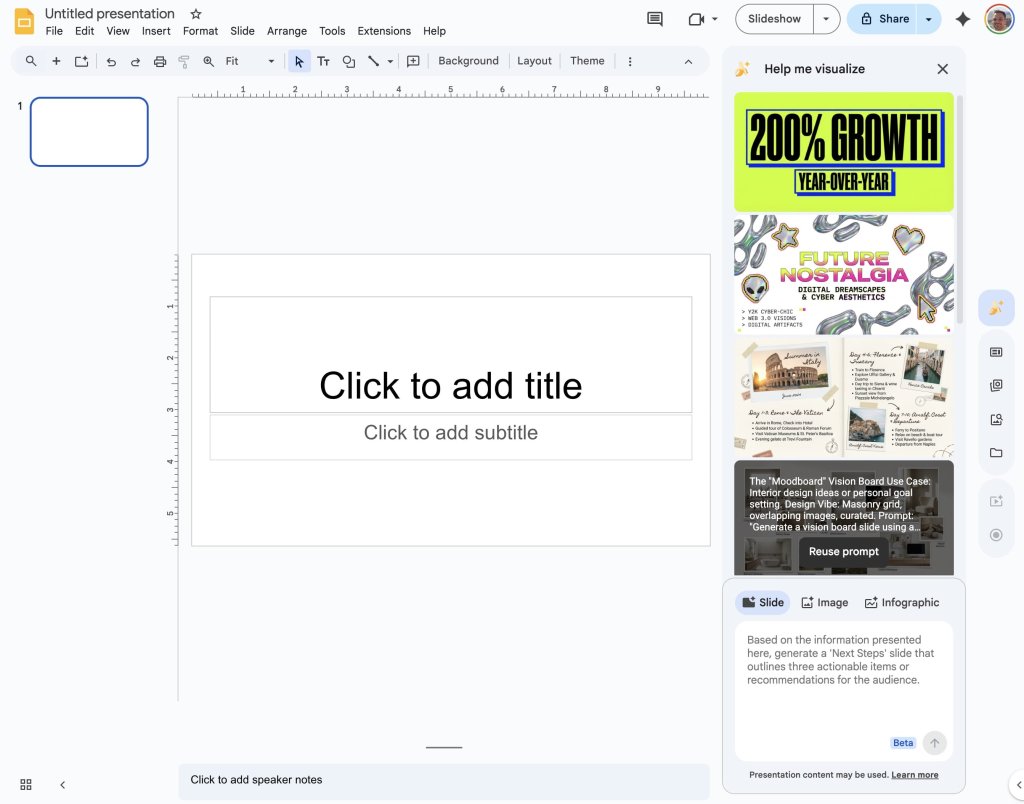
3. Now you can see in the right side panel that Google Slides will suggest a few prompts with visual examples.
4. Enter your prompt for the Google Slide with Nano Banana
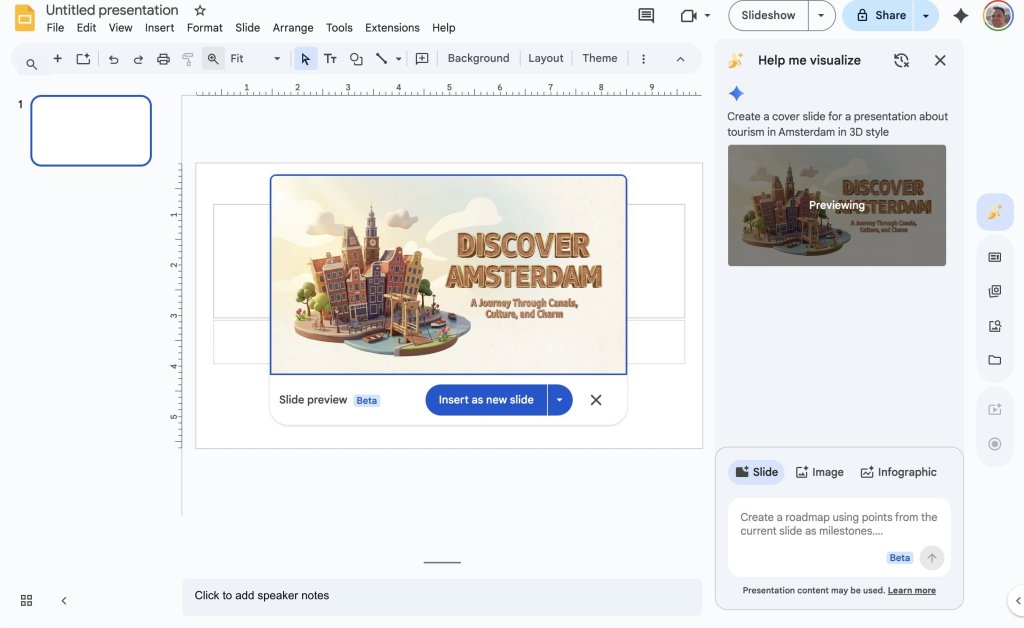
5. Text editing is currently not possible directly in Google Slides, you’ll have to prompt the AI assistant to edit the text on the slide which will re-generate the entire slide.
Which one should you use?
- Choose SlideSpeak if you want fully editable text and normal slide editing. SlideSpeak is the ONLY tool that allows you to edit the text freely without any loading time or re-generating.
- Choose Google Slides if you want the native Google workflow, but accept that “edit text” often means re-running AI rather than direct text editing.
- Choose Manus if you want Nano Banana design quality and the ability to only edit parts of the slide afterward.
FAQ: Nano banana edit text
Can I edit Nano Banana Pro text directly in Google Slides?
In most cases today, not like native text boxes. You typically regenerate or re-prompt. The only AI tool that generates slides with Nano Banana and has fully editable on the fly text is SlideSpeak.
What’s the easiest way to get editable Nano Banana-style slides?
Use a tool that outputs real slide objects (like SlideSpeak for text), and use Nano Banana Pro for visuals you insert as images.
Is anything changing soon?
Google is actively expanding Nano Banana Pro across Workspace apps, including Slides. You can follow the Google Workspace blog about the latest developments.