

Best AI Agent Skills for Creating Presentations in 2026
Written by

Published on
On this page
The Agent Revolution Is Already Here
In January 2026, Boris Cherny — the creator of Claude Code — posted his daily workflow and racked up 4.4 million views. He runs five Claude instances in parallel: one on a feature branch, one running tests, one cleaning up architecture. Fleet commander, not typist. As one developer put it after replicating the setup: “It feels more like Starcraft than coding.”
The most productive people with AI aren’t using it as a chatbot. They’re assembling agents into workflows, giving each one specific skills, and letting them run — and platforms like Vercel, Anthropic, and OpenClaw have spent the last year building an open ecosystem to make that pattern available to everyone.
What Are Agent Skills, and Why Do They Matter Now?
An agent skill is a packaged set of instructions, scripts, and context that you install into an AI agent — giving it a new, specialized capability it didn’t have before.
Think of it like npm, but for agent knowledge and behaviour rather than code libraries. In fact, Vercel’s InfoQ write-up described the moment explicitly: “This is npm for AI agents. The key insight: Skills prioritize composability over protocol complexity.”
The Boris Cherny post wasn’t the only viral moment in the agent space in early 2026. Around the same time, Austrian developer Peter Steinberger published OpenClaw — an open-source autonomous AI agent that runs locally on your machine and connects to your messaging apps: WhatsApp, Telegram, Slack, iMessage, Discord. You message it like a person, and it executes tasks on your behalf. The project hit 247,000 GitHub stars in under 60 days, making it one of the fastest-growing open-source repositories ever recorded.
What made OpenClaw explode wasn’t the agent itself — it was the skills system. OpenClaw’s ClawHub skill registry now hosts over 13,700 community-built skills, from GitHub automation and Slack management to trading bots and — yes — presentation generation. Every skill is a SKILL.md file with instructions and scripts the agent can call when needed. Install a skill and your OpenClaw agent gains a new capability, immediately, without any code changes.
This is the same pattern Vercel formalised in January 2026 when they launched skills.sh — an open directory and leaderboard for skill packages across all agents — alongside a CLI that lets you install skills with a single command:
npx skills add SlideSpeak/skills
That one command installs a skill from GitHub directly into whichever agents you’re using. Skills work across the full agent ecosystem: Claude Code, Cursor, OpenClaw, Codex, GitHub Copilot, Goose, Windsurf, Kiro, Trae, and more. You install once; every agent in your environment gets the capability.
The idea behind skills is simple but powerful: AI models know general programming languages and frameworks, but they don’t know your folder structure, your design system, your deployment rules, or what your data looks like. Skills let you close that gap without re-explaining it from scratch every session. You install the skill, and the agent loads the relevant context whenever it’s needed.
As one commenter put it in Vercel’s InfoQ write-up: “This is npm for AI agents. The key insight: Skills prioritize composability over protocol complexity.”
Great starting points from the skills ecosystem:
- Vercel Agent Skills — Deploy to Vercel, review React code, enforce Next.js patterns
- Browser Use — Give agents the ability to navigate real websites
- SlideSpeak — Give agents the ability to generate and edit PowerPoint files
- Browse everything else at skills.sh and clawhub.ai
The Output Gap: Why Presentation Skills Are Especially Valuable
Most agent workflows are good at reasoning, retrieval, and writing. But they almost always stop at text. The final output — the thing a human actually needs to use — still requires manual work to produce.
Ask an agent to “put this in a deck” and it either apologises, gives you bullet points to copy-paste, or generates markdown that someone still has to turn into slides. That’s fine for a one-off, but it completely breaks down in any automated pipeline. A scheduled weekly report, a personalised sales deck generated per-prospect, an executive summary from a meeting — all of these require someone to do the last step by hand.
A presentation skill closes that gap. It gives your agent the ability to produce a finished, editable deck as the final output of a workflow, with no human formatting step in the middle. Several of these skills have appeared over the past year, and they take noticeably different approaches. We will start with SlideSpeak, which produces a native, editable PowerPoint file, then look at the others, several of which build polished HTML decks instead.
SlideSpeak (native PowerPoint files)
The SlideSpeak Agent Skill is available on GitHub, on LobeHub / ClawHub, and via skills.sh. It works across Claude Code, OpenClaw, Cursor, Codex, and any other agent that supports the skills standard. SlideSpeak produces a real, editable .pptx, and it ships a slide-by-slide API built for agents working from structured data.
Option A: Install via the skills CLI (Claude Code, Cursor, Codex, Goose, Windsurf…)
npx skills add SlideSpeak/skills
This installs the skill for all agents in your environment. To target a specific agent:
# Claude Code only
npx skills add SlideSpeak/skills -a claude-code

# Cursor only
npx skills add SlideSpeak/skills -a cursor

# Multiple agents at once
npx skills add SlideSpeak/skills -a claude-code -a cursor -a opencode
Option B: Install in OpenClaw via ClawHub
If you’re using OpenClaw — the self-hosted agent that runs through WhatsApp, Telegram, or Slack — the SlideSpeak skill is published on the ClawHub registry at clawhub.ai and LobeHub.
Install it using the ClawHub CLI:
claw install slidespeak
Or install manually by cloning the repo into your OpenClaw skills directory:
git clone https://github.com/SlideSpeak/skills.git ~/clawd/skills/slidespeak
Once installed, restart your OpenClaw session. Then message your agent on WhatsApp or Telegram:
“Create a 10-slide presentation about our Q3 sales results in a professional tone.”
OpenClaw will invoke the SlideSpeak skill, generate the deck, and return a download link — all through a chat message.
Option C: Install manually (any environment)
Clone the repo and point your agent at the skill directory:
git clone https://github.com/SlideSpeak/skills.git
The skill lives at skills/slidespeak/ and contains the SKILL.md instruction file and the scripts/slidespeak.mjs helper that handles API calls and polling.
Set your API key
Get your key at slidespeak.co/slidespeak-api and set it as an environment variable:
export SLIDESPEAK_API_KEY=your-api-key-here
Generating Native PowerPoint with SlideSpeak
SlideSpeak can build a deck two ways. Prompt-based generation takes a topic or document and structures the slides for you. Slide-by-slide generation lets an agent define every slide explicitly, layout and data included, which is the mode to reach for when the content comes from a CRM, an analytics export, or a database. There is also an MCP server if you would rather generate decks conversationally from Claude Desktop or Cursor, plus branded templates when the output needs to match your company style.
For the full setup, including the API calls, parameters, charts, and webhooks, see docs.slidespeak.co.
Real-World Example: CRM Sales Deck, Slide by Slide
An agent pulls the week’s numbers from your CRM, grabs a few qualitative notes from Slack or a meeting transcript, and hands the whole package to SlideSpeak. About a minute later the sales team gets a finished deck in their inbox.
That deck might open with the headline KPIs, show the pipeline as a funnel, list the top open deals in a table, put the win reasons and loss reasons side by side, and track the quarter’s progress before a closing slide. The agent decides what each slide should say and which shape fits the data. SlideSpeak handles the design.
Nobody wrote a slide by hand. The agent owns the data and the structure, SlideSpeak owns the formatting, and the result is ready to present.
Getting Started
- Get an API key at slidespeak.co/slidespeak-api
- Install the skill:
- Claude Code / Cursor / Codex:
npx skills add SlideSpeak/skills - OpenClaw / ClawdBot:
claw install slidespeakfrom clawhub.ai - Manual: clone github.com/SlideSpeak/skills
- Claude Code / Cursor / Codex:
- Set your key:
export SLIDESPEAK_API_KEY=your-key - Browse more skills at skills.sh and clawhub.ai
- Try the MCP for Claude Desktop / Cursor: github.com/SlideSpeak/slidespeak-mcp
For the full API reference including charts, webhooks, and branded templates, visit docs.slidespeak.co.
Other Skills for Generating Presentations
SlideSpeak is not the only way to give an agent this power. The skills below take different approaches to the same goal. Read the short setup, the results, and the pros and cons, then pick the one that fits your workflow.
frontend-slides
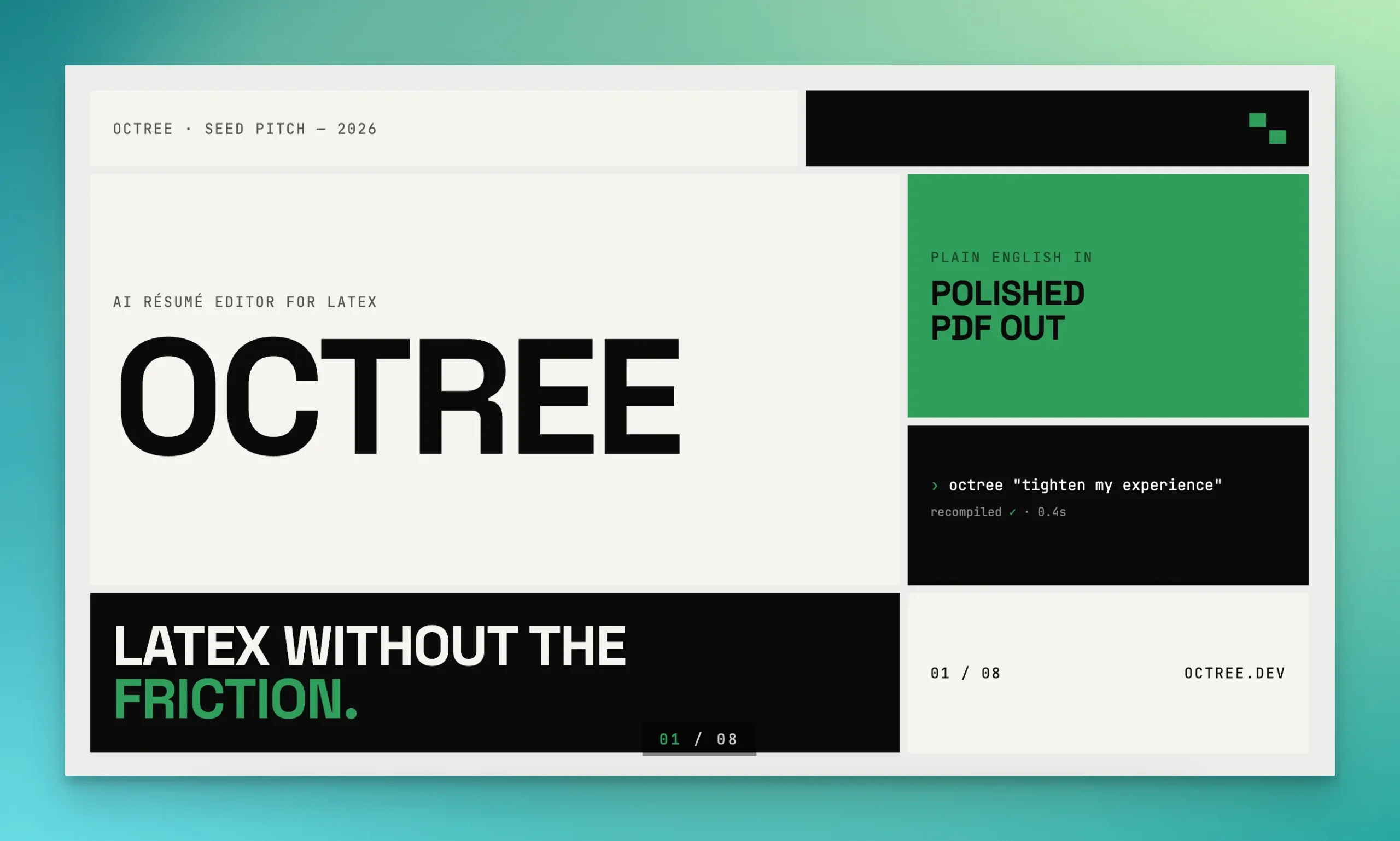
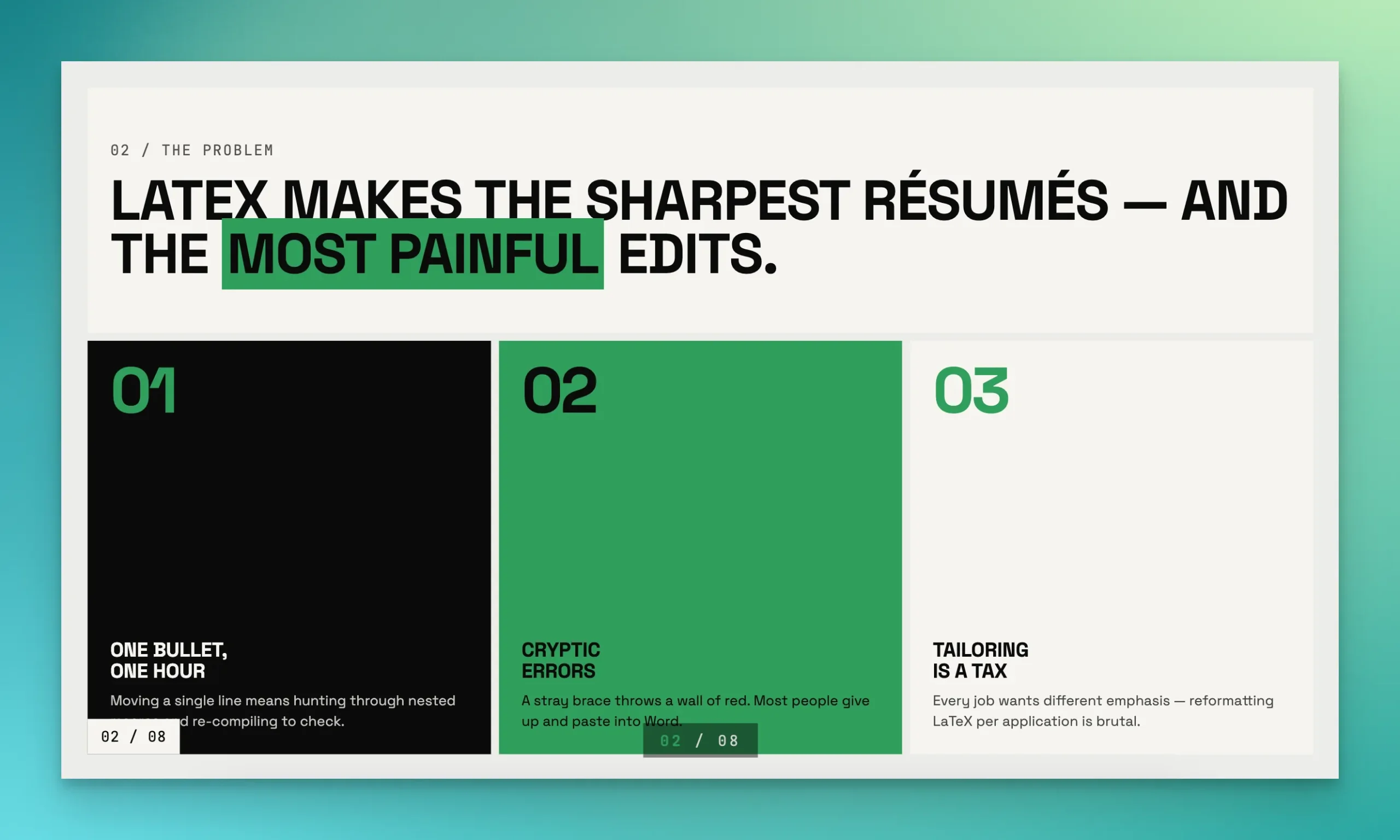
frontend-slides takes a different route to the output problem. Instead of a native PowerPoint file it generates a single, self-contained HTML presentation with inline CSS and JavaScript, no build step and no dependencies. It can also convert an existing .pptx into a web deck, export to PDF, and deploy the finished result to a live URL.
Setting it up
In Claude Code, install it as a plugin.
/plugin marketplace add https://github.com/zarazhangrui/frontend-slides
/plugin install frontend-slides@frontend-slides
Then invoke it with /frontend-slides. For any other agent, such as Codex, Cursor, or Gemini CLI, the simplest path is to send it the repo link and ask it to use the Frontend Slides skill. Any agent that can read files will start from SKILL.md and pull in the rest as needed.
Converting a .pptx needs Python with python-pptx. PDF export uses Playwright, which installs itself on first run, and deployment uses a free Vercel account.
Results
You describe the deck you want and the skill generates three visual style previews, so you choose a direction by looking at it rather than spelling out every preference. Once you pick a style it produces a polished, 16:9 HTML file with clean, well-commented code. The output leans into distinctive, hand-picked designs rather than the generic look most AI tools fall back on, and an optional pack adds 34 bolder templates.
Pros and cons
What it does well.
- Decks look genuinely designed, not templated
- Zero dependencies, one portable HTML file you can host anywhere
- Converts existing PowerPoints and exports to PDF
- Runs fully local with any filesystem-capable agent
Where it falls short.
- The result is HTML, not a native
.pptx, so later edits happen in code or a browser rather than in PowerPoint - Decks use the skill’s own styles, so they do not follow your brand unless you specify your colors, fonts, and logo by hand
SlideSpeak Slide Design Skill
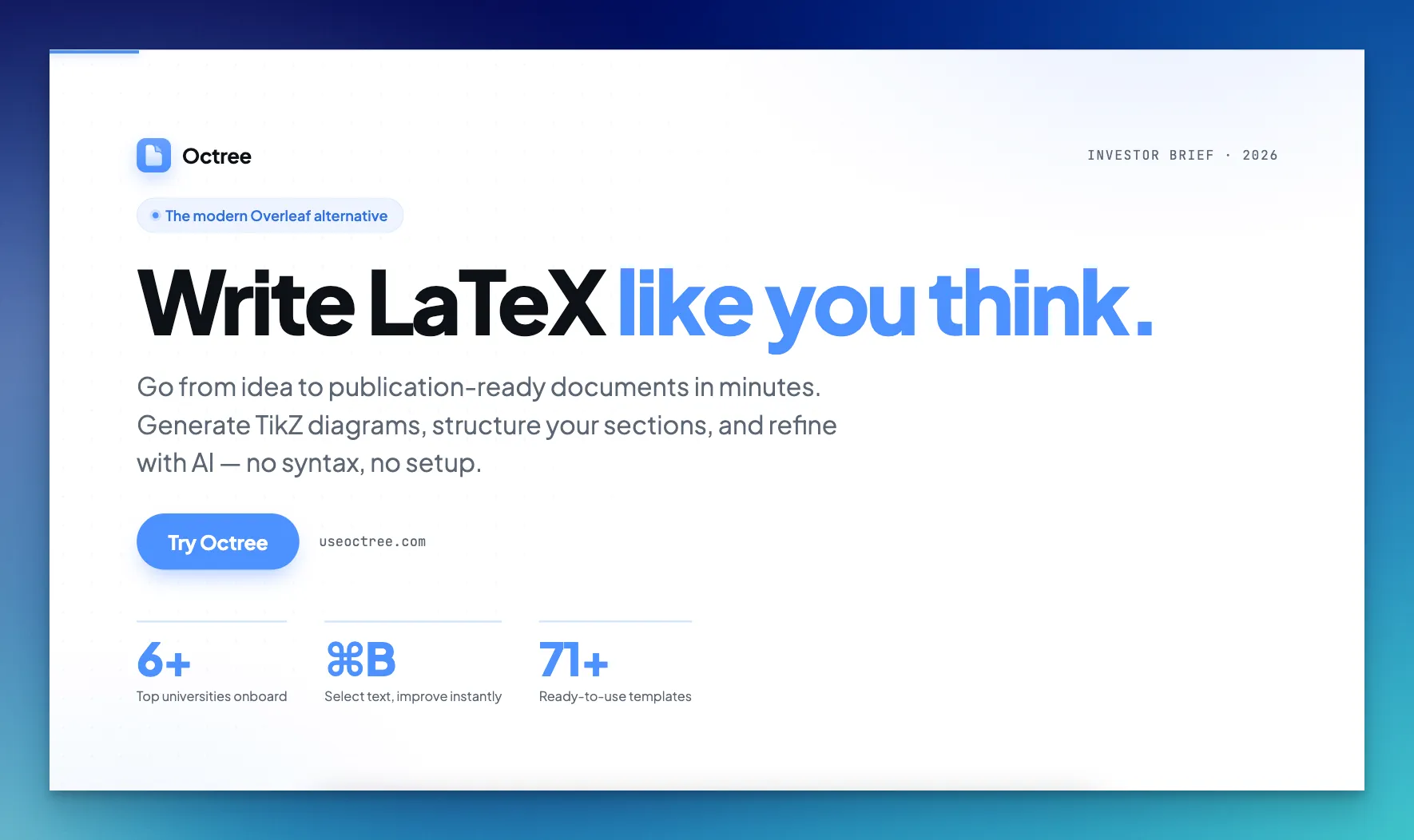
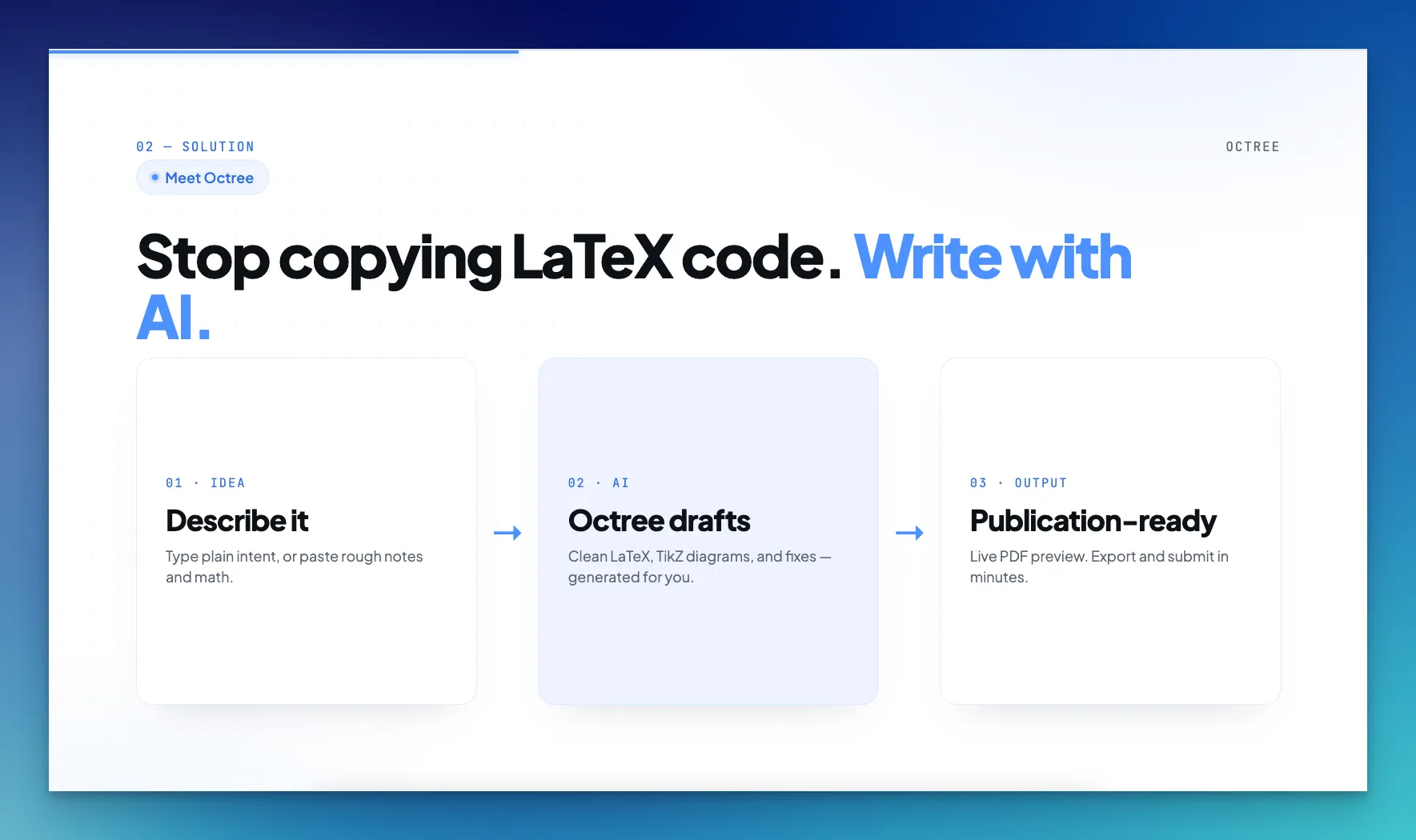
The SlideSpeak Slide Design Skill is an AI presentation engine that designs a deck around your brief instead of dropping your content into a fixed template. You describe what you need, and it derives a unique visual style, plans the slide composition, and renders the result. The output is a 1920×1080 HTML deck with real charts, tables, and imagery.
Setting it up
Install it through the skills CLI, so it works in Claude Code, Cursor, Copilot, and other agents that support the skills standard.
npx skills add SlideSpeak/slide-design-skill
You need Node.js and npm. AI imagery is optional and uses FAL.ai, so set a FAL_KEY if you want generated images, otherwise the skill works without one.
Results
Because the style is generated per brief, two decks built from different prompts look genuinely different rather than sharing one house template. Charts and tables are driven by the data you supply, and a brand guard blocks trademarked content. It handles pitch decks, keynotes, reports, and training material from the same skill.
Pros and cons
What it does well.
- A fresh, bespoke style for each deck instead of a recycled template
- Real charts and tables built from your own data
- One skill covers many deck types
- Installs in seconds through the skills CLI
Where it falls short.
- HTML only, with no native
.pptxor PDF export - AI imagery needs your own FAL.ai key
- Editing later happens in code or a browser, not in PowerPoint
Anthropic pptx Skill
Anthropic ships a pptx skill as part of the document skills that power file creation in Claude. Where the two skills above output HTML, this one produces a native, editable .pptx. It can build a deck from scratch or edit an existing one, and it is the same code Claude uses to make PowerPoint files under the hood.
Setting it up
In Claude Code, install the document skills bundle as a plugin.
/plugin marketplace add anthropics/skills
/plugin install document-skills@anthropic-agent-skills
Results
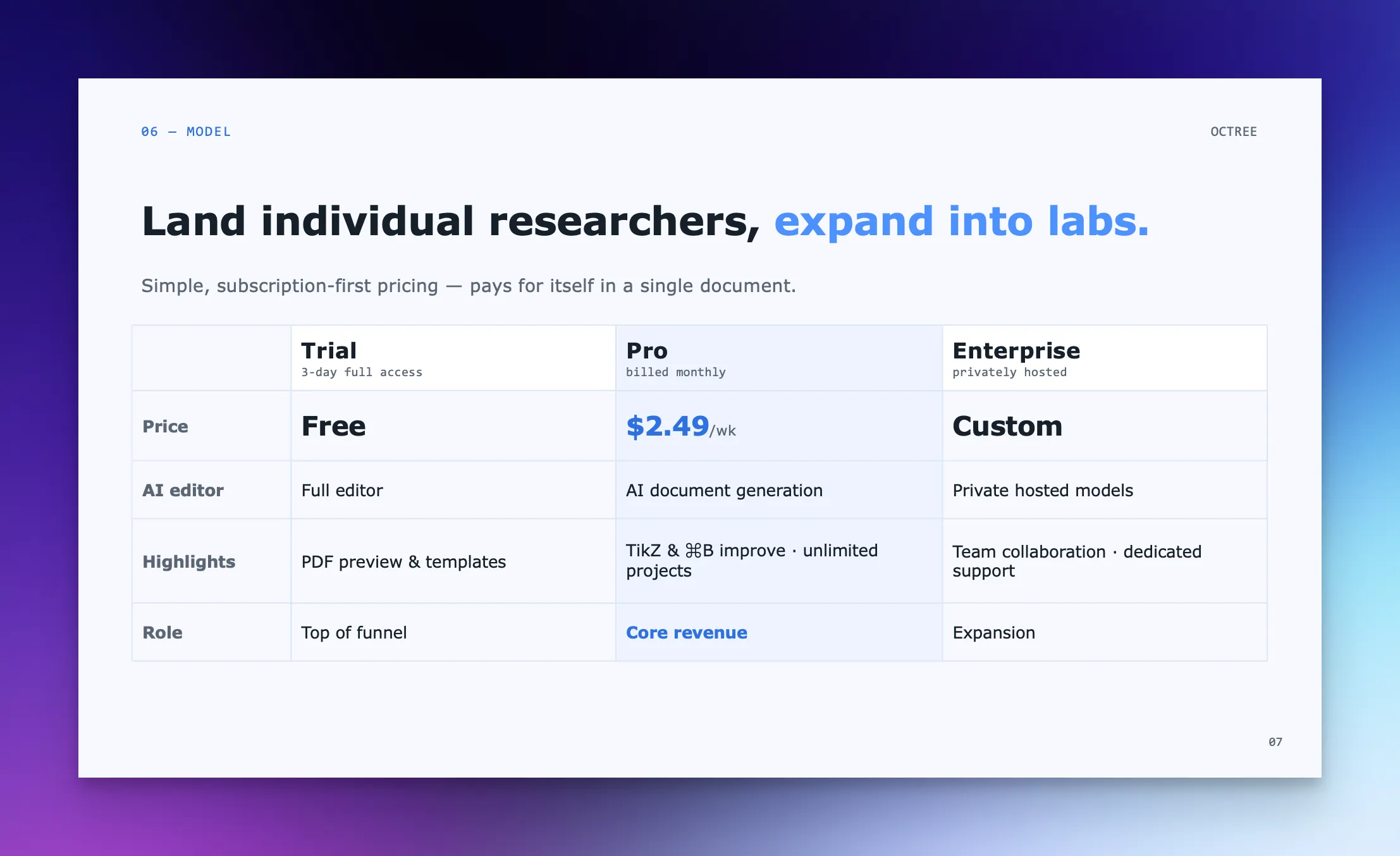
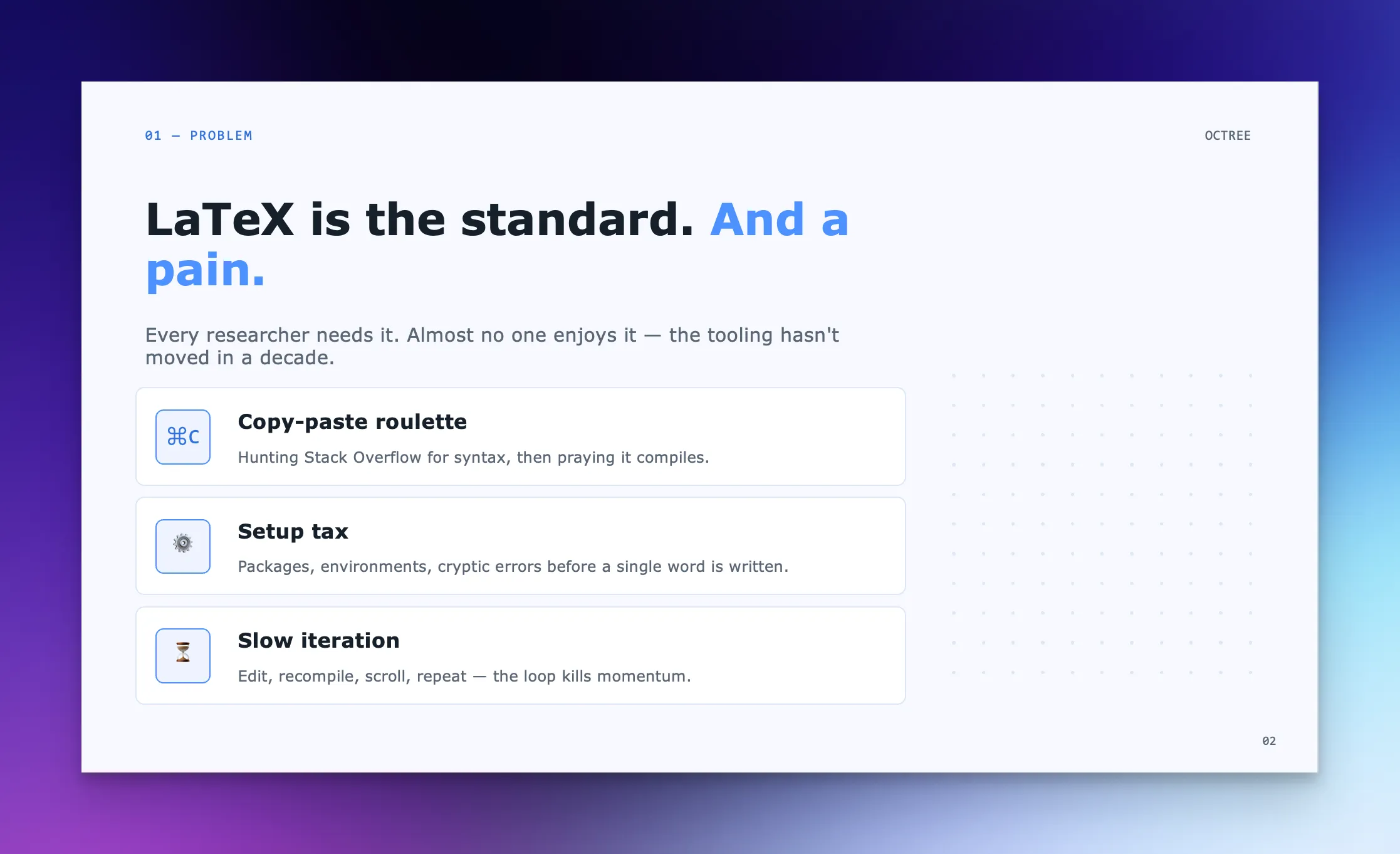
Because it works at the native PowerPoint level, you get a real file you can open and edit like any other deck. It builds new presentations with pptxgenjs, edits existing ones by unpacking and rewriting the slide XML, and renders slides to images so it can check its own work and catch layout bugs before handing the file back. It also carries built-in guidance on color, type, and layout.
Pros and cons
What it does well.
- Produces a native, editable
.pptx, not HTML - Builds decks from scratch or edits existing ones
- The same skill behind PowerPoint file creation in Claude
- Renders slides to images to catch its own layout bugs
Where it falls short.
- Heavier setup, it expects LibreOffice, Poppler, and Node tooling installed
- The layouts it produces are fairly generic
- Built around Claude, so it is less of a drop-in for other agents
Want a Deck That Matches Your Brand? Use the SlideSpeak OnBrand MCP
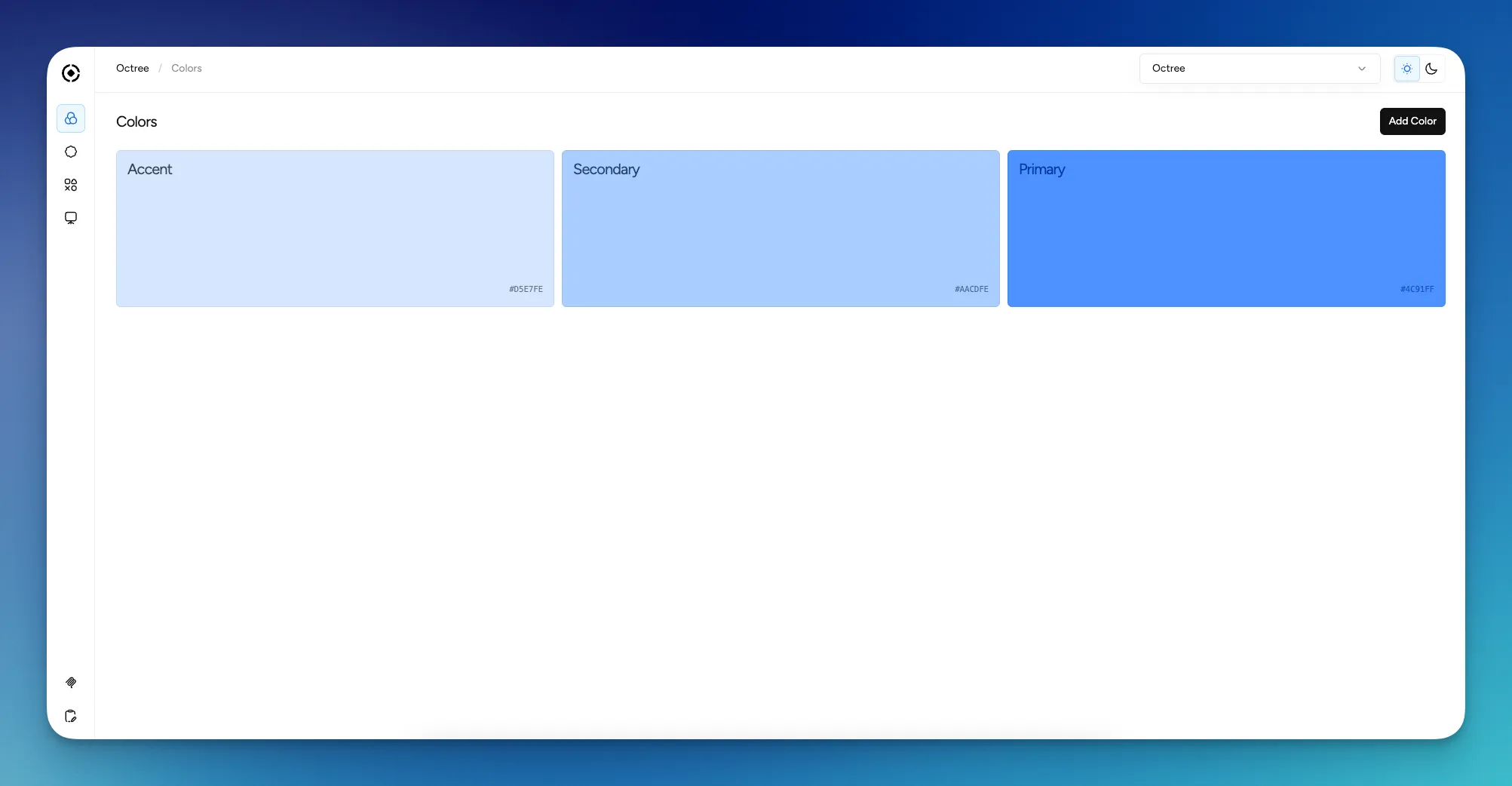
Most of these skills produce decks in a generic style that will not match your brand. The SlideSpeak OnBrand MCP takes a different approach. Give it your website and it reads your colors, fonts, and logo, builds a branded template, and generates a native, on-brand .pptx that looks like your company made it. No manual style work, no design files to upload.
The best agent setups in 2026 aren’t just thinking — they’re delivering finished, usable outputs. The SlideSpeak Agent Skill is how you make presentations part of that output. Pull data from anywhere, define your layouts, and get a finished deck. No human formatting required.
Questions or feedback? Find us at slidespeak.co.


