

How to Create Presentations with Claude Cowork (2026 Guide)
Written by

Published on
On this page
Anthropic has been on a tear. In just the first 70 days of 2026, they shipped Claude Cowork, Opus 4.6, Sonnet 4.6, Claude Code voice mode, a PowerPoint add-in, and Claude Code Review — among other things. It’s the kind of pace that makes you wonder if they have their own AI building their products.
But the release that quietly changes the most about how we work? Claude Cowork.
The era of copy-pasting AI outputs into your slides is over. Cowork doesn’t just generate text for you to manually arrange — it operates your desktop, creates files, browses the web, and delivers finished PPT files directly to your filesystem. It’s the difference between having a chatbot and having an actual coworker who happens to be incredibly fast.
Here’s exactly how to use it to create presentations — from research to finished deck.
What Is Claude Cowork?
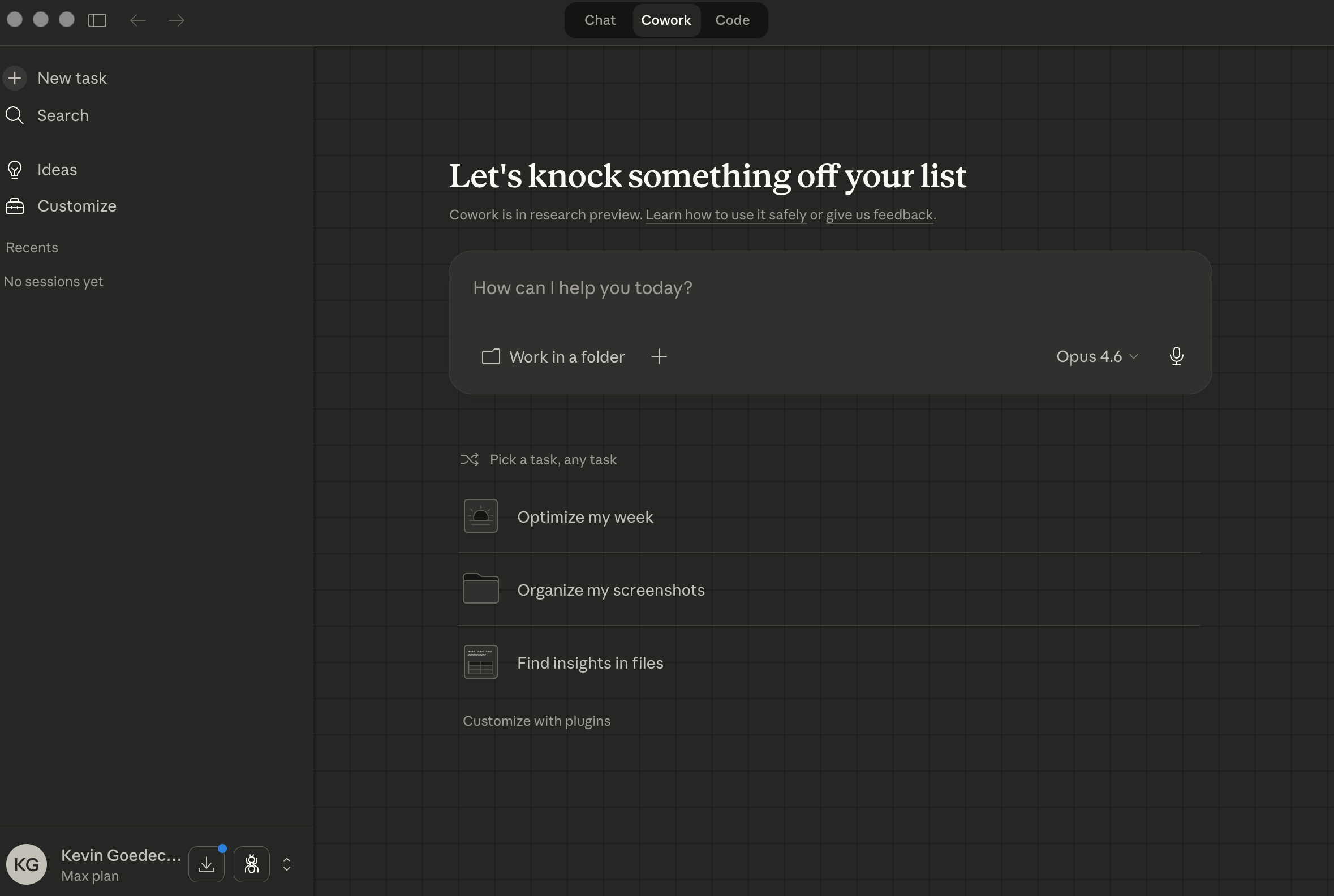
Claude Cowork is a desktop agent built into the Claude Desktop app for macOS and Windows. Unlike regular Claude chat, Cowork runs inside a virtual machine environment where it can execute multi-step tasks autonomously: browsing the web, reading and writing files, coordinating multiple sub-agents in parallel, and interacting with your applications.
For presentation creation, this means Cowork can:
- Research a topic by browsing multiple sources and compiling findings
- Generate a structured slide deck with speaker notes as a
.pptxfile - Follow brand guidelines if you upload a style guide or reference deck
- Iterate based on your feedback mid-task — you can steer it while it works
You’ll need a paid Claude plan (Pro, Max, Team, or Enterprise) and the Claude Desktop app installed. Click the “Cowork” tab at the top of the app to enter Cowork mode.
How to Create a Presentation with Cowork (Step-by-Step)
This is the most powerful workflow — let Cowork do the research and build the deck in a single task.
Step 1: Write your prompt
Switch to the Cowork tab and describe what you need. Be specific about the topic, audience, and scope:
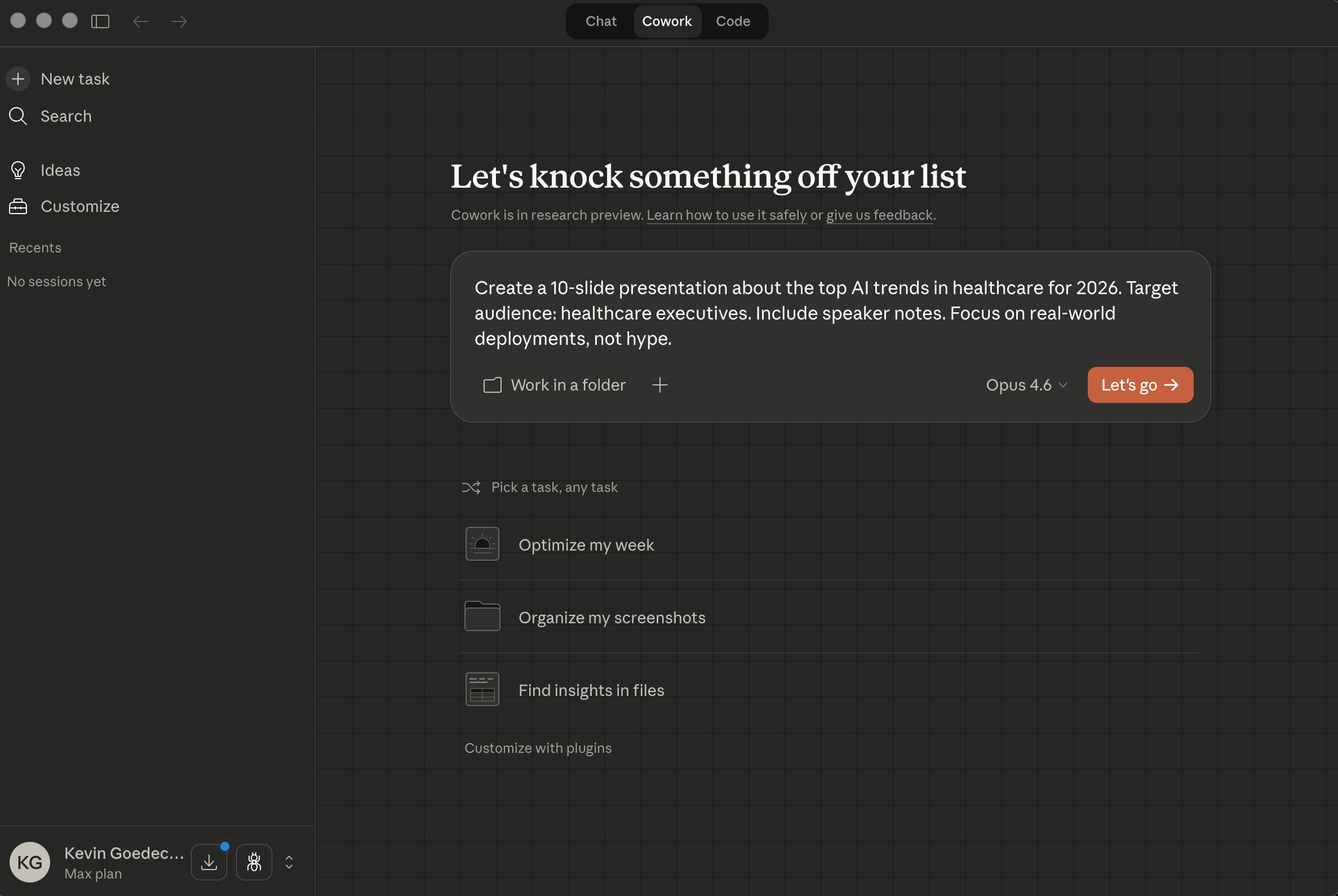
Notice the “Work in a folder” option — use this to specify where Cowork should save the output files. You can also attach reference documents, brand guides, or existing decks using the + button.
Step 2: Cowork sets up its workspace
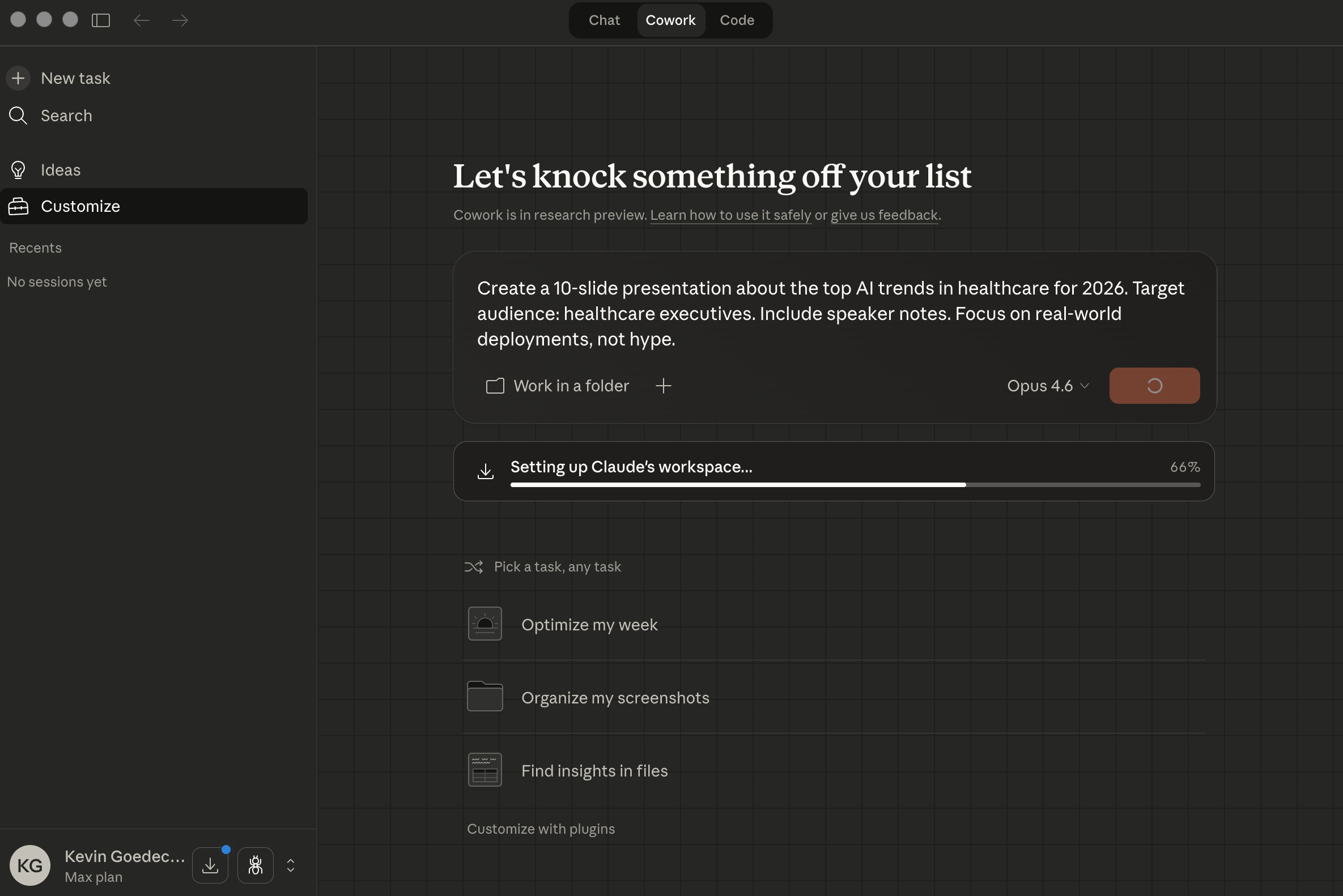
After you hit “Let’s go”, Cowork spins up its virtual environment. You’ll see a progress bar as it sets up the workspace — this usually takes 10-20 seconds.
Step 3: Watch it work
This is where the magic happens. Cowork breaks the task into sub-steps and executes them autonomously. On the right panel, you can track its progress in real-time:
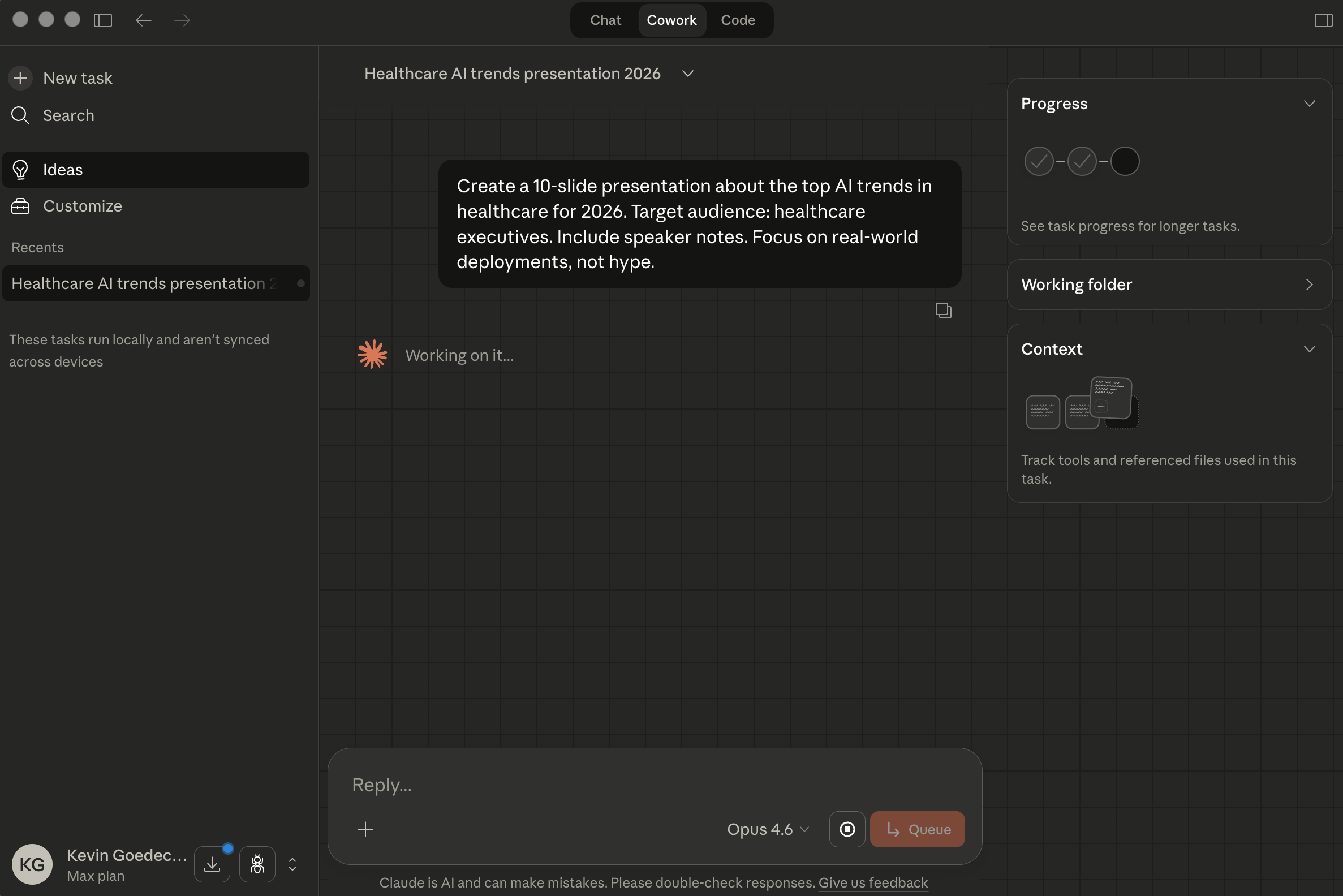
In this example, Cowork:
- Researched the latest AI healthcare trends using Perplexity
- Read the PptxGenJS documentation to understand the presentation library
- Wrote a Python build script (~4,930 characters) using
python-pptxto generate the deck - Installed the dependencies and created the
.pptxfile
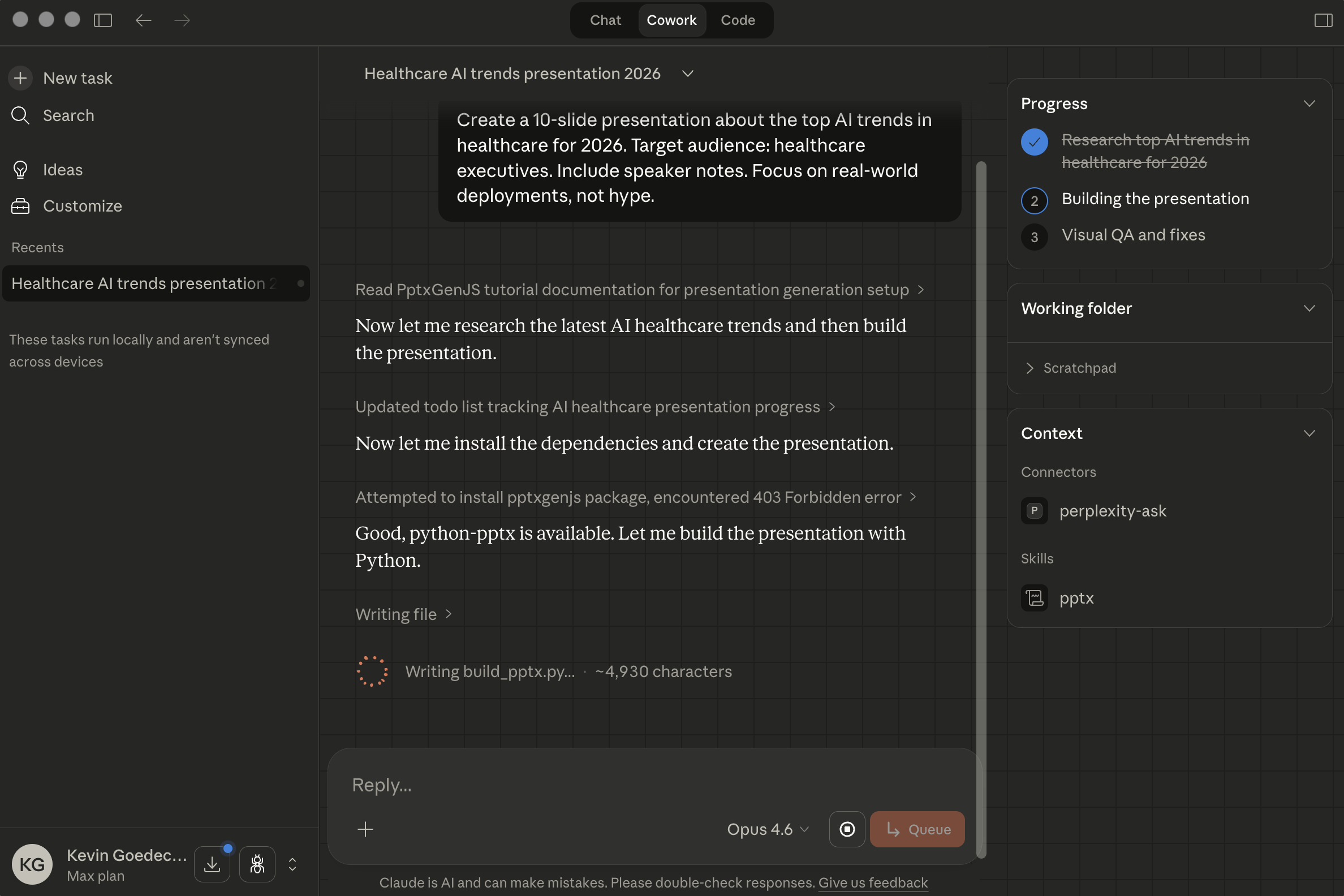
You can jump in at any point using the Reply field at the bottom to steer Cowork — for example, “Add more data visualizations” or “Make the tone more conversational.”
Step 4: Open the finished deck
When Cowork finishes, it saves a .pptx file directly to your filesystem. Open it in PowerPoint or Google Slides and you’ll see a fully structured presentation with real content, data points, and speaker notes:
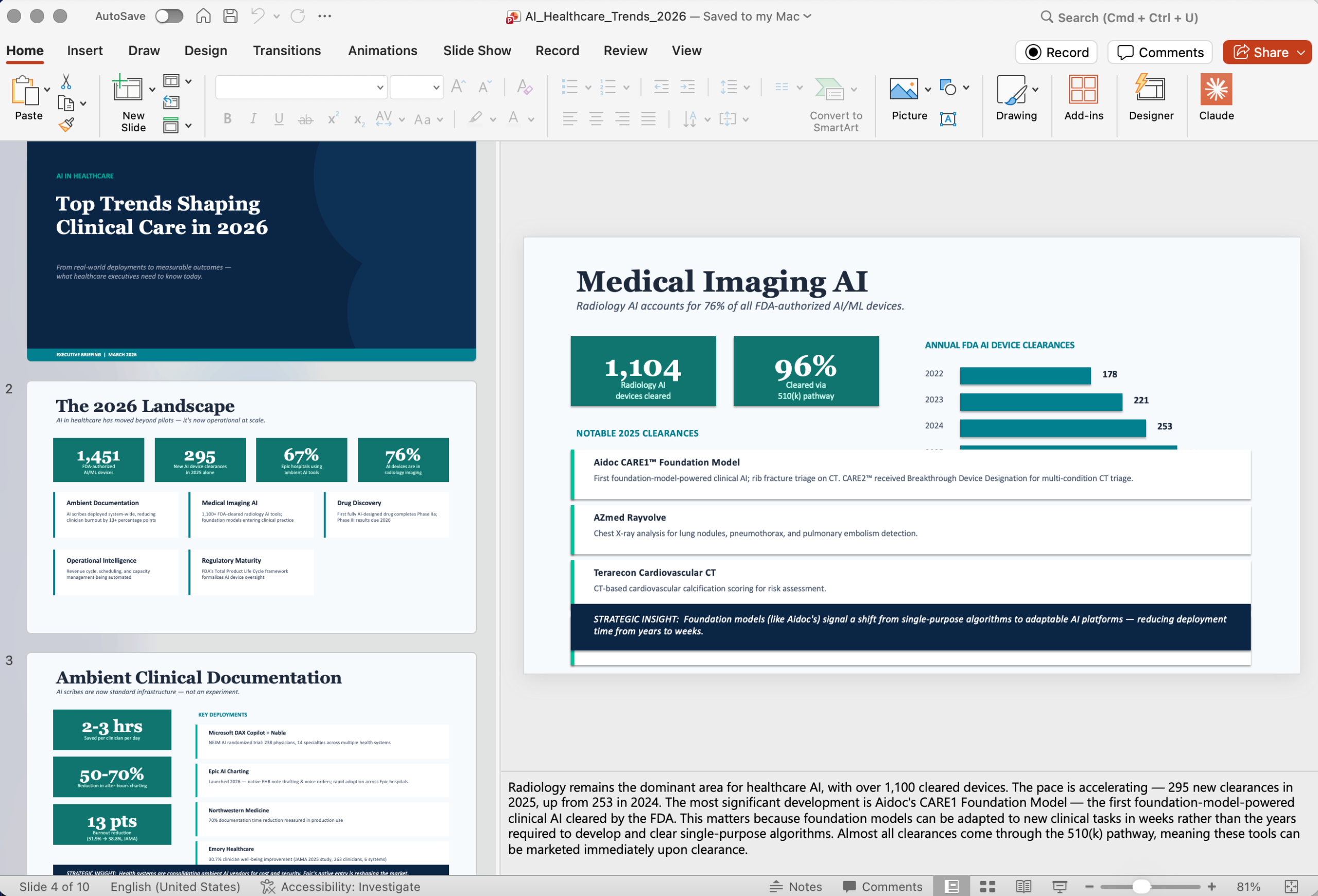
The result here is genuinely impressive: Cowork researched current FDA clearance numbers, found specific company examples (Aidoc, Google CARE, Siemens), created data visualizations, and structured a narrative across 10 slides — all from a single prompt.
Refining with Claude for PowerPoint
Once you have your Cowork-generated deck, you can polish it further using the Claude for PowerPoint add-in — a separate tool that integrates Claude directly into the PowerPoint ribbon.
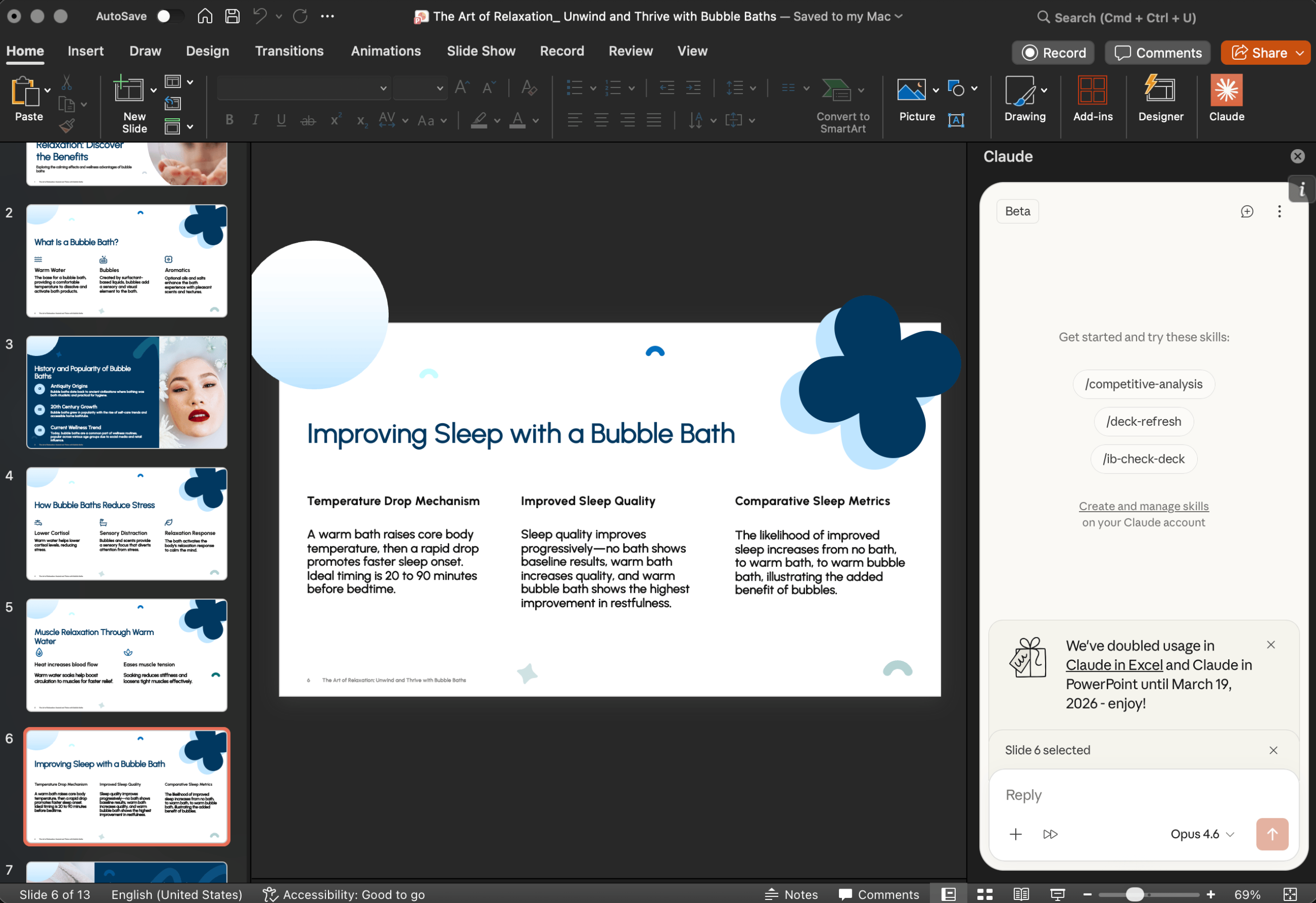
The key advantage of the add-in: it respects your slide master. When it generates or edits slides, it uses your existing layouts, fonts, colors, and formatting rules — not generic templates.
The add-in also supports Skills — repeatable workflows you can trigger with a slash command. For example, you could create a /quarterly-update skill that knows your company’s format, tone, and data sources.
The best combo: Use Cowork to do the research and generate a first draft .pptx, then open it in PowerPoint and use the Claude add-in to refine, reformat, and polish it within your corporate template.
Tips for Getting Better Results
After testing Cowork extensively for presentation creation, here’s what makes the biggest difference:
- Specify your audience upfront. “For a technical engineering team” produces very different slides than “for C-suite executives.” Cowork’s context-awareness is its superpower — use it.
- Set explicit constraints. Number of slides, tone (formal vs. casual), level of detail, whether to include data visualizations. The more specific you are, the less you’ll need to edit.
- Upload reference material. A previous deck you liked, a brand guide, a competitor’s presentation — anything that shows Cowork what “good” looks like for your context.
- Use the steering feature. Cowork shows you its progress as it works. If you see it going in the wrong direction, type in the Reply field to course-correct mid-task.
- Always request speaker notes. Even if you don’t need them, they force Cowork to think more deeply about each slide’s purpose, which improves the slide content itself.
Where Cowork Falls Short (And How to Fix It)
Let’s be honest: Cowork is exceptional at content generation and research, but the visual design of its PowerPoint output is functional at best. You’ll get clean, readable slides with real data — but not the kind of polished, on-brand deck that wins a pitch or impresses a client.
Common limitations:
- Layout variety is limited — expect mostly title + bullets + basic charts
- Custom graphics and infographics aren’t generated
- Brand consistency requires uploading detailed guidelines or a reference deck
- Translation and localization isn’t built in
This is where a dedicated presentation tool comes in. SlideSpeak is purpose-built for this: you can upload Cowork’s .pptx output, apply professional templates, add your brand colors and logos automatically, translate the entire deck while preserving layout, and even convert slides into narrated video presentations.
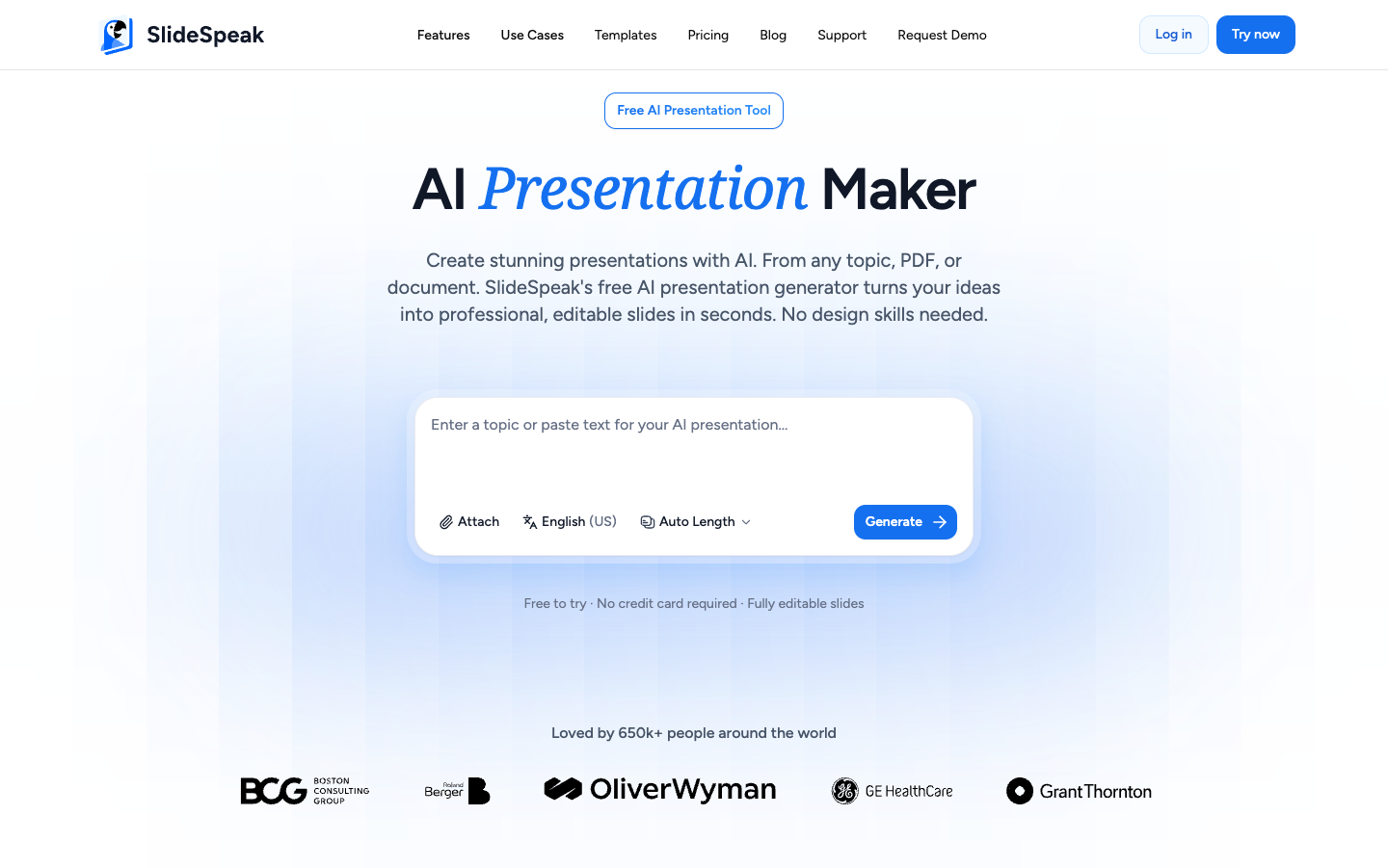
The workflow that gets the best results: Cowork for thinking, SlideSpeak for design.
Use Cowork to handle the hard parts — research, synthesis, narrative structure, speaker notes — then hand it off to SlideSpeak for the visual polish that makes the difference between a “fine” deck and a great one.
The Bottom Line
Claude Cowork has compressed the presentation creation process from hours to minutes. The research-to-deck pipeline that used to involve multiple tools, browser tabs, and copy-paste marathons now happens in a single conversation with an AI that can actually do the work — not just suggest what you should do.
The best part? This is still a research preview. As Cowork’s capabilities expand (and given Anthropic’s shipping pace, that won’t take long), the gap between “AI-generated presentation” and “professionally crafted deck” will keep shrinking.
Try SlideSpeak free to polish your next Cowork-generated deck — your first 3 presentations are on us.


