

Customizing the length of your presentation is essential for tailoring your message to your audience. Whether you need a quick pitch or a detailed educational session, SlideSpeak gives you full control over the number of slides generated.
How to Specify Slide Count
Follow these simple steps to set the length of your next AI-generated presentation:
Step 1: Start a New Presentation
Log in to your SlideSpeak account and click the “Create presentation with AI” button on your dashboard.
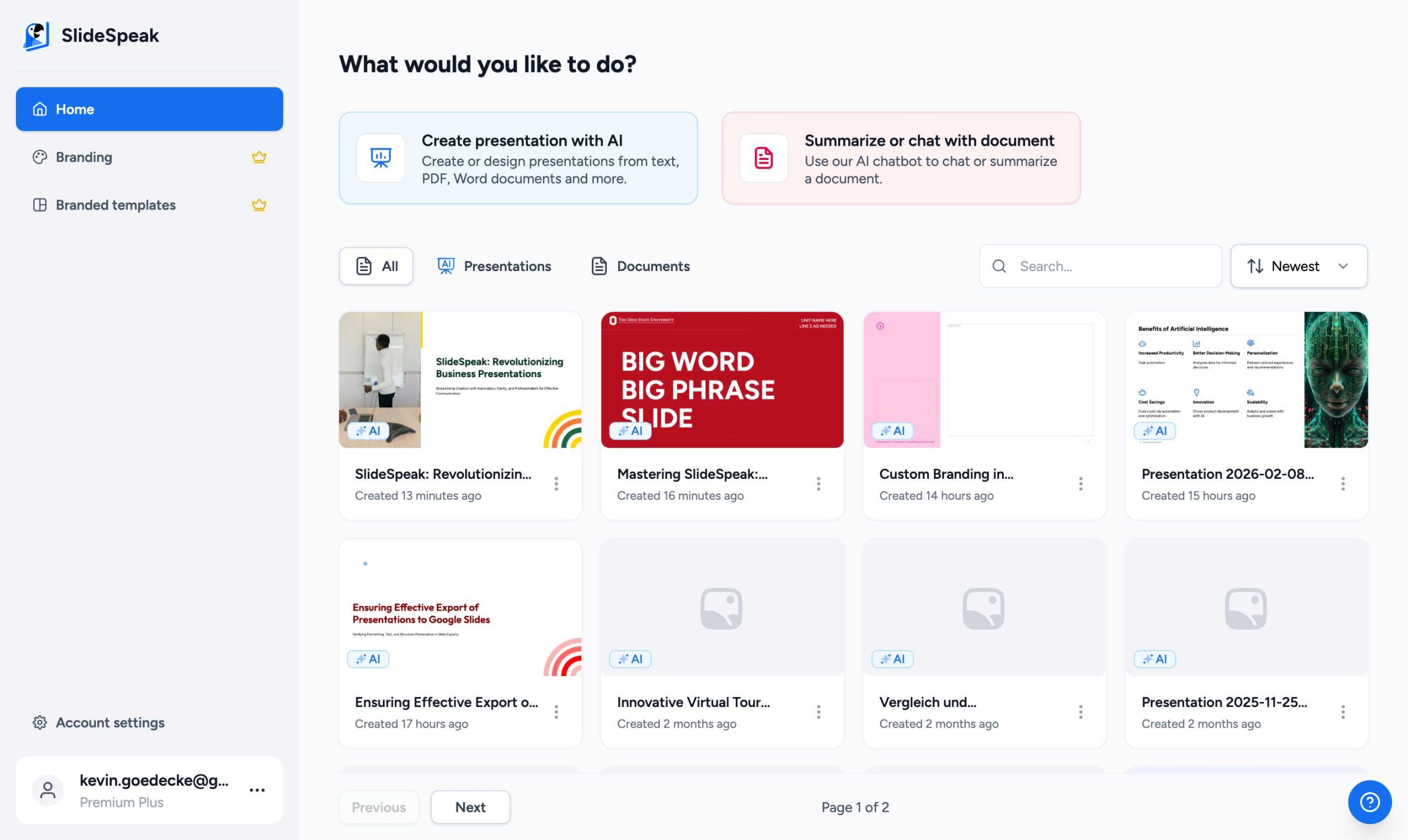
Step 2: Access Length Settings
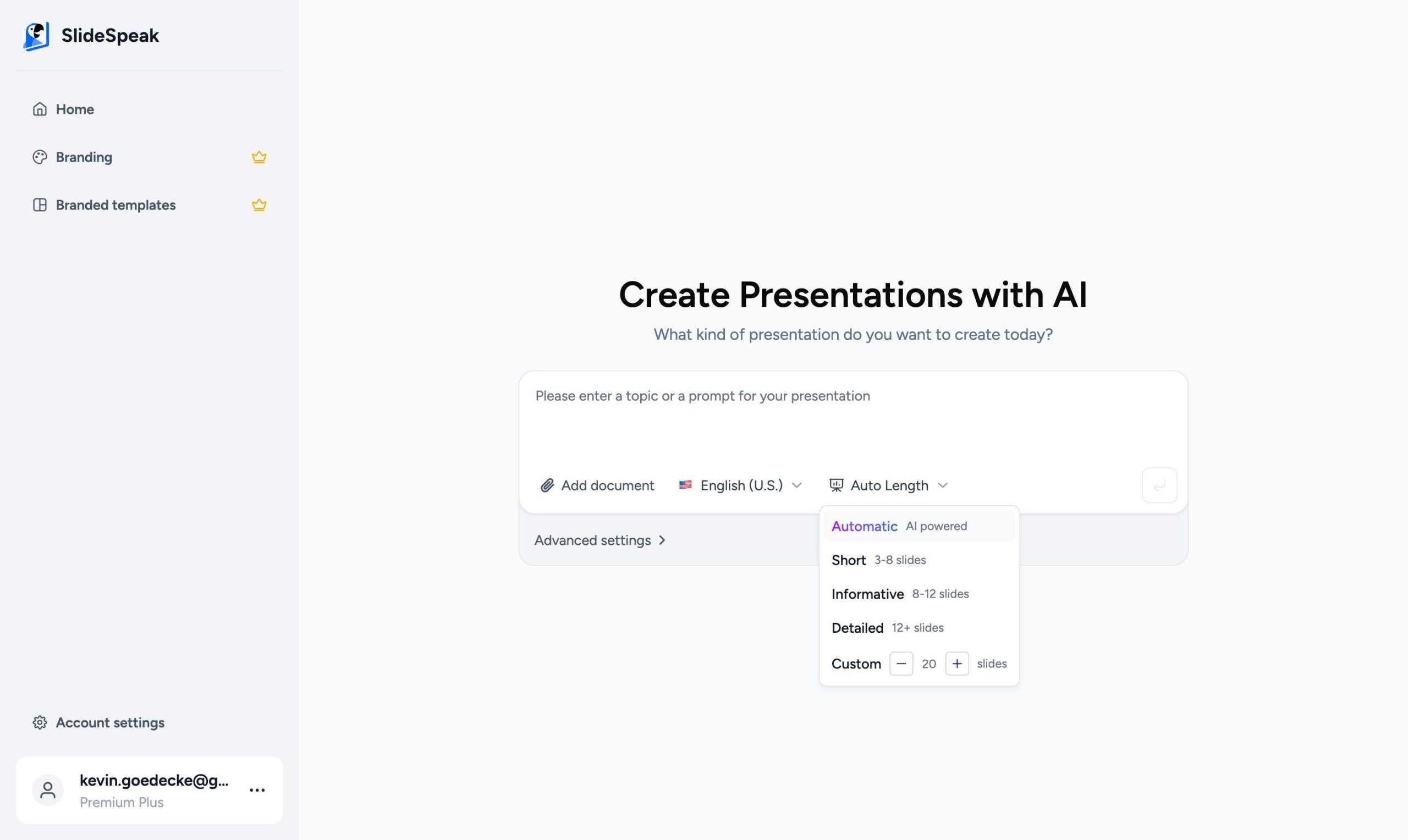
After selecting your presentation method (from a topic or document), look for the “Auto Length” button in the prompt area.
Step 3: Choose Your Preferred Length
Clicking the length button will open a menu with several options:
- Automatic: Let the AI decide the optimal number of slides based on your content.
- Short: Generates 3-8 slides, perfect for quick summaries.
- Informative: Generates 8-12 slides, ideal for standard presentations.
- Detailed: Generates 12+ slides for comprehensive coverage.
- Custom: Manually enter the exact number of slides you want (e.g., 15 or 20 slides).
Pro Tip: Use the “Custom” option when you have a specific time limit for your presentation, allowing for about 1-2 minutes per slide.
Frequently Asked Questions
Is there a limit to the number of slides?
While SlideSpeak is very flexible, the maximum number of slides may depend on your current plan. Premium users enjoy higher limits for more detailed presentations.
Can I change the slide count later?
Once a presentation is generated, you can always add or remove slides manually using the SlideSpeak editor to further refine your deck.
Need more assistance? Reach out to our support team at support@slidespeak.co
Need more help?
If you have any questions or need assistance, feel free to contact our support team at support@slidespeak.co