

Creating a single slide presentation in SlideSpeak is quick and easy with our AI Assistant. This guide walks you through the complete process, from starting with a blank canvas to generating professional content using AI.
Overview
SlideSpeak offers multiple ways to create presentations, but the blank canvas approach with the AI Assistant gives you the most flexibility for creating individual slides. You can create slides from text prompts or by uploading documents, making it perfect for quick, focused presentations.
Step 1: Access SlideSpeak
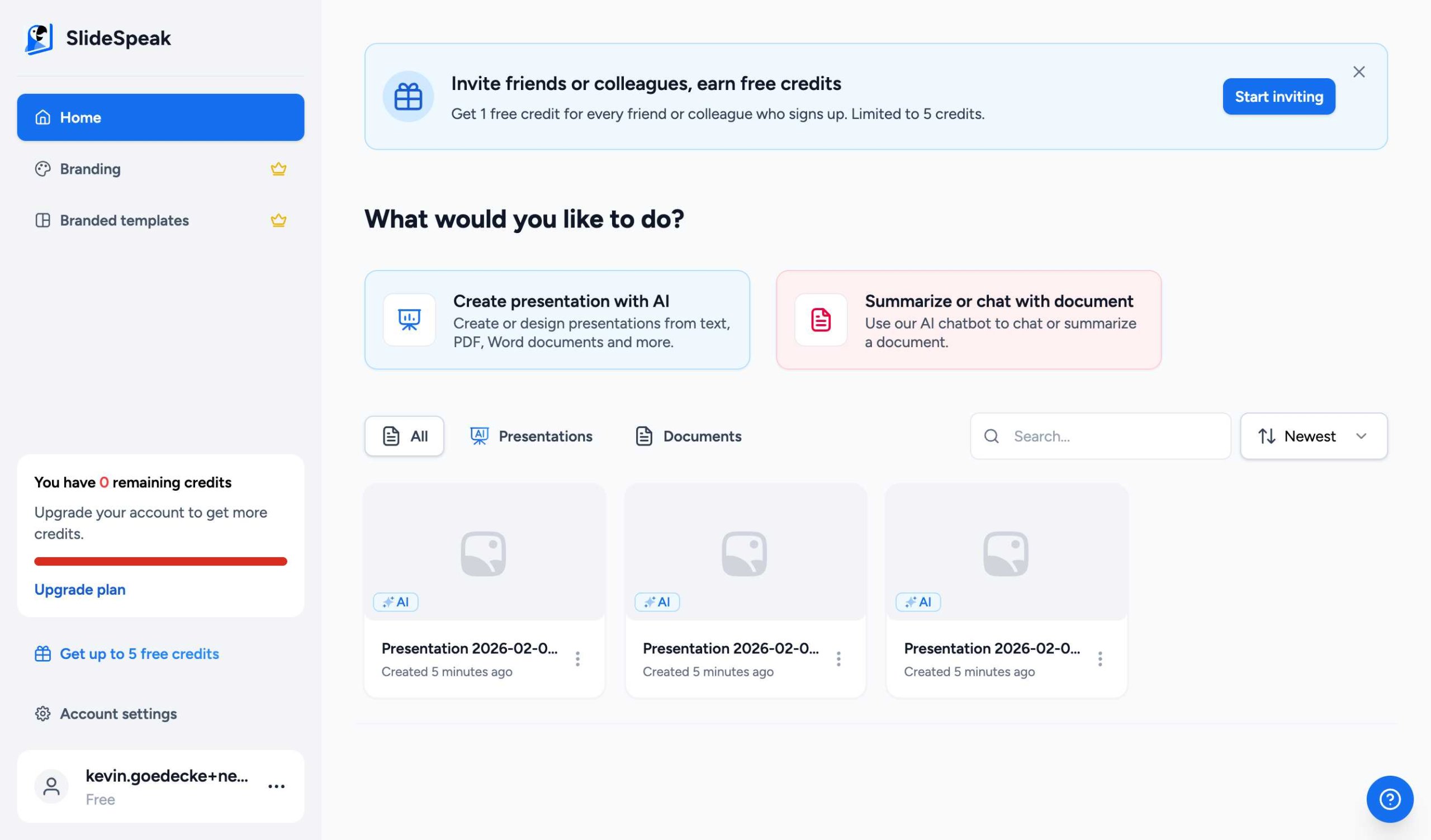
Start by logging into your SlideSpeak account at app.slidespeak.co. You’ll see your dashboard with all your recent presentations.
Step 2: Choose “From a Blank Canvas”
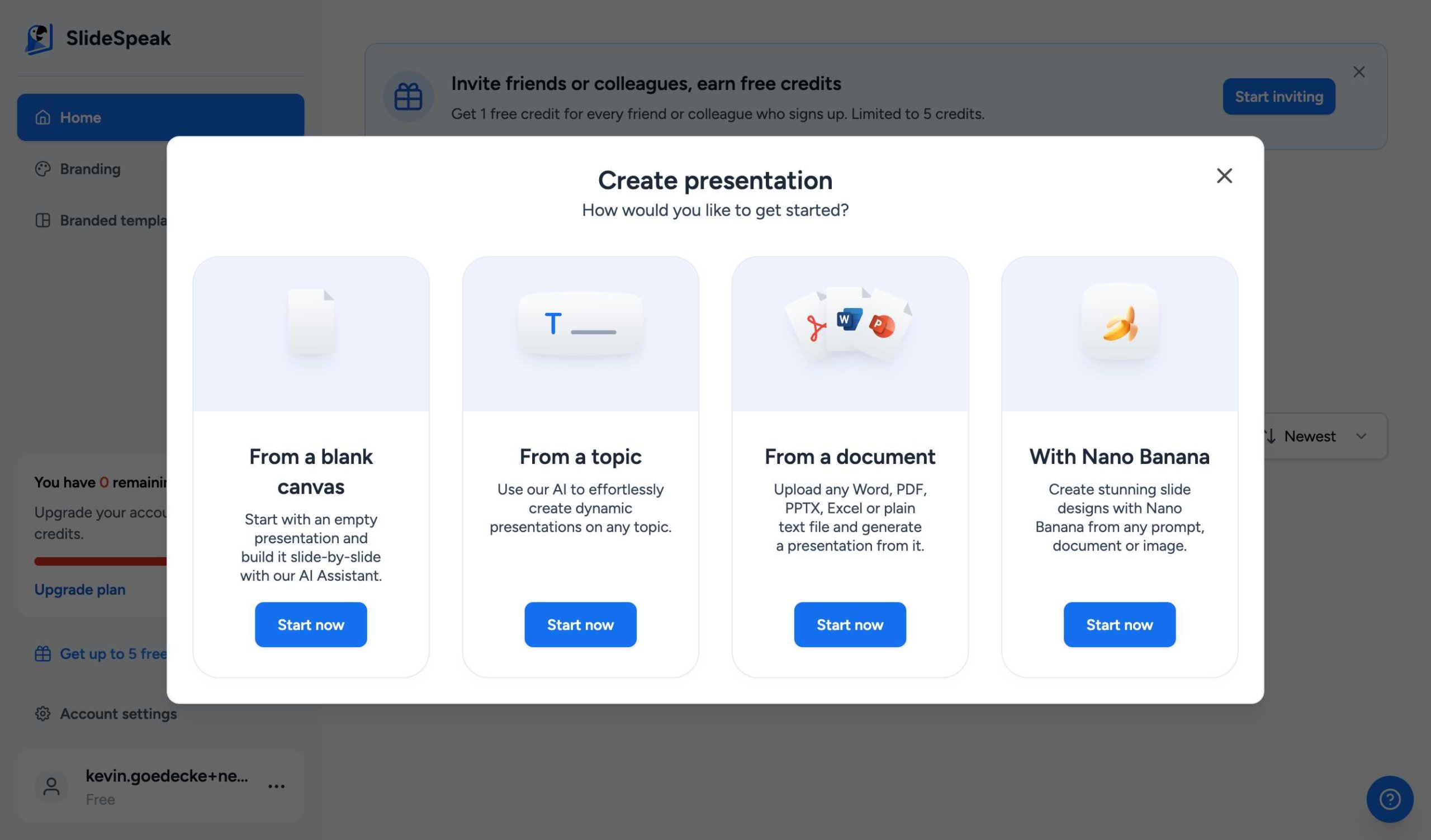
Click on the “Create presentation with AI” button on your dashboard. A dialog will appear with several creation options:
- From a blank canvas – Start with an empty presentation and build it slide-by-slide
- From a topic – Generate a full presentation on any subject
- From a document – Upload files to create presentations
- With Nano Banana – Create stunning designs from prompts
Select “From a blank canvas” and click “Start now”.
Step 3: Open the AI Assistant
Once your blank presentation opens, you’ll see the AI Assistant panel on the right side of the screen. The AI Assistant, named Charles, is your personal helper for creating and editing slides.
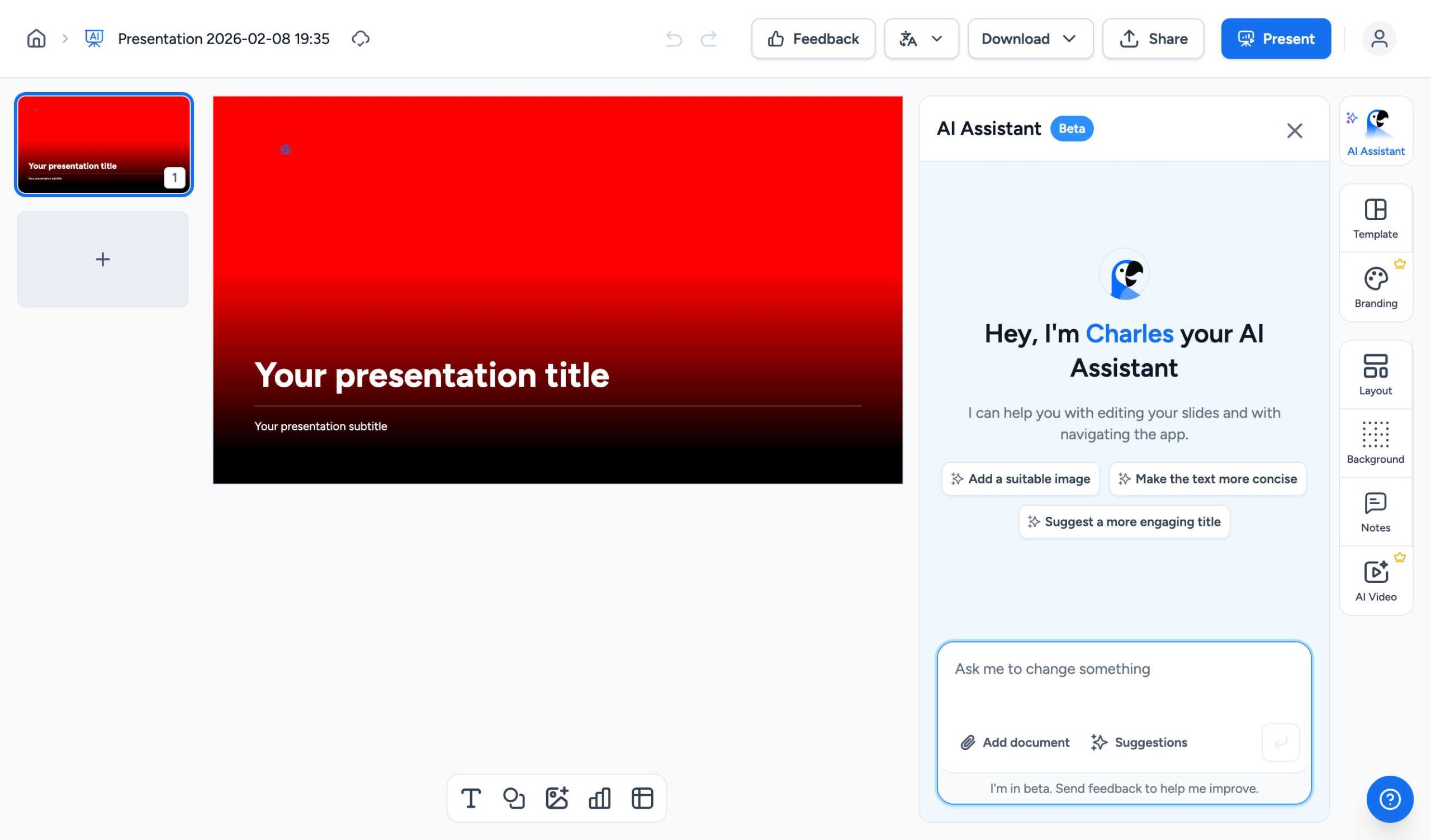
The AI Assistant can help you with various tasks including:
- Creating new slides from text descriptions
- Adding images and visual elements
- Making content more concise or engaging
- Generating content from uploaded documents
- Editing existing slides
Step 4: Create Your Slide with AI
Method 1: Create from Text Prompt
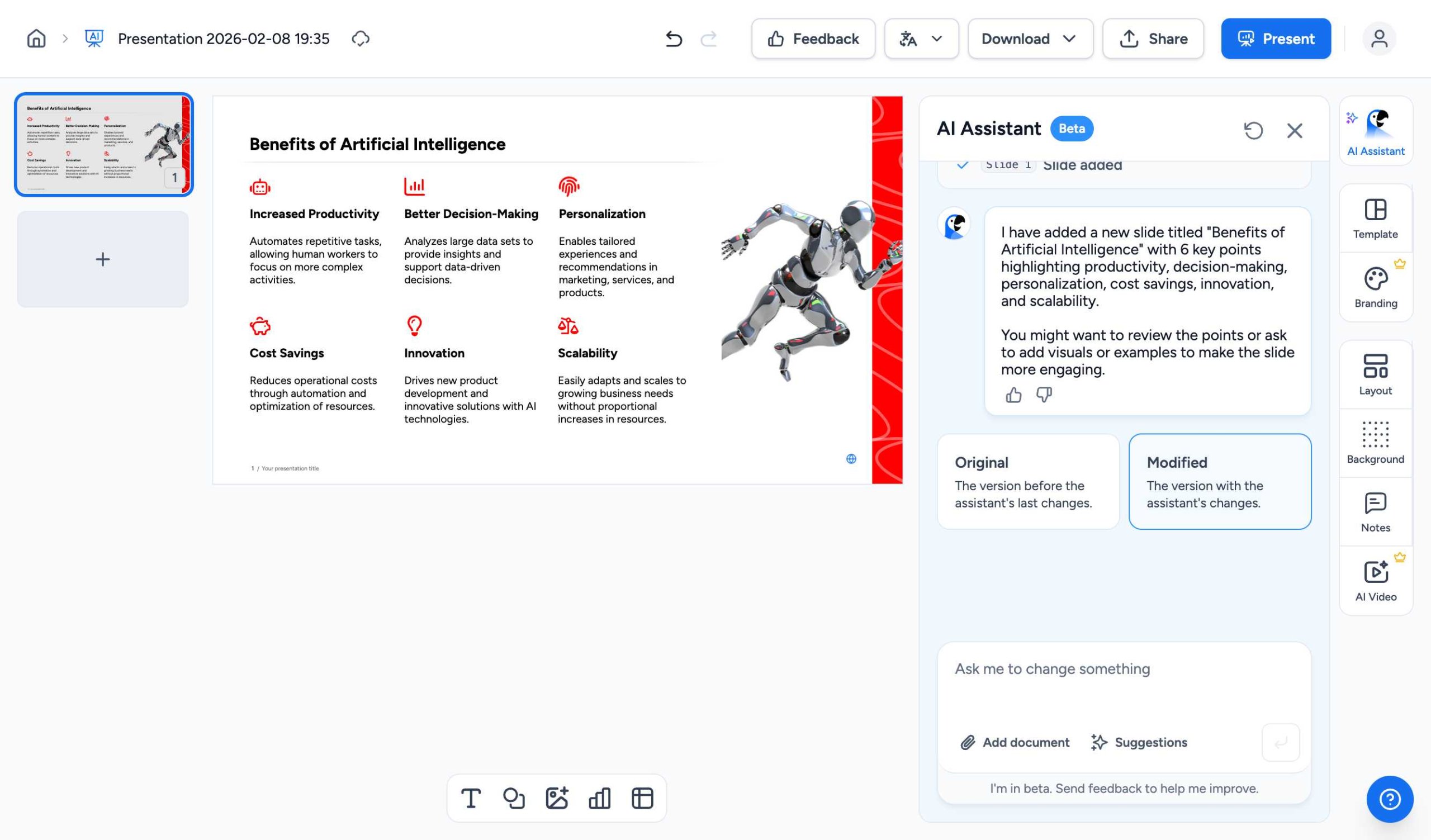
The easiest way to create a slide is to simply describe what you want in the text box at the bottom of the AI Assistant panel.
Example prompt: “Create a slide about the benefits of artificial intelligence”
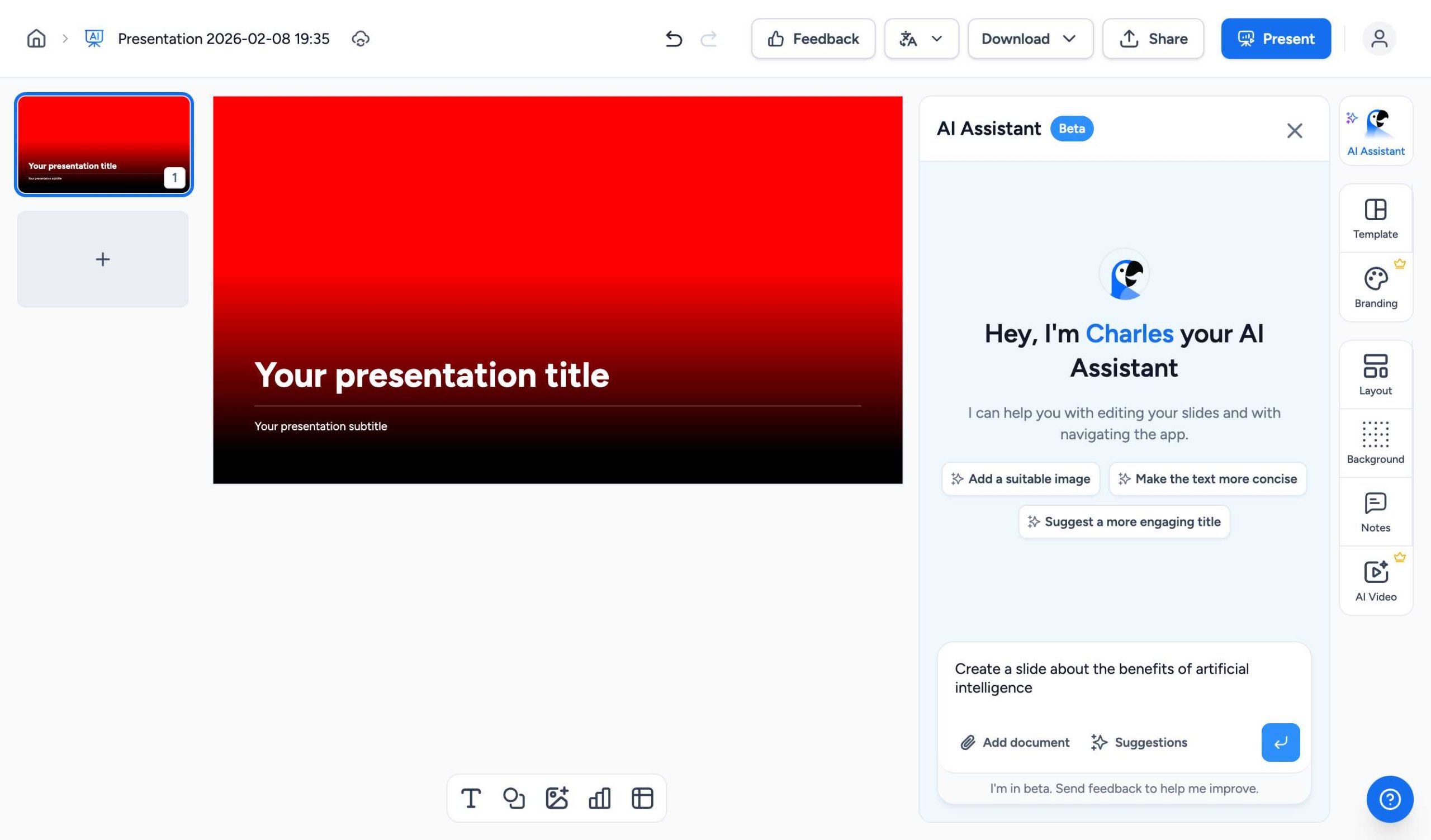
Click the Send button or press Enter. The AI Assistant will process your request and create a professionally formatted slide with relevant content.
Method 2: Create from a Document
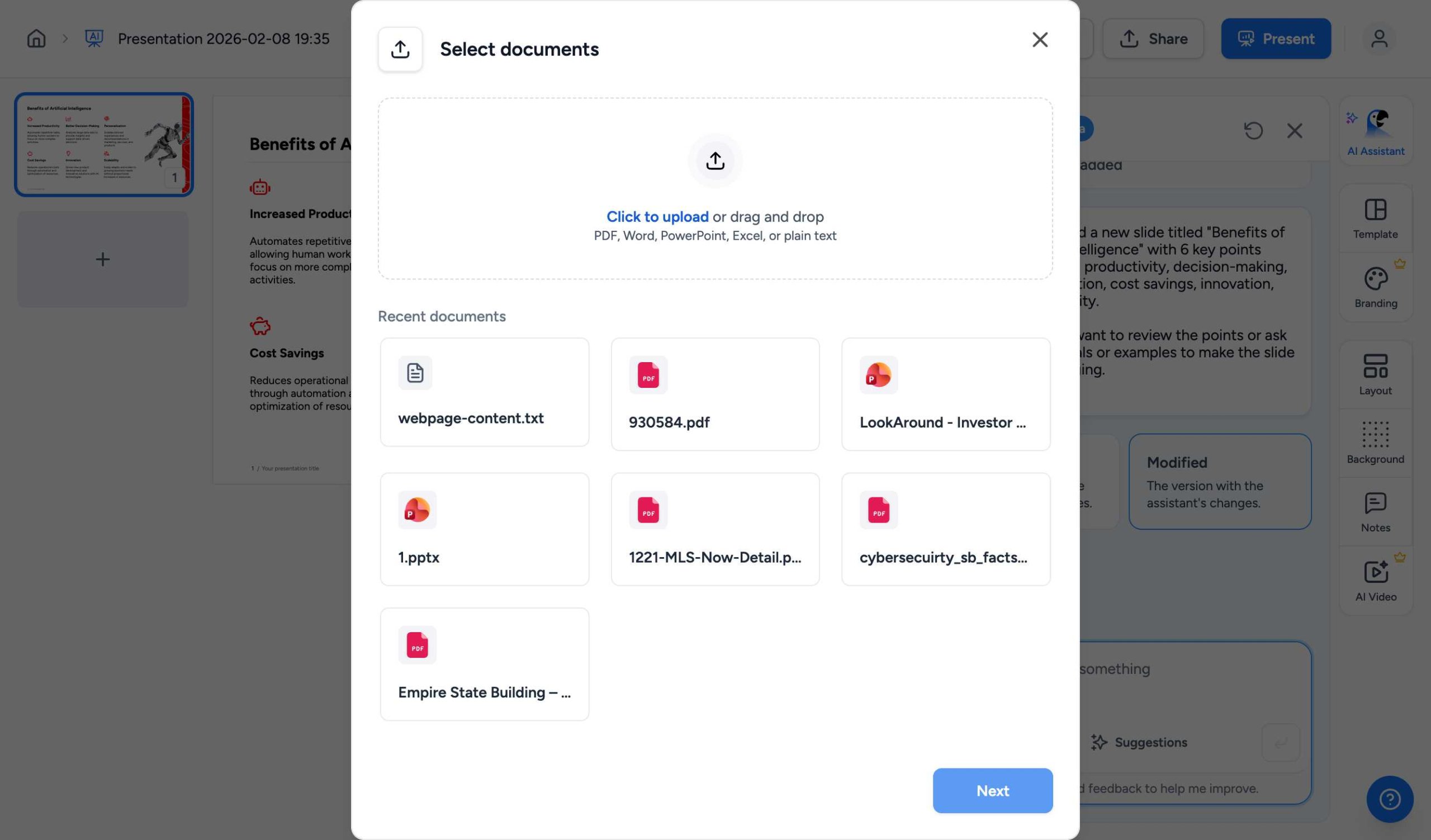
You can also create slides directly from documents. This is perfect when you already have content in Word, PDF, PowerPoint, Excel, or text files.
- Click the “Add document” button below the text input area
- Upload a file or select from your recent documents
- Describe how you want the AI to use the document (e.g., “Create a summary slide from this document”)
- The AI will analyze the document and create your slide
💡 Pro Tip: Be specific in your prompts for better results. Instead of “make a slide,” try “create a slide with 5 key benefits of renewable energy with icons.”
Step 5: Review and Refine
After the AI creates your slide, you can:
- Review the content – The AI Assistant shows what was added
- Make edits – Ask the AI to modify anything you want to change
- Add visuals – Request images, icons, or charts
- Adjust formatting – Change colors, layouts, or text styles
- Compare versions – Toggle between Original and Modified versions
You can continue the conversation with the AI Assistant to refine your slide until it’s perfect.
Additional Options
Customizing Your Presentation
Use the side panel buttons to customize your presentation:
- Template – Choose from professional design templates
- Branding – Apply your company colors and logo
- Layout – Change the slide layout and structure
- Background – Modify background colors or images
- Notes – Add speaker notes for your presentation
Downloading Your Presentation
Once you’re satisfied with your slide, click the Download button in the top toolbar to export your presentation in PowerPoint (.pptx) or Google Slides format.
Frequently Asked Questions
Can I create multiple slides at once?
Yes! While this guide focuses on creating a single slide, you can ask the AI Assistant to create multiple slides by saying “Add 3 slides about [topic]” or continue creating slides one by one.
What file formats can I upload?
SlideSpeak supports PDF, Word (.docx), PowerPoint (.pptx), Excel (.xlsx), and plain text (.txt) files.
Do I need a paid account to use the AI Assistant?
The AI Assistant is available on all SlideSpeak plans, including the free tier. However, paid plans offer more credits and advanced features.
Can I edit the AI-generated content?
Absolutely! You can either ask the AI Assistant to make changes, or click on any element in your slide to edit it directly.
How do I add more slides to my presentation?
Simply ask the AI Assistant to “Add another slide about [topic]” or click the add slide button (+) in the slide panel.
Need More Help?
If you have questions or need assistance, our support team is here to help:
- Visit our Help Center for more guides
- Contact us at support@slidespeak.co
- Use the Feedback button in the app to send us suggestions
Ready to create your presentation? Start using SlideSpeak now and experience the power of AI-assisted presentation creation.
Need more help?
If you have any questions or need assistance, feel free to contact our support team at support@slidespeak.co