

Deleting files in SlideSpeak is simple and can be done directly from your dashboard. This guide will show you how to remove individual documents or multiple files at once.
How to Delete Files
Follow these steps to permanently remove files from your account. Please note that deleting a file will also remove all associated chat messages and data.
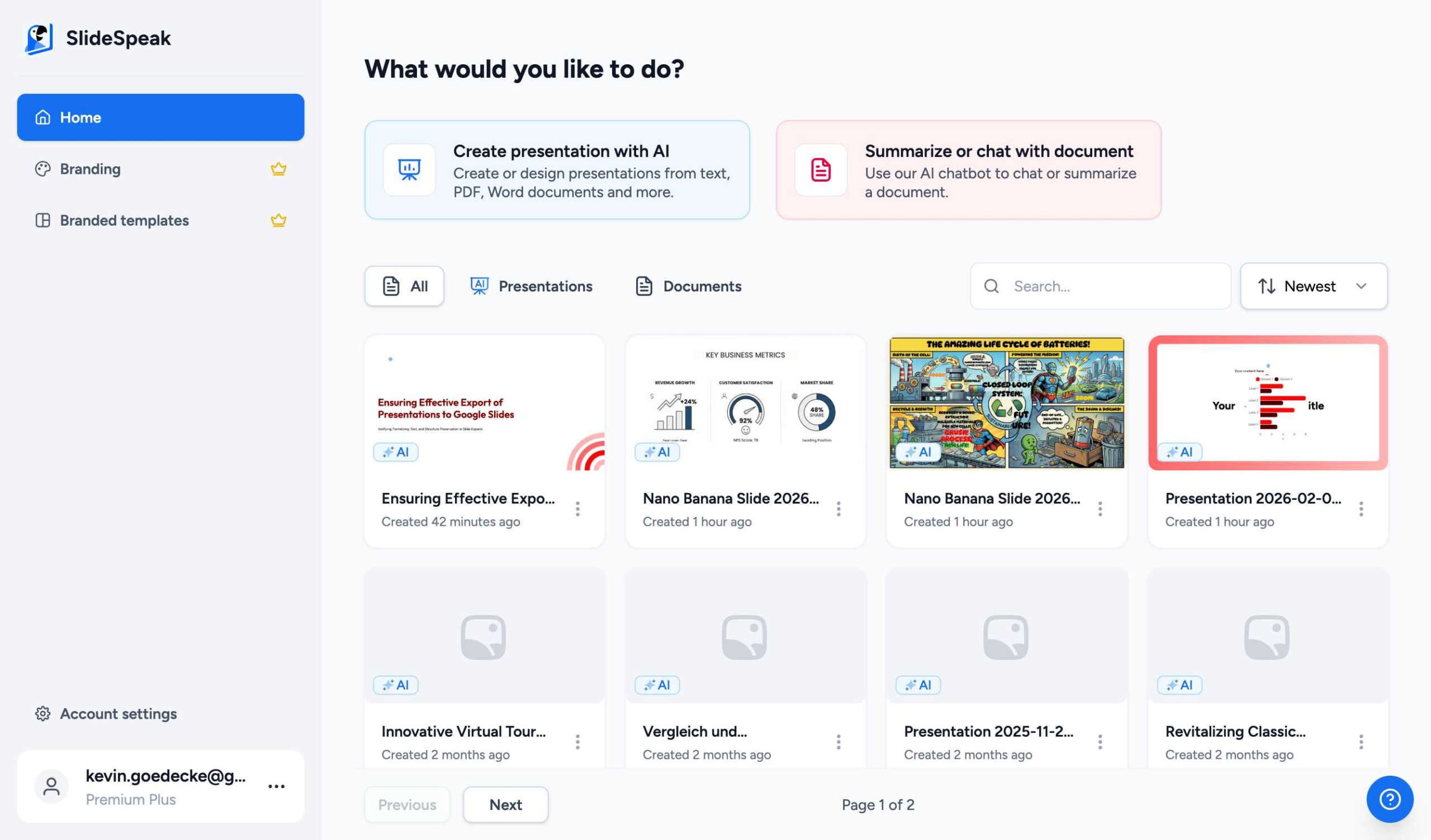
Step 1: Select the file(s)
Log in to your SlideSpeak account and navigate to the dashboard. You can select one or multiple files by clicking the checkboxes on the left side of each document.
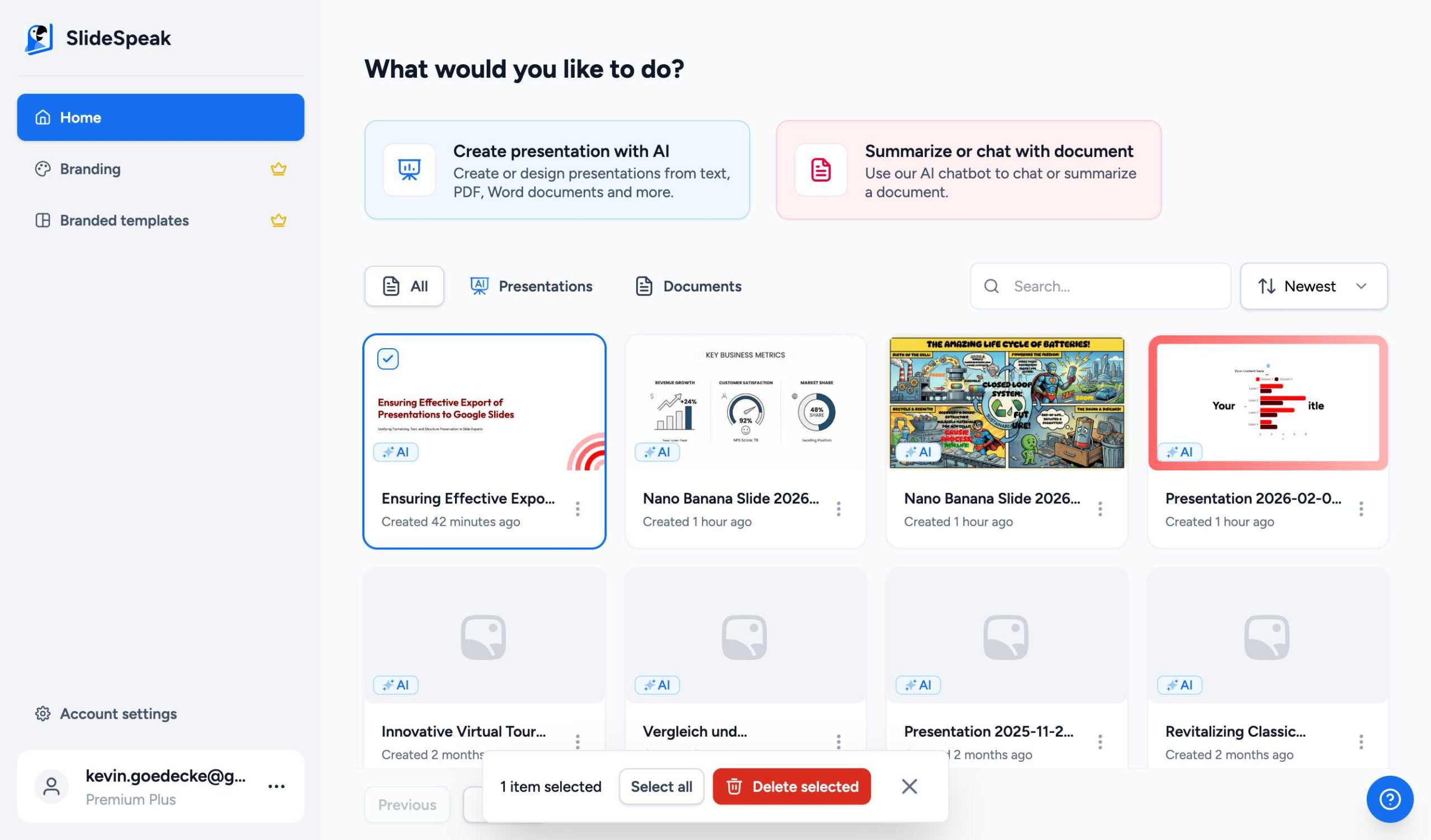
Step 2: Click “Delete selected”
After selecting the files you want to remove, a selection bar will appear at the bottom of your screen. Click the Delete selected button.
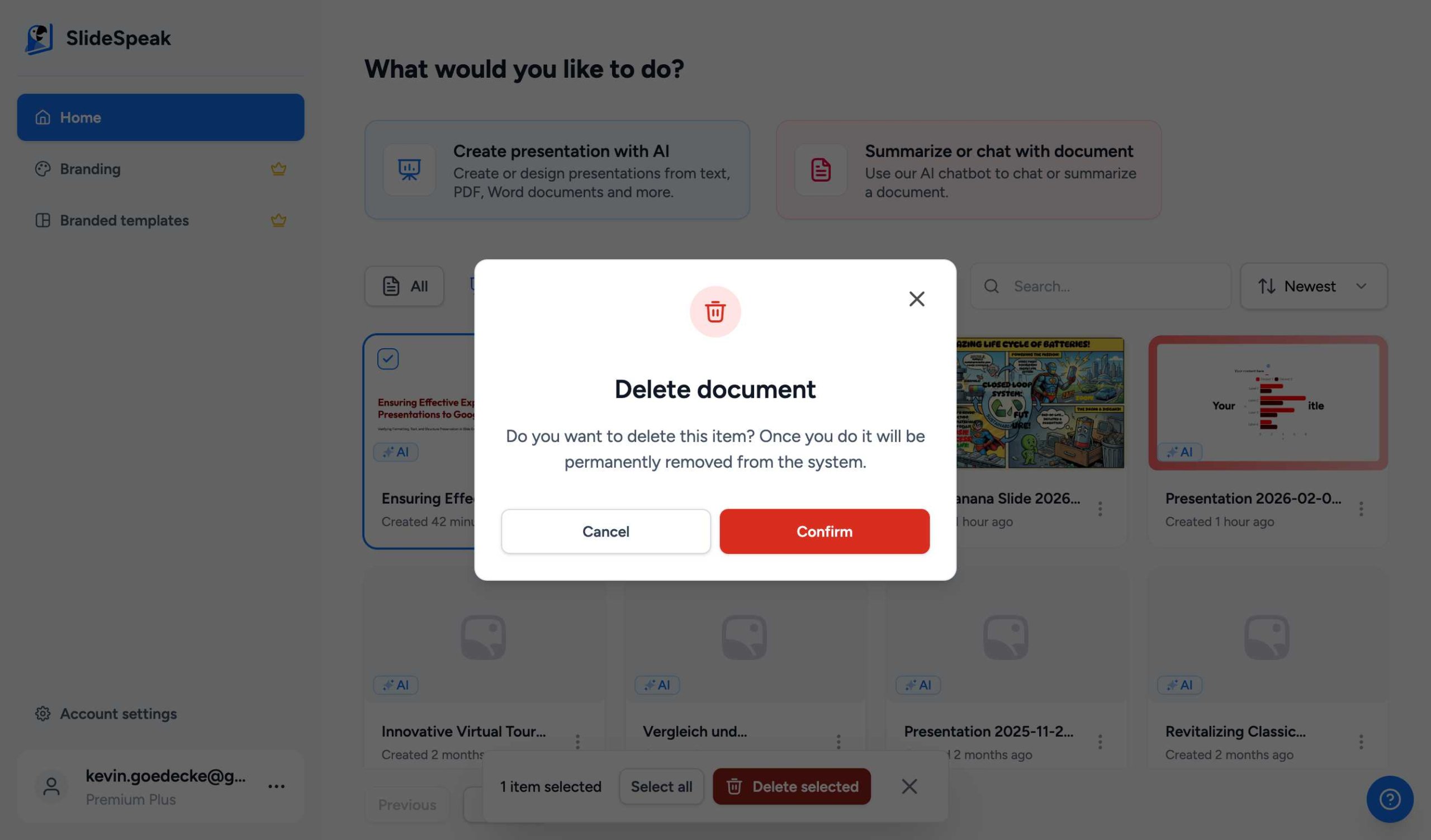
Step 3: Confirm the deletion
A confirmation dialog will appear to ensure you want to proceed. Click Confirm to permanently delete the selected items.
Warning: Deleting a file is permanent. Once confirmed, the document and all its associated data cannot be recovered.
How to Delete Your Entire Account
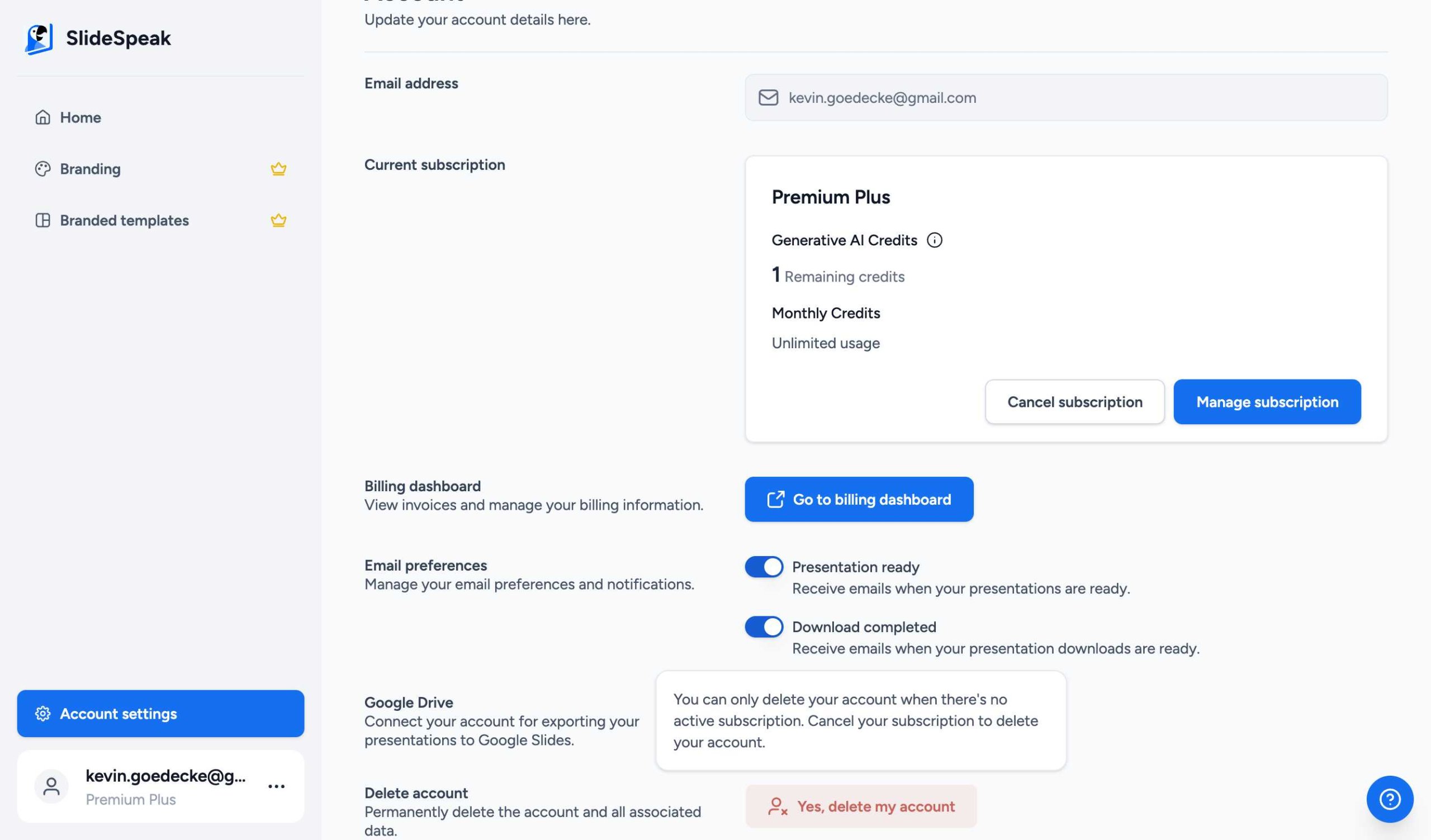
If you wish to remove all your data and your account permanently, you can do so in the settings. This action will delete all files, presentations, and account information associated with your profile.
To delete your account, navigate to Account Settings and scroll to the bottom of the page to find the Delete account section.
Tip: If you only need to clear some space, we recommend deleting individual files instead of your entire account.
Need more help?
If you have any questions or need assistance, feel free to contact our support team at support@slidespeak.co