

Editing text in your SlideSpeak presentations is designed to be both intuitive and powerful. Whether you need to make quick manual refinements or leverage advanced AI tools to polish your content for a professional audience, the SlideSpeak editor provides everything you need to create high-impact slides in seconds.
Getting Started: Opening the SlideSpeak Editor
To begin editing, open any presentation from your SlideSpeak dashboard. The editor interface allows you to navigate through your deck and select any element on the slide for modification.
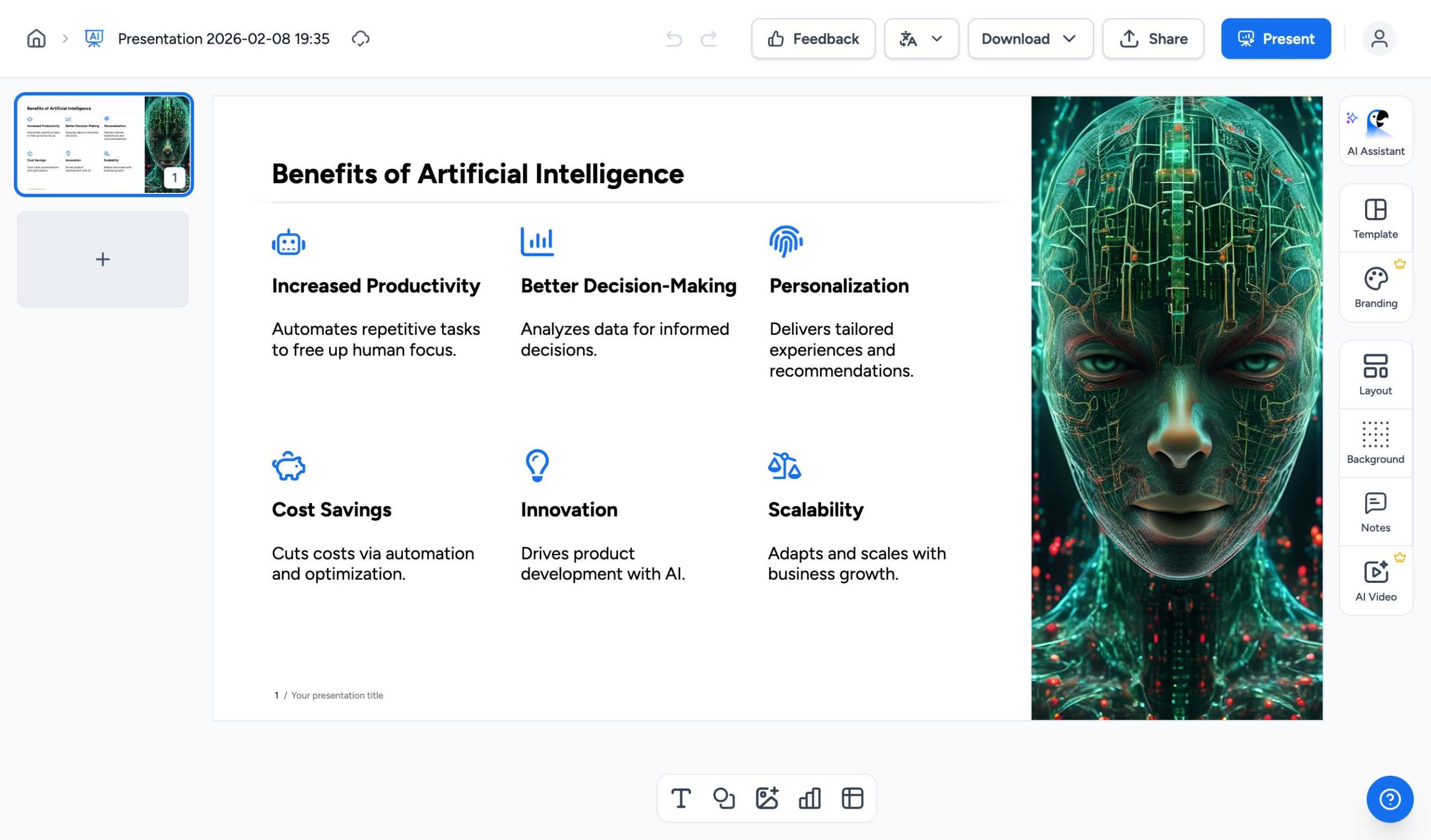
1. Manually Editing Text on Your Slides
For direct control over your content, SlideSpeak allows for easy manual editing. Simply double-click on any text box to activate the editor. Once active, you can type your changes, correct typos, or add specific details manually. This method is ideal for fine-tuning specific wording or data points.
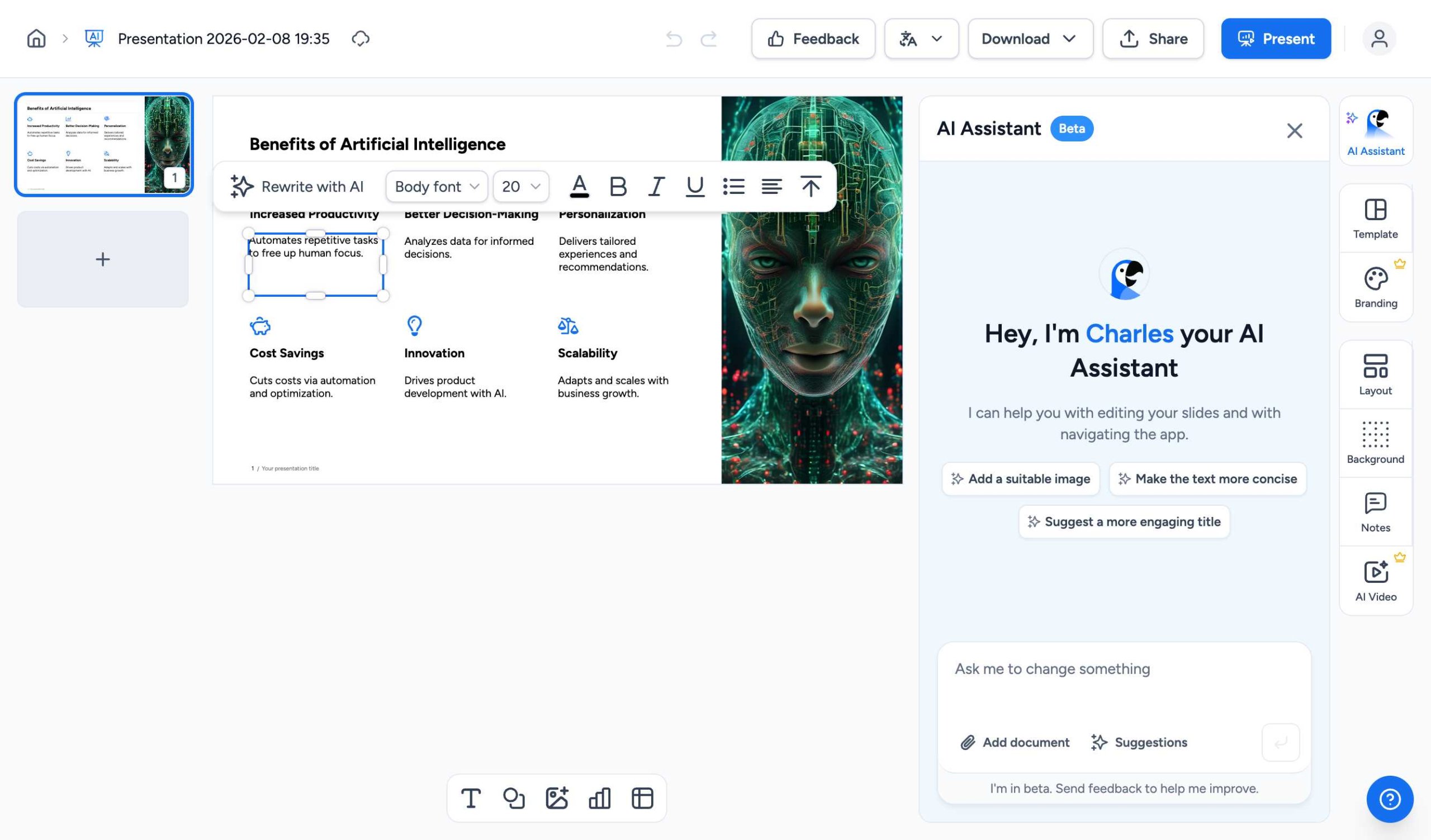
2. Enhancing Content with “Rewrite with AI”
One of the standout features of SlideSpeak is the ability to professionally improve your slide content using AI. When you select a text box, a floating toolbar appears. Click the “Rewrite with AI” button to reveal a menu of instant enhancement options.
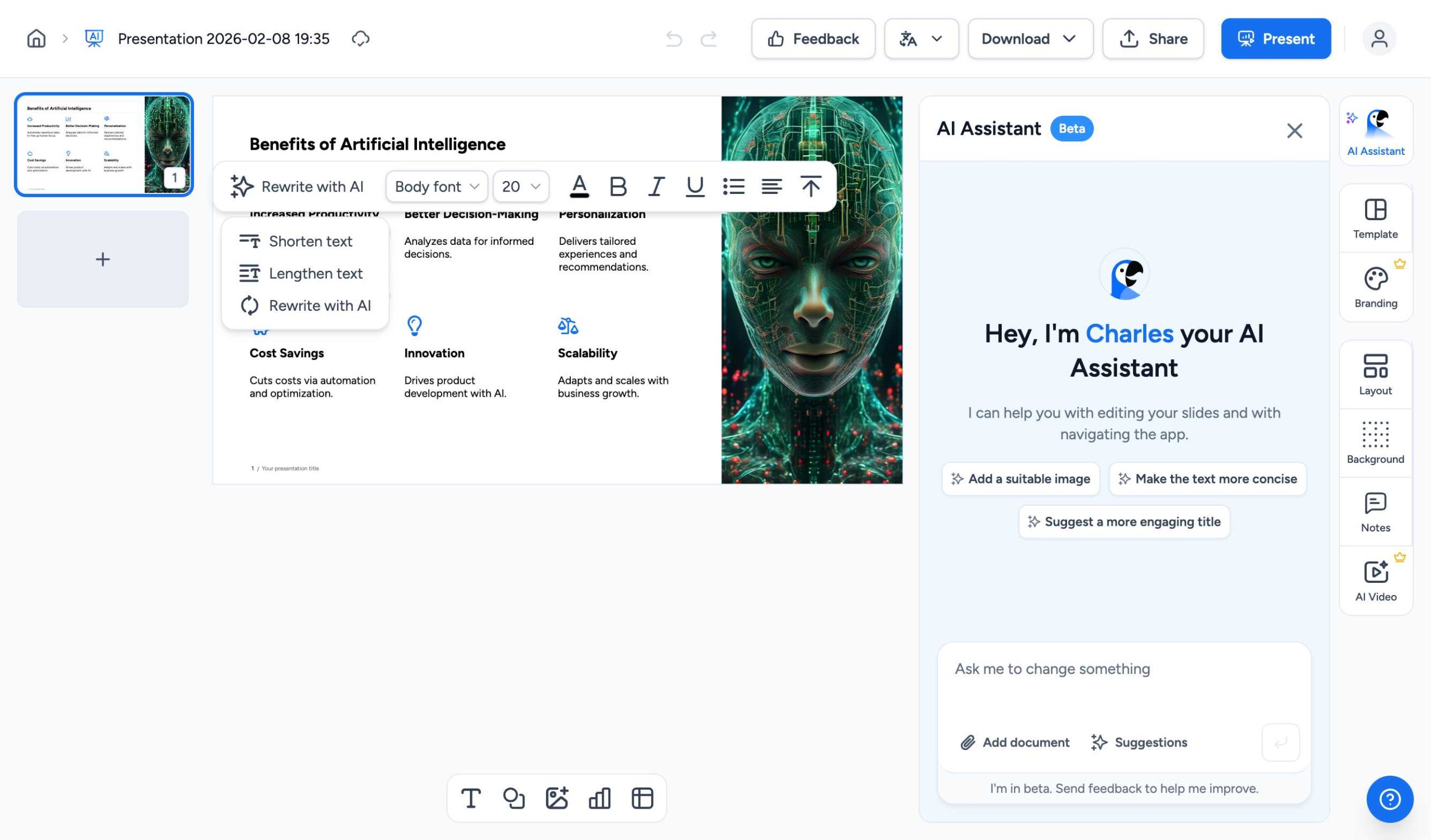
From this menu, you can choose from several quick actions:
- Shorten text: Condense your bullet points for better slide readability.
- Lengthen text: Expand on your ideas to provide more context or detail.
- Professional Rewrite: Let the AI refine the tone and clarity of your message.
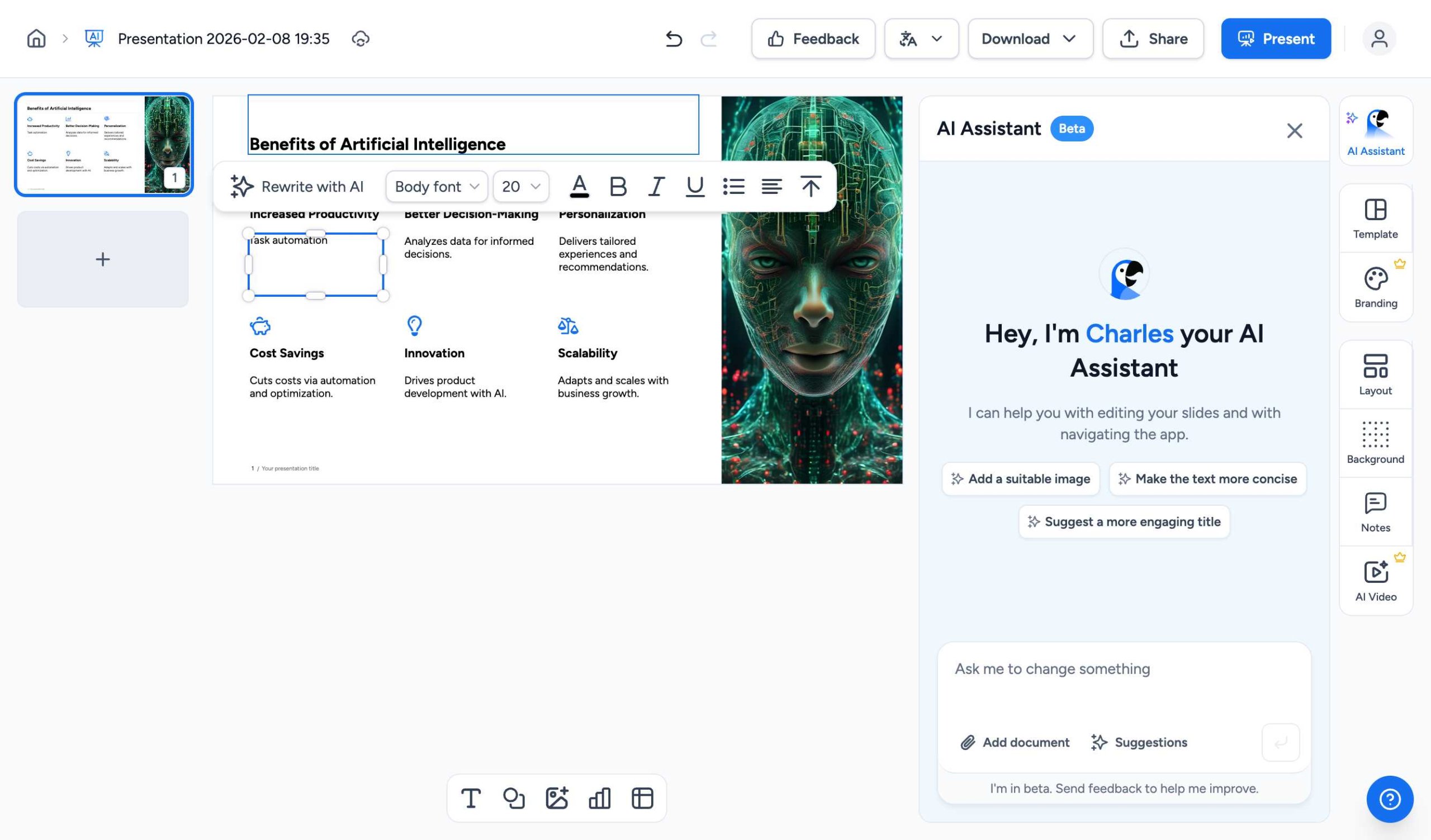
Using Custom Prompts for Tailored Results
If you have a specific goal in mind—such as making your text sound more enthusiastic or targeting a specific audience—you can use the custom prompt box. Simply type your instruction and let SlideSpeak’s AI handle the rest.
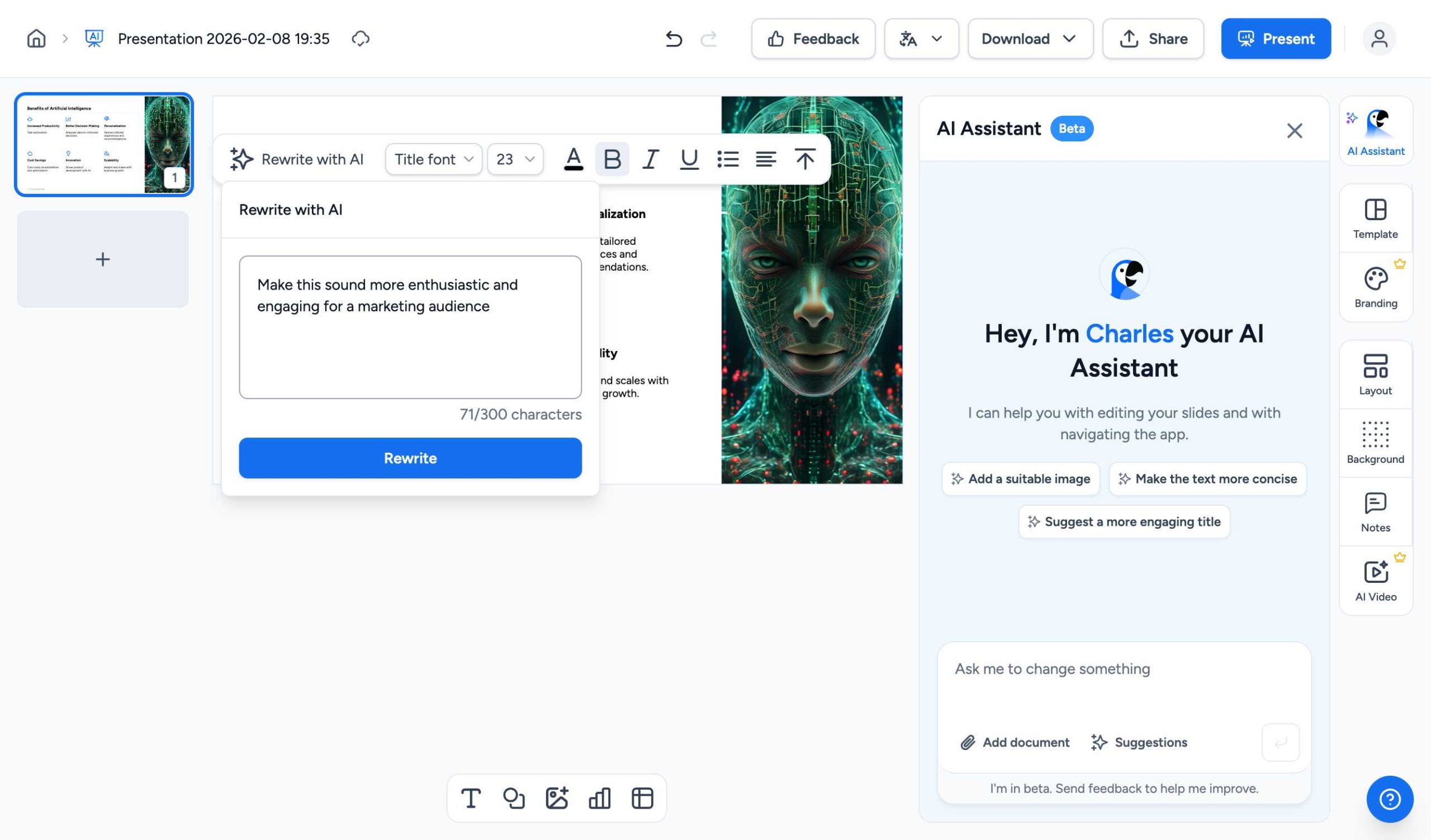
3. Advanced Editing with the AI Assistant Side Panel
For more complex modifications or structural changes, the AI Assistant side panel is your best tool. Located on the right side of the editor, it allows you to have a conversation with the AI about your presentation.
You can ask the AI Assistant to “suggest a more engaging title for this slide,” “rewrite these points for a business audience,” or even “add a concluding sentence based on the content.” This interactive approach ensures your presentation hits the right note every time.
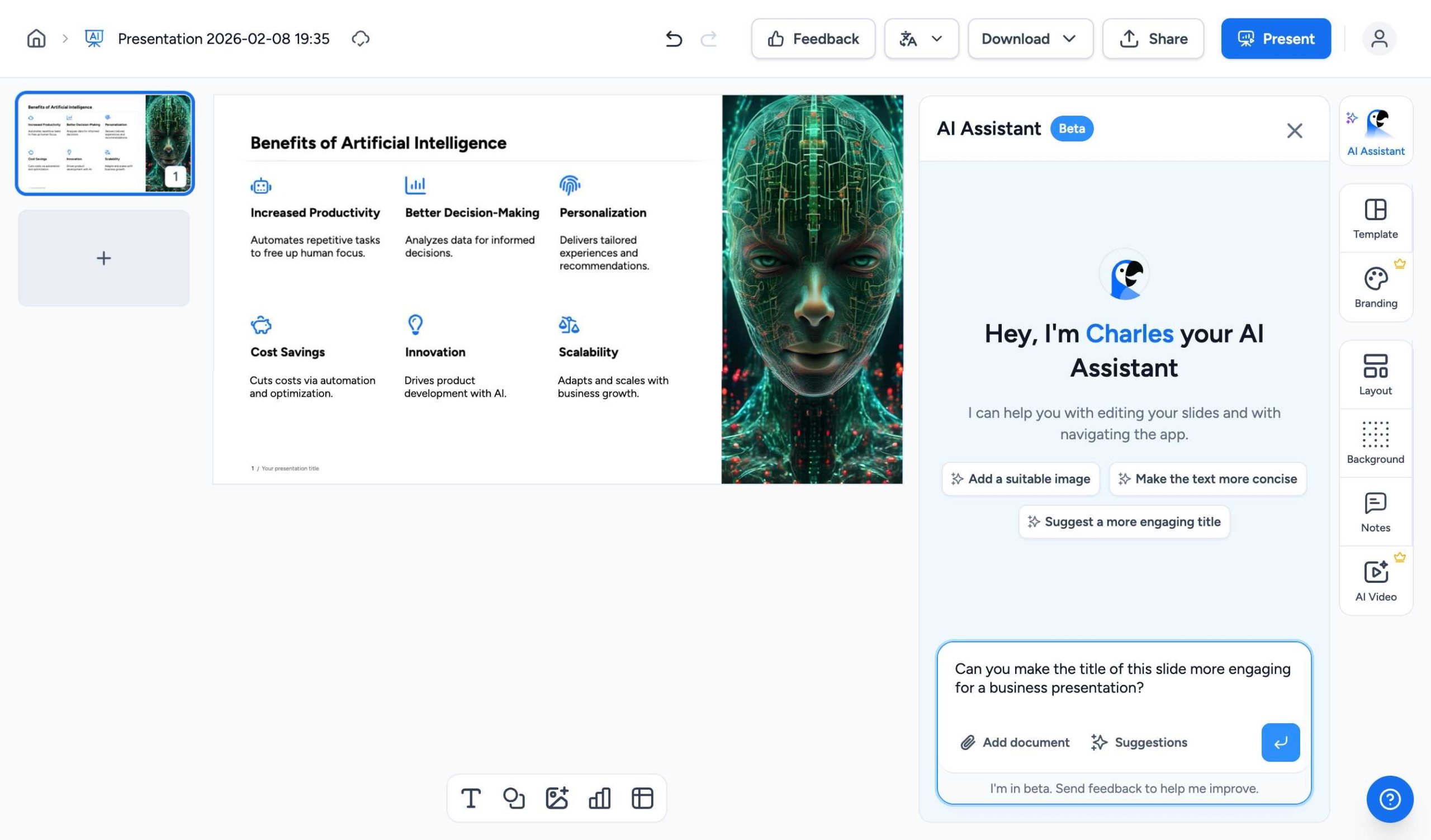
Tips for Better Slide Content
- Keep it Concise: Slides with less text are more engaging. Use the AI to shorten long paragraphs into punchy bullet points.
- Consistent Messaging: Maintain a unified tone across all slides by using the AI rewrite tools consistently.
- Use Visual Hierarchy: Combine your text edits with font size adjustments (found in the floating toolbar) to highlight the most important information.
Conclusion
By combining intuitive manual edits with powerful AI-driven features like “Rewrite with AI” and the AI Assistant, SlideSpeak empowers you to create professional presentations faster than ever. If you need further assistance, please contact our support team at support@slidespeak.co.
Need more help?
If you have any questions or need assistance, feel free to contact our support team at support@slidespeak.co