

Accessing your SlideSpeak account is simple and secure. We use a passwordless login system with a one-time code sent to your email. Follow these steps to log in and start creating presentations with AI.
Tip: If you use Google, you can also use the “Continue with Google” button for an even faster login experience.
Step 1: Visit the Login Page
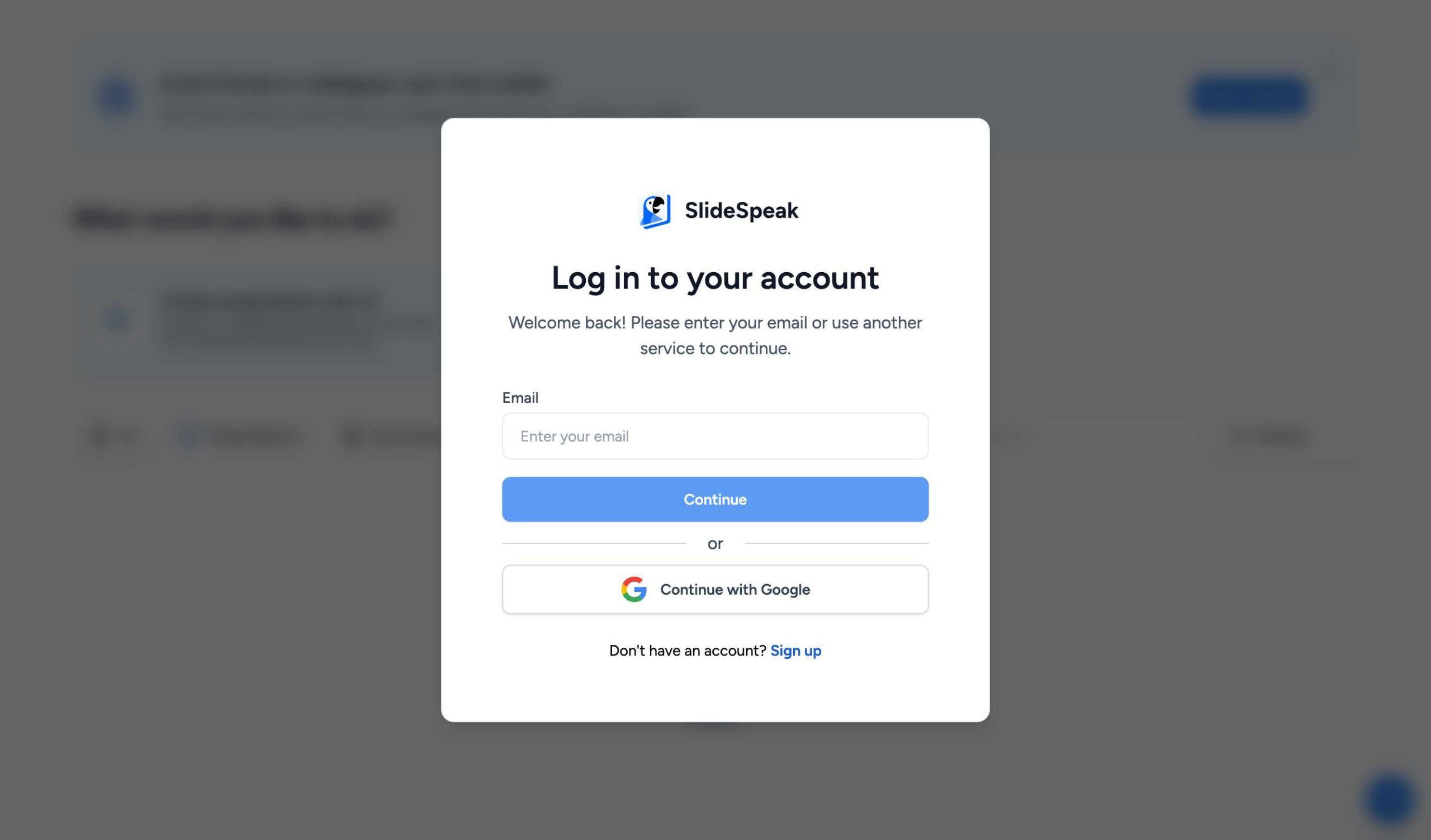
Go to app.slidespeak.co/login. You will see the login screen where you can enter your email address.
Step 2: Enter Your Email
Type in the email address associated with your SlideSpeak account or the one you used for your subscription. Click “Continue” to proceed.
Step 3: Check Your Inbox for the Login Code
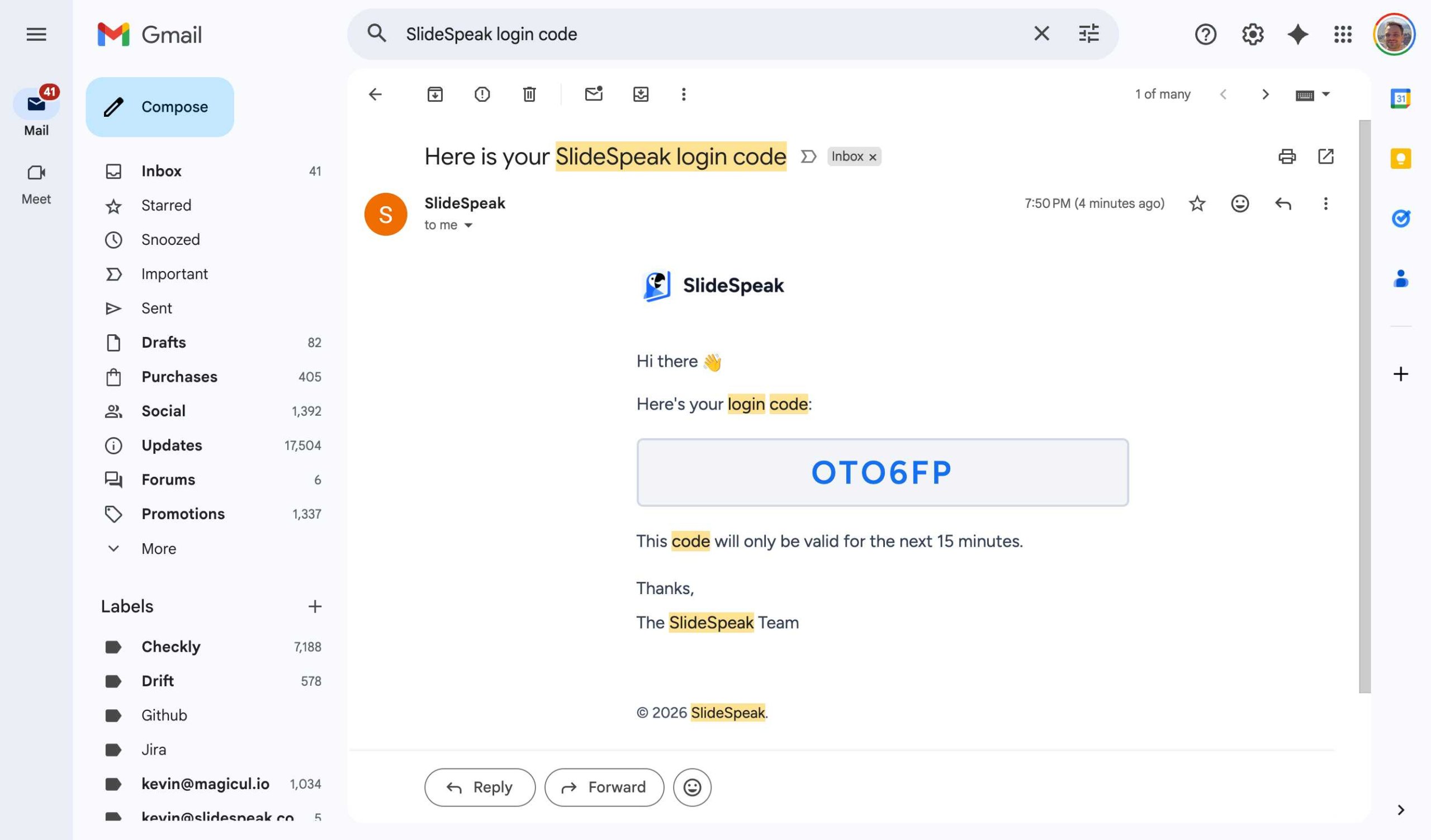
SlideSpeak will send a unique 6-digit login code to your email. You will see a notification on the screen to check your inbox.

Check your email client (e.g., Gmail) for an email with the subject “Here is your SlideSpeak login code”.
Step 4: Enter the 6-Digit Code
Copy the code from the email and paste it into the “Login Code” field on the login page. Then, click “Confirm”.
Step 5: You Are Now Logged In
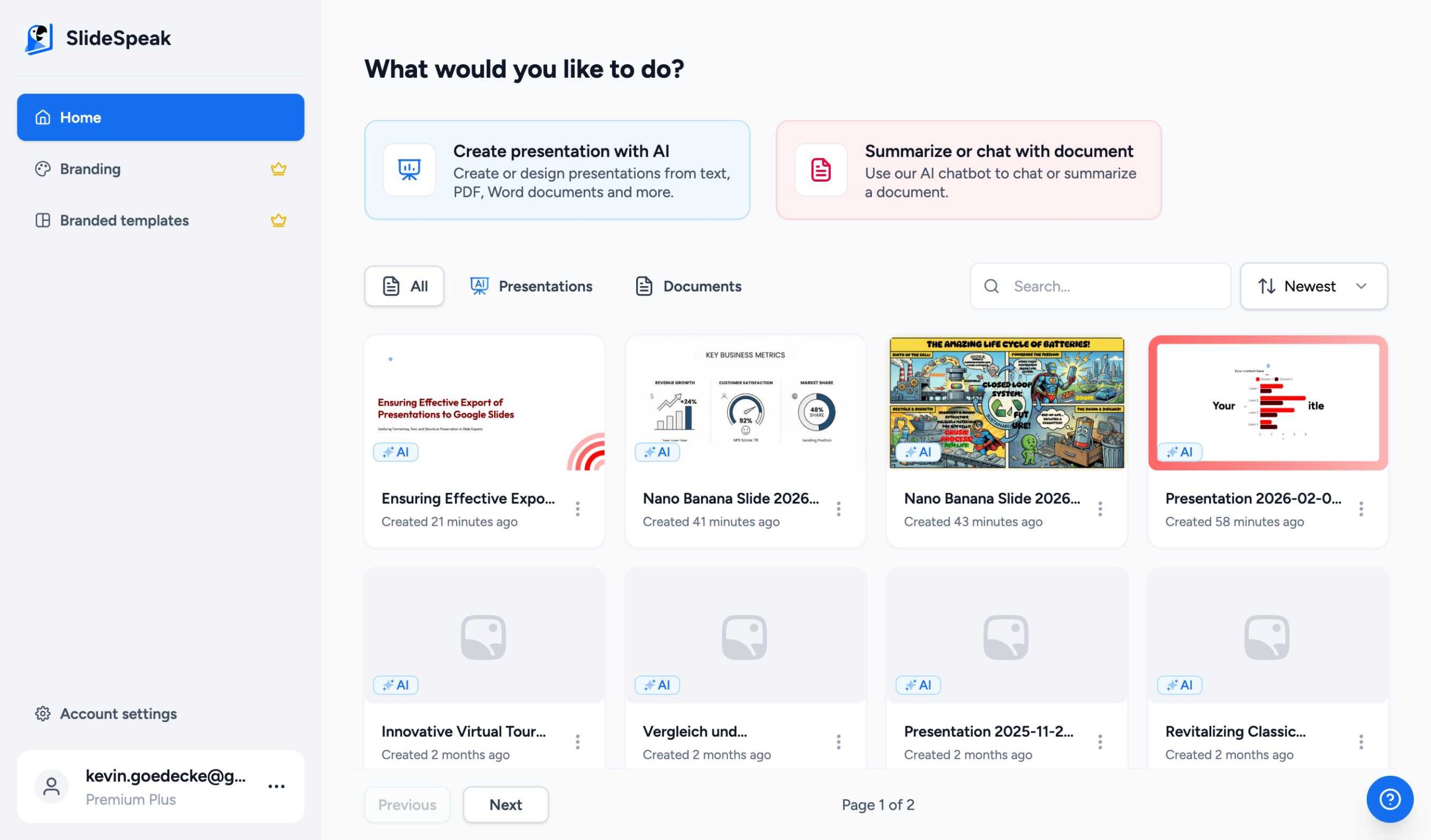
Hooray! You are now logged into your SlideSpeak account. You can now access all your presentations, upload new documents, and use our AI tools.
Best Practices for Managing Your Content
When updating your account or creating presentations, keep these best practices in mind:
- Use a consistent email: Always use the same email for both your subscription and login to ensure seamless access.
- Check spam folders: If you don’t see your login code within a minute, check your spam or promotions folder.
- SEO optimized titles: When creating presentations for the web, use descriptive and keyword-rich titles to improve visibility.
- Regularly clean up: Periodically review your dashboard and delete outdated presentations to keep your workspace organized.
If you have any trouble logging in, please contact our support team at support@slidespeak.co and we will be happy to help.
Need more help?
If you have any questions or need assistance, feel free to contact our support team at support@slidespeak.co