

If your presentation isn’t reflecting your brand identity, it’s usually because the brand elements haven’t been fully configured or applied during the creation process. Follow this guide to ensure your presentations always feature your custom logo, colors, and fonts.
Step 1: Configure Your Brand Identity
Before you can apply branding to a presentation, you must define your brand assets in the Branding settings. This centralizes your identity so SlideSpeak can use it across all your projects.
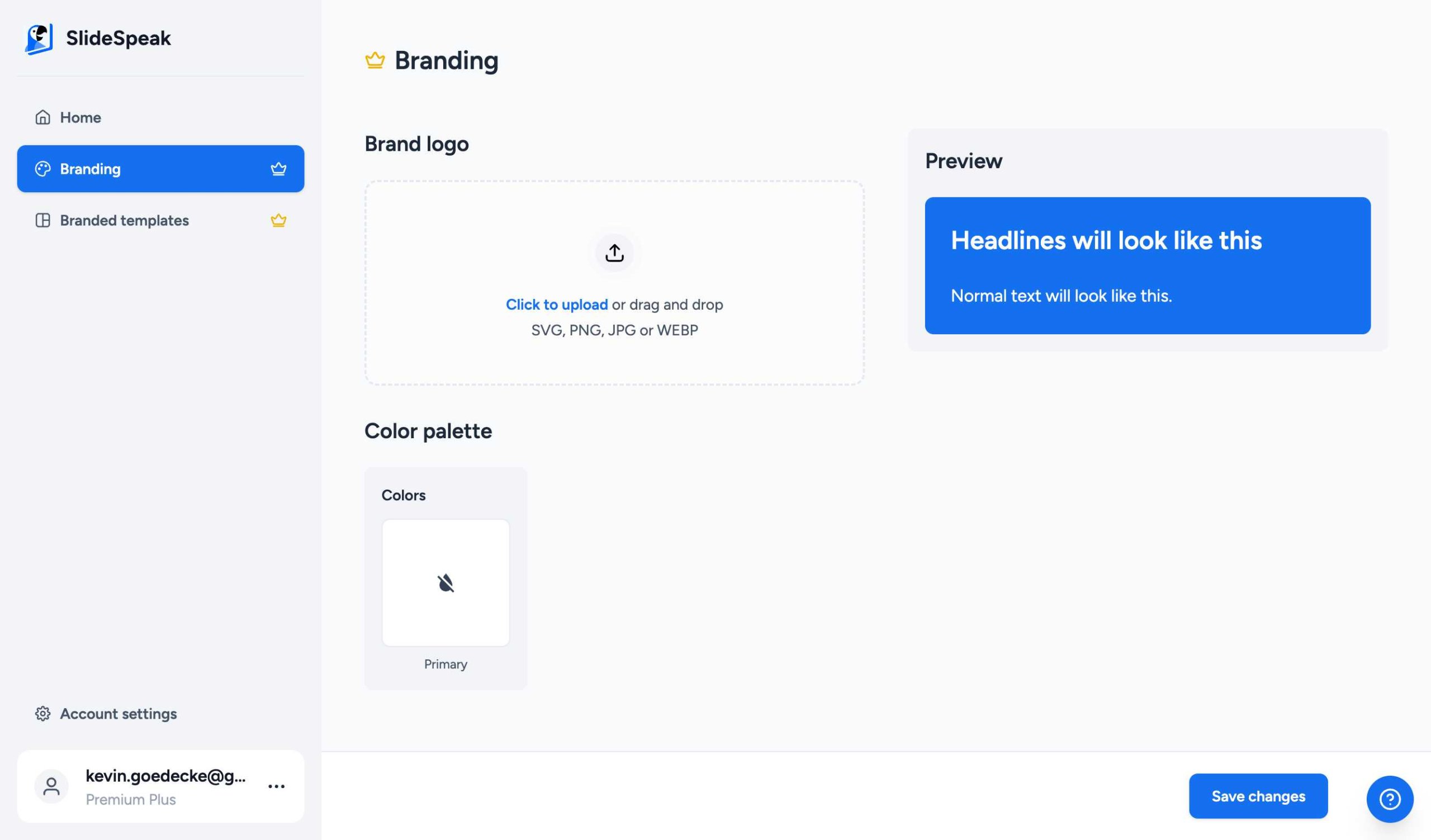
Navigate to the Branding tab on the left sidebar. Here you can:
- Upload your logo: We support SVG, PNG, JPG, and WEBP formats.
- Set your color palette: Enter your brand’s HEX codes for a consistent look.
- Select your fonts: Choose the default typography for your titles and body text.
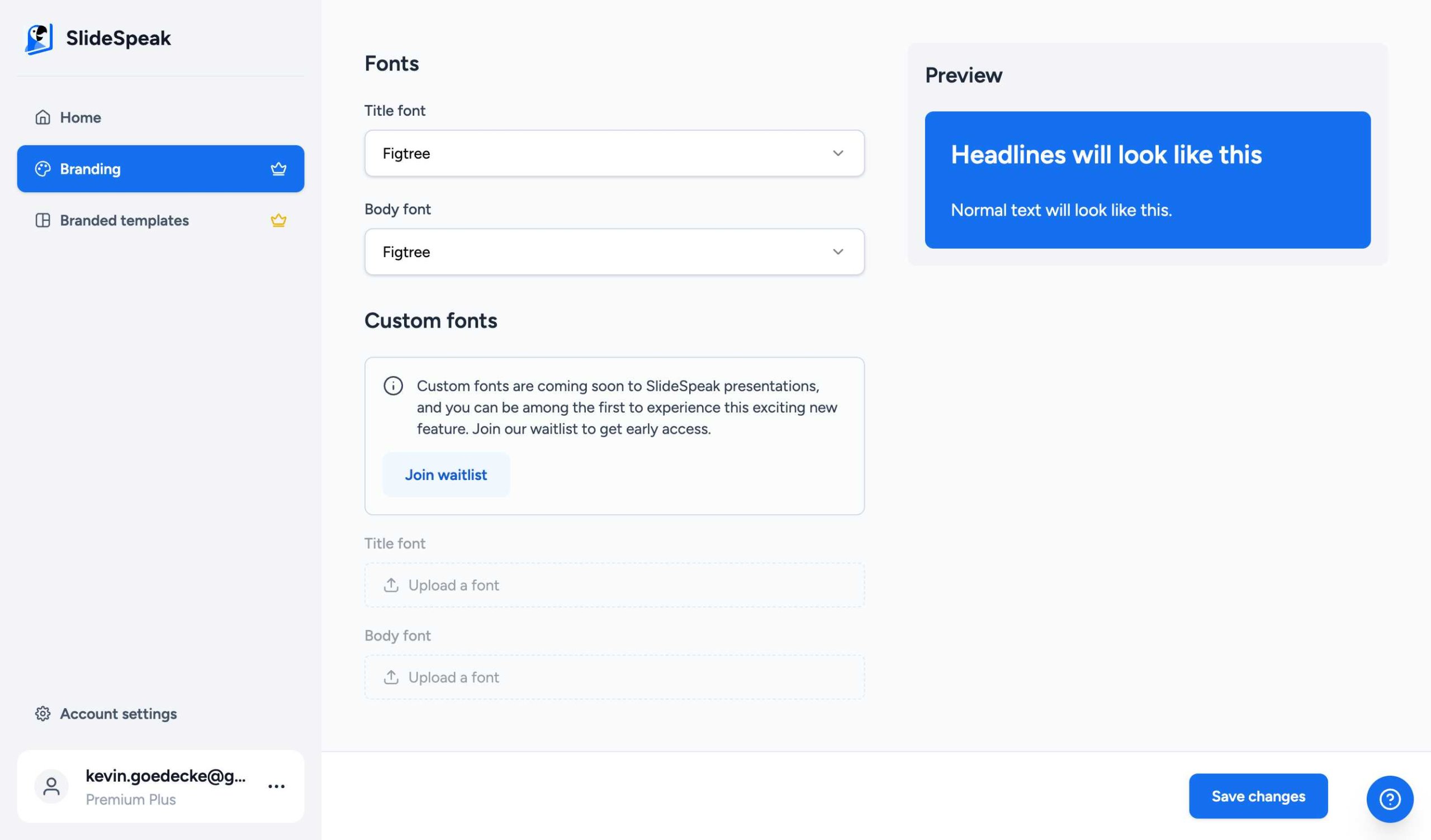
By setting your fonts here, SlideSpeak will automatically use these typefaces whenever you generate a new branded presentation.
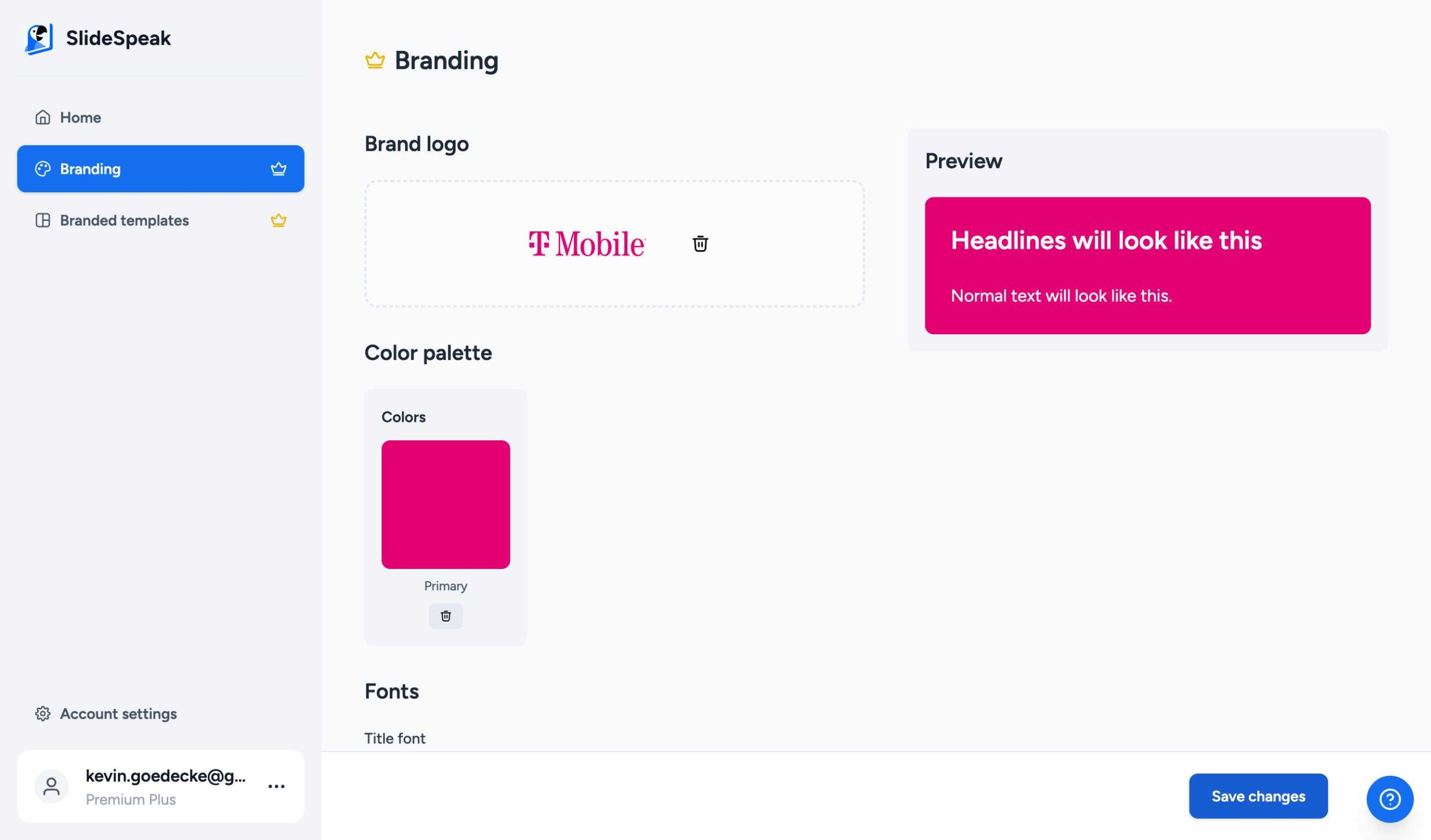
Pro Tip: Always remember to scroll to the bottom of the page and click Save changes after making updates to your brand settings. If you don’t click save, your new settings won’t be applied to your presentations.
Step 2: Apply Branding to New Presentations
Once your brand is set up, you can apply it whenever you create a new presentation. In the Customization Wizard, look for the branding toggles.
SlideSpeak will automatically pull the logo, colors, and fonts you saved in Step 1. Simply ensure the branding options are enabled before generating your slides.
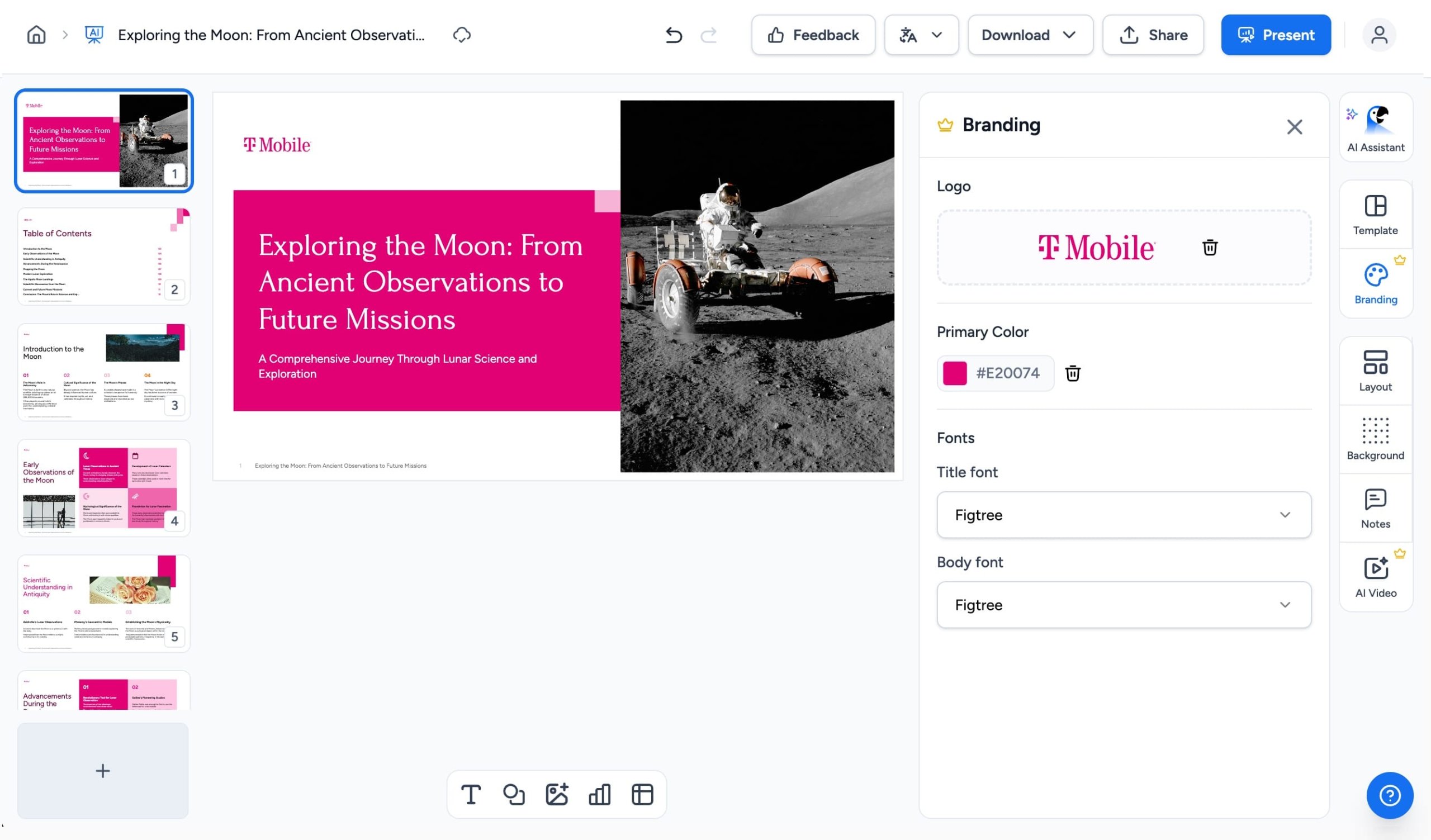
Step 3: Verify Branding in the Editor
After generating your presentation, you should see your brand identity reflected in the editor. Your logo will typically appear on the slides, and your chosen color scheme and fonts will be applied to backgrounds and text.
Troubleshooting Branding Issues
If your branding still isn’t appearing as expected, check these common points:
- Unsaved Changes: Verify that you clicked “Save changes” in the Branding settings page.
- Wizard Toggles: Ensure you didn’t accidentally disable the branding options in the creation wizard.
- Browser Cache: If you recently updated your logo or fonts, try refreshing your browser to see the latest version.
What about Custom Fonts?
We know that many brands use specific custom fonts that aren’t available in our standard library. We are currently working on a feature that will allow you to upload your own font files (.ttf, .otf, etc.) to SlideSpeak.
Coming Soon: Custom font uploads are currently in development. If you’d like to be the first to know when this feature is released, feel free to join our waitlist in the “Custom fonts” section of your brand settings.
Need more help? Our support team is always here to assist you!
Need more help?
If you have any questions or need assistance, feel free to contact our support team at support@slidespeak.co