

Trying to cancel or manage your SlideSpeak subscription, but your account only shows the Free plan? In almost every case the subscription is fine: you're logged in with a different email than the one you used at checkout. Your subscription belongs to one email address, the account you were logged into when you bought it.
Below, we'll show you how to check which email you're logged in with and how to find the account that actually holds your subscription. And if you already know which email you paid with, you can cancel through the billing portal without your SlideSpeak login.
Check which email you're logged in with
Open the SlideSpeak dashboard and look at the bottom-left corner. Your email address sits there, with your current plan right underneath it.
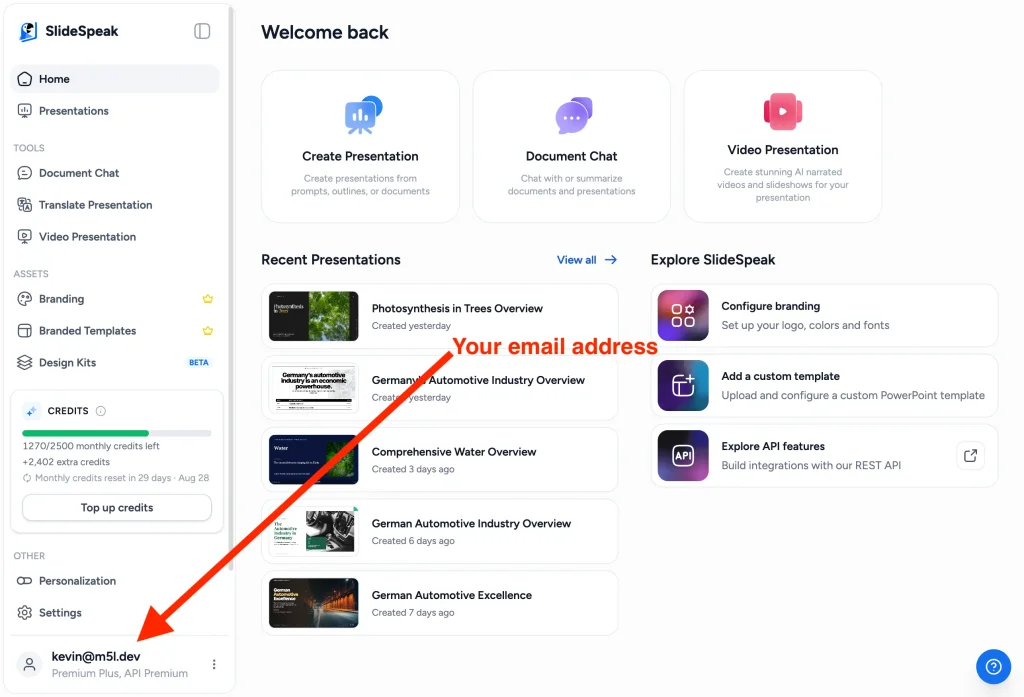
If the plan shown there matches what you paid for, you're done: that email is the one your subscription is under.
Paying, but it says Free plan?
Then you're logged in with a different email than the one you used at checkout. In almost every case the subscription itself is fine. Each SlideSpeak account is tied to one email address, so if you sign in with your work Google account one day and your personal email the next, those are two separate accounts, and only one of them holds the subscription.
Step 1: Find the email you paid with
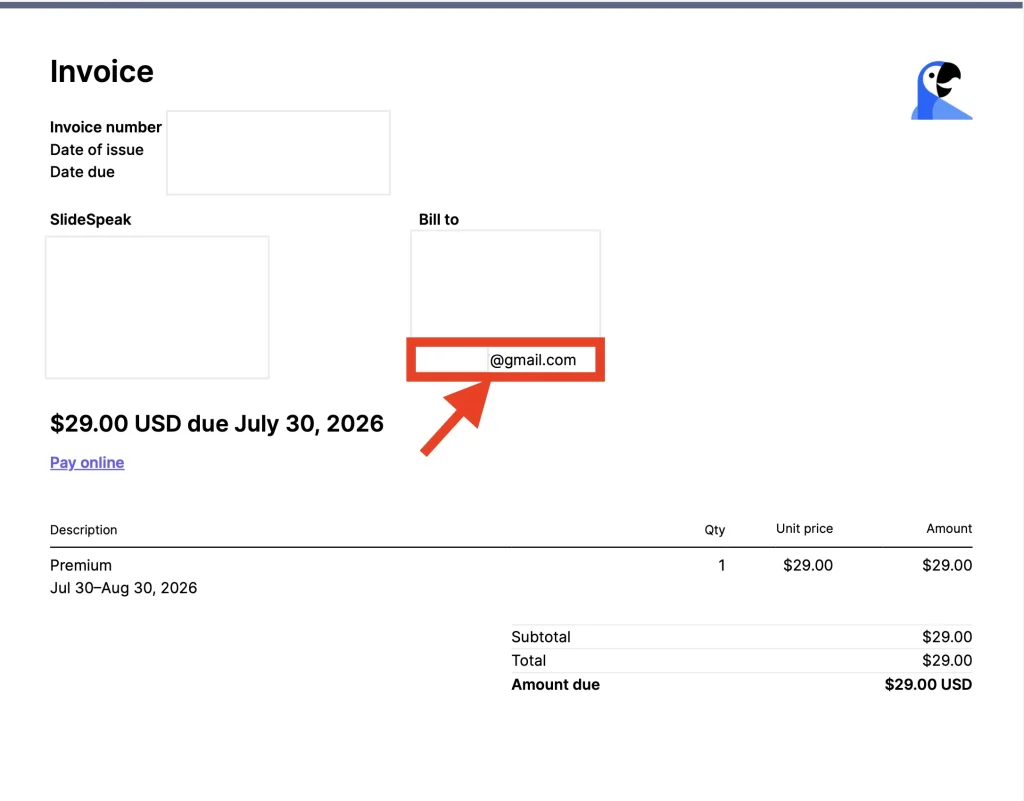
Your invoice tells you which email holds the subscription. Search each inbox you use for "SlideSpeak". Receipts come from Stripe, our payment provider, so search for "Stripe" as well if nothing turns up. Check your work email, old addresses, and any aliases you use to sign up for sites.
The inbox that received the invoice is the account your subscription is under. You can also see the address directly on the invoice, under Bill to.
Step 2: Log in with that email
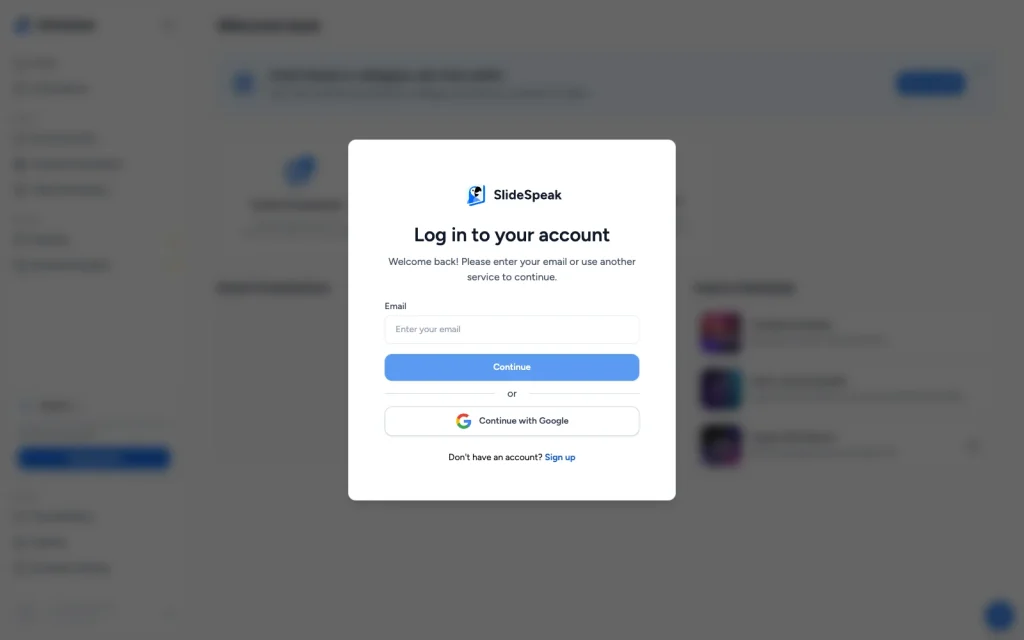
Log out of SlideSpeak, then log back in with the email that received the invoice. Your plan and credits will be there.
If you use "Sign in with Google", pick the Google account that matches the invoice email, or use the email login option and type that address.
Just need to cancel or download an invoice?
You don't need your SlideSpeak login for any of this. Go straight to our billing portal, hosted by Stripe:
Enter the email you paid with and Stripe sends a sign-in link to that inbox. From the portal you can:
- Cancel your subscription
- Update your payment method
- Download invoices and receipts
- Change your billing details
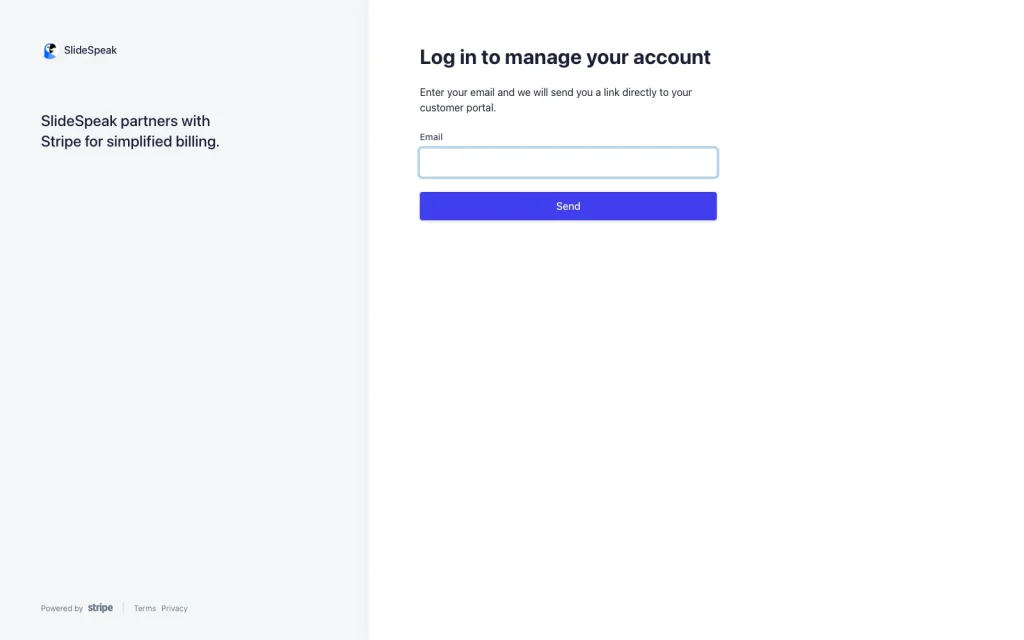
No SlideSpeak password needed. It works as long as you can read email at the address you paid with.
Want your subscription under a different email?
If the subscription ended up on an account you don't want to use, we can move it. Email support@slidespeak.co and tell us which email should hold the subscription going forward.
The same goes if you can't find the subscription at all: send us the name on the card and the date of the charge, and we'll track it down and link it to the account you actually use.
Need more help?
If you have any questions or need assistance, feel free to contact our support team at support@slidespeak.co