
What’s New in SlideSpeak? September and October 2026 Update
Written by

Published on
On this page
In August, SlideSpeak learned to take a deck all the way to a narrated video, a quiz and a course. Since then we have worked on the two things that happen next: getting that content in front of the right people, and working on it together.
Dive with me into our September and October 2026 release notes 👇
Screen recording in the video editor
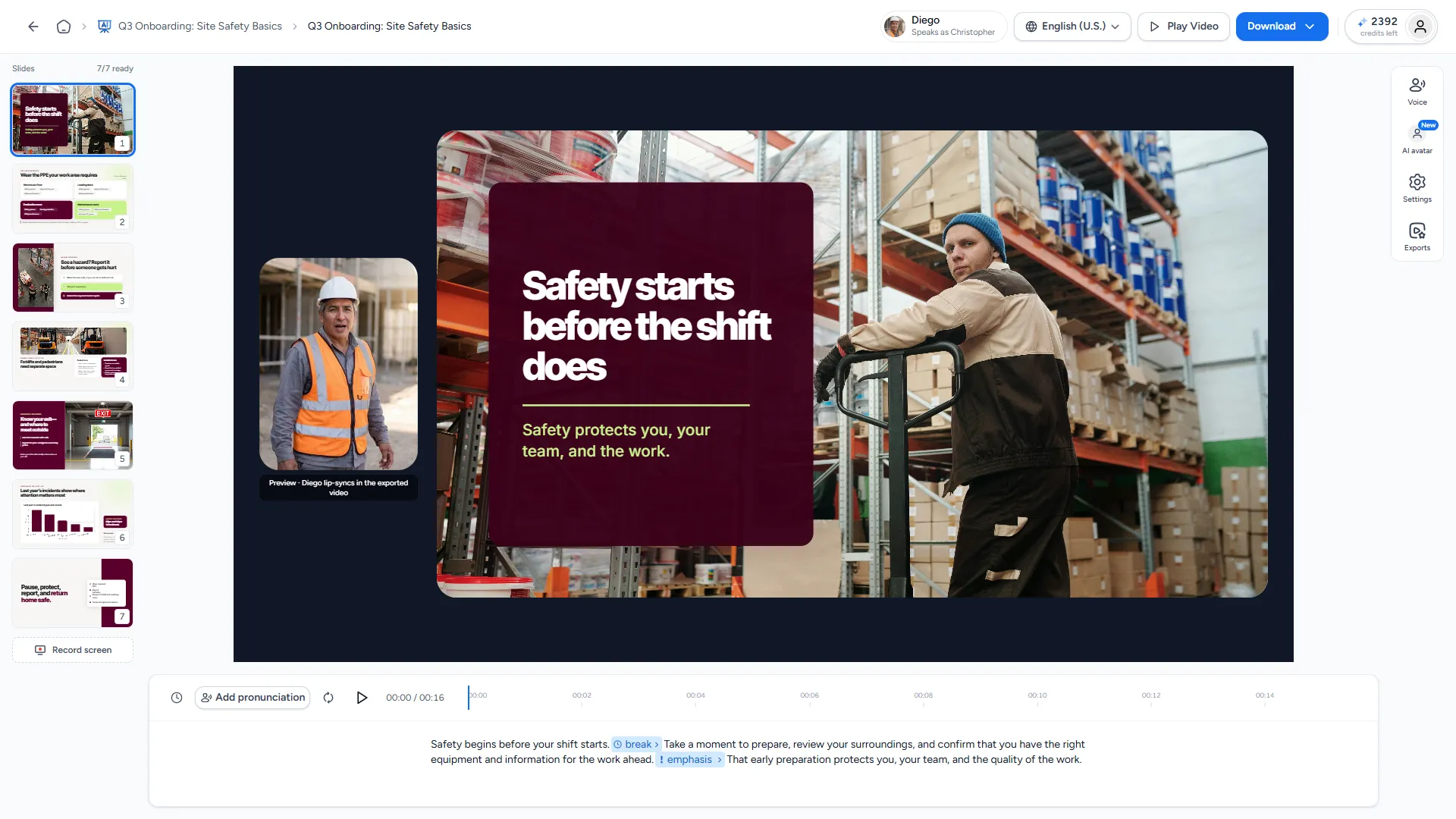
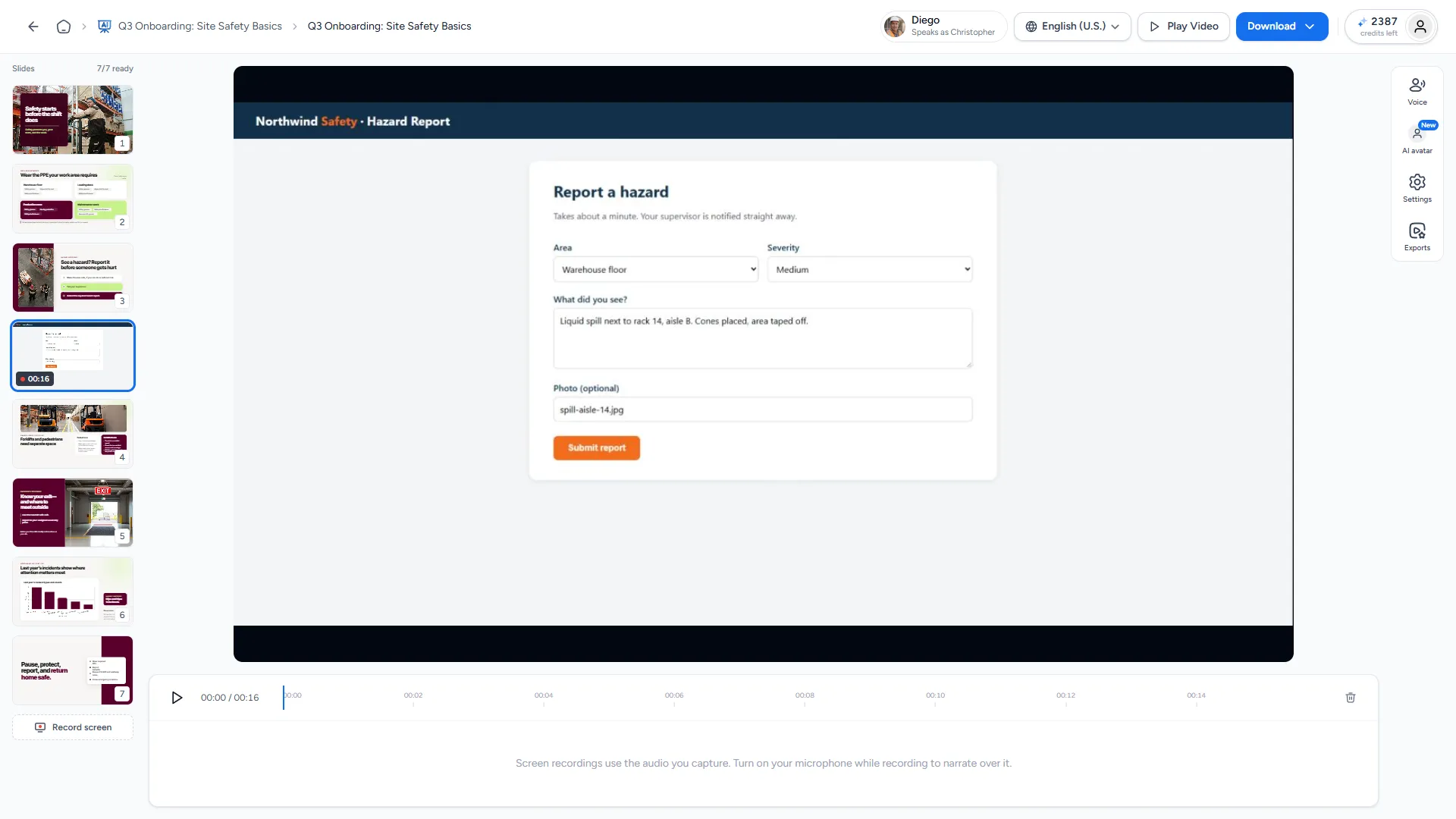
Some steps are easier to show than to describe on a slide. You can now record your screen right inside the video editor and drop the clip between two slides.
Here's what's new:
- "Record screen" in the video editor's slide tray. Share a browser tab, a window or your entire screen.
- Turn on "Narrate while you record" to talk over the recording with your microphone.
- After a 3-second countdown you record, hit "Stop recording", then "Add after slide".
- Each recording becomes its own segment in the timeline. The narration on the slides around it stays exactly as it was.
- When you share a browser tab, its audio comes along too.
How to use it
- You train new hires on internal software. Explain the concept on two slides, then record yourself clicking through the real screen, so they see the exact buttons they will press on Monday.
- You sell a product with a dashboard. Add a 90-second walkthrough after the pricing slide instead of a row of screenshots.
Read the guide: How do I record my screen in an AI video?
Pronunciation glossary
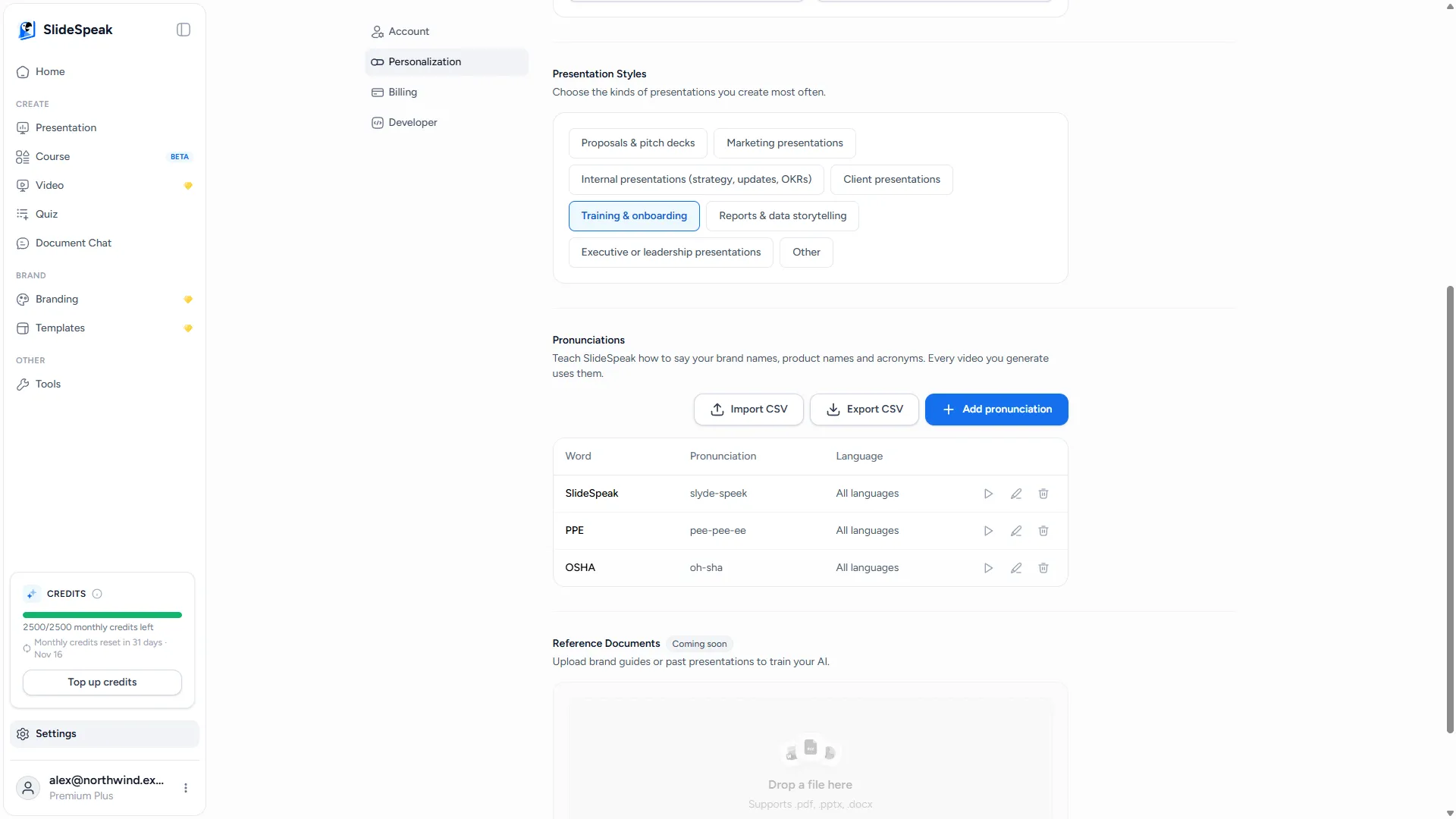
AI voices are good with everyday words and less good with your product name, your client's surname or the acronym your industry lives on. The pronunciation glossary fixes a word once, for every video you make.
Here's what's new:
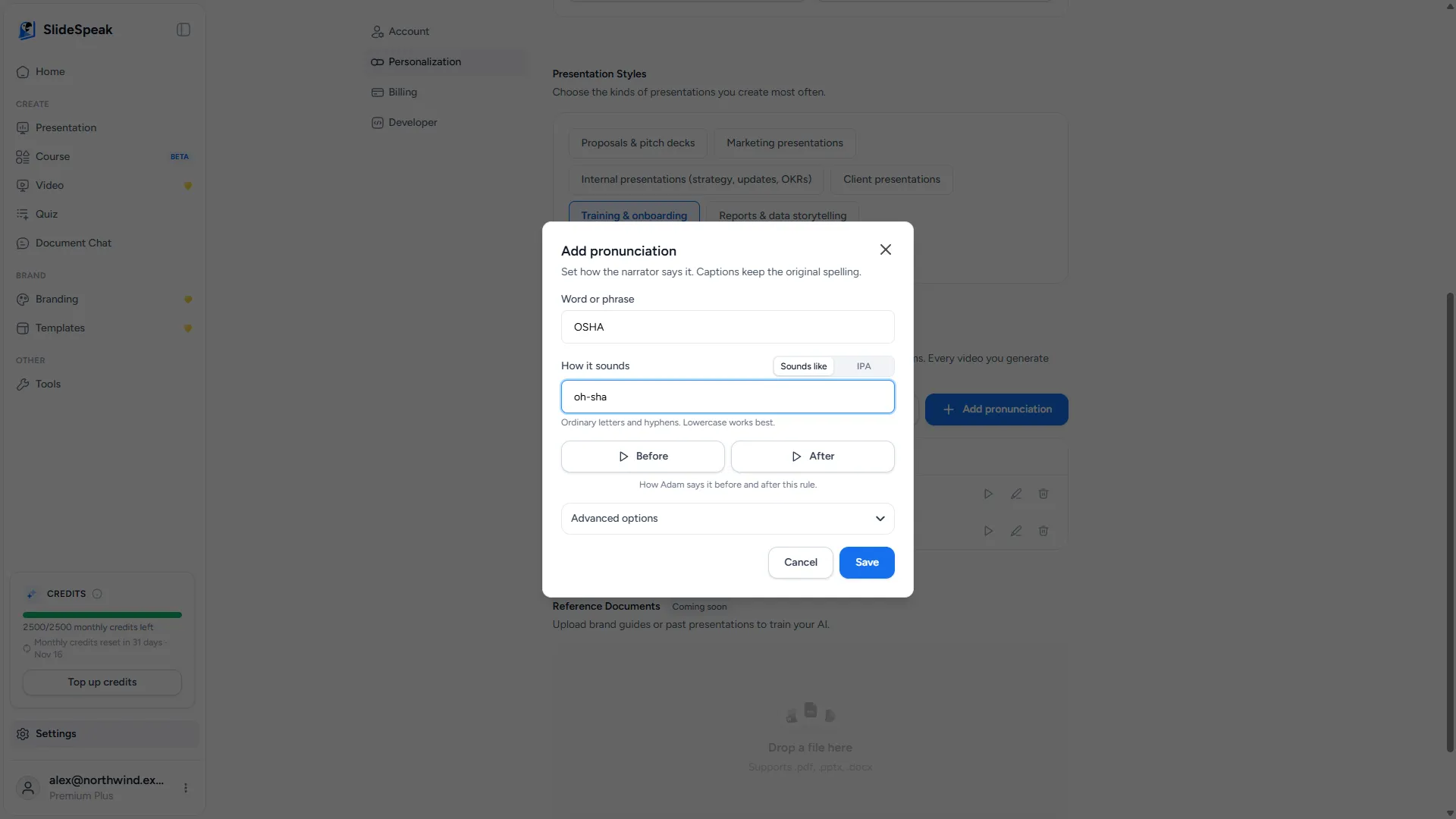
- A "Pronunciations" list in Account Settings → Personalization.
- Spell a word the way it sounds ("Sounds like"), or enter it in IPA if you need full control.
- Apply a pronunciation in every language or just one, add other spellings it should also match, and match case exactly when "US" and "us" should not sound alike.
- Preview the result before you save it.
- Import and export the whole list as a CSV.
- Add a word straight from the narration script: select it, and add its pronunciation without leaving the editor.
- Mark a word "Never translate this word", and it stays as it is when you translate a video.
How to use it
- Your company is called "Nguyen & Partners" and every narrator says it differently. Add it once, and every future video says it the same way.
- A safety course is full of acronyms like OSHA and PPE. Decide once which are spelled out and which are read as words, then export the list as a CSV and share it with the colleague who makes the next module.
Read the guide: How do I fix how the AI voice pronounces a word?
Video translation into language versions
A finished video can now become a version in another language, without rebuilding it.
Here's what's new:
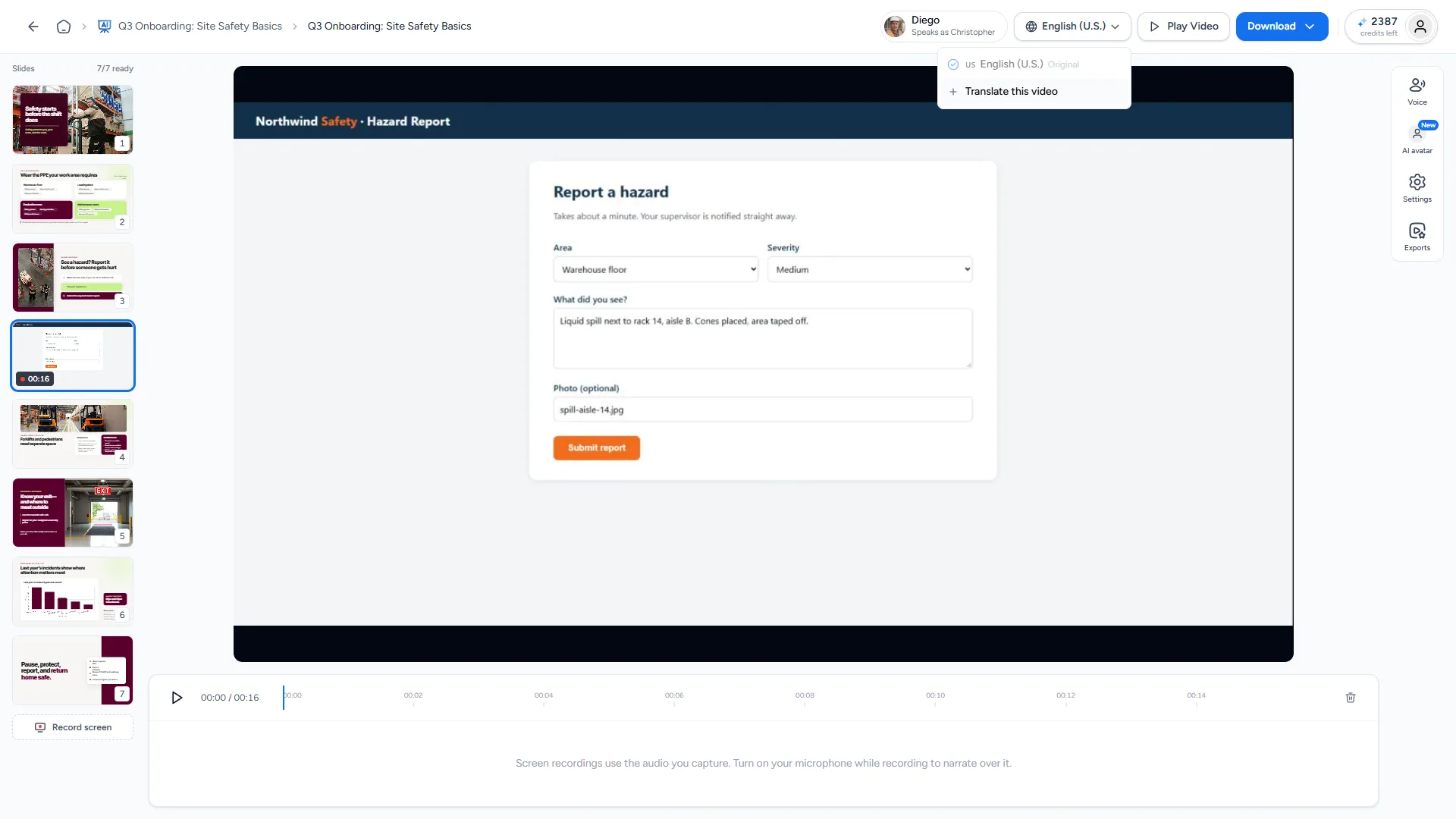
- Open the language pill (the globe) in the video editor and choose "Translate this video".
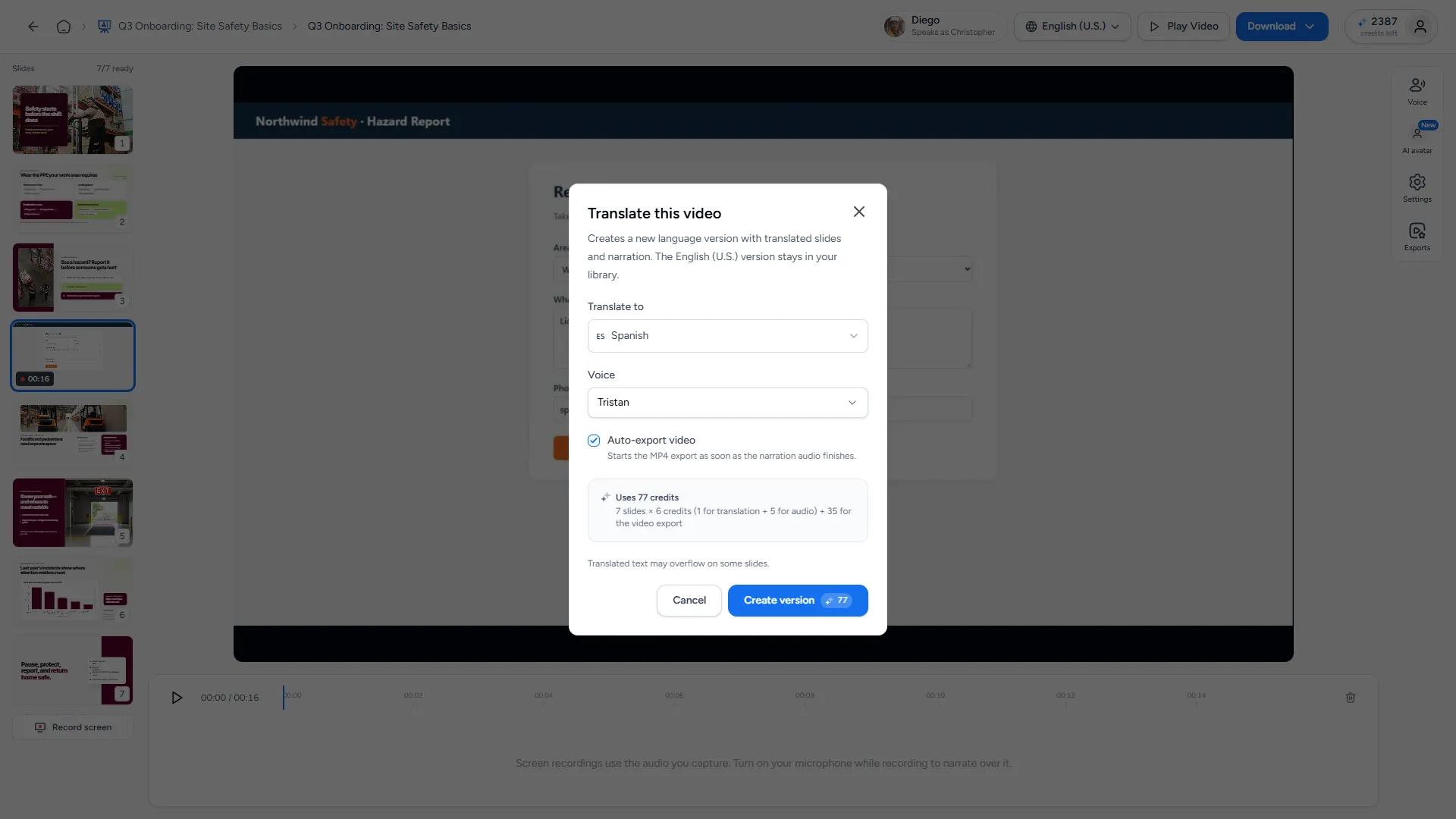
- Pick a language and a voice, tick "Auto-export video" if you want the file straight away, then "Create version".
- SlideSpeak creates a linked language version: slides and narration are translated and voiced again in the new language.
- Choose from 150+ languages. Words you marked "Never translate this word" in your glossary are left untouched.
How to use it
- Your compliance training goes to sites in Germany, Spain and Brazil. Make the English video once, then create a German, Spanish and Portuguese version from it.
- A product explainer works in English. Create a French version for one prospect before the call, and keep your product name in English thanks to the glossary.
Read the guide: How do I translate an AI video into another language?
LMS packages (SCORM) with completion rules and pass marks
In August, quizzes learned to land in your gradebook. Now the whole lesson can: video, slides and quiz in one package your LMS understands.
Here's what's new:
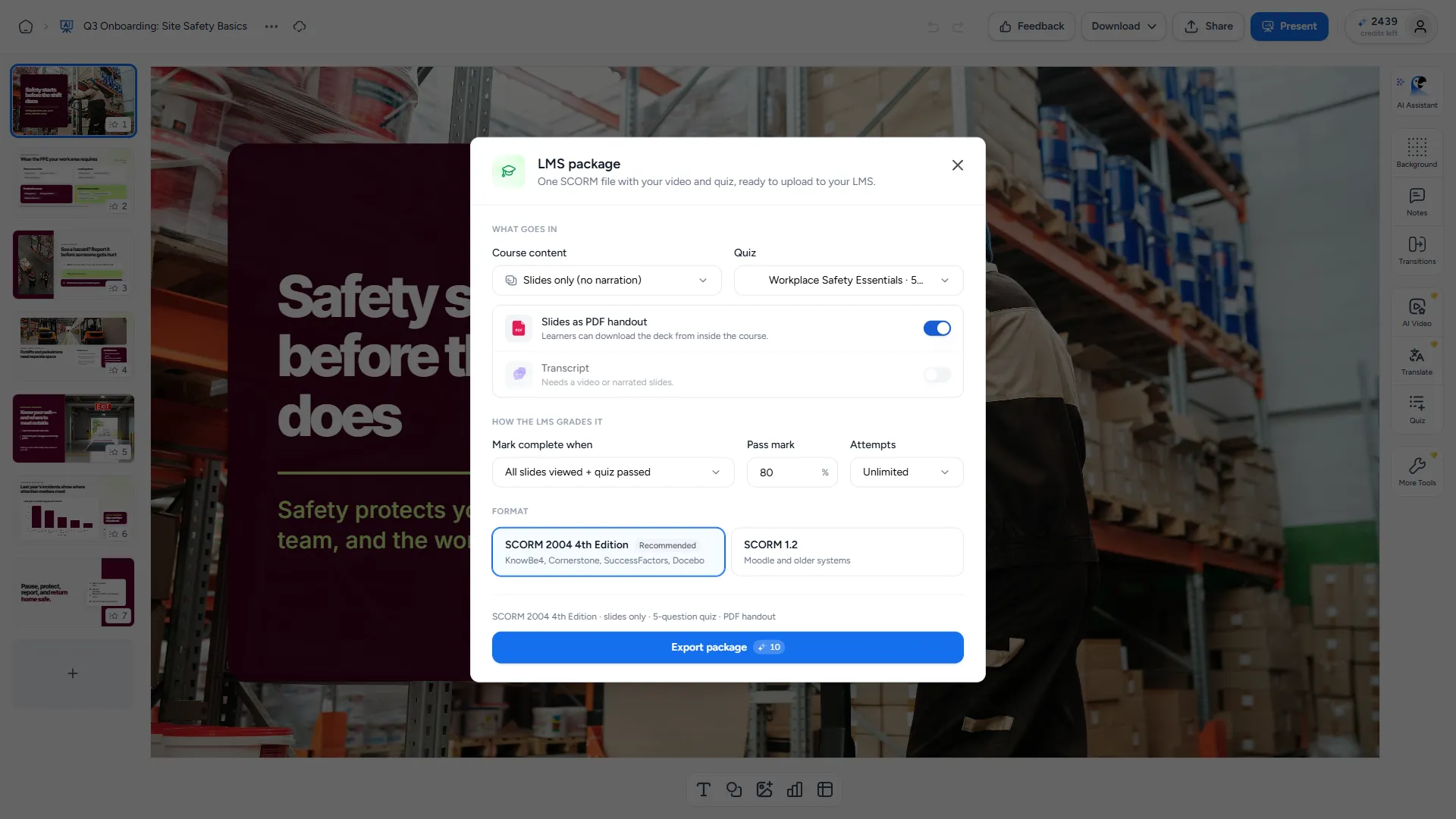
- "LMS package" in the Download menu of the editor, the video editor and the quiz editor.
- SCORM 2004 4th Edition (KnowBe4, Cornerstone, SuccessFactors, Docebo) or SCORM 1.2 (Moodle and older systems).
- Package the narrated video, the narrated slides or the slides only, and add the quiz if you have one. Optionally include the slides as a PDF handout and the transcript.
- Decide when a learner counts as done: when they open the lesson, when they finish the video or slides, or when they pass the quiz.
- Set a pass mark between 0 and 100 (80 by default) and allow unlimited attempts, 1 or 3.
- One package costs 10 credits, plus the video export if the video isn't exported yet.
How to use it
- You run annual safety refreshers. Package the narrated video with its quiz, set the pass mark to 80 and attempts to 3, and upload it to your LMS. Completion and scores show up in the reports you already use.
- A Moodle course needs a reading-only module. Export the slides only as SCORM 1.2 with "Opened" as the completion rule.
Read the guide: How do I export a SCORM package for my LMS?
Team workspaces
Until now, everything you made in SlideSpeak lived in your own account. Team workspaces (called "Organizations" in the app) give a team one shared place for its work.
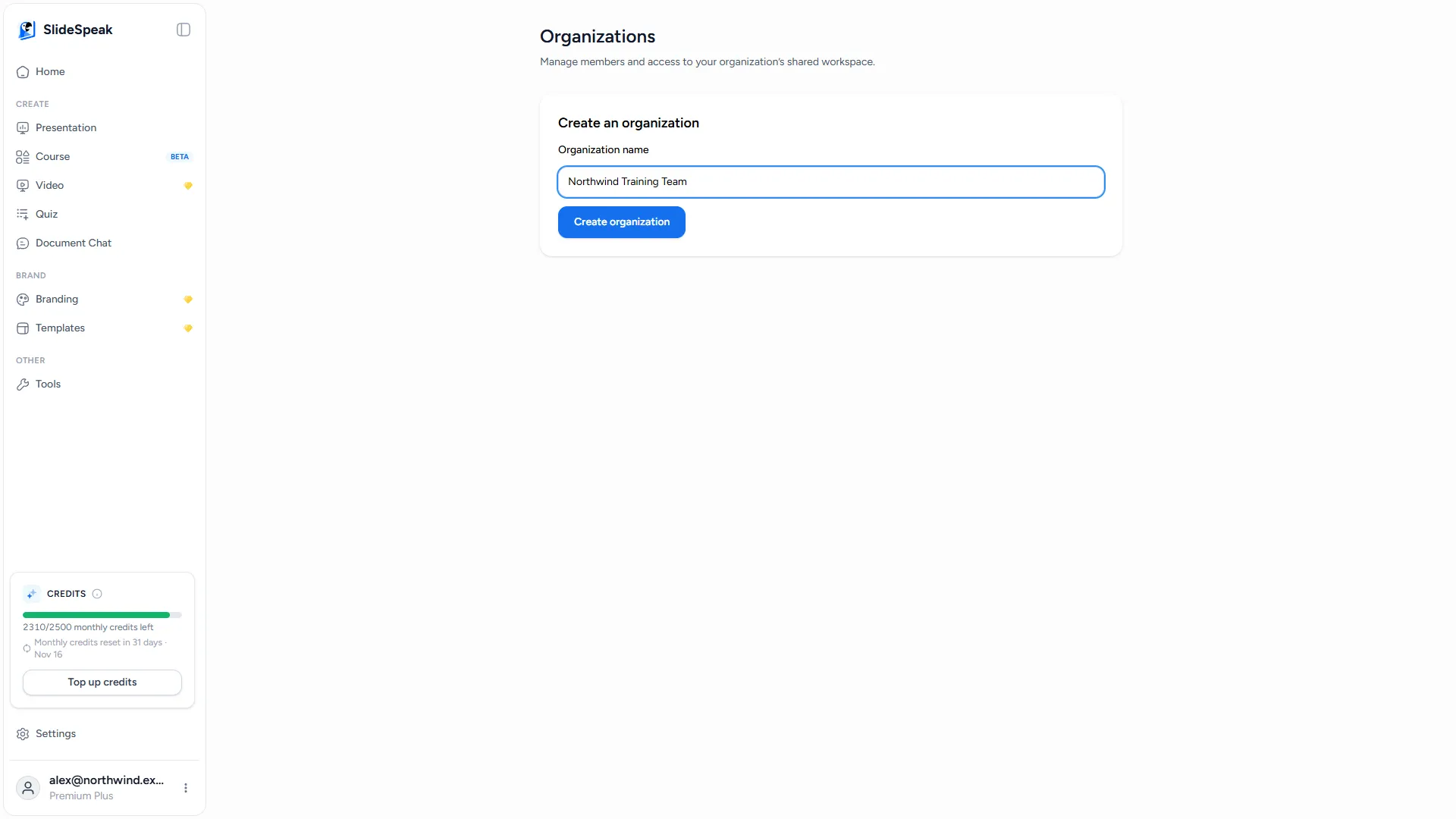
Here's what's new:
- Open your profile menu (bottom left), go to "Organizations" and choose "Create organization".
- Invite people with one reusable invite link. Copy it, reset it or revoke it any time. People join with "Join organization".
- Members share presentations, documents, videos, quizzes and courses, plus brands, custom fonts, folders, custom voices and templates.
- Switch between your "Personal workspace" and each organization from the profile menu.
- Organizations are included in every paid plan. Each member uses their own plan and credits, with no extra charge per member.
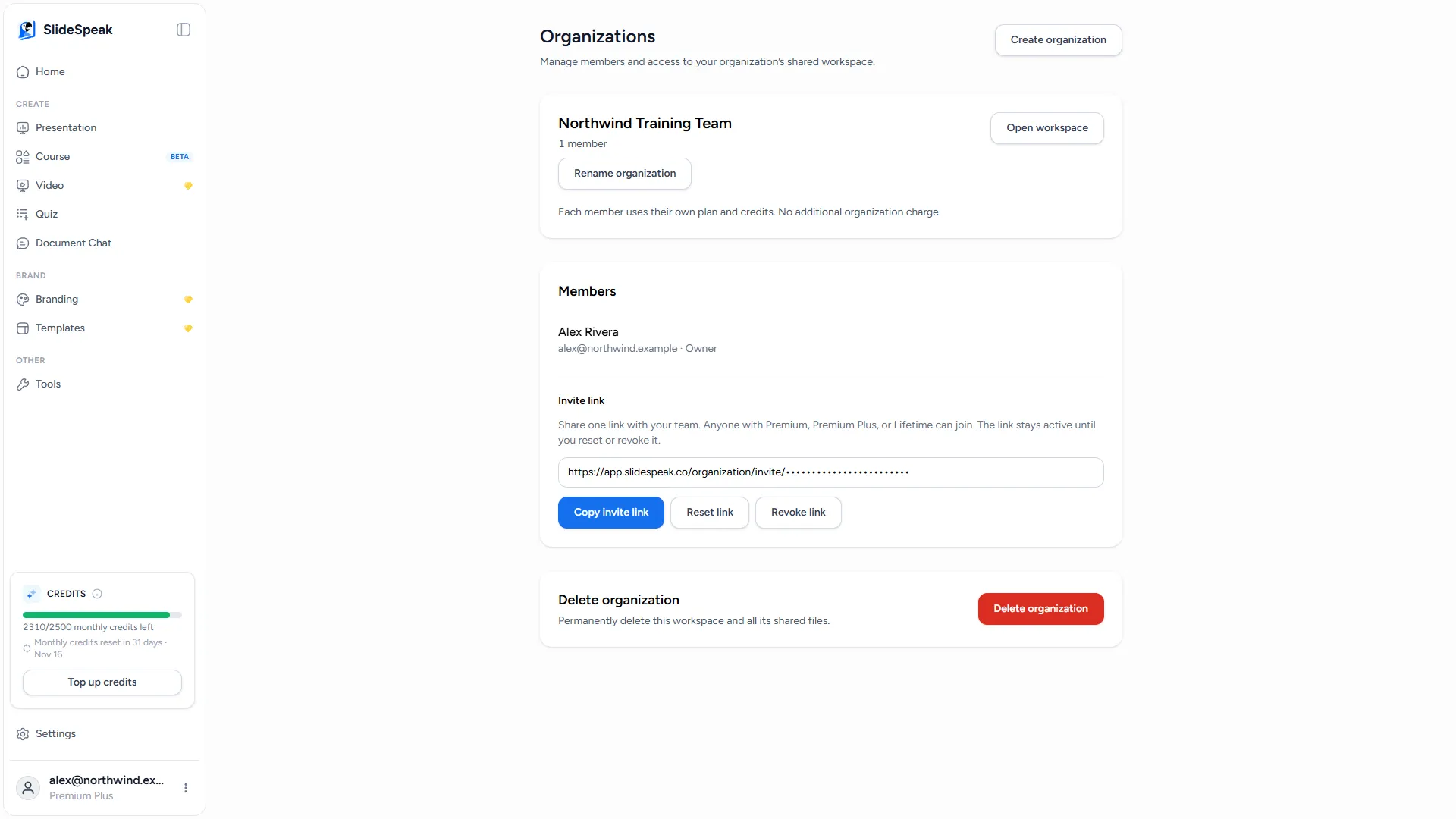
How to use it
- A three-person marketing team keeps rebuilding the same brand. Set it up once in the organization, and everyone's next deck uses the same logo, colours and fonts.
- A training department shares one library of courses and videos, so whoever is on call can update a module without asking for files.
Read the guide: How do I create a team workspace?
Invite people to a presentation
Sometimes you don't need a whole workspace, just a second pair of eyes on one deck.
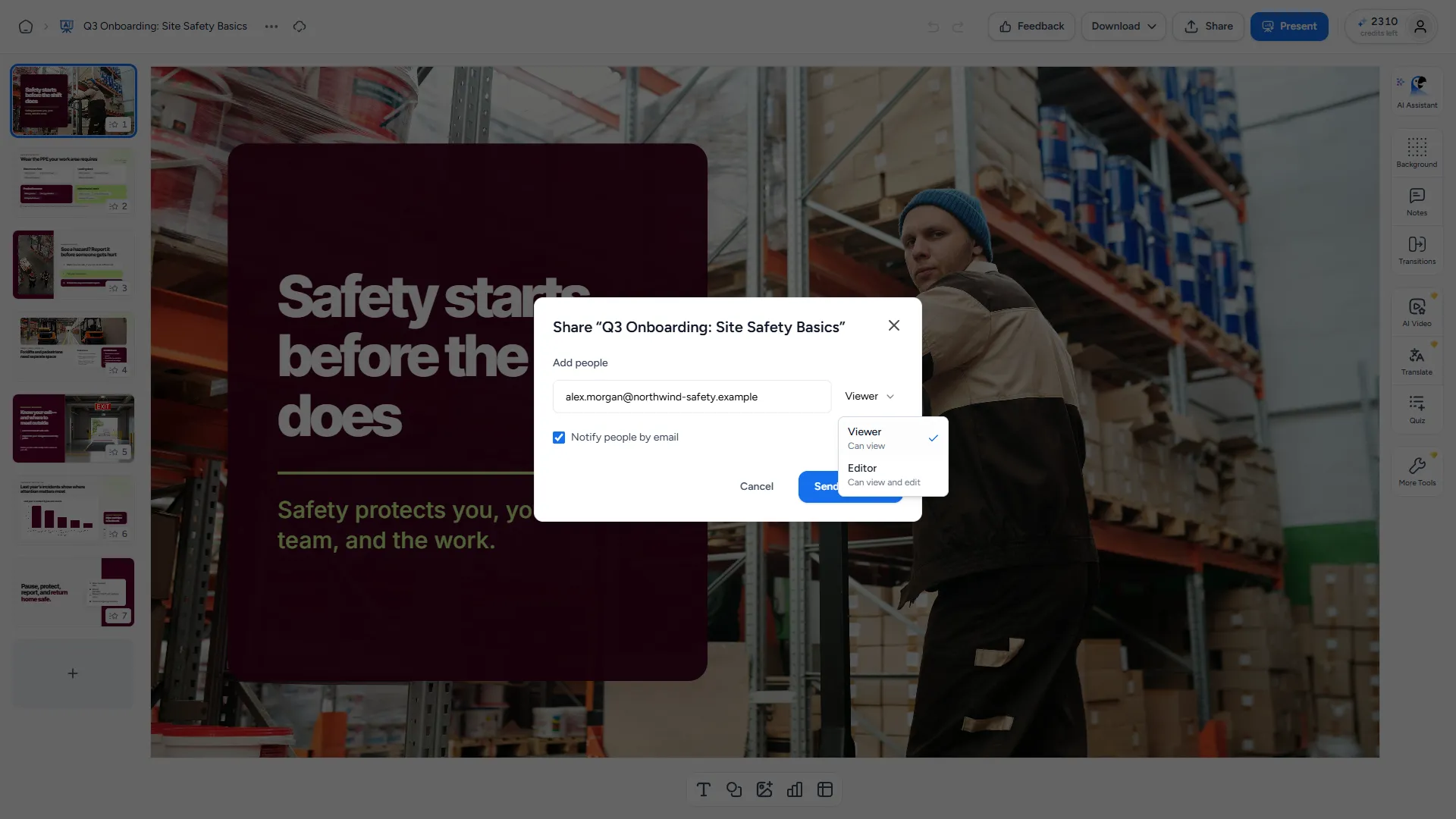
Here's what's new:
- In the editor, click "Share", then "Add people" and enter an email address.
- Give each person the "Viewer" role (can view) or the "Editor" role (can view and edit). SlideSpeak emails them unless you turn "Notify people by email" off.
- Resend an invitation or remove someone's access at any time.
- Decks others share with you appear under "Shared with me".
- One person edits at a time. If a colleague is already editing, you see who it is, can view in the meantime, and take over automatically when they finish.
- General access is still there: keep a deck "Restricted" or open it to "Anyone with the link".
How to use it
- Your manager wants to read the board deck before Friday but shouldn't change it. Invite them as a Viewer.
- A colleague owns the numbers slides. Invite them as an Editor and let them update the charts themselves.
Read the guide: How do I invite someone to view or edit a presentation?
Share analytics
Once a deck is out there, you can now see whether anyone opened it.
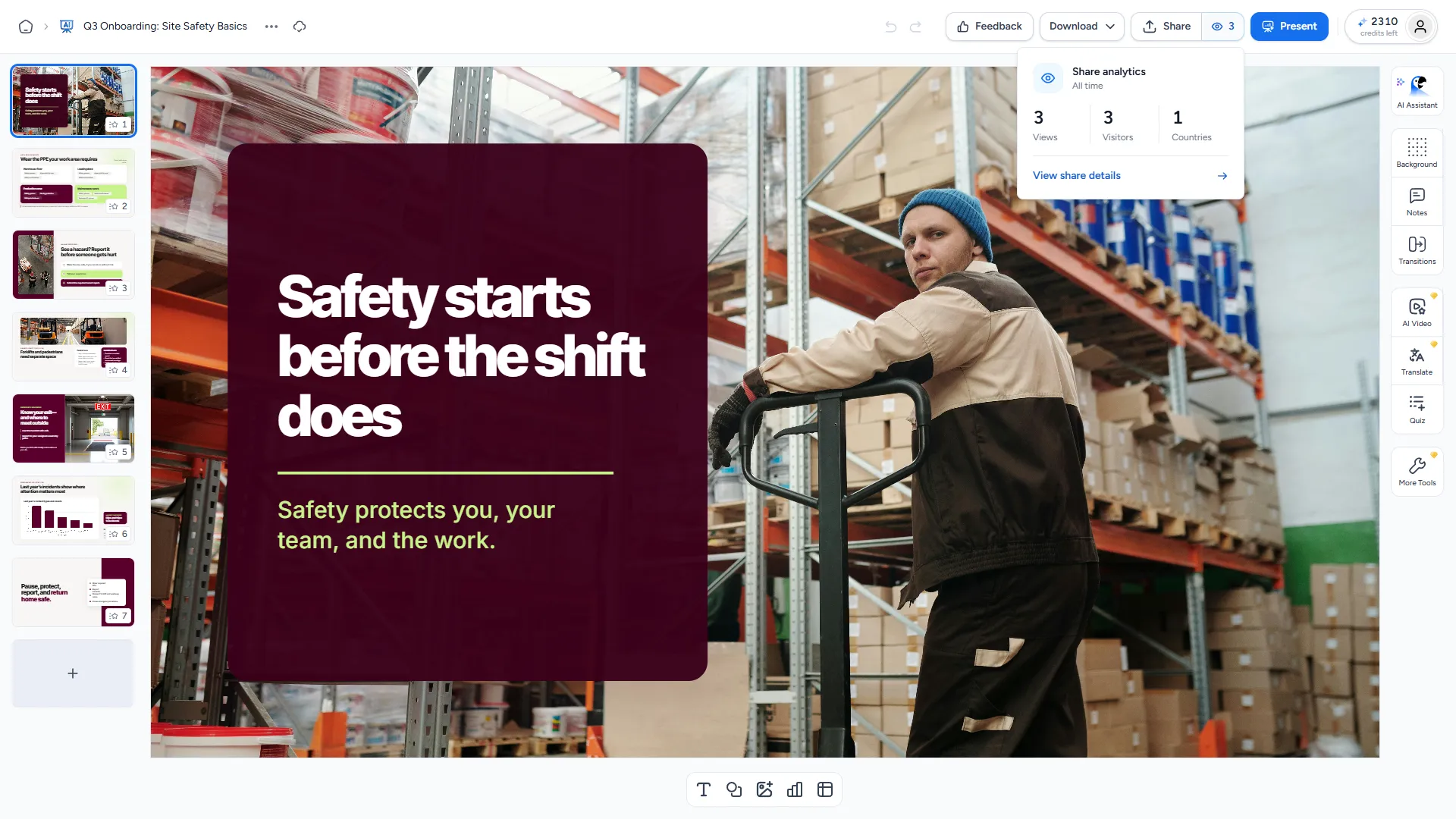
Here's what's new:
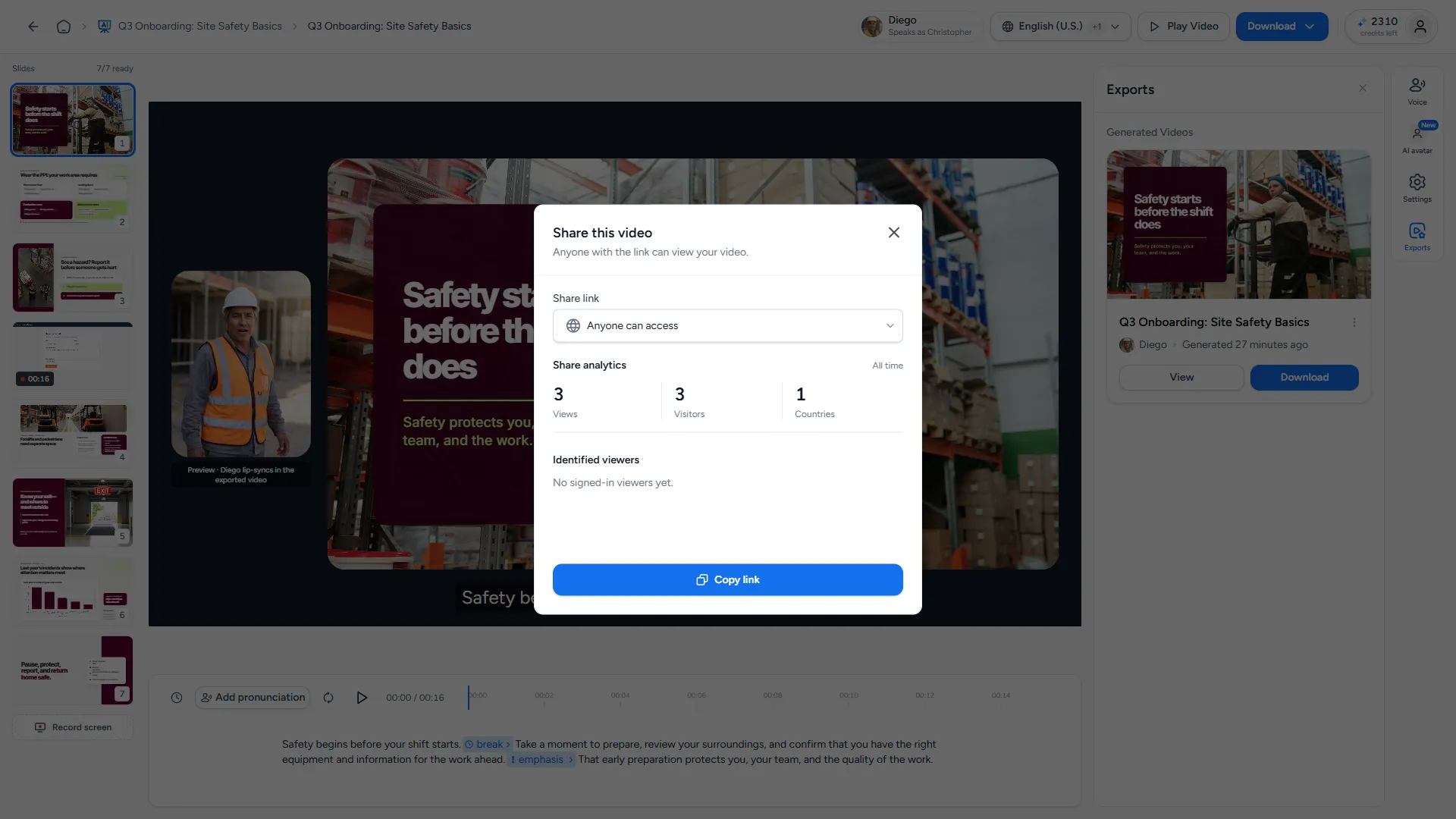
- Shared decks show a view count next to "Share" in the editor. Click it for "Share analytics", then "View share details" to open the share settings.
- See views, unique visitors and the countries they came from. For AI videos and team-workspace presentations you also see identified viewers: people who were signed in to SlideSpeak, shown by email.
- Your own visits don't count.
- Shared videos get the same analytics.
How to use it
- You sent a proposal on Monday. Before the follow-up call on Thursday, check whether it was opened, and how many people looked at it.
- An internal announcement went to the whole company. See which countries actually opened it before you plan the next one.
Read the guide: How do I see who viewed my presentation or video?
Slide transitions and present mode
You can now present straight from SlideSpeak, with transitions, instead of downloading first.
Here's what's new:
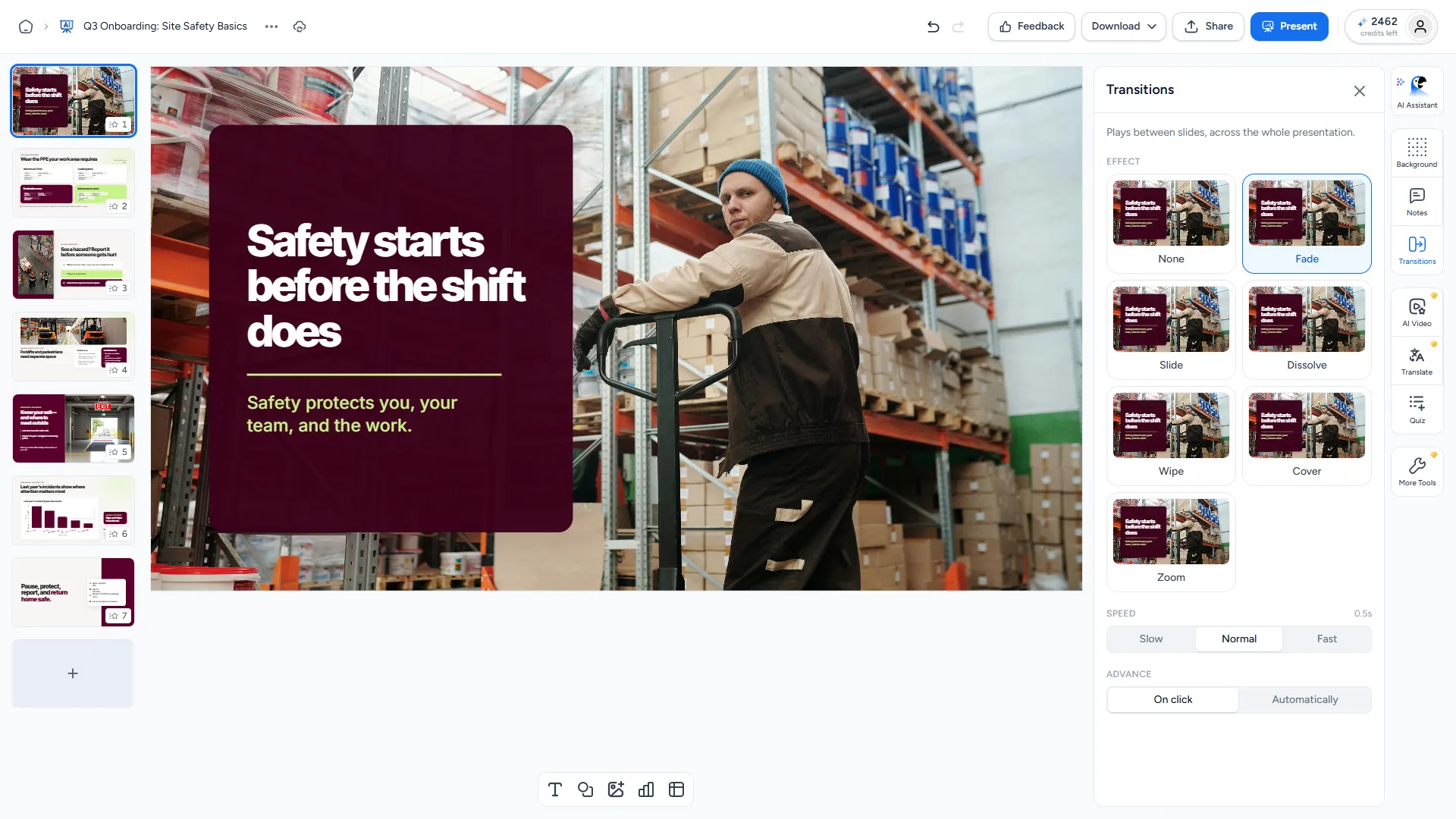
- A "Transitions" panel in the editor's right-hand toolbar: Fade, Slide, Dissolve, Wipe, Cover or Zoom.
- Set the speed (slow, normal or fast) and, for Slide, Wipe and Cover, the direction.
- Advance on click, or automatically every 3, 5, 10 or 30 seconds.
- Transitions carry over when you download the deck as PowerPoint.
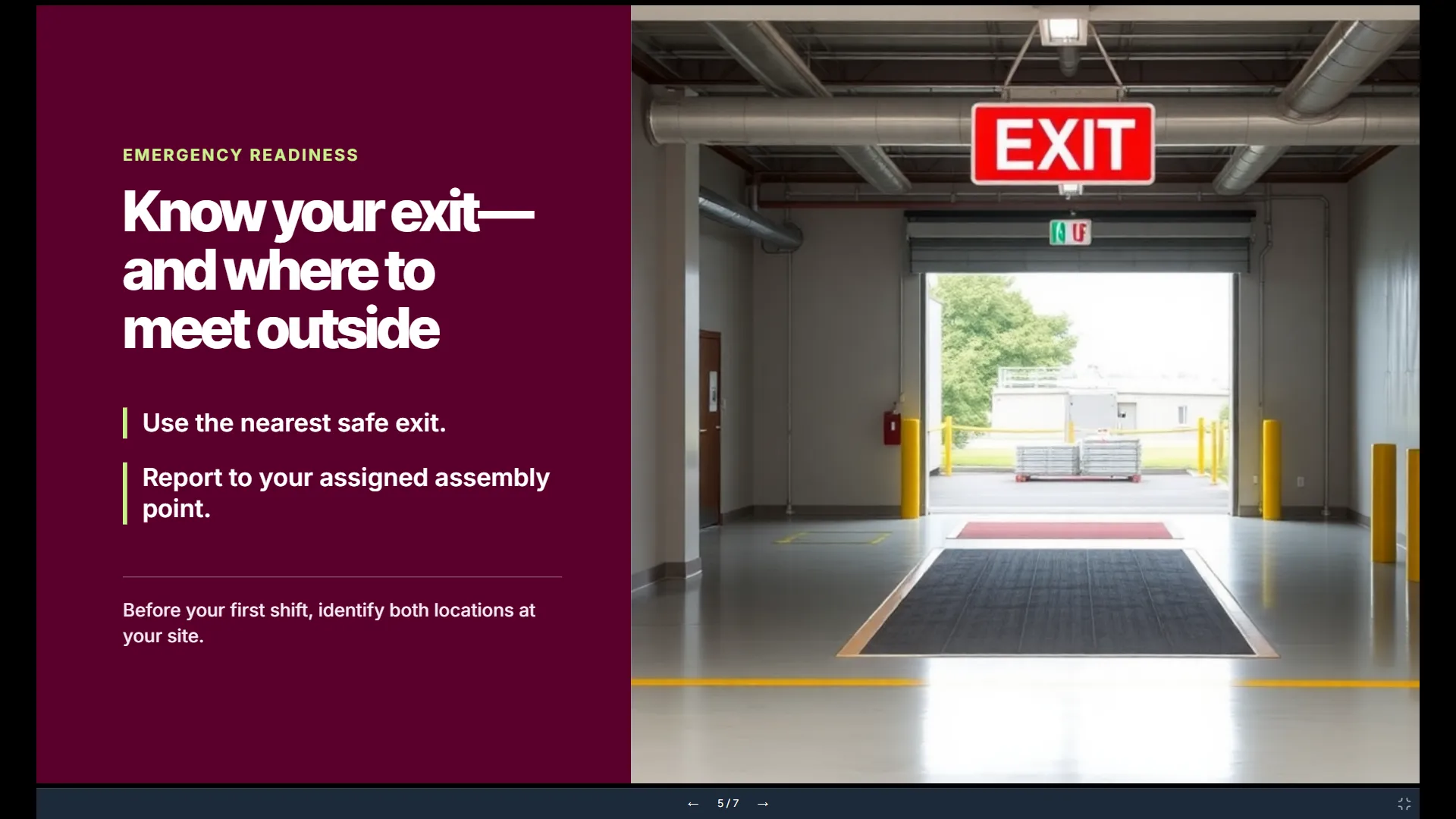
- Click "Present" in the top bar to go fullscreen. Use the arrow keys to move between slides and Esc to exit.
How to use it
- You run a webinar from the browser. Hit "Present" and skip the download-then-open-in-PowerPoint step.
- A deck plays on a screen at your booth while you talk to visitors. Set slides to advance automatically every 10 seconds; it stops on the last slide.
Read the guide: How do I add slide transitions and present my slides?
Everything else that shipped
- A new AI assistant. Charles, the assistant in the editor, was rebuilt. Ask for edits across one slide or the whole deck, and get a clear summary of what changed. How do I edit slides with the AI assistant?
- Video downloads in one menu. MP4, "PowerPoint with narration" and "Transcript (PDF)" now sit together in the video editor's Download menu. How do I download my AI video?
- Narration length. Choose Concise, Default or Detailed narration when you set up a video.
- Speaker notes as your script. "Use original notes without changes" narrates your speaker notes word for word.
- Premium voice quality for your own voice. When you clone your voice, choose Custom or Premium quality. Stock voices also sound more natural.
- Switching voices no longer costs twice. Go back to a voice you already used, and SlideSpeak reuses that narration instead of charging for it again.
- Your words stay your words. Text you write out for a slide in your prompt is kept word for word in the generated deck.
- Import or redesign. When you pick a PowerPoint, SlideSpeak asks whether to import it as it is or redesign it from its content. How do I redesign an existing PowerPoint with AI?
- Better PowerPoint imports. SmartArt, charts and embedded objects now show up the way they looked in PowerPoint when you import a deck.
- A redesigned dashboard. A new sidebar, a homepage that picks up where you left off, and settings split into tabs. Document chat is back in the sidebar with a redesigned screen. How do I chat with a PDF or Word document?
- SlideSpeak on your phone. The dashboard and library were rebuilt for small screens. Can I edit presentations on my phone?
- A faster editor. Presentations open sooner, and pages load less code on the first visit.
- Older browsers. Autosave and the rest of the app now work on older versions of Chrome, Firefox and Safari.
- Clearer errors. If the AI provider declines to write a slide, SlideSpeak tells you which one.
- Quizzes in your language. True/False answers are labelled in the quiz's language.
- And a lot of bug fixes!


